Beta
Digital Twin
A live 3D model of your plant floor that shows each machine's status, OEE, and current job in real time, scores zones by 5S, and lets you build the layout and show it on a wall display.
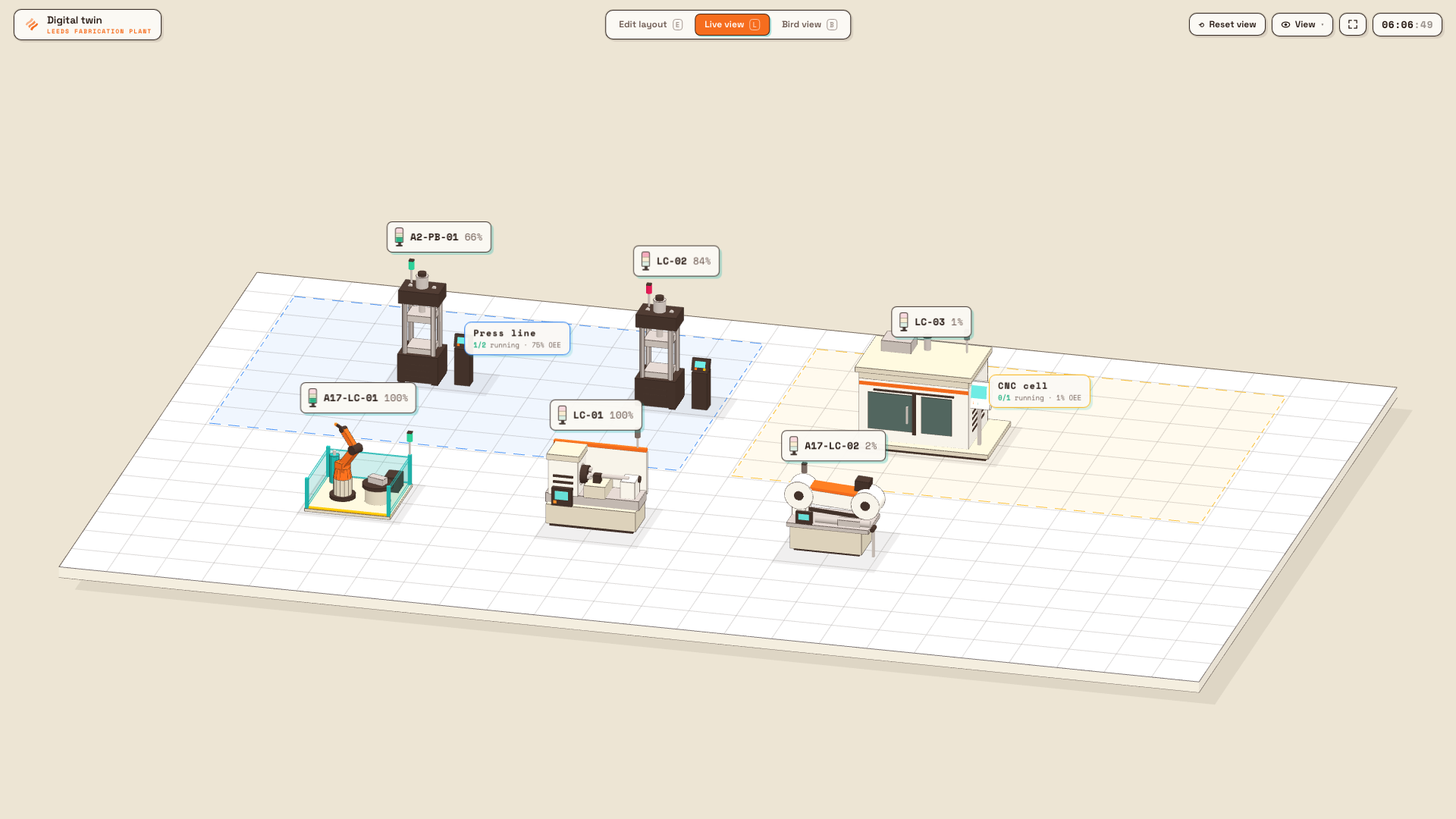
The Digital Twin is a live, three-dimensional model of one plant's factory floor. Machines you place on the floor link to your real assets, so the model shows each one's live status, today's OEE, the job it is running, the operator on station, and any open downtime — updated continuously while you watch. Floor zones can be scored by 5S, and the whole scene runs full-screen on a wall display as a shift-office andon board (an andon is a factory signal that shows status at a glance).
Use the Digital Twin when you want a single at-a-glance picture of what is happening across the floor right now, rather than reading a table row by row. It suits a shift huddle, a supervisor's wall display, or a walk-the-floor review where you want to spot a stopped machine or a low-OEE cell instantly by its colour.
digital-twin.overview-01
Before you start
The Digital Twin lives at its own full-screen route and has no sidebar. You reach it from the home screen tile named Digital Twin (subtitle "3D factory floor").
Two permissions govern what you can do:
- View the floor requires the
digital_twin.viewpermission. On the standard roles this is granted to Super user, Entity admin, Manager, and Dashboards. The first time anyone with view access opens the page for an entity, Bulk creates a default layout named "Factory floor" automatically, so a view-only account or a wall-mounted display always gets a scene. - Edit the layout requires the
digital_twin.managepermission, granted to Super user, Entity admin, and Manager. Without it, the Edit layout control is hidden and the floor is view-only.
For the floor to show live data, two things need to be in place:
- Machines linked to assets. A machine on the floor only shows live status, OEE, and jobs once it is linked to one of your assets. Assets are your machines and work centres, configured in master data. Each asset can back at most one machine per floor.
- Optional: zones linked to audit areas. A floor zone shows a live 5S score only when it is linked to an audit area that has completed 5S audits.
The three views
A segmented control in the top bar switches between three views. Each has a keyboard shortcut, shown on the button.
- Live view (
L) — the working andon board. Machines are coloured by their current status and the inspector shows live telemetry. - Bird view (
B) — a higher, orbiting camera for a whole-floor overview. - Edit layout (
E) — build and arrange the floor. This button only appears if you have manage permission.
Machine colours follow the same status vocabulary as the asset board, so the two always agree:
| Status | Colour | Meaning |
|---|---|---|
| Running | Green | The asset is actively producing. |
| Paused | Amber | Production is paused. |
| Down | Red | The asset is stopped, usually on a downtime reason. |
| Idle | Grey | The asset is on but not running. |
Reading a machine
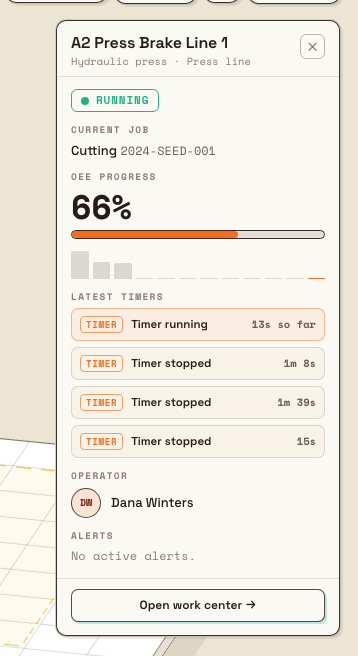
Select a machine in Live or Bird view to open its inspector. For a machine linked to an active asset, the inspector shows:
- A status pill — Running, Paused, Down, or Idle.
- Current job — the step name and job number currently loaded on the asset, or "No job loaded."
- OEE progress — today's OEE as a percentage, a bar, and a small sparkline of two-hour buckets across the working day. OEE (Overall Equipment Effectiveness) here is the recorded-time OEE for today, the same figure the asset board and OEE timeline use.
- Latest timers — recent timer and OEE activity, such as a running timer or a paused reason.
- Operator — who is on the station, or "Unassigned."
- Alerts — an open downtime chip with the reason and how long ago it started, or "No active alerts."
A machine that has not been linked to an asset shows "Not linked" and the note "Link this machine to an asset to see live status, OEE and job progress." Passive items such as racks, pallets, and forklifts carry no telemetry and show a "Passive" state instead. Live figures refresh on their own about every 30 seconds while the page is visible, so a wall display stays current without anyone touching it.
digital-twin.overview-02
Zones, walls, and 5S
Zones are labelled areas you draw on the floor — a press cell, a finishing area, a dispatch lane. A zone's inspector rolls up the linked machines inside it (how many are running and their average OEE) and lists them.
When a zone is linked to an audit area, its inspector also shows a live 5S score — the average score of that area's completed 5S audits over the last 30 days. 5S is a workplace-organisation standard (Sort, Set in order, Shine, Standardise, Sustain). If the area has no completed audits yet, the zone shows "No completed 5S audits."; a zone with no linked area shows "Link an audit area to show its live 5S score."
Walls, safety barriers, and machine fencing are purely visual. They help the model resemble the real building but carry no data.
The floor status summary
In Live and Bird view a small status pill sits in the corner, summarising the floor: a count of machines by status (running, idle, paused, down), the average OEE across linked machines, and the number of zones. Hovering it opens a fuller breakdown under the heading Work centers, with a stacked bar, per-status rows, the average OEE today, and the active zones. These counts cover linked machines only.
Building the floor (Edit layout)
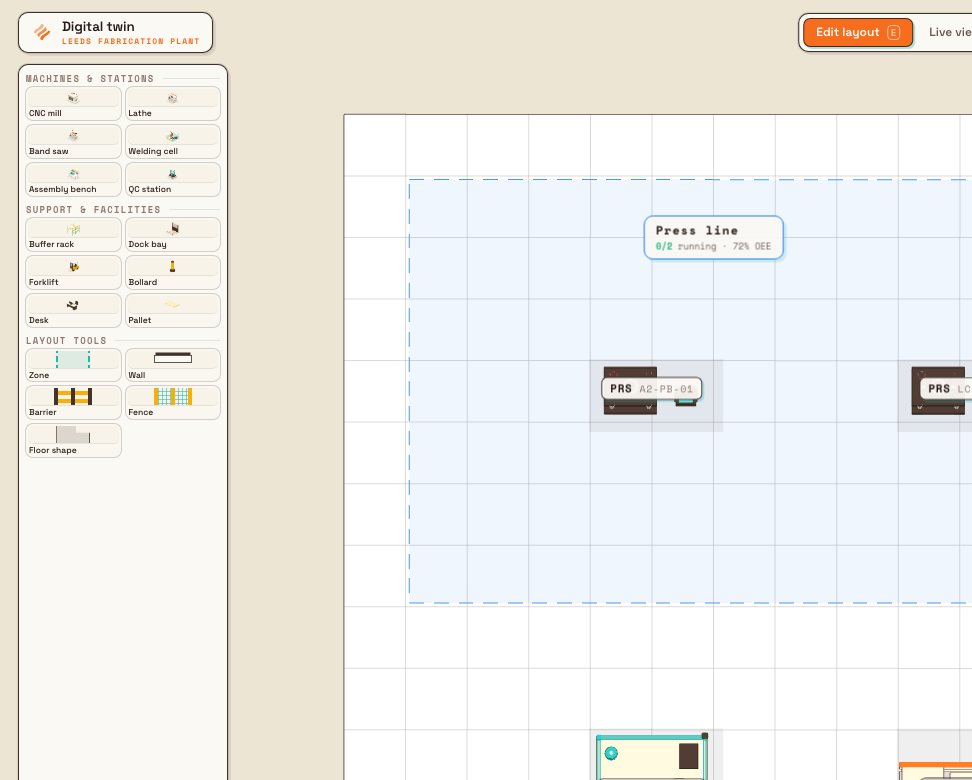
Switch to Edit layout to open the palette. It is organised into three sections:
- Machines & stations — active equipment (presses, CNCs, printers, test machines, and so on). These are the items you link to assets.
- Support & facilities — passive set dressing such as racks, pallets, docks, benches, and forklifts. These never link to an asset.
- Layout tools — Zone (drag to draw), Wall (drag to draw), Barrier (drag to draw), Fence (drag to draw), and Floor shape (draw or erase the floor slab).
To build the floor: pick a model from the palette, click an open cell to drop it, then drag it to reposition. With a machine selected you can rotate it in 90-degree steps using the on-screen controls or the Q and E keys, and link it to an asset from the Linked asset picker in its inspector. Search the picker by asset name or code; an asset already placed elsewhere on this floor is marked "placed" and cannot be picked again. Use Unlink to release an asset.
The floor is a single shared layout per plant — the same one the wall display and every viewer sees — so your edits take effect for everyone as you make them.
Removing items has no undo
Removing a machine, deleting a zone, or removing a wall takes effect immediately for everyone viewing the floor and cannot be undone from the Digital Twin. Re-add and re-link the item if you remove it by mistake.
digital-twin.overview-03
Display and wall-mounted (TV) mode
The View menu in the top bar controls what shows on the floor: Machine labels (full, compact, or off), Zone labels, Floor grid, and Legend & counters. A fullscreen control puts the whole scene into TV mode for a wall display, and Reset view returns the camera to its default framing.
You move around with the mouse (drag to move the view, right-drag or Alt-drag to orbit, scroll or pinch to zoom) or the keyboard (arrow keys or WASD to move, Shift with the arrows to orbit, + / - to zoom, R or 0 to reset). For the full walkthrough of moving around the floor, see Navigate the 3D factory floor.
Example: the Leeds shift office
Granite Peak Manufacturing runs the Digital Twin on a wall display in the shift office at its Leeds Fabrication Plant. The plant admin has built the floor once — dropping the press line, the CNC cell, the finishing benches, and the dispatch racks, then linking each machine to its asset and drawing a zone for each cell. The office display runs in fullscreen Live view with Machine labels set to compact.
At the 2 p.m. handover the outgoing supervisor glances at the wall. The press line is green and the status pill reads a healthy average OEE. One CNC shows red; selecting it opens the inspector, which shows a Down pill and an alert chip reading a tooling-change downtime that started 12 minutes ago, with no operator assigned. The Finishing zone shows a 5S score of 78% from its linked audit area. In under a minute the supervisor has briefed the next shift on the one machine that needs attention — without opening a single report.
Expected result
You have a live 3D model of the plant floor where every linked machine shows its real status, today's OEE, current job, operator, and downtime, updated automatically; zones roll up their machines and (when linked) a live 5S score; and the whole scene runs full-screen on a wall display as a self-updating andon board.
Beta and current limits
The Digital Twin is a beta feature. It is fully usable for viewing and editing the floor today, but it is newer than Bulk's core modules and still gaining capabilities, so labels and behaviour may change between releases.
Known limits to keep in mind:
- One floor per plant. Each entity has a single shared layout. The data model anticipates multiple layouts (separate halls) per plant, but the current interface manages one default "Factory floor" per entity.
- Live data depends on links. A machine with no linked asset shows no telemetry, and a zone with no linked audit area shows no 5S score. Passive support items never carry data.
- OEE and 5S windows are fixed. Machine OEE is today's recorded-time OEE; a zone's 5S score averages completed audits over the trailing 30 days. These windows are not adjustable from the floor.
- Editing is shared and immediate. There is no per-user draft and no undo; changes apply to the shared floor at once.
Troubleshooting
- A machine stays grey or shows "Not linked." It has not been linked to an asset. In Edit layout, select the machine and choose an asset in the Linked asset picker. Passive support items are grey by design and never link.
- "This asset is already placed on the floor." That asset already backs another machine on this layout — an asset can only be linked once per floor. Find and remove the existing machine, or link a different asset.
- A machine is linked but shows no job, operator, or OEE. The asset is linked but has no current production activity for today, or the linked asset is inactive. Confirm the asset is active and producing on the asset board.
- A zone shows "No completed 5S audits." The linked audit area has no completed 5S audits in the last 30 days. Run or complete a 5S audit for that area, then the score appears.
- The Edit layout button is missing. Your role does not include the
digital_twin.managepermission. Ask an administrator to grant it, or use the floor in view-only mode. - The floor looks empty on a display. The default layout is created on first open but starts blank. Someone with manage permission needs to place and link machines first.
Dates and time zones
The Digital Twin's today OEE, active job, and current-shift state use the selected plant's timezone. Live event timestamps preserve their exact moment, while calendar-day and weekly summaries use the plant day and the organization's shared week-start rule.
Related guidance
- Navigate the 3D factory floor — moving the camera, switching views, and TV mode in detail.
- Use the asset board — the source of each machine's live status.
- OEE timeline — how the OEE shown on each machine is built.
- 5S analytics and running a 5S audit — the audits behind a zone's 5S score.
- Assets and layouts — configuring the assets you link machines to.
Review cross-plant performance in Atlas
Use Atlas to compare every plant side by side — build a saved pivot of sites against metrics, read it by period, drill into any cell, and share it with your team.
Navigate the 3D factory floor
Open the Digital Twin, switch between Live, Bird, and Edit views, move the camera, and read live machine status, OEE, and 5S zone scores on an interactive 3D map of your factory floor.