Manage KPI categories
Group your KPIs into named, color-coded categories such as Safety, Quality, and Delivery so every metric stays organized and easy to find across your plants.
A KPI (key performance indicator) is a measurable value that tracks how your operation performs against a target — for example on-time delivery, scrap rate, or first-pass yield. As you add more KPIs, categories keep them organized. A KPI category is a named, color-coded group such as Safety, Quality, or Delivery that every KPI is filed under.
Categories matter for two reasons:
- Organization. In dashboards, reports, and the KPI list, metrics are grouped by their category, so people find the numbers they care about faster.
- A required building block. Every KPI must belong to exactly one category. When someone creates a KPI, the Category field is required — so you need at least one category before you can create your first KPI.
Categories are shared across your whole company account (your tenant) in Bulk. The categories you create apply to every plant, not just the one you are currently working in.
Where to find it
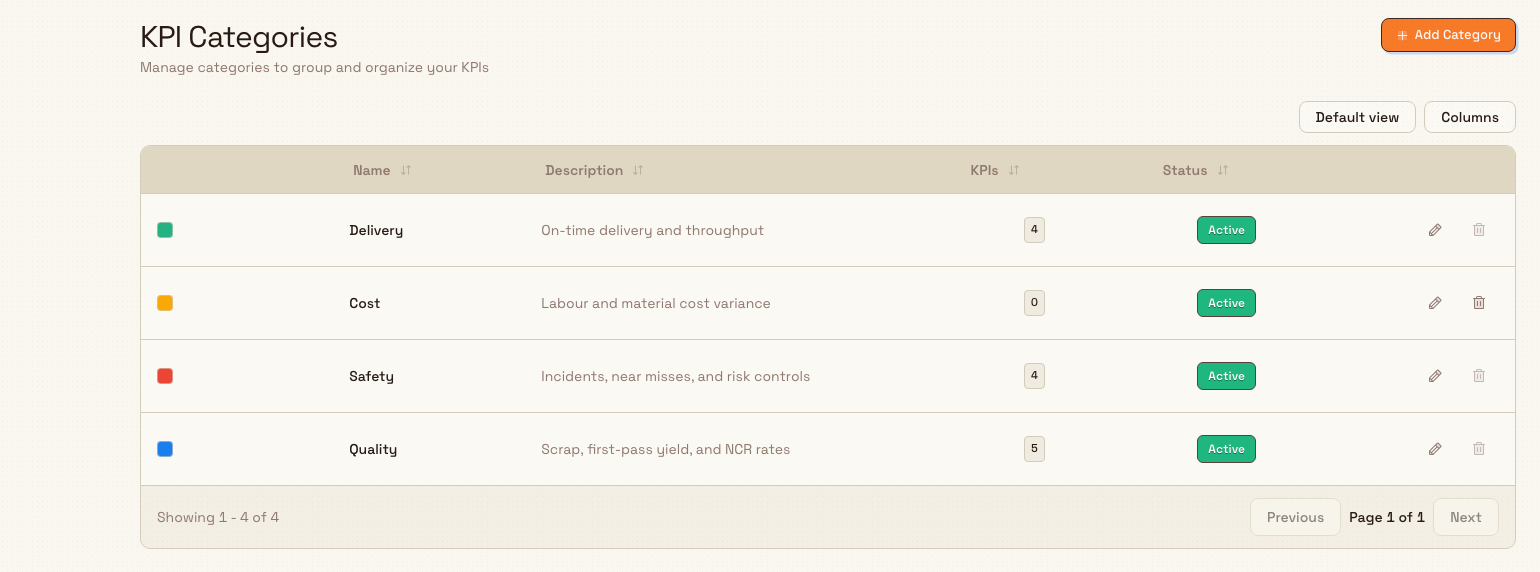
Open Settings, then go to KPI → Categories. The page lists every category in your account.
kpi.categories-01
Who can manage categories
Anyone signed in to your account who can open the Settings area can view this page and its list of categories.
Creating, editing, and deleting categories each require a KPI management permission:
- Creating a category requires the kpi.create permission.
- Editing a category requires the kpi.update permission.
- Deleting a category requires the kpi.delete permission.
By default these permissions come with the Super user, Entity admin, and Manager roles. If you can see the categories list but the actions fail, your role does not include the matching permission — ask an administrator to grant it or to make the change for you.
What the list shows
Each row in the table describes one category:
- Color — a small colored swatch that identifies the category at a glance.
- Name — the category name.
- Description — the optional description, or a dash when none was set.
- KPIs — how many KPIs currently belong to this category.
- Status — an Active or Inactive badge.
You can sort the table by clicking the Name, Description, KPIs, or Status column header.
Create a category
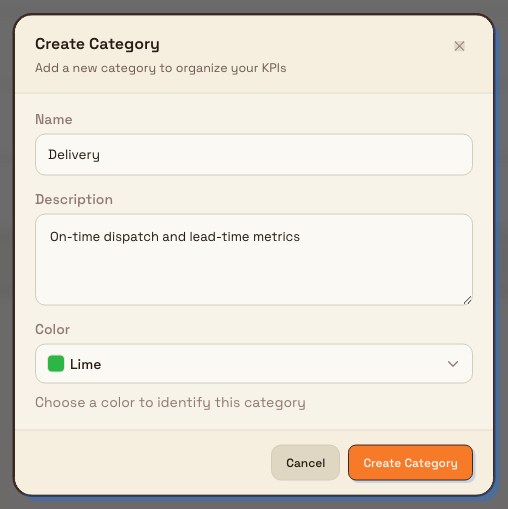
- On the KPI Categories page, select Add Category. The Create Category dialog opens.
- Enter a Name. The name is required, must be 100 characters or fewer, and must be unique within your account. The field suggests examples such as Safety, Quality, Delivery.
- Optionally enter a Description (up to 500 characters) to explain what the category covers.
- Optionally choose a Color from the palette to help the category stand out in lists and charts.
- Select Create Category. Bulk saves the category and it appears in the list immediately.
New categories are created as Active.
kpi.categories-02
Example: organizing KPIs at Granite Peak Manufacturing
Granite Peak Manufacturing wants its plant teams to see performance grouped the same way everywhere. Dana, an administrator, opens Settings → KPI → Categories and creates four categories:
- Safety (red) — incident and near-miss metrics.
- Quality (blue) — scrap rate and first-pass yield.
- Delivery (green) — on-time dispatch and lead time.
- Cost (amber) — cost per unit and overtime hours.
Because categories are shared across the company account, the Leeds Fabrication Plant and every other Granite Peak site now file their KPIs under the same four groups. When a team later creates an on-time-dispatch KPI, they pick Delivery in the required Category field, and it lands in the right group on every dashboard.
Edit a category
- In the category row, select the Edit category (pencil) button. The Edit Category dialog opens with the current values.
- Update the Name, Description, or Color.
- Select Save Changes. The updated details appear in the list.
Renaming a category updates it everywhere the category is shown; the KPIs already filed under it stay attached.
Delete a category
You can only delete a category that has no KPIs assigned to it. This protects your KPIs from losing their required group.
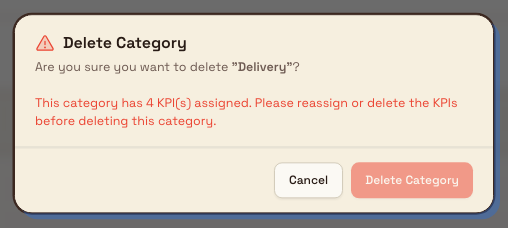
- In the category row, select the Delete category (trash) button. If the category still has KPIs, this button is disabled — its KPI count must first reach zero.
- In the Delete Category confirmation, review the message:
- If the category has KPIs assigned, Bulk explains that you must reassign or delete those KPIs before the category can be removed, and the confirm button stays disabled.
- If no KPIs are assigned, Bulk warns that the action cannot be undone.
- Select Delete Category to confirm.
Deleting a category cannot be undone from the app
Once you confirm, the category is removed from the list and there is no in-app way to restore it. Delete only categories you are sure you no longer need.
kpi.categories-03
Expected result
After you create or edit a category, it appears in the list right away with its color, name, description, KPI count, and status. New categories become available immediately in the Category field when anyone creates a KPI. Deleting an empty category removes it from the list and from that field.
Feature state and limitations
This capability is generally available. The following limits are worth knowing:
- Categories are account-wide, not per plant. A category applies to every plant in your company account. There is no way to limit a category to a single plant from this page.
- No plant-specific control. Because the list is shared, changes you make affect what every plant sees.
- Deactivation is not exposed here. Categories are created Active and the page does not include a control to switch a category to Inactive; the Status column reflects the stored state.
- No manual drag-reordering on this page. You can sort the table by a column, but the page does not provide manual drag-and-drop reordering of categories.
- Deletion is blocked while KPIs are attached. You must reassign or delete a category's KPIs before you can delete the category.
- Category changes are recorded to an audit history in the background. That history is not shown on this page.
Troubleshooting
- "A category with this name already exists." Names must be unique within your account. Choose a different name, or edit the existing category instead of creating a duplicate. Remember the same categories are shared across all plants, so the name may already be in use by another site's admin.
- "Category name is required." Enter a name before saving. A name made up only of spaces is treated as empty.
- The Delete button is greyed out, or the confirmation will not let you delete. The category still has KPIs assigned. Open KPI → Management, move those KPIs to another category or delete them, then return here to delete the empty category.
- You can see the list but Add Category, Edit, or Delete fail. Your role is missing the required KPI permission (kpi.create, kpi.update, or kpi.delete). Ask an administrator to grant it or to make the change.
Related guidance
- Create and manage a KPI — create a KPI and assign it to one of your categories.
- Set KPI targets — define the goals your KPIs are measured against.
- Review KPI detail and reports — see how grouped KPIs appear in reports.
- KPIs — overview of the whole KPI area.
KPIs
How KPIs in Bulk turn shop-floor data into tracked performance measures, and where to find the guides for categories, KPIs, targets, reports, and AI assistance.
Create and manage a KPI
Define, edit, delete, and restore a Key Performance Indicator from KPI Management, choosing how each metric is measured and where its data comes from.