Use AI assistance with KPIs
Use the KPI Assistant to find, chart, and draft KPIs in plain language, then review and confirm each one before it is created.
The KPI Assistant is a chat helper that lets you work with KPIs by typing in plain language instead of filling in every field yourself. A KPI (key performance indicator) is a single measure a manufacturing team tracks against a target, such as first pass yield or on-time delivery. You can ask the assistant to find existing KPIs, chart their recent performance, and draft a new KPI. The assistant always proposes a draft first and only creates anything after you confirm, so it is a faster way to start without giving up control over what lands in your KPI catalogue.
Use the assistant when you know the outcome you want to measure but do not want to configure the category, unit, frequency, and comparison settings by hand, or when you want a quick read on how an existing KPI has been performing without leaving the page.
Before you start
You need the Use chat / AI assistant permission (chat.use). This permission is granted by default to the Super user, Entity admin, and Manager roles. Standard Operator and Tablet user roles do not have it, so the assistant button will not appear for those users.
You also need a facility selected. Bulk calls a facility an "entity", and the assistant reads chart data, KPI details, and creates KPIs against your currently selected facility. If no facility is active, creating a KPI fails with an "Entity ID required" message.
Open the KPI Assistant
- Go to Settings, open the KPI group, and select Management. The page is titled KPI Management.
- Select the round chat button fixed in the bottom-right corner of the page.
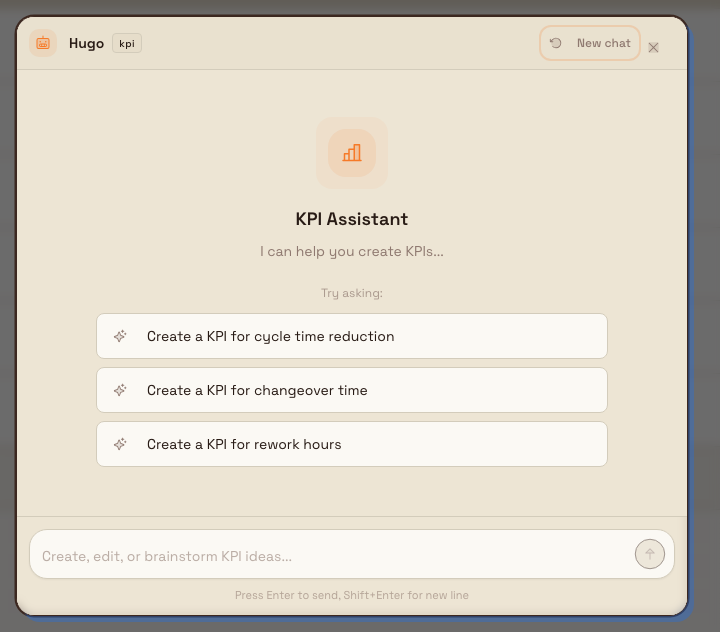
- The KPI Assistant panel opens. When it is empty it shows the prompt "I can help you create KPIs..." and an input box with the placeholder "Create, edit, or brainstorm KPI ideas...".
kpi.ai-assistance-01
The same KPI capabilities are available in the full-page AI Assistant at /assistant, which keeps a saved history of your conversations. The floating button on KPI Management is the quickest way to work with KPIs in context.
What the assistant can do
Within the KPI Assistant you can ask it to:
- Find existing KPIs by name or category, so you can check what is already defined before adding a duplicate.
- Explain a KPI's recent performance, including a summary of its average, minimum, maximum, and how often it has met target over a period you choose.
- Preview a chart of a KPI's recent values as a bar or line chart, rendered directly in the chat.
- List categories and units that are available in your workspace, such as Safety, Quality, Delivery, Cost, and People categories.
- Draft a new KPI and, once you confirm, create it.
When the assistant needs you to pick from a set of choices, such as a category or unit, it shows clickable option chips rather than asking you to type the exact name.
Create a KPI with the assistant
- Describe the KPI you want. Include the outcome, and any of the category, unit, frequency, and direction you already know. For example: "Create a daily first pass yield KPI in the Quality category, measured as a percentage, where higher is better."
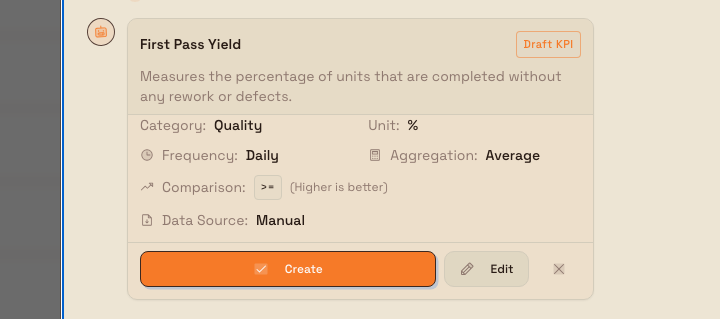
- The assistant replies with a Draft KPI preview card. The card summarises the proposed Category, Unit, Frequency, Aggregation, Comparison, and Data Source. The Comparison line explains the operator in words:
>=shows as "Higher is better",<=as "Lower is better", and==as "Target exact". - Review the card and choose an action:
- Create confirms the draft and creates the KPI.
- Edit opens an Edit KPI Details form where you can change the name, description, category, unit, frequency, aggregation, and comparison, then select Save Changes or Cancel.
- The Reject button (the X) dismisses the draft without creating anything.
kpi.ai-assistance-02
When you select Create, the assistant creates the KPI and shows a success card with a Created badge, the message "KPI has been created successfully", and a View KPI Details button that opens the new KPI.

kpi.ai-assistance-03
Example: drafting a quality KPI at Granite Peak
Dana Winters, who runs the Leeds Fabrication Plant for Granite Peak Manufacturing, wants to start tracking first pass yield on the plate-cutting line. Rather than open the full KPI editor, Dana opens KPI Management, selects the chat button, and types: "Create a daily first pass yield KPI in the Quality category, as a percentage, higher is better."
The assistant returns a Draft KPI card with the Quality category, a percentage unit, daily frequency, and a "Higher is better" comparison. Dana selects Edit, shortens the name to "First Pass Yield", and selects Save Changes, then Create. The success card appears, and Dana selects View KPI Details to open the KPI. Because the assistant does not set targets, Dana finishes by adding a 98% target in KPI Targets so the line's performance can be scored.
Expected result
After you confirm a draft, the new KPI appears in your KPI catalogue on the KPI Management page and is ready to receive values. It is created as an active KPI in the category and with the frequency, unit, aggregation, and comparison shown on the card.
What the assistant does not do
Review each draft before you confirm
The assistant is powered by an AI model, so its suggested category, unit, and settings are proposals, not final decisions. Always read the Draft KPI card and use Edit to correct anything before you select Create.
- It creates manual-entry KPIs. A KPI created through the assistant records values that people enter by hand, even though the preview card shows a Data Source field. To connect a KPI to audit results or production data instead, create or edit it in the full KPI editor. See Create and manage a KPI.
- It does not set targets. Confirming a draft creates the KPI without a target value. Set targets separately so performance can be scored. See Set KPI targets.
- It creates one KPI per message. If you ask for several KPIs at once, only the first draft is produced. Send a separate message for each KPI you want.
Troubleshooting
- The chat button is not visible. The assistant requires the
chat.usepermission. If you do not see the floating button on KPI Management, your role does not include it. Ask an administrator to assign a role that grants chat access, such as Manager. - Creating a KPI reports that an entity is required. The assistant creates KPIs against your selected facility. Select a facility for your session, then send your request again.
- No Draft KPI card appeared. If the assistant replied in text but no card showed, ask it again to "create" the KPI in a single, specific message. The preview card is what turns a suggestion into something you can confirm.
Related guidance
Review KPI detail and reports
Open a single KPI to review its definition and full change history, and open a daily report to review or update the manual KPI values recorded for a site on a date.
Dashboards
Open Bulk's built-in, always-live analytics dashboards for a site from the standalone Dashboards picker, and choose the right board by name, code, or live signal.