Set KPI targets
Plan daily KPI target values for one plant in a week-based matrix, with quick-fill, copy, and clear tools that save as you type.
A KPI (key performance indicator) is a metric you track over time, such as on-time delivery or daily output. A target is the value you plan to hit for that metric in a given period — the goal that actual results are measured against.
The Targets planner lets you set a target value for each day of a month, for one KPI at a time, at the plant you are working in. You use it when you are planning ahead: setting this quarter's output goals, rolling last month's plan forward, or adjusting a target after a shift pattern or customer commitment changes. Targets are the benchmark Bulk compares actual values against to decide whether a KPI passed or missed for each period.
Before you start
To set targets you need all of the following:
- The "Manage KPI targets" permission. This permission (internally
kpi.target_manage) is what lets you create and update targets. In the default roles it belongs to Super user, Entity admin, and Manager. Operators do not have it. With only the "View KPIs" permission you can open the planner and read existing targets, but the values are not yours to change — ask an administrator if you need it. - A KPI that already exists and is assigned to your plant. KPIs are created in Settings under KPI, in the Management area. A KPI only appears in the Targets planner for the plants it is assigned to, so if the one you want is missing, check that it is active and available for the plant you have selected.
- The right plant selected. Targets are stored per plant. Set the plant you are planning for before you begin — the planner reads and writes targets for whichever plant you currently have selected in Bulk.
In Bulk a plant (also called an entity or site) is one physical location, such as a factory. Granite Peak Manufacturing's only site in these examples is the Leeds Fabrication Plant.
Open the targets planner
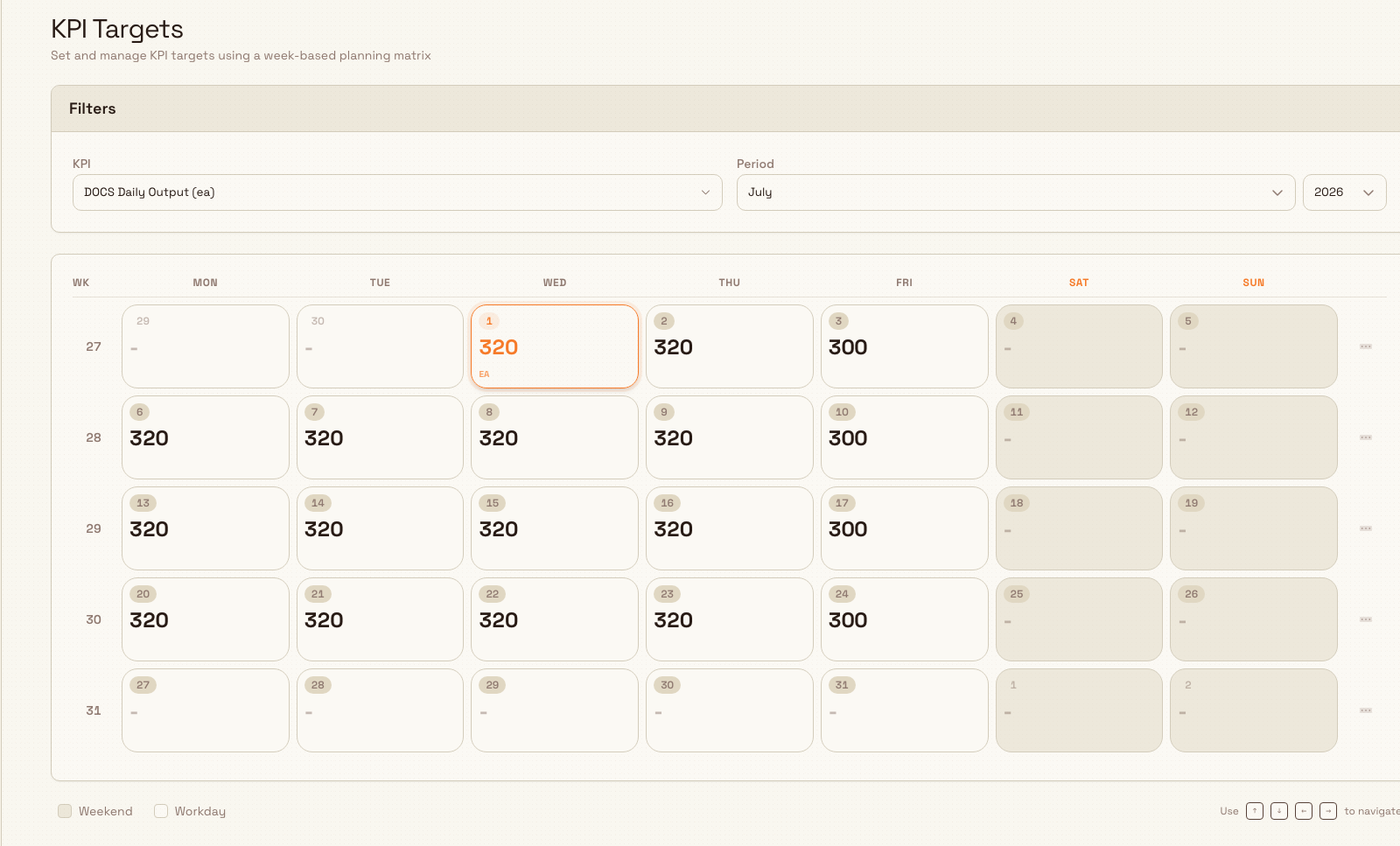
Go to Settings, open KPI, and choose Targets. The page is titled KPI Targets and carries the subtitle "Set and manage KPI targets using a week-based planning matrix".
kpi.targets-01
Choose a KPI and a period
At the top of the page, the Filters card has two controls:
- KPI — a searchable picker (placeholder "Select KPI", search box "Search KPIs..."). Each option shows the KPI name and its unit, for example
Daily Output (units). Only KPIs assigned to your current plant are listed; if none match, it reads "No KPIs found." - Period — a month picker and a year picker. The year picker covers the current year plus two years either side.
Until you have both a KPI and a plant selected, the page shows a "Select KPI" prompt that reads "Choose a KPI from the filters above to start planning targets." Once both are set, the week matrix appears.
Enter targets in the matrix
The matrix lays the month out as calendar weeks. Each row is one week, numbered in the left-hand Wk column, and the seven columns run Mon to Sun, with the weekend (Saturday and Sunday) shaded. A few trailing days from the neighbouring months can appear at the start and end; those are dimmed so you can tell them apart from the month you are planning.
Each day is a single input cell:
- Type a number to set that day's target. Values must be zero or greater, and you can use a decimal point. When you leave the cell, the target saves on its own and a "Target saved" confirmation appears.
- Empty a cell to remove that day's target. Leaving a cell blank deletes the target for that day, and a "Target cleared" confirmation appears.
- The unit symbol (for example
%orunits) shows inside a cell while it is active and holds a value, so you can confirm you are typing in the right scale. - If you type something that is not a valid number, the entry is rejected with the message "Please enter a valid number (0 or greater)."
You can move between cells with the arrow keys (up, down, left, and right), which is quicker than clicking when you are filling a whole month.
Targets save as you type
Each cell saves by itself the moment you move off it — there is no separate Save button. Emptying a cell removes that day's target, and the week actions below apply to all seven days of a week at once. There is no undo control, so to bring a value back you re-enter it.
Fill a week faster
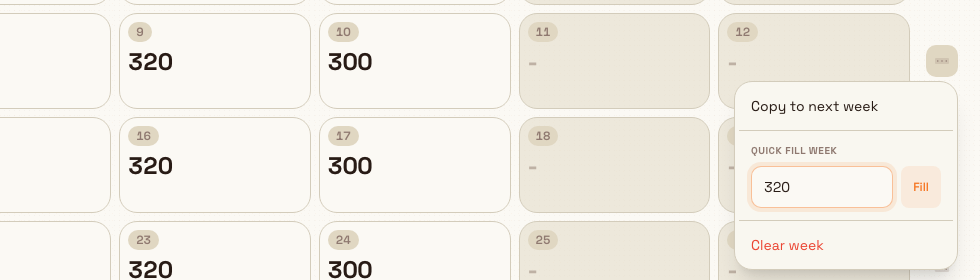
Typing every cell by hand is slow for a steady target. Each week row has a Week actions menu — the three-dots button at the right end of the row — with three shortcuts:
- Copy to next week — copies this week's seven values into the following week. It is disabled on the last visible week. A "Week copied to next week" confirmation appears.
- Quick Fill Week — enter a number in the Value box and select Fill to set every day of that week to the same target. A "Week filled successfully" confirmation appears.
- Clear week — removes the targets for all seven days of that week. A "Week cleared" confirmation appears.
kpi.targets-02
A Granite Peak example
Dana Winters plans next month's output goal for the Leeds Fabrication Plant. The plant tracks a daily KPI called DOCS Daily Output, measured in units.
- Dana opens Settings > KPI > Targets, picks
DOCS Daily Outputin the KPI filter, and sets the Period to next month. - On the first week row she opens the Week actions menu, types
320into the Quick Fill Week box, and selects Fill. Every day in that week is set to 320 and "Week filled successfully" confirms it. - The plant does not run on weekends, so Dana empties the Saturday and Sunday cells in that week; each shows "Target cleared" as she moves on.
- With week one exactly how she wants it, she uses Copy to next week to roll the same pattern forward, then repeats down the month.
- For the week of a planned bank-holiday shutdown, she uses Clear week to leave those days without a target.
In a couple of minutes the whole month is planned, with weekday targets of 320 units and no target on the days the plant is closed.
What happens to your targets
Targets you set here are stored for the selected KPI, the selected plant, and each specific day. From then on they act as the goal that plant's actual results are checked against: Bulk compares each period's actual value to its target using the comparison operator set on the KPI (at or above, at or below, or equal to) and marks the period as a pass or a miss. You review targets next to actual values on the KPI's own detail and report screens.
Every change you make — a value added, updated, or removed — is written to the KPI audit log, so there is a record of who changed a target and when.
Limitations and troubleshooting
This planner sets one plant's daily target values; it does not create KPIs, change how a KPI is calculated, or enter the actual results. Those are separate tasks, linked below.
- The KPI you want is not in the picker, or it reads "No KPIs found." The planner only lists KPIs that are active and assigned to the plant you currently have selected. Confirm the KPI is active and available for this plant in the Management area, or switch to the plant the KPI belongs to.
- The page keeps showing "Select KPI". The matrix appears only when both a KPI is chosen and a plant is selected. Check that you have a plant selected in Bulk, then pick a KPI.
- A value will not save and you see "Please enter a valid number (0 or greater)." Targets accept only zero or positive numbers, using digits and at most one decimal point. Remove any other characters and re-enter the value; to have no target for a day, leave the cell empty instead.
- You can see targets but cannot change them. Reading targets needs "View KPIs"; changing them needs "Manage KPI targets". If the values will not save, you likely have view access only — ask an administrator to grant the target permission.
Related
- KPIs overview — how KPIs fit together across Bulk.
- Create and manage a KPI — create a KPI, set its unit and frequency, and assign it to a plant so it appears here.
- Manage KPI categories — group KPIs so they are easy to find.
- Review KPI detail and reports — see targets alongside actual results and pass or miss status.
Create and manage a KPI
Define, edit, delete, and restore a Key Performance Indicator from KPI Management, choosing how each metric is measured and where its data comes from.
Review KPI detail and reports
Open a single KPI to review its definition and full change history, and open a daily report to review or update the manual KPI values recorded for a site on a date.