Create a Teamboard report
File a plant's daily KPI report straight from its Teamboard: open the New report dialog from the board, choose the site and date, and record the manual values that feed your visual management board.
A Teamboard in Bulk is a visual management board for one plant — a shared screen that shows a site's key performance indicators, tasks, and status at a glance, the way a physical board on the shop floor would. A Teamboard report is the daily set of manual KPI values for that site, entered by a person and saved together as a dated snapshot. Filing this report is how the numbers your team tracks by hand — safety incidents, first pass yield, on-time delivery, and the like — get into Bulk so the board, its dashboards, and each KPI's pass-or-fail status stay current.
This page covers how to start and file that report from a Teamboard: where the button is, what the New report dialog asks for, and what happens when you submit. The report form itself is shared with the KPIs area, so once you reach it this page hands off to the full form reference.
A quick note on terms. In Bulk a site is one plant or facility; it is also called an entity, and the New report dialog uses the label Entity for it. A KPI (key performance indicator) is a named measure of performance with a unit, a target, and a rule that decides whether each day passes or fails. Only KPIs whose values are typed in by a person appear on the report — see Limitations below.
Before you start
Two permissions and a set-up Teamboard decide whether you can file a report:
- Open the Teamboard. Viewing a plant's Teamboard requires the View Teamboards permission (
teamboards.view), granted by default to the Super user, Entity admin, Manager, Operator, and Dashboards roles. - File the report. Opening the report form and submitting values requires the Enter KPI values permission (
kpi.entry), granted by default to the Super user, Entity admin, Manager, and Operator roles. This is the permission that matters for creating a report, not a Teamboard permission — so an Operator, who holdskpi.entry, can file the daily report even though they cannot change the board's layout. - A Teamboard for the plant, and a site with manual KPIs. The board must be set up for the plant you are on, and the site you report for needs at least one manual-entry KPI, or the form has nothing to show.
Who usually files the report
On a shop floor the daily report is typically filed by a supervisor or operator with kpi.entry, while an administrator such as an account owner reviews the numbers afterward. Both start from the same button described below.
Start a report from your Teamboard
- Open your plant's Teamboard. In the Hub, go to Teamboards. If several plants exist and the wrong one is showing, switch first from the plant picker (see the related links below).
- In the top-right corner of the board, select the New Report button — the plus (
+) button in the header. It appears when you are viewing the board normally; if you are in the board's edit mode, leave edit mode first and the button returns.
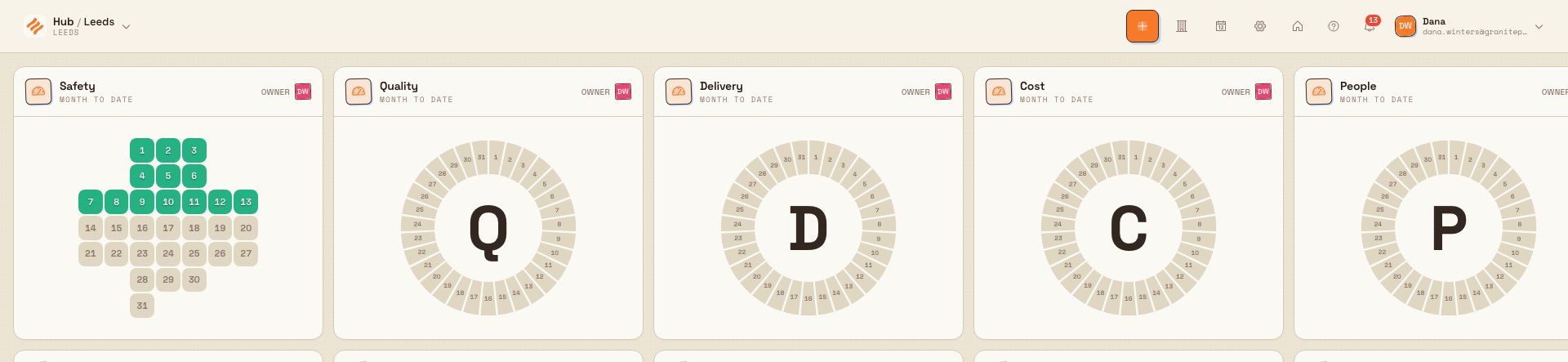
teamboards.create-report-01
- In the New report dialog, set the two fields:
- Entity — the site the report is for. It defaults to the site currently in context; change it from the list if you need a different one.
- Report date — the day the numbers are for. The date picker will not accept a future date, because you can only report on days that have already happened.
- Select Proceed to open the report form. Selecting Cancel closes the dialog without starting anything.
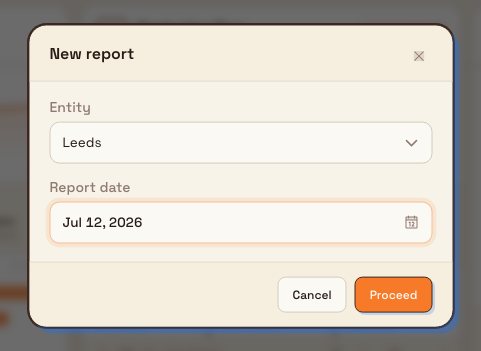
teamboards.create-report-02
The same New report dialog is also reachable outside the board — for example from the app's right-click create menu — but the Teamboard button is the natural place to start when you are already looking at the plant's board.
Fill in and submit the report
Selecting Proceed opens the daily report form, headed New report with the report date and site name beneath it. If a report was already filed for that site and date, a line reads Previously submitted by the person's name and time, and the recorded values are loaded so you can review or correct them.
KPIs are grouped into a card per category — for example Safety, Quality, and Delivery — and each card is a small table:
- Title — the KPI's name.
- Target — the goal for that KPI on that date, shown for reference only; a dash appears when no target is set.
- Actual — the value you type in. It formats with the KPI's unit when you click away.
- Comment — an optional note, such as an explanation for a miss.
Enter the values you have, then select Submit. A Confirm Submission dialog first summarizes what will happen — a Saving group for values you entered, a Clearing group for previously recorded values you emptied, and a collapsible Skipping group for blanks with nothing to change. Select Save n changes to commit; a message confirms the values were saved.
Clearing a value removes a recorded result
Emptying an Actual field that already had a value places that KPI in the Clearing group, and submitting deletes the recorded result for that site and date. If you only opened the report to look, leave the values as they are and select Cancel.
For the complete field-by-field reference — the confirmation groups, the discard-changes prompt, and how the saved snapshot behaves — see Review KPI detail and reports.
Example: the morning report at Granite Peak Manufacturing
Granite Peak Manufacturing runs a daily review off its Teamboards. At the end of a shift, a supervisor at the Leeds Fabrication Plant opens the plant's Teamboard and selects New Report. In the New report dialog they keep Leeds Fabrication Plant as the Entity, choose the day that is ending as the Report date, and select Proceed.
On the form they enter the numbers the shop floor tracks by hand: a first pass yield of 96.4 percent under Quality, on-time delivery of 91 percent under Delivery, and zero recordable incidents under Safety, adding a short comment to explain a late delivery. They select Submit; the Confirm Submission dialog shows Saving 3 alongside a couple of skipped automatic KPIs, and they select Save 3 changes. The next morning those figures are already on the board when the team gathers, and Dana Winters, who administers the account, can review them and trace any target change without needing to re-enter anything.
Expected result
- The daily report is saved as a dated snapshot for the chosen site, recording who submitted it.
- The values you entered become the site's recorded KPI results for that date, feeding each KPI's pass-or-fail status, its comparison against the target, and any Teamboards or dashboards that display it.
- Re-opening the same site and date shows those values again, with the Previously submitted by line, so the report doubles as the place to review or correct what was filed.
Limitations and availability
Creating a Teamboard report is generally available. A few boundaries are worth knowing:
- The report shows manual KPIs only. KPIs that Bulk calculates for you — those sourced from audits, production, safety incidents, or a formula — are computed automatically and never appear on the report form. A site with no manual KPIs shows No KPIs available.
- Filing needs
kpi.entry, separately from viewing the board. Reaching a Teamboard needsteamboards.view; opening and submitting the report needskpi.entry. A viewer withoutkpi.entrycan open the board but cannot proceed to file a report. - No future dates. The Report date picker only allows today or an earlier day.
- One report per site per date. Submitting again for the same site and date updates the existing snapshot rather than creating a second one.
- No separate report-history list. You review a past report by re-opening the New report flow for that site and date, which reloads the recorded values. There is no page that lists all previously filed reports.
- All labels, permissions, and behaviors here were verified against the current application code. Live confirmation of the exact on-screen states is completed during the screenshot stage.
Troubleshooting
- The New Report button is missing. You may be in the board's edit mode, which hides it, or you may lack
teamboards.viewfor this plant. Leave edit mode, or ask an administrator to grant Teamboard access. - "Entity Required — An entity must be selected to create a report." The report form was opened without a site. Start again from the Teamboard so a site is passed in, and confirm the Entity field in the New report dialog before selecting Proceed.
- "No KPIs available." The chosen site has no manual-entry KPIs. Add one, or check that existing manual KPIs list this site among their allowed sites.
- "Please enter a KPI value or clear an existing one." Submit was selected with nothing to save. Enter at least one Actual value, or empty a previously recorded one, before submitting.
- The Teamboard shows an empty state instead of a board. No Teamboard is set up for the plant in context. Switch plants or set one up first, then return to file the report.
Related
- Review KPI detail and reports — the full reference for the report form, its confirmation groups, and the saved snapshot.
- Select a Teamboard plant — choose which plant's board you are working on before filing a report.
- Use and manage a Teamboard — configure the board and read the indicators the report feeds.
- Set KPI targets — set the goal values shown beside each entry on the report form.
- Teamboards — everything in the Teamboards area.
Select a Teamboard plant
Open the Teamboards plant switcher to pick a shared SQDCP board to view, jump into a board's settings, or create a new board — with one card per teamboard you can access.
Use and manage a Teamboard
View a plant's SQDCP Teamboard, log improvement actions, rearrange its widgets, and manage its indicators, entities, and settings.