Act on several invoices
Select invoices across pages, submit or advance an eligible batch, follow progress, and retry invoices that need attention.
Last updated
In Finance → Invoices, tick the invoices you want and use the floating selection bar to submit, approve, issue or advance them through confirmation. Each action applies only to the selected invoices that are eligible. Review its count and confirmation before running it.
Select invoices
Use the checkbox beside each invoice. The header checkbox, Select all invoices on this page, selects the current page only. Move through pages to add more invoices; the selection also survives sorting and leaving and returning to the list in the current session. Reloading the app clears it.
Changing the signed-in person, site, search, status, customer, invoice type, issue-date range or column filters starts a new selection. Use the selection bar's clear control to clear the selection deliberately.
The bar shows the total selected count. An action such as Approve (3) means only three of the selected invoices can take that action. Actions with no eligible invoices are hidden. No bulk action applies to these invoices means the current selection has no action available to you.
Eligibility can change while you are selecting across pages. Bulk checks every invoice again when the action runs.
Permissions and eligible states
You need View production invoicing (production_invoicing.view) and the permission for each action. Approval also follows the site's approver and self-approval rules.
| Action | Permission | Which selected invoices can take it |
|---|---|---|
| Submit for approval | production_invoicing.submit | Ready drafts that require approval |
| Approve | Invoice approval access | Pending invoices you are allowed to approve; in workflow confirmation mode with no approval required, an eligible draft can be approved to start its workflow |
| Issue | production_invoicing.issue | Ready drafts needing no approval, approved invoices, or eligible Issue failed invoices being retried |
| Mark sent | production_invoicing.create | Issued or Send failed invoices |
| Confirm | production_invoicing.confirm | Sent invoices |
| Mark issued-confirmed | production_invoicing.confirm | Confirmed invoices |
Ready invoices need valid lines, completed service updates and no issue blocker. The customer's operational status can also block actions. Workflow confirmation owns issuing and the confirmation steps, so those manual actions are unavailable for workflow-owned invoices. Immediate confirmation finalises the invoice when it is issued; it does not need the manual confirmation steps.
Submit, approve or issue a batch
- Select the invoices and choose Submit for approval, Approve or Issue.
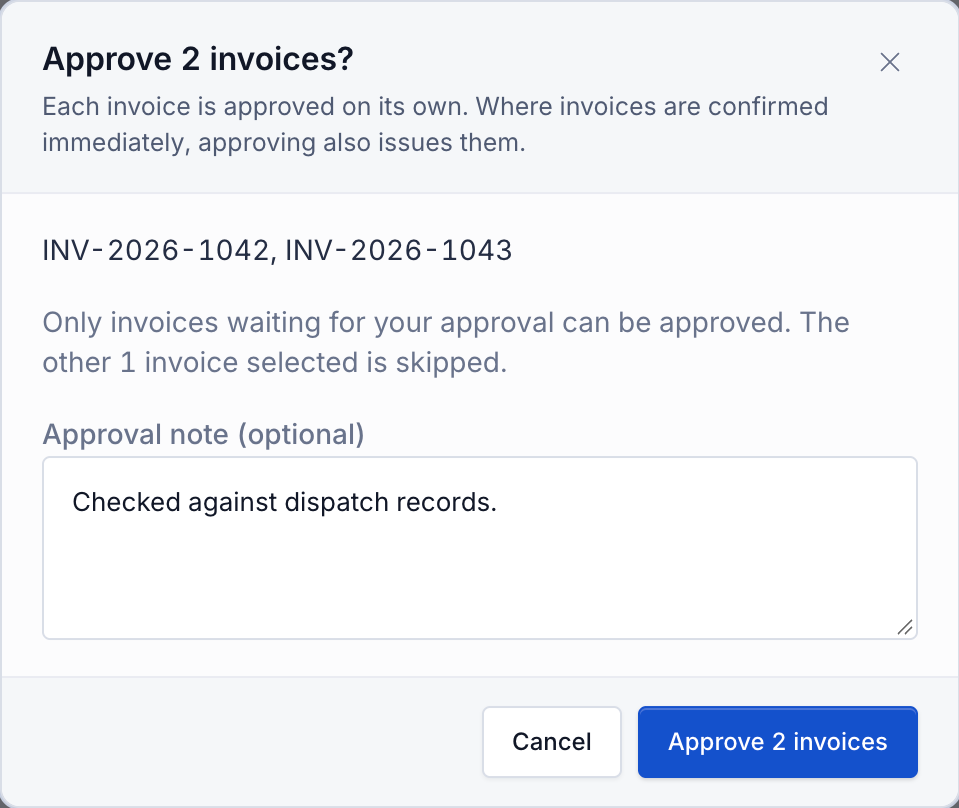
- Read the dialog's invoice names and action count. Drafts may be named by customer and order. A long name list ends with and N more.
- Read the eligibility note if some selected invoices are skipped. Skipped invoices are left untouched.
- For Approve, optionally enter Approval note (optional). The same note is added to every invoice processed by this action.
- Select the counted confirmation, such as Approve 3 invoices or Issue 2 invoices.
- Follow progress and check the result.
Submitting locks a draft and sends it for approval. Approval can also issue an invoice where the site's immediate confirmation setup calls for that. Issuing creates the permanent document and PDF and starts the linked jobs' invoicing updates. An issued invoice cannot return to Draft.
Bulk Issue does not provide a shared date picker. A draft with an earlier invoice date already planned uses that date. To choose or change an invoice date before issuing, open that invoice and follow Issue or confirm an invoice.
Mark sent, confirm or finalise several invoices
- Select the invoices and choose Mark sent, Confirm or Mark issued-confirmed.
- Check the eligible count and skipped note.
- Add Note (optional) if useful. The same note is added to every processed invoice's history.
- Confirm the counted action and wait for the result.
Mark sent records that you sent the invoice; it does not send an email. Confirm records the customer's acknowledgement. Mark issued-confirmed finalises the invoice and cannot be undone. Use these actions only when the corresponding event has happened.
Progress and Stop
The button shows progress such as Approving 2 of 5. Invoices are processed one at a time. Each successful invoice stays saved even if a later invoice fails.
Stop finishes the invoice already being processed, then leaves the rest unattempted. It does not reverse completed actions. The result message reports any invoices that were not processed. Leaving the page also stops before the next invoice.
After issuing standard invoices, Updating jobs tracks each invoice's job updates. Wait until they finish before closing. A job-update failure does not undo the invoice issue: open that invoice to check the affected jobs and seek help with the update. Do not issue the invoice again to repair a job-update failure.
Read failures and retry safely
A success message reports how many invoices were processed. Invoices that succeeded leave the selection. Invoices skipped, not attempted or rejected remain selected.
If an invoice fails, the dialog shows N invoices need attention, with the invoice name and its error. Read each reason, select Close when available, correct the affected invoice, then review the remaining selection and action count before trying again. The batch does not roll back successful invoices.
If the connection drops before an outcome is confirmed, Bulk stops and asks you to open that invoice and check before retrying. It may already have been processed. A sign-out or identity change also stops the remaining run.
Change several invoices' dates
Change dates opens a separate check-and-confirm page. See Correct invoice dates for its scope switches, per-invoice checks and results.
Troubleshooting
- An action is absent. None of the selected invoices currently has permission and status eligibility for it. Check the individual invoice and the site's confirmation mode.
- The action count is smaller than the selection. Only the eligible subset is included. Read the dialog's skipped note.
- An old page selection fails. The record may have changed after you selected it. Refresh or open the invoice and check its current status and blockers.
- Some invoices succeeded and some failed. Successful changes are saved. Fix and retry the remaining invoices only.
- The dialog will not close after issue. Job updates are still pending. Wait for their result; a failure is shown per invoice.
- Stop did not reverse an invoice. Stop affects future items. It lets the in-progress invoice finish and keeps earlier successes.
Related guidance
Issue or confirm an invoice
Issue an approved or ready draft invoice to lock its detail and keep its invoice number, then advance it through the confirmation track to Issued Confirmed.
Correct invoice dates
Preview and correct an issued invoice's dates, choose whether job and order dates move, or check a selected batch before applying changes.