Correct invoice dates
Preview and correct an issued invoice's dates, choose whether job and order dates move, or check a selected batch before applying changes.
Last updated
Use Change dates on an issued invoice to correct the day it was invoiced. Choose the date, which records to move and a reason, then check Before and After before confirming. From the invoice list you can check and correct several invoices to one shared date.
Before you begin
Select the owning site. Allow backdated invoice dates must be enabled in its invoicing profile. You need View production invoicing (production_invoicing.view) and Configure production invoicing (production_invoicing.configure). Moving linked job dates also needs production_jobs.update; moving an order's completion needs production_orders.update.
Date correction is available for an invoice with an issued timestamp in Issued, Send failed, Sent, Confirmed or Issued Confirmed. It is unavailable for Draft, Pending approval, Approved, Issue failed or Voided invoices, or an invoice whose confirmation is owned by a workflow. If an earlier date picked during issue is still being applied, wait for that work to finish first.
A correction changes the selected dates and records its reason in history. It does not reopen the invoice for changes to its customer, lines or amounts.
Correct one invoice
- In Finance → Invoices, open the invoice and choose Change dates from More invoice actions.
- On Change invoice dates, choose Invoice date under Invoiced on. The date cannot be later than today in the owning site's calendar.
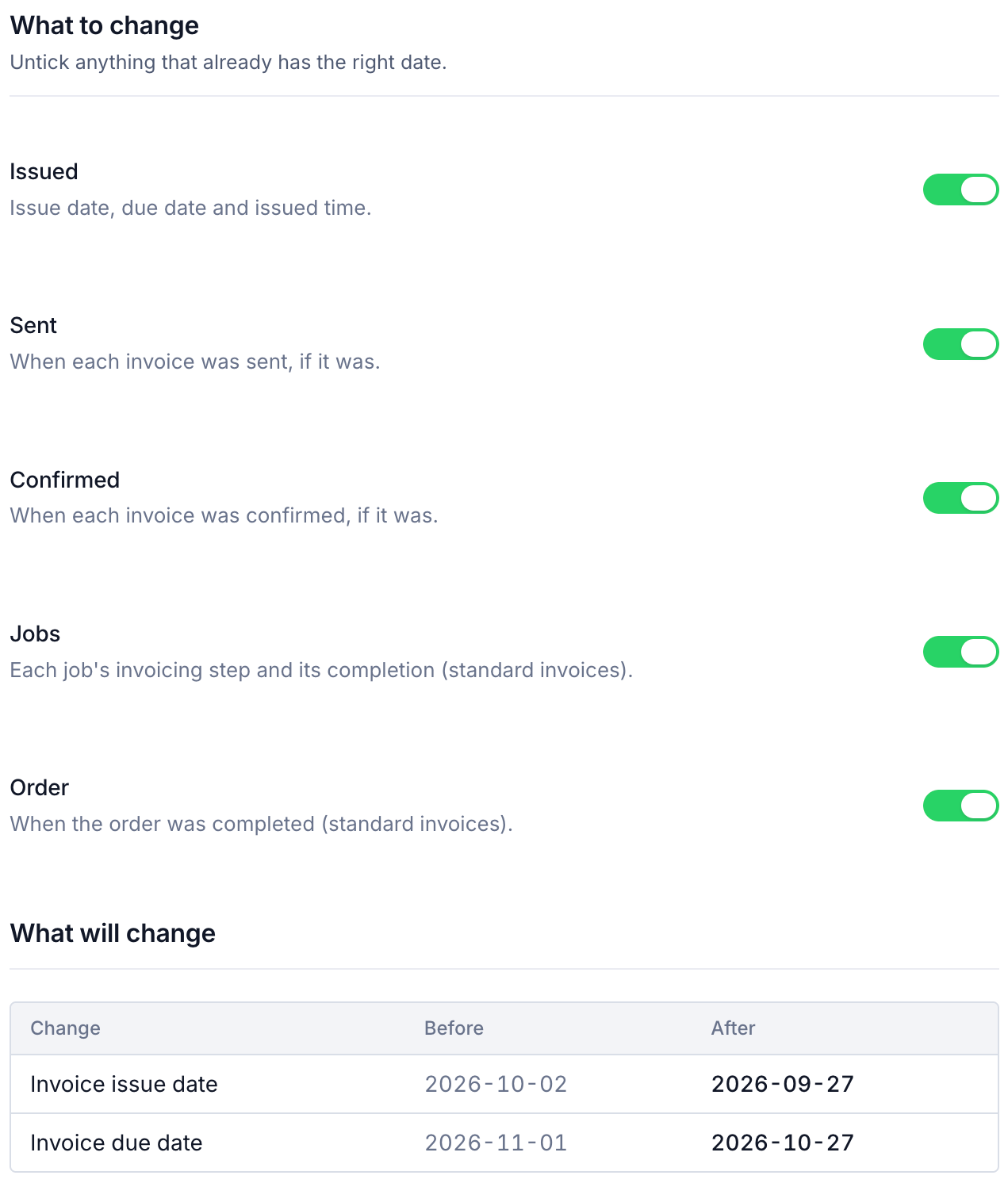
- Under What to change, untick anything that already has the correct date. Applicable options start selected.
- Choose Reason. If you choose Other, a Note is required. Other reasons allow an optional note. Notes can contain up to 1,000 characters.
- Read What will change. Review every Change, Before and After row. Resolve any blocker before continuing.
- Select Change dates. Wait for the confirmation, then check the invoice again.
Cancel leaves without applying the correction. The form does not save as you type. The Change dates button becomes available only after a ready preview matches your latest inputs.
Choose what moves
| Option | What it includes |
|---|---|
| Issued | Issue date, due date and issued time |
| Sent | The existing sent timestamp |
| Confirmed | Existing confirmed and issued-confirmed timestamps |
| Jobs | Eligible linked jobs' invoicing steps and completion dates |
| Order | Completion of the linked production order |
On a single invoice, Sent and Confirmed appear only when those timestamps exist. Jobs and Order apply to standard invoices linked to production. A miscellaneous invoice changes only its own dates, even if it references an order.
Bulk uses the owning site's calendar and time zone. Moved timestamps normally keep their local time of day, while maintaining event order and avoiding future times. The due date moves with the existing gap between issue and due date. Submission and approval can also move if needed to stay before issue; read the preview for the actual changes.
Job dates move only where the invoicing step determined the job's completion. Other production steps do not all move to the invoice date. An order cannot complete before its latest completed work, including work invoiced elsewhere, so its preview may show a later result than the date you chose.
Resolve a blocked preview
The preview explains why a proposed correction cannot be applied. Common cases include:
- The date is later than the site's today, or earlier than a preceding production step's completion or the creation of the job's invoicing step.
- Leaving Sent, Confirmed, Jobs or the invoice dates unchanged would make the event sequence inconsistent. Include the named option or choose a valid date, then check again.
- The selected dates already match. Nothing to change means no correction is needed for that scope.
- An invoice has more than 100 linked jobs, a job has more than 512 routing steps, or moving an order exceeds the supported read limits. An order completion check supports at most 512 jobs and 4,000 routing steps; its message may ask you to leave Order out.
- You lack the permission for a selected production date change.
If records changed after the preview, Bulk refuses to apply the old check. Refresh the preview and review it again. A check older than a day also needs to be run again.
Change several invoices
- In Finance → Invoices, select invoices and choose Change dates in the floating action bar. It includes the eligible subset of your selection.
- Review Invoices on Change invoice dates. Missing and ineligible records are listed as skipped with a reason. Select at most 200 invoices per batch.
- Choose one Invoice date, the shared What to change options, Reason and any required Note.
- Review Issued, Sent, Confirmed, Jobs and Order. Jobs and Order are disabled if you lack the corresponding update permission. They apply only where the invoice has the relevant production records.
- Select Check N invoices. Checking reads the proposed changes and saves nothing.
- Read Check. Each invoice is either ready with a summary of what will move, or blocked with a reason. For a full list of a blocked invoice's reasons, open its individual Change dates page.
- Select Change dates for N invoices to apply only those that passed the check.
- Review the result. Successful invoices leave the list selection. If any fail, the page names them under N invoices need attention; use Back to invoices, check those records, and retry as needed.
Changing the date, scope, reason or note clears a completed check. Run Check again before applying. If no invoices are ready, the action reads Nothing to change.
Stop during checking returns to the form without changing dates. During applying, it finishes the current invoice and leaves the rest unattempted. Each invoice is saved separately: a later failure or stop does not roll back earlier corrections. Failed, blocked and unattempted invoices stay selected for follow-up.
A dropped connection can leave an invoice's result unknown. Open it and check the saved dates before retrying.
After the correction
The invoice's history records the correction, actor, reason and original dates. If the issue or due date changed, Bulk queues a fresh PDF. Wait for generation before downloading a new copy, and replace any paper or locally saved copy whose dates are now wrong. Corrected job and order history stays linked to the same production work.
Troubleshooting
- Change dates is missing. Check the site setting, Configure production invoicing permission, invoice state and confirmation mode.
- These dates cannot be changed appears. Read the stated reason. A pending date update from issue must finish first.
- The button stays disabled. Choose a valid date, at least one scope option and a reason. Complete the note for Other, then wait for a ready preview.
- Only some selected invoices are ready. Read each skipped or blocked reason. Applying changes only the ready subset.
- The PDF still has the old date. PDF regeneration follows a changed issue or due date. Wait for it to finish and download a fresh copy.