Create a training program
Add a training program or certification to the Training Catalog, set its requirement level and validity, and file it in a category to assign and track.
Last updated
A training program is a single course, certification, or competency your people can be trained on and assessed against — for example a forklift certification, a welding qualification, or a quality-inspection sign-off. Programs are the building blocks of the Training module: once a program exists you can assign it to employees, track who is competent on the training matrix, and record and renew completions. This article covers creating a new program in the Training Catalog.
Create a program whenever your plant introduces a skill or certification you need to track — a new machine that needs a safety induction, a certification a customer or auditor requires, or a competency you want to build across a team.
Where you create programs
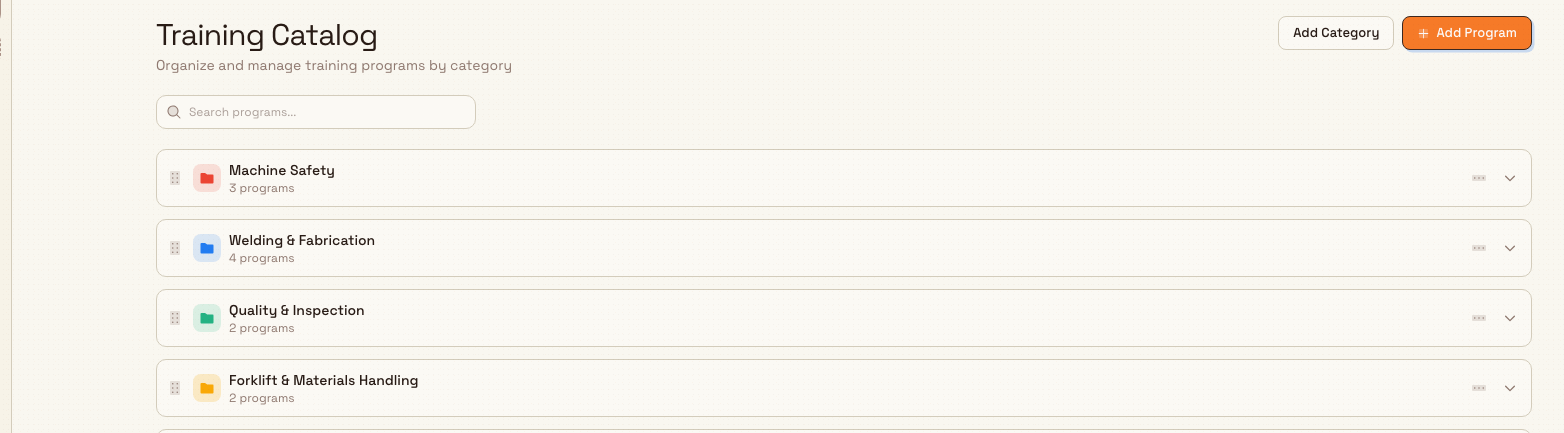
Open the left sidebar, choose Training, then Catalog (/training/catalog). The page is titled Training Catalog with the subtitle "Organize and manage training programs by category". Programs are shown as rows grouped into colour-coded category folders, with an Uncategorized folder for any program that has not been placed in a category.
You can open the Create Training Program dialog from several places on this page:
- Add Program in the top-right of the page header — starts a program with no category selected.
- Add Program at the bottom of a category folder — starts a program already placed in that category.
- Add Program inside an empty category folder (shown as "No programs yet" with "Add a training program to this category") — also pre-selects that category.
Before you begin
Creating a program is gated by permissions:
- Viewing the catalog requires the
training.viewandtraining_programs.viewpermissions. - Creating a program (and editing or duplicating one) requires the
training_programs.createpermission.
In the default role set, the roles that can create programs are Super user, Entity admin, Training, and People. If your role grants view access but not training_programs.create, you can open the catalog and the dialog, but the save will fail. Ask a plant administrator to adjust your role if you need to add programs.
Programs are entity-scoped: each program belongs to the plant (entity) selected in the entity switcher, so the program you create appears only for that site. Choosing a category is optional — a program with no category is filed under Uncategorized — but placing it in a category keeps the catalog, the matrix, and employee records tidy. If you want to organise your programs first, see Manage training categories.
Create a program
- In the Training Catalog, select Add Program (in the header, or inside the category folder you want the program to belong to).
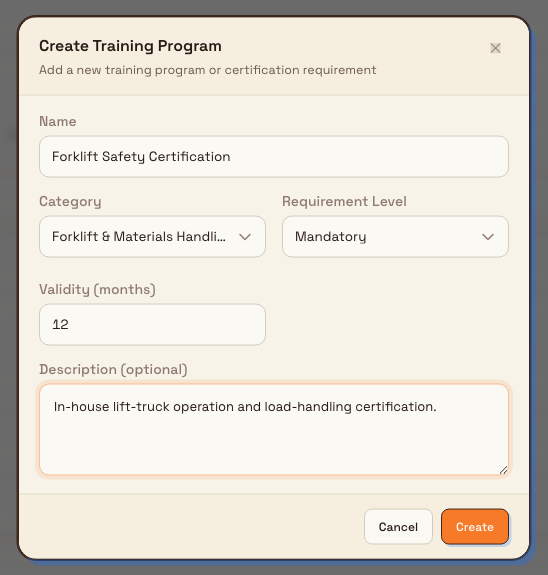
- In the Create Training Program dialog, fill in the fields:
- Name (required) — what the program is called, for example "Gotham CNC Setup Checks". This is the label people see throughout Training.
- Code (optional): enter up to eight letters, numbers, hyphens or underscores, such as
CNCSETUP. Leave it blank to generate a unique code from the name. - Category — the folder the program belongs to. Leave it as None to file the program under Uncategorized, or pick an existing category. If you opened the dialog from a folder, that category is already selected.
- Requirement Level — how important the training is: Mandatory, Recommended, or Optional. The default is Mandatory.
- Validity (months) — how many months a completion stays valid before it must be renewed, for example 12 or 24. Leave it blank for training that does not expire.
- Description (optional) — a short note on what the program covers.
- Select Create.
Bulk confirms with a "Program created" message, closes the dialog, and the new program appears as a row in its category folder (or in Uncategorized). New programs are active by default, so they are immediately available to assign.
What each field means
- Requirement Level classifies the program and becomes the default level applied when you assign it. Mandatory marks training people must hold, Recommended is advised but not required, and Optional is available to anyone who wants it. In the catalog each level shows as a coloured shield on the program row (mandatory red, recommended amber, optional grey).
- Validity (months) drives expiry. When you set a validity period, a recorded completion counts as current only until that many months pass, after which the training shows as expiring soon and then expired so it can be renewed. The catalog row shows the period as a compact badge such as
12mo. Leave it blank for one-off training that never expires. - Category only affects how the program is grouped in the catalog and matrix; you can move a program to another category later by editing it.
Choose a short program code
You can enter a code or leave it blank for Bulk to generate one from the name. The catalog search matches this code as well as the name, even though the code is not shown on the row.
Gotham Applied Sciences example
Bruce Wayne coordinates training at Gotham Applied Sciences. CNC operators need a consistent setup check before releasing work, with a yearly renewal.
Bruce opens Training then Catalog, expands the Machining Skills category, and selects Add Program. He enters:
- Name: Gotham CNC Setup Checks
- Code: CNCSETUP
- Category: Machining Skills (already selected because she started from that folder)
- Requirement Level: Mandatory
- Validity (months): 12
- Description: Verify workholding, tool offsets and first-off inspection before releasing Gotham CNC work.
He selects Create, and the program appears in the Machining Skills folder with a red mandatory shield and a 12mo badge. Because it is mandatory and expires after a year, it will surface for renewal on the Training dashboard as each operator's certificate nears its expiry date. Bruce can now assign it to the CNC operators and track their status on the training matrix.
After you create a program
Creating the program is the first step. From here you usually:
- Assign it to people so it appears on their records and in the matrix — see Assign training.
- Record completions and evidence as people finish the training — see Record training completion and evidence.
- Renew it before it expires when you set a validity period — see Renew expiring training.
To change a program after creating it, open its three-dots menu on the catalog row and choose Edit (the Edit Training Program dialog has the same fields), Duplicate to copy it as a starting point, Deactivate to retire it without deleting, or Archive to remove it from the catalog.
Limitations and availability
Creating training programs is a generally available part of the Training module.
- The Create and Edit dialogs collect six details: Name, Code, Category, Requirement Level, Validity (months), and Description. Code is optional and is generated automatically when left blank. Participant limits and prerequisites are not fields in this dialog.
- Programs are entity-scoped. A program you create belongs to the plant selected in the entity switcher and is not shared with other sites; to offer the same training at another plant, create it there too.
- A category is optional. If you leave it as None, the program is filed under Uncategorized rather than left off the catalog.
- When the catalog is completely empty (no categories and no programs), the page guides you to Add Category first with the note "Start by creating categories to organize your training, then add programs." The Add Program button in the header is still available, so you can create a program without a category if you prefer.
Troubleshooting
The Create button fails or nothing saves. Your role likely lacks the training_programs.create permission. You can open the catalog and the dialog with view access, but the save needs the create permission held by the Super user, Entity admin, Training, and People roles. Ask a plant administrator to update your role.
A validity error appears on the Validity (months) field. Enter a whole number of months that is zero or greater, or leave the field blank. Negative values are rejected; a blank value means the training does not expire.
Your new program does not appear where you expected. Check which category you chose. If you left Category as None, the program is in the Uncategorized folder at the bottom of the catalog. If a search is active, clear it — the search box filters the list by program name or code. You can move the program by editing it and choosing a different category.
You are working in the wrong plant. Programs are entity-scoped. Confirm the plant shown in the entity switcher is the one you meant before creating the program; a program created for one plant will not appear for another.
Related guidance
- Browse the training catalog — how the catalog is laid out and how to read a program row.
- Manage training categories — create the categories that group your programs.
- Assign training — give the new program to the people who need it.
- Set training prerequisites — require other programs to be completed first.
- Training — an overview of the Training module, including records and the versatility matrix.
Manage training categories
Create, colour-code, reorder, and retire the training categories that group your plant's training programs in the Training Catalog.
Set training prerequisites
What training prerequisites are in Bulk, and how to manage prerequisite requirements today with requirement levels, assignment order, and the matrix.