People and training
How the People and Training modules manage your workforce directory, organization, availability, and skills compliance, and where to find each task.
Last updated
People and Training are two related modules that answer the everyday workforce questions on a manufacturing site: who works here, how are they organized, when are they available, and are they qualified for the work in front of them. People is your workforce directory and the tools around it — employee records, the reporting structure, absences, shifts, and internal news. Training tracks the skills and qualifications those people need, records who has completed what, and shows where compliance gaps put production at risk. You use them together whenever you onboard someone, plan cover for a shift, or need to prove that the operator running a machine is trained for it.
Both are separate modules in the left sidebar, grouped together in the documentation because they share the same subject — your people. Bulk is a Manufacturing Execution System (MES), so these records are not just an HR directory: they feed production. An employee's job title can carry required training, the training matrix shows readiness at a glance, and absences and shifts describe who is actually on the floor.
Where to find People and Training
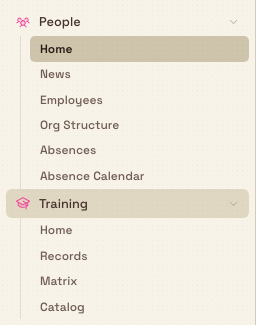
Open the left sidebar and look under the MODULES group. People (a Users icon) and Training (a book icon) are two distinct entries. Selecting either expands its sections.
- People expands to Home, News, Employees, Org Structure, Absences, Absence Calendar, and Attendance.
- Training expands to Home, Records, Matrix, and Catalog.
A few related setup screens live under Settings → People instead of the module itself: Departments, Job Titles, Absence Types, and Shifts.
What the People module covers
The People module manages your workforce as records and the day-to-day activity around them. Each section has its own detailed guide; this page explains what each is for and links you to it.
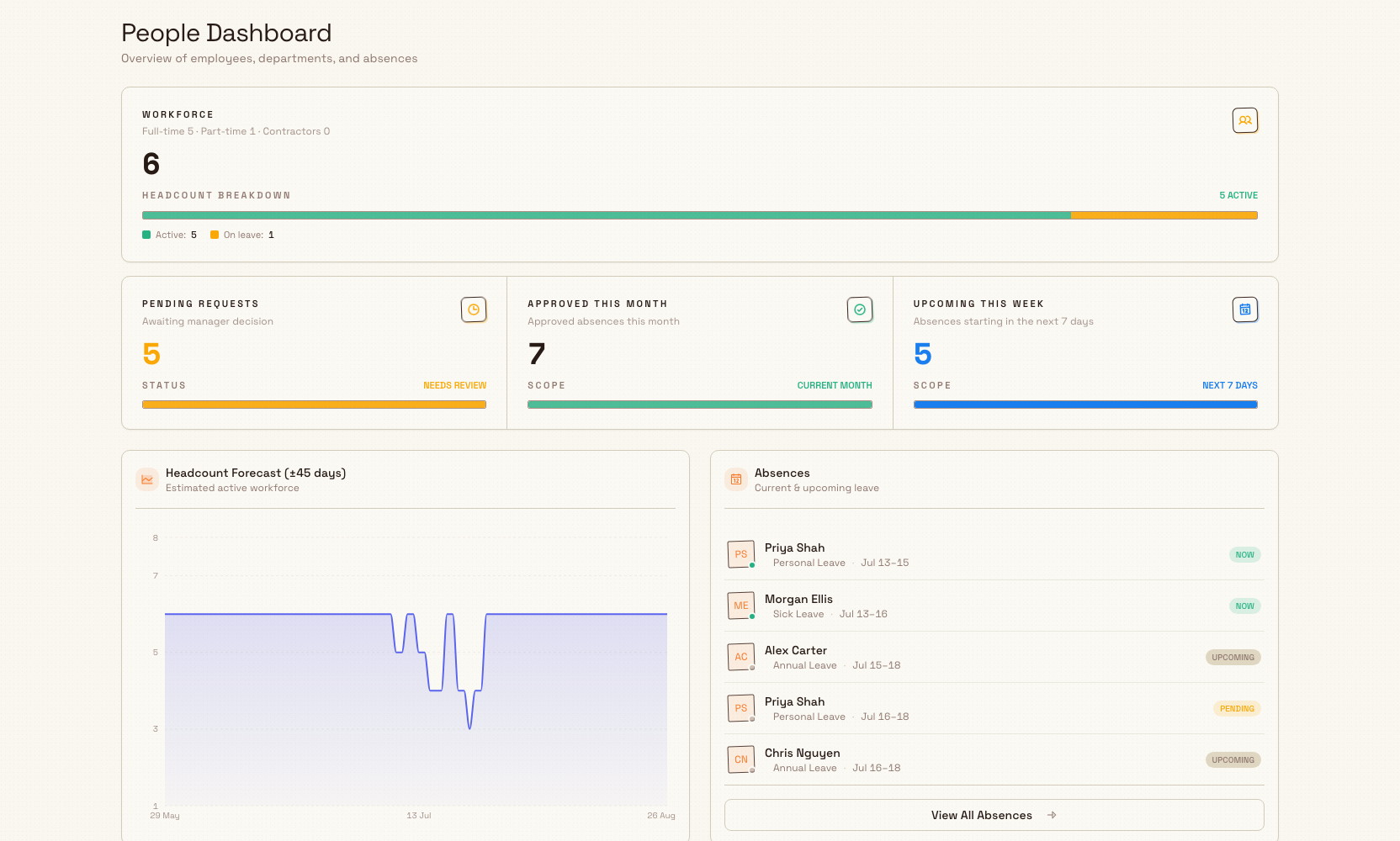
- Home opens the People Dashboard ("Overview of employees, departments, and absences"). It summarizes your workforce and upcoming absences so you can read the state of the site quickly.
- Employees is the Employees directory ("Manage your workforce directory") — one record per person, holding job title, department, status (active, on leave, or terminated), and contact details. An employee record is not the same as a login account: it describes a member of your workforce and can optionally be linked to a Bulk user, but many employees never sign in. See Create an employee and Review an employee record.
- Org Structure ("Visualize your reporting lines, or draft hypothetical reorg scenarios") is a visual chart of who reports to whom, and a safe place to sketch reorganizations. See View the organization structure.
- Absences is Absence Management ("Review requests, track absences, and plan team availability") — the queue where absence requests are raised, reviewed, and approved. See Record an absence.
- Absence Calendar ("Plan team availability and track scheduled absences") lays the same information out as a calendar so you can spot clashes before they affect a shift. See Use the absence calendar.
- News is Company news — internal announcements you can draft, schedule, and publish to the site, which also surface on Home. See Publish company news.
Three setup areas under Settings → People shape those records so everyone classifies people the same way:
- Departments ("Shape the org. Group people, assign managers, and nest reporting lines.") — see Manage departments.
- Job Titles ("Define standard job titles for employees") — see Manage job titles.
- Shifts ("Configure work shifts with rotation patterns") — see Manage shifts.
What the Training module covers
The Training module tracks skills and qualifications and turns them into a compliance picture for the site.
- Home is the Training dashboard ("Overview of training compliance and certifications"). It reports an overall compliance rate, headline counts of expired training and training expiring within 30 days, and widgets for expiring trainings, department compliance, and program gaps.
- Records ("Track current employee training status from matrix assignments") lists each employee's current training status — valid, expiring soon, expired, or incomplete — drawn from their matrix assignments. See Review training records.
- Matrix is the Versatility Matrix ("Open the full matrix or a saved layout of specific trainings and people") — a grid of programs against people that shows, cell by cell, who is trained on what. You can save named layouts that show a chosen set of programs and people. See Use the training matrix and Save a training matrix layout.
- Catalog is the Training Catalog ("Organize and manage training programs by category"). A training program is a course or qualification; categories group related programs, and a program can list other programs as prerequisites. See Browse the training catalog, Create a training program, Manage training categories, and Set training prerequisites.
Day-to-day training work runs through a small set of tasks: Assign training to a person, Record training completion and evidence when they finish, and Renew expiring training before it lapses.
How People and Training connect
The employee record is the link between the two modules. Training assignments are made against employees, so the Versatility Matrix and the Training dashboard read directly from the People directory — add someone in People and they become available to train. Job titles carry the training a role is expected to hold, which is how the matrix knows where the gaps are. Departments group people for the Training dashboard's department compliance view. In short, People describes your workforce and Training describes what that workforce is qualified to do.
Employees are not user accounts
An employee is a workforce record, not a login. You can add and train an employee who has never signed in to Bulk. If you also want that person to use the app, an administrator links or creates a separate user account for them. Deleting one does not delete the other.
Prerequisites
Access is controlled by permissions, and each action checks its own permission on the server. Two built-in roles cover these modules:
- The People role ("Manage employees, job titles, working hours, and training operations") grants the full People module and the full Training module — employees, job titles, departments, shifts, absences, company news, and every training capability.
- The Training role ("Full training permissions") grants only the Training module — programs, categories, assignments, and the matrix.
The Entity admin and Super user roles include these as well. An administrator assigns roles per person and per site. If you can open a section but a button is missing or an action is refused, you most likely hold view access without the matching edit permission.
One scoping detail is worth knowing: employee records are permissioned for the whole organization, while departments, job titles, shifts, absences, company news, and all training are permissioned for the site (the plant, called an entity in Bulk) you currently have selected. So the same employee can appear across your sites, but their departments and training compliance are read against the site you are working in.
Example: onboarding a welder at Wayne Corp
At Wayne Corp's Gotham Applied Sciences, a new welder joins the fabrication team. The site's People coordinator works across both modules:
- In People → Employees, they create the employee record, set the status to active, assign the Fabrication department, and give the job title Welder.
- In People → Org Structure, they place the welder under the shift supervisor so the reporting line is clear.
- Because the Welder job title carries required training, they open Training → Matrix, the Versatility Matrix, and assign the outstanding programs — for example a weld-procedure qualification and a manual-handling course.
- As certificates come in, they use Record training completion and evidence to mark each program complete and attach proof.
- When the welder later takes planned leave, it is raised in Absences and shows on the Absence Calendar, so the supervisor can arrange cover.
By the end, one person is fully described: where they sit in the organization, what they are qualified to run, and when they are available.
Expected result
Once both modules are in use, your People directory reflects everyone on the site and how they are organized, absences and shifts show who is available, and the Training dashboard gives a live compliance read — overall rate, what is expiring, and where the gaps sit. Together they let you staff and run production with people you can prove are qualified.
Feature state
Both the People and Training modules are generally available; neither carries a Beta label in the sidebar. This page is an overview that orients you and links to the detailed guides — it does not repeat their steps. Follow the linked articles for the exact fields, buttons, and confirmations of each task.
Related guidance
- People module: People overview, Create an employee, Review an employee record, Manage departments, Manage job titles, View the organization structure, Record an absence, Use the absence calendar, Manage shifts, and Publish company news
- Training module: Training overview, Browse the training catalog, Create a training program, Manage training categories, Set training prerequisites, Assign training, Use the training matrix, Save a training matrix layout, Review training records, Record training completion and evidence, and Renew expiring training
Publish company news
Write and publish company news posts so everyone at a site sees announcements, welcomes, and milestones on the People News page and on Home.
Training
Track workforce competency, certifications, and training compliance across your plant with the Training dashboard, records, matrix, and catalog.