Record training completion and evidence
Log that an employee finished an assigned training, set its completion and expiry dates, and attach certificates as verifiable evidence held against the record.
Last updated
Recording a completion is how you turn an assigned training into proof that someone is trained. A training program is a defined competency or certification — for example a forklift licence or a machine-specific safety induction. A training record is one employee's assignment to a program together with the date they completed it, when it expires, and any evidence held against it. This guide covers logging that completion, attaching certificates as evidence, and correcting a record after the fact.
Do this whenever a person finishes a training: after a supervised sign-off on the shop floor, when an external provider returns a certificate, or when you are clearing a backlog of paper records into Bulk. Recording the completion updates the person's skill level, starts the validity clock so Bulk can warn you before the certification lapses, and — once you attach the certificate — gives you an audit-ready evidence file that survives every future renewal.
Before you start
You need the right permissions, and the training must already exist for the person:
- Record a completion or attach evidence. Both require the Create training assignments permission (
training_assignments.create). It is granted by default to the Super user, Entity admin, Training, and People roles. The Operator and Manager roles do not include it. - Correct a record or remove a certificate. Editing a recorded completion or deleting an evidence file requires the Manage training assignments permission (
training_assignments.manage), held by the same four roles. - Training assigned first. You record completions against training that has been assigned to a person through the training matrix, the grid of who is trained on what. If a program has not been assigned to anyone yet, assign it first — see Assign training.
Record a completion from the matrix
The training matrix is the quickest place to log a completion, because each cell is one person against one program.
- Open the Training app and select Matrix.
- Open a saved layout, or the full Versatility Matrix, and find the cell where the employee's row meets the program's column.
- Select the cell to open the Training Details dialog. It shows who and what, the current skill level, and any completion and expiry dates on record.
- If the person has not started yet, the cell reads Not Trained — select Start Training to mark them In Training. Once a training is In Training, select Record Completion.
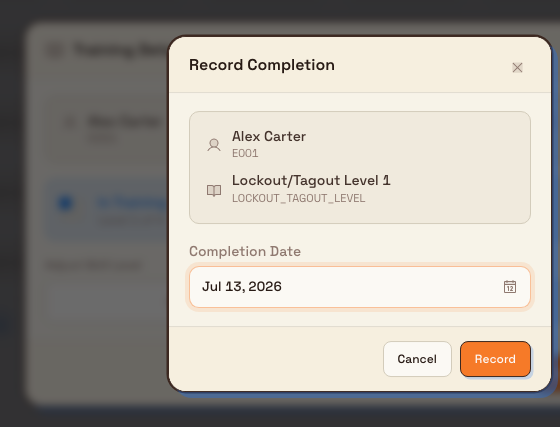
- In the Record Completion dialog, set the Completion Date, check that it matches the actual training date, and select Record.
Bulk confirms with Training completion recorded.
What recording a completion does
Logging the completion updates several things at once, all calculated by Bulk:
- Status becomes complete. The training moves to a Valid record (or Expired only if the completion date you entered is already past the validity period).
- Skill level rises to at least Supervised. Bulk lifts the person's skill level to Supervised (level 2 of 4) if it was lower, so the matrix reflects that they are trained. You can raise it further to Competent or Trainer from the Training Details dialog.
- The expiry date is set automatically. Bulk adds the program's validity period to the completion date to calculate when the certification lapses. If the program has no validity period, the training does not expire.
- The completion is logged to history. A completion entry is written to the training's History with your name, the skill level, and the date.
Attach evidence to the record
The completion date records when; an attached certificate or sign-off supports what was completed. Evidence lives on the employee's training detail, held against the record.
- Open the person's training detail. From the Training module, select Records, then choose the employee — or open their record from the People module. See Review training records for the full page.
- On the Trainings tab, expand the training's card and find the Certificates section (Evidence held against this training record).
- Drop a file onto the dropzone, or select browse files, to upload. Accepted files are PDF, JPG or PNG, up to 10 MB.
Each stored file appears as a row with a Verified seal, its size and who uploaded it, and controls to Preview, Download, or remove it. The seal shows that the file is held on the record; assess its contents before using it as evidence of qualification. You can hold more than one certificate against a single record — the dropzone reads Add another certificate once the first is stored.

Evidence survives renewals
Certificates are never overwritten. When a training is later renewed, its previous certificates stay on the record and in history, and removing a certificate only hides it — the underlying file is kept. This is what makes the record audit-ready over the full life of a certification.
Correct a recorded completion
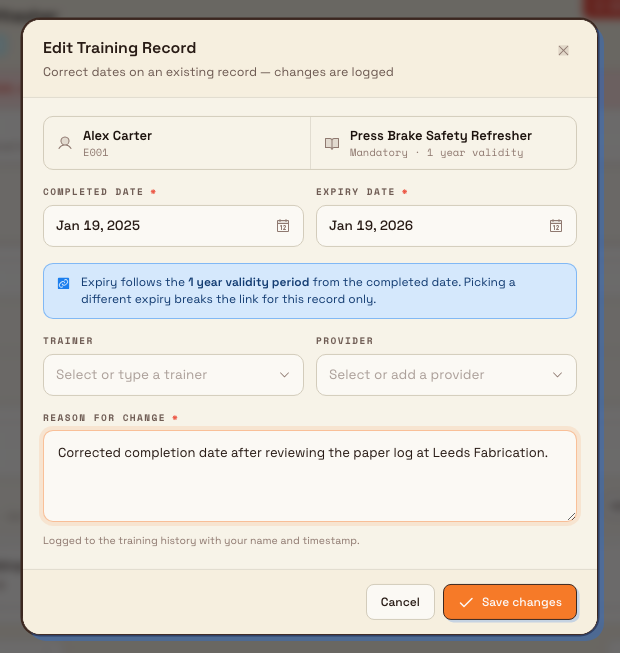
If a date was keyed wrong or the trainer was not captured, correct the record rather than deleting and re-recording it. On the expanded training card, select a date cell or Edit record to open the Edit Training Record dialog. There you can:
- Adjust the Completed date and, if needed, the Expiry date. Expiry follows the program's validity period by default; picking a different date is an explicit override that applies to that one record. Use Reset to auto to return to the calculated date.
- Set the Trainer (a Bulk user or a typed-in name) and the Provider (the organisation that delivered the training; you can add a new provider inline).
- Enter a Reason for change. A reason is required, and the correction — old dates to new — is logged to the training's History with your name and timestamp.
Select Save changes to apply. Bulk confirms with Record updated — change logged to history.
Example: recording coolant sampling practice at Gotham
Barbara Gordon completes Coolant Sampling Practice at Gotham Applied Sciences on 4 October 2026. Bruce Wayne opens the Coolant Sampling Review matrix layout, selects Barbara's CSAMPLE cell, starts the assignment, and chooses Record Completion. After recording the actual training date, her skill level becomes Supervised and the twelve-month validity period sets expiry to 4 October 2027.
Bruce then opens Barbara from Records, expands the Coolant Sampling Practice card, and uploads the session sign-off PDF under Certificates. The stored row shows its filename, uploader, and upload date. History links the assignment, completion at Supervised level, and certificate upload. Barbara's other training records remain separate.
Expected result
After recording a completion and attaching evidence:
- The training shows as Valid on the employee's record card and in the matrix cell, with Completed and Expires dates.
- The person's skill level is at least Supervised, so the matrix reflects that they are trained.
- The History tab carries a completion entry; corrections and certificate changes add their own entries.
- The certificate appears under Certificates with a Verified seal, ready to preview or download.
Availability and limitations
Recording training completions is generally available. A few behaviours are worth knowing:
- The matrix Record Completion dialog captures the date only. Evidence is attached separately on the employee's record card, so recording a first completion and attaching its certificate are two steps. Renewals can take a fresh certificate in the same step — see Renew expiring training.
- Recording sets skill level to Supervised, not higher. Reaching Competent or Trainer is a separate judgement you make from the Training Details dialog; it is not implied by a completion.
- Certificate files are limited to PDF, JPG, or PNG, up to 10 MB. Other file types and larger files are rejected. Bulk validates the file both in the browser and on the server.
- Renewing does not replace the record. To start a fresh validity window on an expiring or expired training, use renewal rather than editing the dates — editing corrects the existing window, renewal opens a new one and keeps the old evidence.
Troubleshooting
- There is no Record Completion button on the cell. The action only appears once a training is In Training. If the cell reads Not Trained, select Start Training first; if it is already completed, the dialog offers Renew Training instead.
- "Training completion required before setting skill level to Supervised or higher." You tried to raise the skill level past In Training without a completion on record. Record the completion first, then raise the level.
- The upload is rejected. File type not accepted — use PDF, JPG or PNG up to 10 MB means the file is the wrong type or too large. Export the certificate as a PDF or image under 10 MB and try again.
- You cannot record, upload, or edit. These actions need the training manage or create permissions. If the controls are missing or read-only, ask an administrator to grant your role the Create training assignments or Manage training assignments permission.
Related
- Review training records — the page you open to find a person and drill into their trainings.
- Renew expiring training — start a new validity window on an expiring or expired certification.
- Assign training — assign a program to people so it can be completed.
- Use the training matrix — the grid of who is trained on what.
- Training — the training module overview and home dashboard.
Save a training matrix layout
Create, name, and share a reusable view of the Versatility Matrix that narrows it to a chosen set of trainings and people.
Renew expiring training
Record a fresh completion for an expiring or lapsed certification, starting a new validity window while keeping the previous record and certificate.