Renew expiring training
Record a fresh completion for an expiring or lapsed certification, starting a new validity window while keeping the previous record and certificate.
Last updated
Renewing training records a fresh completion for a certification and starts a new validity window, so a person stays compliant without losing their earlier record. A certification is a qualification that can expire, such as a forklift licence or a welding qualification, and its validity period is how long that qualification stays valid before it must be re-earned. When a certification is close to its expiry date or has already lapsed, you renew it to reset the clock.
Renewal is deliberately separate from editing a record. Editing corrects a mistake in the existing dates or details; renewing logs a new completion, calculates a new expiry, and keeps the previous completion and any certificate on file in the training history. Renewal never overwrites past evidence.
Use renewal when:
- A certification is expiring soon and you want to keep the person compliant before it lapses.
- A certification has already expired and the person needs to be brought back into compliance.
- Someone has re-sat a course early and you want to record the new completion straight away.
Before you start
Open the Training app in your workspace. Your workspace must have Training installed, and your account must have access to its records.
You need permission to renew. Renewing requires the training_assignments.create permission. Owners have every permission, and the built-in Training and People roles both include it. If you can open a person's training record but the renew actions described below do not appear, you have view access but not renewal access. Ask an owner or administrator to grant the Training or People role.
Renewal uses the program's automatic validity window. A program is the course or certification you track in the Training Catalog, and it can carry a validity period measured in months. If the program has a validity period, renewal sets the new expiry to the completion date plus that many months. If the program has no validity period, the training does not expire and renewal simply records a fresh completion.
Where to renew
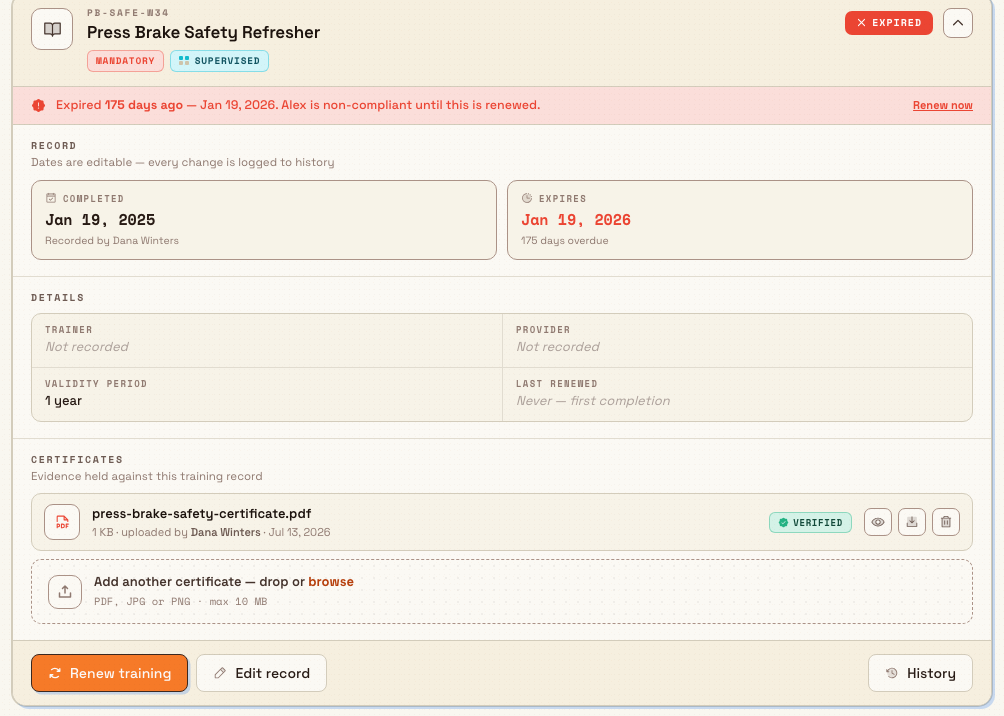
Open the person's training record: open Training, choose Records, and select the person. Their detail page opens on the Trainings tab, where each assigned program is shown as an expandable card.
A card offers a renewal action in a few places, depending on the training's status:
- Renew now appears in the coloured risk strip on any card that is Expiring soon (within 30 days of its expiry date) or Expired.
- Renew early appears in the footer of a card that is still valid, so you can renew ahead of time.
- Renew training appears in the footer of an expired or expiring card once you expand it.
All three open the same Renew Training dialog.
Renew a training
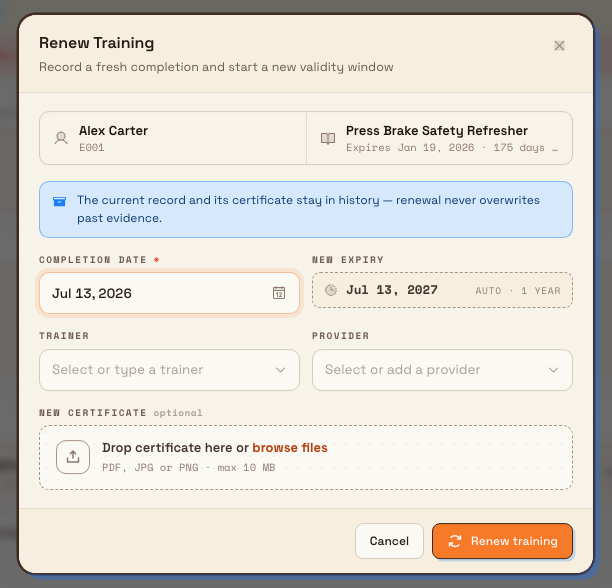
- Open the Renew Training dialog using one of the actions above. The dialog is headed Record a fresh completion and start a new validity window and shows the person, the program, and the current expiry at the top.
- Set the Completion date. This field is required. Enter the date the person re-earned the qualification.
- Check the New expiry. Bulk calculates this automatically from the completion date and the program's validity period, shown as
autoalongside the validity length (for exampleauto / 1 year). If the program has no validity period, this readsDoes not expire. - Optionally set the Trainer who delivered the training. You can pick an existing user or type a name.
- Optionally set the Provider who delivered the training. You can pick an existing provider or add a new one.
- Optionally attach a New certificate as evidence. Accepted files are PDF, JPG, or PNG, up to 10 MB. This is optional because not every renewal produces a new document.
- Select Renew training. Bulk confirms that the training was renewed and the previous record archived.
Past evidence is kept
Renewal never overwrites the previous record. The earlier completion date, expiry date, and any certificate stay in the training history as a renewed event, so you keep a full audit trail of every time the qualification was earned. You can review it on the History tab of the person's training record.
What to expect
After you renew:
- The training's expiry resets to the new date, and its status returns to compliant. An expired or expiring certification stops flagging on the dashboard once it is renewed and current again.
- The new validity window always follows the program's automatic validity period. If the previous record carried a manual expiry override, renewal clears that override and returns to automatic dates.
- The person's skill level for the program is kept at least at Supervised. Renewing confirms hands-on competency, so it will never drop someone below that level.
- Last renewed on the record shows the completion date you just entered, and a renewed entry is added to the History tab together with any certificate you attached.
Example: Gotham Applied Sciences
Wayne Corp tracks Machine Safety Essentials as a mandatory program with a one-year validity period. Adrian Vale completed it on 8 October 2025, so it expires on 8 October 2026.
Bruce Wayne opens Adrian's record in Training → Records. The expanded card shows Expiring and a Renew now action. After Adrian completes the refresher on 3 October 2026, Bruce enters that completion date, selects himself as trainer, and records Wayne Training Centre as the provider.
The new expiry preview shows 3 October 2027. Bruce selects Renew training. Adrian's card becomes Valid, and History keeps the earlier expiry alongside the new validity window.
Feature state
Renewing training is generally available. Renewal is scoped to a single entity, so it reflects the plant you are currently working in. A person's training records, dates, and evidence belong to that plant.
Limitations
- Renewal always uses the program's automatic validity window, so you cannot type a custom expiry date inside the Renew Training dialog. If a specific renewal needs a different expiry, renew first and then edit the record to override the expiry date.
- If a program has no validity period, its trainings never expire and will not surface as expiring or expired. Renewal still records a fresh completion, but there is nothing to reset. Add a validity period to the program in the Training Catalog if the certification should expire.
- Renewal actions only appear when you have renewal permission. Without it, the record is read-only and the Renew actions are hidden.
Troubleshooting
- You cannot see a Renew action on a training record. This is a permissions gap. Viewing a record needs only view access, but renewing needs the
training_assignments.createpermission. Ask an owner or administrator for the Training or People role, then reopen the record. - The New expiry shows
Does not expire. The program has no validity period set, so the certification is treated as non-expiring. If it should expire, open the program in the Training Catalog and set a validity period in months, then renew again.
Related guidance
Record training completion and evidence
Log that an employee finished an assigned training, set its completion and expiry dates, and attach certificates as verifiable evidence held against the record.
Product reference
The task-by-task guides for every Bulk module, grouped into five business areas: start here to find the reference for the feature you are using.