Review training records
Review each employee's training compliance on the Training Records page, filter by status or department, and drill into one person's records.
Last updated
The Training Records page is where you review how your people are tracking against the training assigned to them. A training record is one employee's assigned training program together with when they completed it and when it expires. A training program is a defined competency or certification, such as a forklift licence or a machine-specific safety induction, that you assign to people through the training matrix, the grid of who is trained on what.
Use this page when you need a current, at-a-glance picture of training compliance: before an audit, when planning who can be scheduled on a job, or when you want to find and clear expired certifications. Reviewing records is mostly a read-and-monitor activity. You spot who is at risk here, then follow the linked tasks to record a completion or renew a training. Records are drawn from the training matrix. The table can also include workforce employees who have no assignments yet, with zero counts.
Before you start
You need the right permissions to see training records:
- View the Records page. The Records table requires the View training matrix permission (
training_matrix.view). It is granted by default to the Super user, Entity admin, Training, and People roles. The Operator and Manager roles do not include it, so those accounts cannot open the training Records page. - Open an employee's detail. Drilling into one person's training opens their assignment detail, which requires the View training assignments permission (
training_assignments.view). The Super user, Entity admin, Training, and People roles hold it by default. - Training already assigned. The table draws employees and their assignments from the matrix. If nothing has been assigned yet, the page shows No training assignments with the prompt Add training assignments to get started, and there is nothing to review.
Open the training records
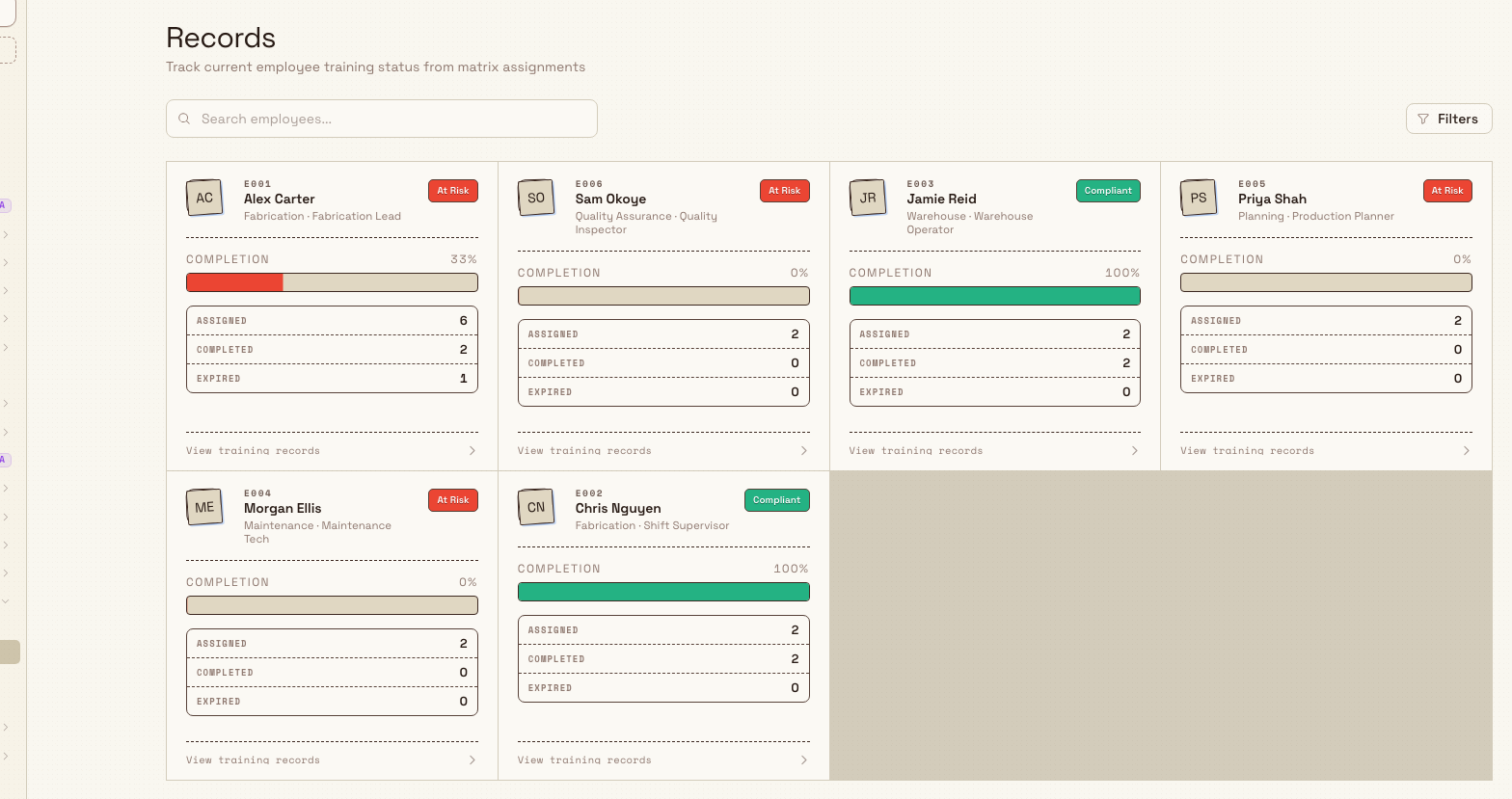
In the sidebar, open the Training module and select Records. The page is titled Records and carries the subtitle Track current employee training status from matrix assignments. The table shows each employee's code, department, job title, status, completion progress, and training counts.
Read an employee's compliance at a glance
Each row summarises one employee without you needing to open their detail:
- Who they are. The row shows the employee name, code, department, and job title.
- Status. A badge reflects the completion tier: Compliant at 100%, Partial from 70% up to 99%, and At Risk below 70%.
- Completion. The progress bar shows the same completion percentage. An employee with no assignments has no progress value.
- Counts. Assigned, Completed, and Expired show the number of records in each group. A nonzero Expired count appears in red.
- Open the record. Select the employee name or row to review their full training detail.
Select a column heading to sort the table. Sorting Expired descending brings lapsed qualifications to the top. Columns lets you choose the visible columns, and the view control shows whether the layout is the default or a custom view.
Filter and search the records
The controls above the table narrow the list:
- Search employees. Enter a name in Search employees....
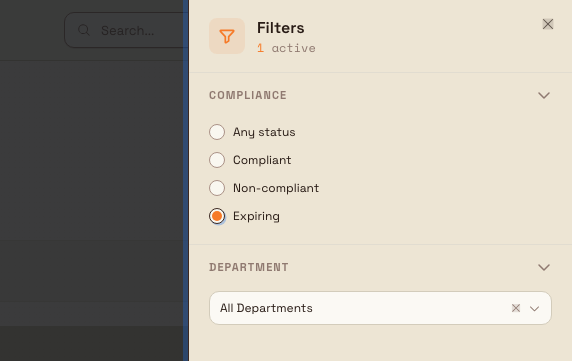
- Compliance. Select All, Compliant, Non-compliant, or Expiring directly in the filter bar.
- Department. Select Filters to open the department drawer. Choose a department or keep All Departments, then select Show results.
Active filters appear as removable chips. Use a chip's close control to remove that filter. While the list refreshes, Updating results... appears beneath the controls.
Review one employee's training in detail
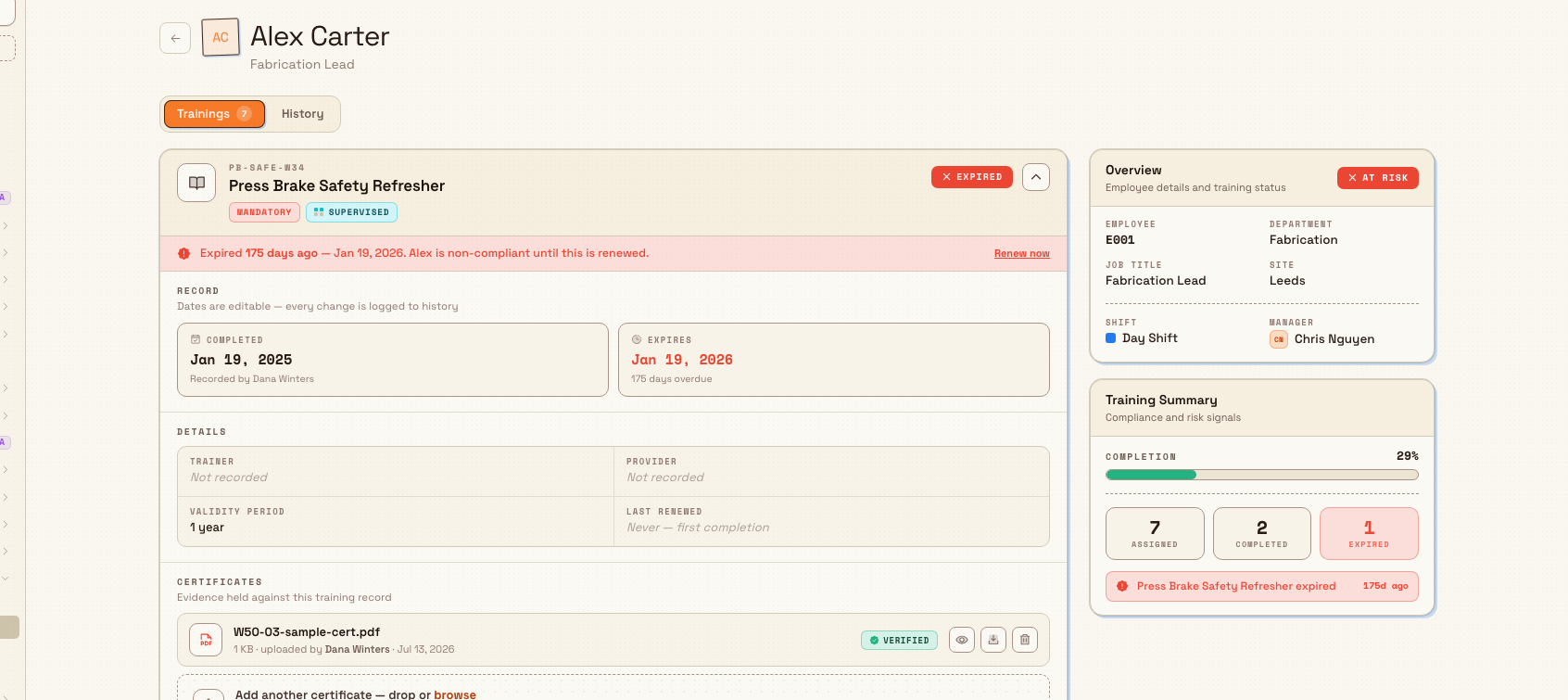
Select an employee name or row to open that employee's training detail. The page header shows their name and Employee training overview, with a back control that returns you to the Records table. Two areas make up the view.
The sidebar: Overview and Training Summary
- Overview (Employee details and training status) lists the person's employee code, department, job title, site, shift, and manager, and shows a compliance pill: Compliant, Partial, or At risk. Fields with no value read Not assigned.
- Training Summary (Compliance and risk signals) shows the overall completion percentage with a bar, then Assigned, Completed, and Expired counts. Below them, a risk list names each expiring or expired training; selecting a risk jumps to and expands that training's card.
The Trainings and History tabs
The main column has two tabs. Trainings (with a count) lists a card per assigned training; History holds the audit trail.
Each training card shows the program code and name, whether the training is mandatory, recommended, or optional, its skill level, and a status: Valid, Expiring, Expired, In progress, or Pending. The Completed and Expires dates sit on the card. Training that is expired or expiring shows a coloured risk strip. For an expired training it reads that the person is non-compliant until it is renewed, with a Renew now action where renewal is allowed. Expired records open already expanded, because they are usually the reason you are on the page.
Expand a card to see its full record: the Trainer and Provider, the Validity period, and when it was Last renewed, plus any certificates held as evidence. The footer offers Edit record, Renew training (or Renew early for a still-valid training), and History for that one training. The History tab lists every change, edits, uploads, and renewals, under the heading Activity; if there has been no activity yet it reads No activity yet.
Example: a compliance review at Gotham Applied Sciences
Bruce Wayne reviews training before a customer audit of Gotham Applied Sciences. He opens Training, then Records, and selects Expiring. Adrian Vale, WE-GTH-21, remains in the table because his Safe Material Handling qualification expires on 15 October 2026.
Adrian's row also shows one expired record in red. Bruce opens it and finds First Article Inspection & Measurement already expanded, with a 1 October 2026 expiry date and a Renew now action. The Training Summary names both risks: the expired inspection training and the upcoming material-handling expiry. Bruce can plan each renewal from the same employee record.
Act on what you find
Reviewing records tells you what needs doing; the actions themselves live in their own tasks:
- To record that someone finished a training and attach evidence, follow Record training completion and evidence.
- To renew an expired or expiring certification, follow Renew expiring training.
- To assign new training to people, follow Assign training.
Troubleshooting
- The Records page is empty. If the page reads No training assignments, no training has been assigned through the matrix yet. Assign training first, then return to review it.
- "Employee not found." Opening a detail page from a broken or edited link shows Employee not found with Select an employee from the training list. Go back to the Records table and pick an employee from there.
- A person you expect is missing. Active filters narrow the workforce list. Select All, remove any search or department chips, and confirm the employee is active at the selected site.
- The compliance badge and the Compliance filter disagree. The Status badge in the table is a completion tier (Compliant, Partial, or At Risk based on completion percentage), while the Compliance filter groups people by compliance status (Compliant, Non-compliant, Expiring). They are calculated separately, so a filtered result and a row badge will not always use the same word.
Expired mandatory training means non-compliant
When a mandatory training expires, the employee is flagged as non-compliant on that training until it is renewed, and the expired record opens expanded on their detail page. Treat a red Expired count in the table as the first thing to clear during any compliance review.
Permissions and availability
Reviewing training records is generally available. The Records page is gated by the View training matrix permission (training_matrix.view), and opening an employee's detail is gated by the View training assignments permission (training_assignments.view). Both are read permissions; recording completions, editing records, and renewing training are governed by separate manage permissions and are covered in their own guides.
Related
- Training, the training module overview and its home dashboard.
- Use the training matrix, the grid the Records page draws from, mapping people to programs.
- Record training completion and evidence, log a completion and attach certificates.
- Renew expiring training, clear an expiring or expired certification.
- Employee record, the person's wider record, including their department, job title, and shift.