Entity settings
The per-site settings that control how one entity handles inbound documents, production jobs, customer gating, and the invoices and credit notes it issues.
Entity settings are the configuration that controls how one site runs its day-to-day work in Bulk. An entity — also called a site — is a single facility such as a plant or a lab, and your organization can run several. These settings decide how that site handles inbound documents (the customer paperwork you scan or upload to start work), how it turns that work into production jobs, how it gates work for individual customers, and what the invoices and credit notes it issues look like. Related per-site asset-type layout defaults (for example Load Job visible columns and concurrent-job capacity, record-station load-job batch limits, and whether a peaking bench records time) live with the site's asset types so each plant can tune shop-floor benches without changing organization-wide master data.
Because each site runs differently, entity settings apply to the site you currently have selected — not to your whole organization. This page explains what you can configure and points you to the step-by-step guide for each area.
You reach these settings under Settings › Entity in the left sidebar. The group holds three pages: Settings, Invoicing, and Invoice Fields. Every change applies to the site shown in the site switcher at the top of the app, so confirm the correct site is selected before you edit — switch sites there first if you manage more than one.
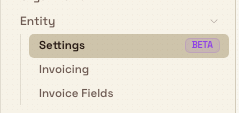
administration.entity.overview-01
Before you start
These are administrative pages, so you need a role whose permissions cover them. In the default roles, the Entity admin and Manager roles include the entity settings permissions, and the Super user role has every permission. The three areas use different permissions:
- Settings (operating rules and customer statuses) needs the entity operating-rules configuration permission to change, and entity view to open.
- Invoicing needs the production-invoicing configuration permission to change.
- Invoice Fields needs the forms edit permission (the same permission the forms builder uses).
If a page opens but its controls are read-only and no lock notice is shown, your role has view access but not the matching edit permission. Ask an administrator to grant it. See Roles and permissions for how roles map to permissions.
What you can configure
Settings — operating rules and customer statuses
The Settings page is marked Beta and has two tabs.
Operating rules set document and job behaviour for the whole site:
- Require PDF before creating inbound documents — a toggle between
RequiredandOptional. When set toRequired, a draft inbound document cannot be created until at least one PDF attachment is present. - Job quantity model — choose whether inbound line items and jobs use the quantity you enter (
Use real quantities) or always use quantity 1 (Always 1).
Customer statuses define an enforcement matrix: named statuses (for example an invoice hold) that gate five customer operations — inbound submit, production creation, invoice draft, invoice issue/send, and customer delivery. Each operation on a status is set to allow, warn, or block. Preset starters such as No limitations, Invoice hold, Production stop, and All stop give you a standard setup in one click, and you can create your own. A status is defined here and then assigned to individual customers, where it enforces those rules.
For the full walkthrough, see Update entity settings.
Invoicing — the invoicing profile
The Invoicing page holds this entity's invoicing profile: the company and seller details used on every invoice and credit note the site issues. It covers the seller name, address, and email, plus a logo, a default tax rate, and the approval policy for issuing invoices.
Bulk freezes these details onto each invoice at the moment it is issued. An invoice cannot be issued until the profile has at least a resolvable seller name and seller address (the seller name falls back to the site's own name if you leave it blank). For the full walkthrough, see Configure an invoicing profile.
Invoice Fields — extra fields on issued documents
The Invoice Fields page is a builder for the extra fields captured on every invoice and credit note for this entity. You switch between Invoice and Credit note and add fields to each, and some defaults are seeded for you. These fields appear on the issued document, so they are useful for information a customer needs to see — a purchase-order reference, a lab identifier, or a material batch number. For the full walkthrough, see Configure invoice fields.
Site process setup
Each site organises manufacturing processes in catalogues under Settings → Master Data → Processes, plus a built-in Uncatalogued view for processes with no catalogue. Revision history and availability (whether a revision can be picked for new work) are managed separately from approval status. Deleting a catalogue moves its processes to Uncatalogued rather than removing them. See Manage processes.
Routing approval policies are also site-specific. Large inbound submissions continue in the background and use the selected site's routing policies. If an administrator changes one of those policies before the submission publishes its approval requests, Bulk stops that submission safely so the planner can retry with the new policy instead of creating a mixed approval set. See Manage routings.
Operating rules and customer statuses lock once production starts
Operating rules and customer statuses describe how a site processes inbound work, so Bulk only lets you configure them while the site has no production jobs yet. As soon as the entity has a single production job, both areas lock: the pages show a lock notice, their controls become read-only, and a Contact support button replaces the save controls. Changing them after that goes through Bulk support.
Set operating rules and customer statuses before you create production jobs
Plan to configure the Operating rules and Customer statuses tabs early, when you first set up a site — before any jobs run there. Once the site has even one production job, these two areas are locked to self-service and further changes require Bulk support. The Invoicing and Invoice Fields pages are not affected by this lock; you can edit them at any time.
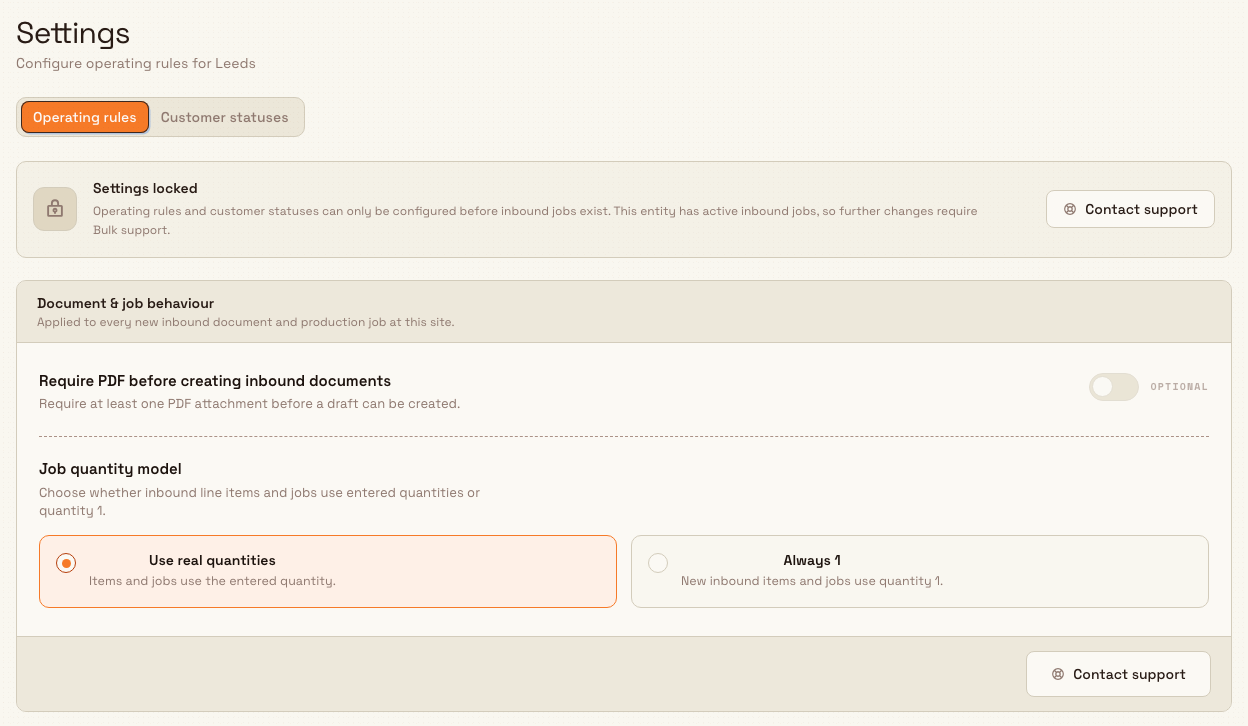
administration.entity.overview-02
Example: Granite Peak Manufacturing
Granite Peak Manufacturing is bringing its Leeds Fabrication Plant online as a new site in Bulk. Before any jobs run, an administrator selects Leeds Fabrication Plant in the site switcher and works through entity settings once:
- On Settings › Entity › Settings, under Operating rules, they set the PDF requirement to
Requiredso no inbound document is drafted without its source paperwork, and leave the Job quantity model onUse real quantities. - On the Customer statuses tab, they add the
Invoice holdpreset so they have a status ready to apply to any customer whose account goes on stop — it warns on new jobs and draft invoices and blocks invoice issue, send, and delivery. - On Settings › Entity › Invoicing, they enter the plant's legal seller name, billing address, and logo so every invoice Leeds issues is complete from day one.
- On Settings › Entity › Invoice Fields, they add a
Heat numberfield to invoices so each steel batch is traceable on the customer's document.
Because they finished the operating rules and customer statuses before the first job was booked, both saved cleanly. Once production starts at Leeds, those two areas lock, while Invoicing and Invoice Fields stay editable for ongoing changes such as a new logo or an added invoice field.
Expected result
With entity settings configured, the selected site behaves the way you set it: inbound documents follow your PDF and quantity rules, customer statuses gate work across the five operations for the customers they are assigned to, and every invoice and credit note the site issues carries your seller details and custom fields. Each area is configured per entity, so repeat the setup for each site your organization runs.
Limitations and feature state
- Settings is a Beta area. The Settings page (operating rules and customer statuses) is marked Beta in the product; its behaviour may change. The Invoicing and Invoice Fields pages are generally available.
- The operating-rules and customer-status lock is one-way for self-service. Once a site has a production job, you cannot re-open these two areas yourself — changes go through Bulk support. This lock is computed from whether any production job exists for the site; there is no setting to turn it off.
- These settings are per entity, not organization-wide. Values you set apply only to the selected site. A separate site starts from its own defaults, so configure each one.
- An invoicing profile must be complete before an invoice can be issued. Until the profile resolves a seller name and address, invoices for that site cannot be issued.
Troubleshooting
- The Settings controls are read-only and a lock notice is shown. The site already has at least one production job, so operating rules and customer statuses are locked. Use the Contact support button to request a change.
- A page is read-only but there is no lock notice. Your role has view access but not the edit permission for that area. Ask an administrator to grant the relevant entity settings permission.
- Your changes affected the wrong site. These settings are per entity. Check the site switcher at the top of the app and confirm the correct site is selected before editing.
- An invoice will not issue. Open Settings › Entity › Invoicing and make sure the profile has a seller name and address; the page indicates which required parts are missing.
Related guidance
- Update entity settings — configure operating rules and customer statuses on the Settings page.
- Configure an invoicing profile — set the seller details, tax rate, and approval policy used on issued documents.
- Configure invoice fields — build the custom fields captured on every invoice and credit note.
- Manage customers — assign a customer status to an individual customer so its rules take effect.
- Roles and permissions — grant the permissions these settings pages require.