Build an audit template
Build the sections, check items, field types, scoring, and behavior policy for an audit template draft, then preview and publish it for operators.
An audit template is the reusable checklist operators fill in on the floor. The template builder is where you design that checklist: sections that group related questions, field types for each answer, scoring and critical-item rules, and optional behavior after the audit finishes (notifications, tasks, pass thresholds). You always edit a draft version; publishing makes that draft the live form new audits use.
Use the builder when you create a new template, revise an existing one, or need to change how results are graded and what happens when something fails. Creating the template shell (name, code, type, frequency) and managing the library live on the Templates page — this guide covers building and publishing the form itself.
Before you start
- Open Settings, expand the Audits group, and select Templates. The list address ends in
/settings/audits/templates. - Open a template’s form builder with Edit Form on the template card (or the Edit Form menu item). After you create a new template or duplicate one, Bulk opens the builder automatically.
- The builder address ends in
/settings/audits/templates/<template-id>/edit.
You need permission for this site:
- View the builder requires View audits (
audits.view). - Add, edit, reorder, and delete sections and items, and save the behavior policy, require Update audits (
audits.update). - Publish a draft requires Publish audits (
audits.publish).
These management permissions are granted by the built-in Super user, Entity admin, and Manager roles. Operator and Tablet user can view and execute audits but not build or publish templates. If Publish, Add Section, or save actions fail, ask an administrator to adjust your role.
Templates and drafts are per site (entity). Switch site first if you need to build a form for another plant.
Drafts and published versions
- Only a draft version is editable. The header badge shows
vN (draft)orvN (published). - If the template is already published and has no open draft, selecting Edit Form first shows Create New Draft Version. Confirm with Create Draft — the published version stays live until you publish the new draft.
- A draft already open opens the builder directly. You cannot have more than one draft at a time.
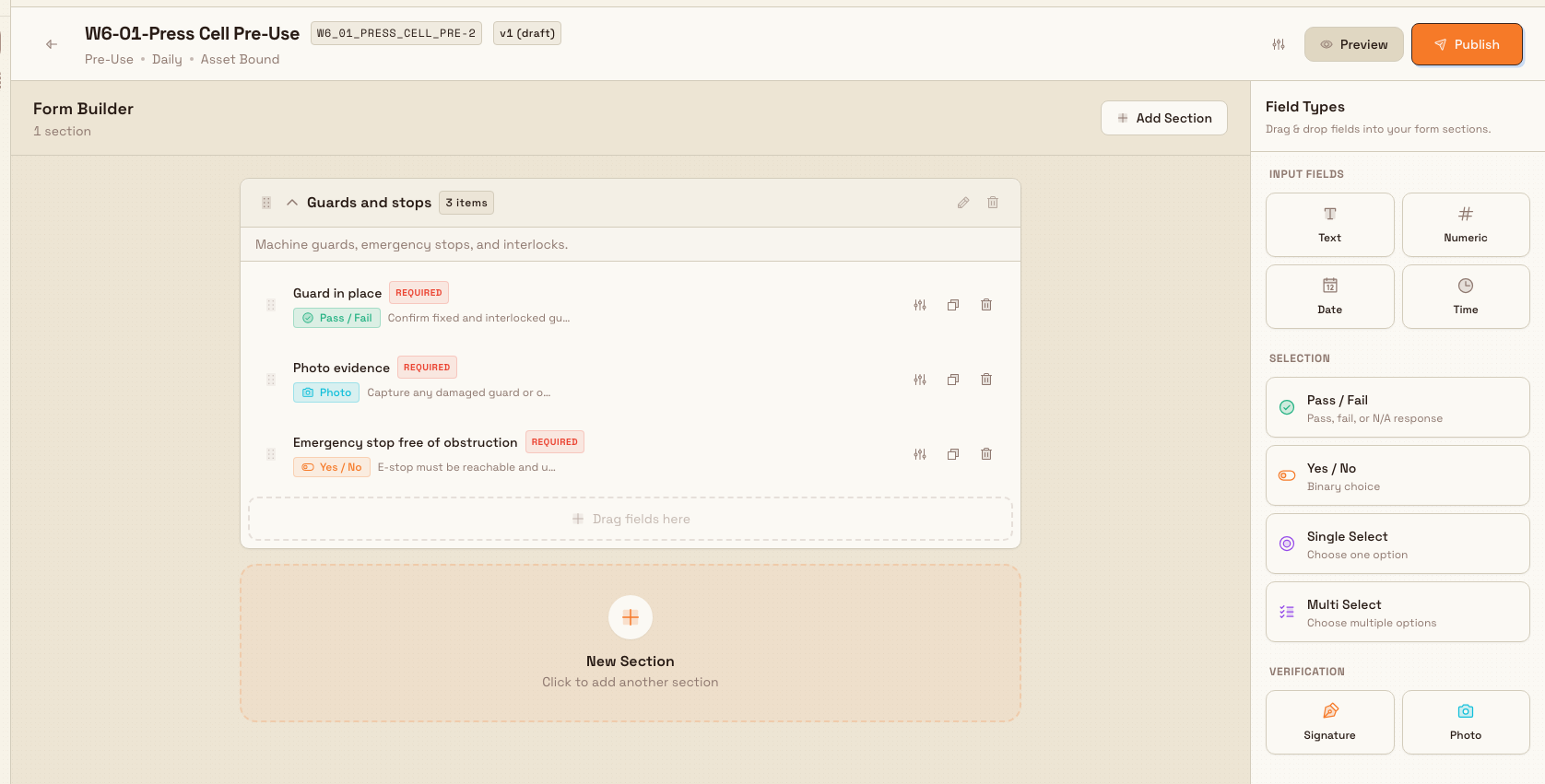
administration.audits.template-builder-01
What the builder shows
Header
- Back returns to the Templates list (tooltip Back to Templates).
- Name, short code badge, and version badge
vN (status). - Subline: audit type (for example Pre-Use, Safety, Quality, 5S Audit), frequency (One-Time, Daily, Weekly, Monthly), and Asset Bound when the template is tied to equipment.
- Behavior Policy & Settings (sliders icon) opens grading and triggers.
- Preview / Edit toggles operator-style preview of the form.
- Publish appears only while the version is a draft. It is disabled when the draft is not ready (hover the button to see the reason). If in-progress audits block publish, the button shows a warning style and opens a blocking dialog instead of publishing.
Form Builder (edit mode)
- Title Form Builder and a count of sections.
- Add Section in the toolbar (not shown for 5S Audit templates — see below).
- Each section is a collapsible card: name, item count, expand/collapse, edit and delete (when allowed), and a drop zone Drag fields here.
- Each item shows its label, optional Required badge, field-type badge, helper text snippet, and actions to edit, duplicate, or delete. Drag handles reorder sections and items; you can also drag an item into another section.
Field Types toolbox
The right sidebar is titled Field Types with the hint “Drag & drop fields into your form sections.” Groups:
| Group | Field types |
|---|---|
| Input Fields | Text, Numeric, Date, Time |
| Selection | Pass / Fail, Yes / No, Single Select, Multi Select |
| Verification | Signature, Photo |
Dropping a type onto a section opens the add-item dialog with that type preselected (default label like New Pass / Fail).
Empty form
If there are no sections yet, the canvas shows No sections yet, short guidance to start with sections, and Add First Section. Structure, Verify, and Reorder tips appear below.
Add and arrange sections
- Select Add Section (or Add First Section / the dashed New Section tile).
- In the Add Section dialog, enter a Name (required, up to 100 characters; placeholder example
Safety Equipment) and optional Description. - Select Add Section. Confirmation: Section added.
Edit a section with the pencil control (Edit Section dialog → Save Changes). Delete with the trash control; the confirm dialog is Delete Section and warns that all items in the section are deleted and the action cannot be undone. Drag the section handle to reorder.
5S pillar sections
For templates of type 5S Audit, sections are the five fixed pillars. The form header notes 5S Pillars (fixed); there is no Add Section control. Pillar cards show a lock icon and a 5S Pillar badge, and cannot be renamed or deleted. You still add and reorder items inside each pillar.
Add and configure items
- Drag a field type from the toolbox onto a section (or onto the insert position between items), or use the section drop zone.
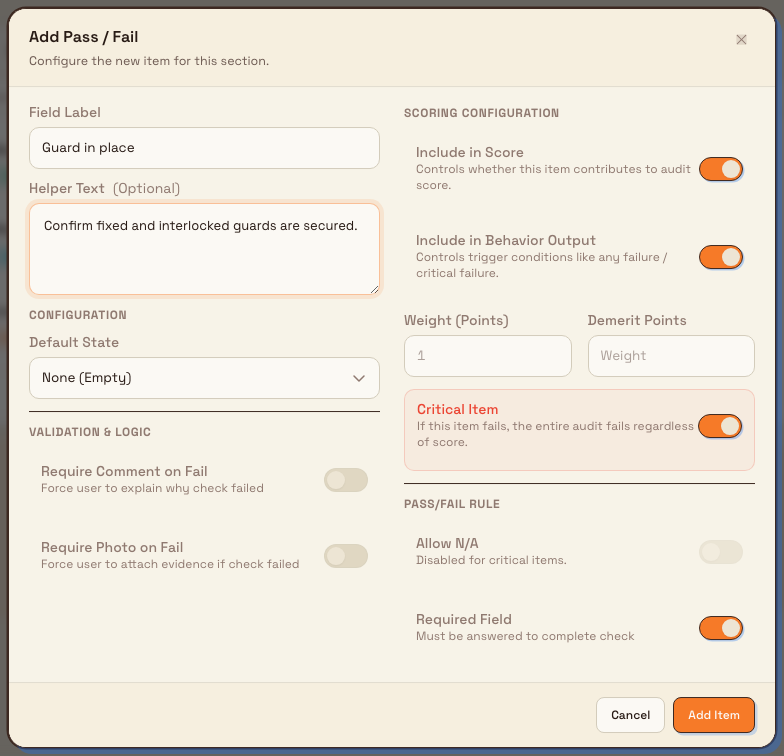
- The add-item dialog opens with a title based on the field type (for example Add Pass / Fail) and description “Configure the new item for this section.”
- Fill in:
- Field Label (required) — what the operator sees (placeholder example
Check tire pressure). - Helper Text (optional) — short instructions for the operator.
- Type-specific options (thresholds, choices, fail evidence, date/time defaults, and so on).
- Scoring Configuration or Pillar Scoring when the type supports scoring (weight, demerit, critical item, include in score / behavior output, pass/fail rules).
- Required Field — when on, the operator must answer before completing the check (default on for new items).
- Field Label (required) — what the operator sees (placeholder example
- Select Add Item. Confirmation: Item added.
Edit an item with the sliders control (dialog title like Edit Pass / Fail → Save Changes). Duplicate copies the item in place (Item duplicated). Delete uses Delete Audit Item and cannot be undone.
Field types at a glance
- Text — free-form text; optional multiline, placeholder, length limits.
- Numeric — number entry; optional unit, min/max pass band, step, allow negative.
- Date / Time — pickers with format and default options.
- Pass / Fail — Pass, Fail, or empty default; optional require comment or photo on fail.
- Yes / No — binary choice; optional require evidence when the answer is No.
- Single Select / Multi Select — ordered Choices, optional default, optional Allow "Other" Option.
- Photo / Signature — evidence capture fields (scoring availability depends on template type).
Scoring highlights
On scorable types (for most non-5S templates: Pass/Fail, Yes/No, Numeric, Single/Multi Select, Date; for 5S: Pass/Fail, Yes/No, Numeric, Multi Select, Photo):
- Include in Score / Include in Behavior Output (non-5S) control whether the item affects the grade and failure triggers.
- Weight (Points) and optional Demerit Points.
- Critical Item — if this item fails, the whole audit fails regardless of score (N/A is blocked for critical Pass/Fail and Yes/No items on non-5S templates).
Scoring detail is deep; set weight and critical flags on key safety questions, then refine rules as your grading strategy requires.
administration.audits.template-builder-02
Behavior policy
Open the sliders control (Behavior Policy & Settings). The Behavior Policy dialog configures how results are calculated and what automation runs afterward.
Grading strategy (non-5S):
- Pass/Fail — any failure results in overall FAIL.
- Weighted Score — score from item weights (0–100%).
- Demerit Points — start at 100 and subtract demerit points.
For weighted and demerit strategies you set Pass Threshold (%) and Fatal on Critical (automatically fail if any critical item fails). 5S Audit templates lock grading to Weighted Score (badge Required for 5S) and show 5S Configuration: minimum pillar score, target score, optional pillar weights, and score benchmarks.
Triggers (optional): select Add Trigger, choose When (for example Audit Completed, Score Below Threshold, Critical Item Failed, Any Item Failed, Overall Result is FAIL — 5S uses a shorter score-focused set), then Then actions Send Notification and/or Create Task. Notifications need at least one recipient (and at most two). Tasks need a project and a title template (variables such as {audit_name}, {score}, {date} are supported). Save with Save Changes (toast Behavior policy updated). On a published version the dialog is read-only (Close only).
Preview and publish
Preview
Select Preview to see Form Preview: sections and fields as operators will see them (non-interactive), with a note that operators get a Submit control at the end. Empty forms show Nothing to Preview. Select Edit to return to the builder.
Publish
When the draft is ready:
- Select Publish.
- On success, toast Template published with description
Version N is now active.The version becomes published; the previous published version (if any) is archived; the draft slot clears.
Publish is blocked until the draft has at least one section and at least one audit item. Hover Publish for the reason when the button is disabled (for example “Template must have at least one section” or “Template must have at least one audit item”).
If operators have in-progress audits on the current published version, publish is blocked so they do not lose work. The button shows a warning state; selecting it opens Cannot Publish - Audits In Progress, listing each audit (asset or area, operator, progress, time started). Wait for those audits to finish or be cancelled, then publish again.
Example: Pre-use guard check at Leeds Fabrication Plant
Dana Winters sets up a daily pre-use checklist for the press cell at Granite Peak Manufacturing’s Leeds Fabrication Plant.
She creates a Pre-Use, asset-bound, Daily template on the Templates page (or opens an existing draft with Edit Form). In the builder she adds a section Guards and stops, then drags Pass / Fail into it, labels the item Guard in place, turns on Required Field and Critical Item, and enables Require Comment on Fail. She adds a Photo item for evidence when something looks wrong, and a Yes / No item for “Emergency stop free of obstruction.”
In Behavior Policy she chooses Pass/Fail grading so any failure fails the audit, adds a trigger for Critical Item Failed with Send Notification to the quality lead, and saves. She selects Preview to confirm the order of questions, then Publish. Operators running pre-use on that asset now get the new form; later changes start from Create Draft so production keeps using the live version until she publishes again.
Expected result
A published template shows a published version on the Templates list. New audit executions for that template use the published sections and items, scoring and critical rules, and any triggers you configured. Drafts you are still editing do not change live audits until you publish.
Feature state and limits
Building audit templates is generally available. Keep these behaviors in mind:
- Only draft versions are editable; published structure is fixed until you create a new draft.
- 5S Audit templates use fixed pillar sections; you cannot add, rename, or delete those sections.
- Publish requires at least one section and one item, and is blocked while any audit is in_progress on the current published version.
- Behavior-policy trigger actions in the UI are Send Notification and Create Task (not every internal action type).
- Template metadata (name, code, type, frequency, asset binding) is edited on the Templates list via Edit Details, not inside the form canvas.
- Deep scoring-rule matrices (select pass/fail value maps, relative date rules) are available in the item dialog; this guide covers the main controls operators and admins use day to day.
Troubleshooting
- Publish is disabled — the draft needs at least one section and one item, or the version is not a draft. Add structure, or create a draft from a published template first. Hover Publish for the exact reason string.
- Cannot Publish - Audits In Progress — operators still have open audits on the live version. Complete or cancel those audits, then publish.
- “Cannot edit published version. Create a new draft to make changes.” — you tried to change a non-draft version. Use Edit Form on the Templates page and accept Create Draft.
- “A draft version already exists…” — finish or publish the open draft before creating another.
- No Add Section button — the template type is 5S Audit (pillars are fixed), or you lack update permission.
- Template not found — wrong site, deleted template, or invalid link. Return with Back to Templates and open the card again from the list for the correct site.
- Actions fail or are missing — you may only have view access. Ask an administrator for
audits.updateandaudits.publishas needed.
Related
- Audit configuration — overview of audit setup.
- Manage audit templates and the template library — create templates, library, archive, and open the builder.
- Manage audit areas — areas used with scheduled and area-based audits.
- Schedule audits — recurrence for templates.
- Roles and permissions — grant audit view, update, and publish permissions.
Manage audit templates and the template library
Create, publish, archive, and duplicate audit templates for a site, and start from pre-built library templates when you need a ready-made checklist.
Manage audit areas
Define the physical and logical places where audits run, organise them in a hierarchy, assign departments and owners, and see how schedules attach on the ownership graph.