Schedule audits
Link published audit templates to plant areas with daily, weekly, or monthly recurrence so due checks appear for operators on the right cadence.
An audit schedule ties a published audit template to one or more audit areas and a recurrence rule. Once the schedule is active, the check shows up for operators in that area on the cadence you set — daily walkthroughs, weekly safety rounds, monthly quality reviews, and similar area-based work.
Use schedules when the audit is about a place on the plant (a bay, a warehouse zone, a finishing cell), not when a pre-use check is already assigned to an asset type. Asset-bound pre-use templates that are already assigned to equipment stay on the assignment path instead.
Before you start
Open the Schedules page from Settings, open the Audits group, and select Schedules. The address ends in /settings/audits/schedules.
You need the audits permissions that match the action:
- View the list requires
audits.view. - Create schedules requires
audits.create. - Edit, activate, and deactivate require
audits.update. - Delete requires
audits.delete.
The built-in Super user, Entity admin, and Manager roles include those management permissions. Roles such as Operator and Tablet user can view and run audits but cannot add or change schedules. If Add Schedule or the row actions are missing, ask an administrator to adjust your role.
Schedules are per site. Each schedule belongs to the entity (site) you are working in. Switch site first if you need to manage another plant.
Before you create a schedule, prepare the building blocks on the same site:
- At least one active audit area (for example Fabrication Bay or Finishing).
- At least one active audit template with a published version that is eligible for scheduling:
- Standalone (non-asset-bound) templates of any type — Safety, Quality, Maintenance, 5S, Custom, and so on.
- Pre-use templates only if they are not already assigned to an asset type or asset group. Assigned pre-use templates are managed through check template assignments instead.
If no eligible template exists, the create dialog tells you to publish a non-asset-bound template first.
administration.audits.schedules-01
What the Schedules page shows
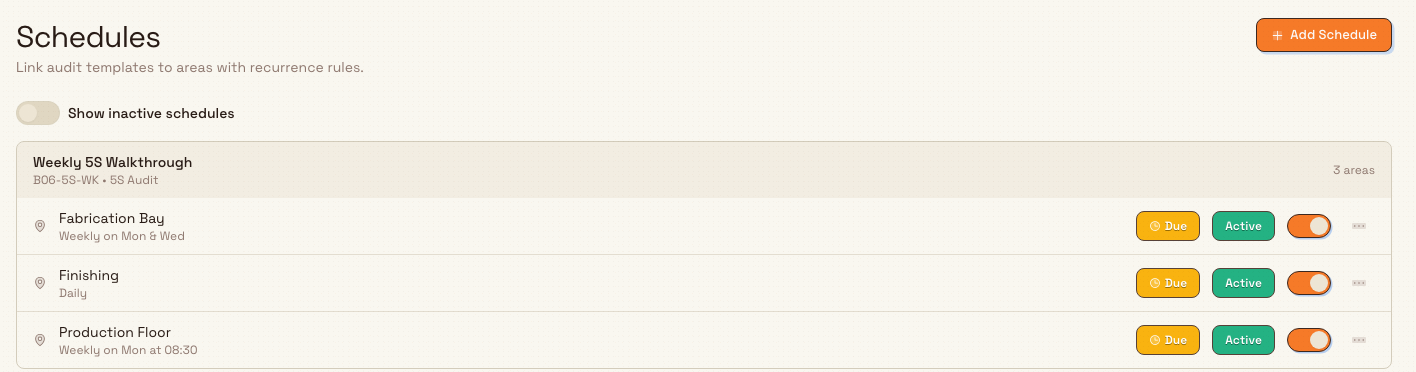
The header title is Schedules, with the description Link audit templates to areas with recurrence rules. and an Add Schedule button.
Below the header:
- Show inactive schedules — a switch. When off (default), only active schedules appear. Turn it on to include deactivated schedules so you can reactivate or clean them up.
- A list grouped by audit template. Each group header shows the template name, code, and type label (for example Safety, Quality, 5S Audit, Pre-Use), plus how many areas that template is scheduled in.
- Under each group, one row per area. A row shows:
- The area name
- A plain-language cadence summary computed by Bulk (for example
Daily,Weekly on Mon & Wed,Monthly on the first Monday, orEvery 2 weeks on Mon & Wed at 06:00) - A timing badge: Due, Overdue (or Nd overdue when more than a day late), Done today, or Not started
- An Active or Inactive badge
- An on/off switch to activate or deactivate that schedule
- A three-dots Actions menu with Edit, Activate / Deactivate, and Delete
If the site has no schedules yet (and inactive ones are hidden), the page shows No audit schedules with the prompt to create the first schedule and an Add Schedule action.
How a schedule works
Each schedule is a single link: one template + one area + one recurrence. Creating a schedule for several areas in one step still produces one schedule row per area. You can edit, deactivate, or delete each area’s schedule independently.
Only active schedules feed the due-audits list operators use when they start work. Deactivating a schedule hides it from that list without deleting it. Deleting removes that template–area link (the UI warns that the action cannot be undone).
Recurrence options:
| Choice | What you set |
|---|---|
| Daily | Every N days (default every 1 day) |
| Weekly | Every N weeks on one or more days (Sun–Sat). You must pick at least one day. |
| Monthly | Every N months, either on a day of the month (1–31 or last day) or on the nth weekday (first–fourth or last, plus the weekday). |
Optional extras on any cadence:
- At — preferred time of day (for example
06:00). Shown in the summary when set. - Window — optional Starts and Ends dates. Leave start as today and end as never if the schedule should run indefinitely. End must be on or after start.
While you edit recurrence, Bulk shows a live preview: a short summary and the next few occurrence dates once the rule is complete enough to calculate.
Add a schedule
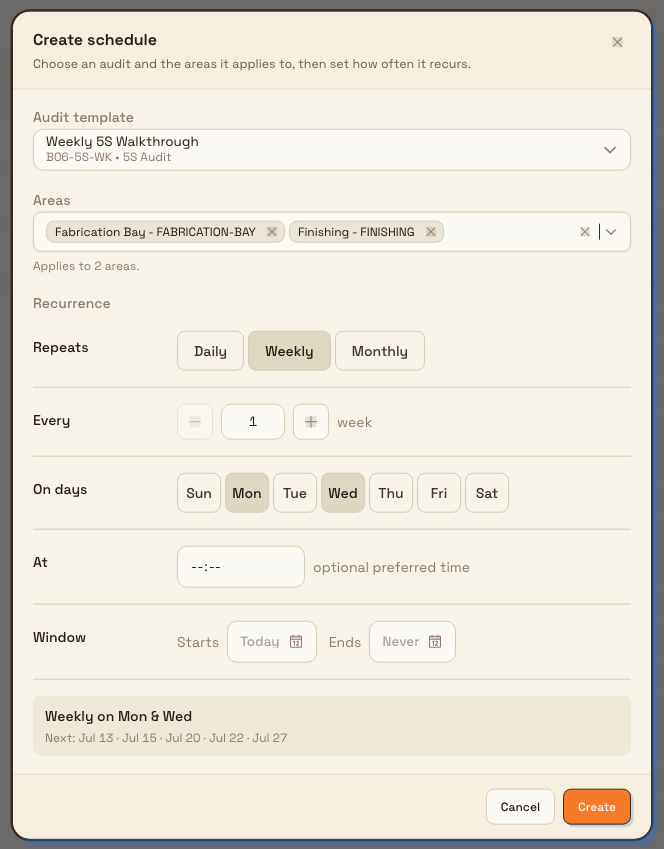
- Select Add Schedule. The Create schedule dialog opens.
- Under Audit template, choose a published, schedulable template. Each option shows name, code, and type.
- Under Areas, select one or more active areas. The dialog notes how many areas the schedule will apply to.
- Under Recurrence, set:
- Repeats — Daily, Weekly, or Monthly
- Every — the interval (days, weeks, or months)
- Weekly: On days (short day pills: Sun–Sat)
- Monthly: On either Day n of the month (or Last day) or The First/Second/Third/Fourth/Last + weekday
- At — optional preferred time
- Window — optional start and end dates
- Confirm the preview summary matches what you want.
- Select Create.
Bulk creates one schedule per selected area. Success messages report the count, and if some areas already had that template scheduled, those areas are skipped without failing the whole create (for example “Created 2 schedule(s). Skipped 1 already-scheduled: …”). If every selected area already had the schedule, you are told that all selected areas already have it.
Template and area cannot be changed later on an existing row — only the recurrence and active flag. To put the same template on a new area, create again with that area selected.
administration.audits.schedules-02
Edit, activate, deactivate, or delete
Edit recurrence
- Open the three-dots menu on an area row and select Edit (requires edit permission).
- The Edit schedule dialog shows the template and area as read-only summary cards (name, code, type for the template; name and code for the area).
- Change Recurrence as needed and, if you want, the Active switch. The Active help text notes that inactive schedules will not appear in the due audits list.
- Select Update. A confirmation reads Schedule updated successfully.
Activate or deactivate
Use either:
- The row switch next to the Active badge, or
- Activate / Deactivate in the actions menu.
Success messages are Schedule activated or Schedule deactivated. Inactive schedules stay out of the default list until you turn on Show inactive schedules.
Delete
- Select Delete from the row menu (requires delete permission).
- Confirm in the Delete Schedule dialog. The text names the template and area and states that the action cannot be undone.
- On success, the toast reads Schedule deleted successfully.
Deleting does not remove the template or the area — only the schedule link between them for that site.
Example: weekly 5S rounds at Granite Peak Manufacturing
At Granite Peak Manufacturing’s Leeds Fabrication Plant, Dana Winters wants a weekly 5S walkthrough on the fabrication and finishing floors.
She has already published a 5S template and created the Fabrication Bay and Finishing audit areas. She opens Settings → Audits → Schedules, selects Add Schedule, chooses the 5S template, and selects both areas. Under Recurrence she sets Repeats to Weekly, Every to 1 week, and On days to Mon and Thu. The preview summarizes Weekly on Mon & Thu. She leaves the preferred time empty and the window open-ended, then selects Create.
The list now shows one template group with two area rows. Operators who start audits for those areas will see this schedule when it is due. Later, if finishing only needs a monthly deep clean, she deactivates the weekly row for Finishing and adds a separate monthly schedule for that area alone.
Expected result
After you create active schedules:
- Each template–area pair appears as a row under its template group with a readable cadence summary.
- Timing badges reflect whether the schedule is due, overdue, done today, or not yet due.
- Operators can start those audits from the audits work surfaces that list due schedules for their areas.
- Deactivating a schedule removes it from the due list without deleting history on the template or area.
- Creating for an area that already has that template scheduled is skipped safely; other areas in the same create still succeed.
Feature state and limits
Scheduling area audits is generally available. Keep these limits in mind:
- Schedules are entity-scoped (per site). They are not shared across sites.
- A template can be scheduled only when it is active, has a published version, and is schedulable (standalone, or pre-use and not already assigned to assets).
- One schedule per template–area pair. Duplicates for the same pair are skipped on create.
- On edit, you cannot reassign the template or area — only recurrence and active status.
- Preferred assignee and notify before fields exist in the data model but are not exposed on this form; assignment for who runs the audit is handled when starting or completing the check elsewhere.
- Asset-bound pre-use checks that are assigned to asset types use check template assignments, not this Schedules page.
Troubleshooting
- "No audit templates available" / "Create a non-asset-bound template and publish it to schedule it." — no eligible published template exists on this site. Publish a standalone template (or an unassigned pre-use template) on the Templates page, then return here.
- "Template must have a published version to be scheduled" — the template has no live published version. Open the template, publish a version, and try again.
- "Cannot schedule asset-bound templates. Use check template assignments instead." / "Assigned pre-use templates are already managed through check template assignments." — that template is bound to assets (or already assigned). Use asset check assignments for equipment pre-use checks, or schedule a different area-oriented template.
- "Select at least one area" / "Template is required" — fill both fields before Create.
- "Pick at least one day" (weekly) or "Choose how it repeats" / day-of-month / weekday errors (monthly) — complete the recurrence fields for that frequency.
- "End must be after start" — fix the Window dates so end is not before start.
- Create reports some areas skipped as already scheduled — those areas already have that template. Edit the existing row instead of creating a duplicate.
- Add Schedule or Edit / Delete are missing or disabled — you lack
audits.create,audits.update, oraudits.delete. Ask for a Super user, Entity admin, or Manager role (or equivalent custom permissions). - Schedule does not appear for operators — confirm the schedule is Active, the area is active, the template is still active with a published version, and you are looking at the correct site.
Related
- Audit configuration — overview of audit setup under Settings.
- Manage audit templates and the template library — create, publish, and maintain the templates schedules use.
- Build an audit template — design the questions and sections inside a template version.
- Manage audit areas — define the plant areas you attach schedules to.
- Roles and permissions — grant
audits.view,audits.create,audits.update, andaudits.delete.
Manage audit areas
Define the physical and logical places where audits run, organise them in a hierarchy, assign departments and owners, and see how schedules attach on the ownership graph.
Configure inbound forms
Set up form templates so inbound documents and items can collect structured data that follows into production orders and jobs.