Audit configuration
Set up audit templates, areas, and schedules for a site so operators can run pre-use checks, safety, quality, maintenance, 5S, and custom audits from a consistent catalogue.
Audit configuration is where you define the checklists, plant areas, and recurrence rules that Bulk uses for inspections and readiness checks. You build a template once (sections, questions, pass/fail rules), publish it, then either schedule it against plant areas or attach asset-bound templates to equipment so the shop floor always works from the same form.
You work here when you bring a site online, introduce a new check (for example a forklift pre-use checklist or a weekly 5S walk), reorganize ownership of plant areas, or change how often an audit is due. Day-to-day work — starting an audit, filling responses, reviewing results — lives in the Audits module in the main navigation, not in these settings. Visit configuration to maintain the building blocks, not to run the inspections themselves.
Find Audit configuration in Settings
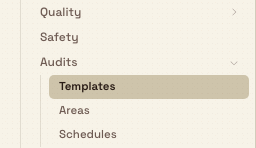
Audit configuration is a group inside the Settings area, reached from the left-hand navigation. It is not a single combined landing page: expand the Audits group in the Settings sidebar and each item opens one area of setup.
The Settings → Audits group lists three areas:
- Templates —
/settings/audits/templates - Areas —
/settings/audits/areas - Schedules —
/settings/audits/schedules
None of these items carries a Beta badge. From Templates you can also open Browse Templates (the template library at /settings/audits/templates/library, titled Template Books in the page header) and the form builder for a specific template at /settings/audits/templates/:templateId/edit. Those paths are not separate sidebar items; they open from the Templates page.
There is no separate Settings → Audits home screen under the group title alone — you always land on Templates, Areas, or Schedules.
administration.audits.overview-01
What you can set up here
Each item below opens its own area. Follow the link for the step-by-step guide to that area.
Checklists and form design
- Manage audit templates and the template library — create and maintain templates (Pre-Use, Maintenance, Safety, Quality, 5S, and Custom), publish drafts, archive unused forms, and start from pre-built templates via Browse Templates.
- Build an audit template — open a template’s form builder to add sections and items, configure behavior, preview the form, and publish a version.
Where audits apply
- Manage audit areas — plant areas (with optional hierarchy, departments, owners, and area photo) shown as a graph with department ownership and linked schedules.
When audits are due
- Schedule audits — link a published, schedulable template to one or more areas and set recurrence (daily, weekly, or monthly).
These settings feed the operational Audits module (Safety Audits, Pre-use Checks, Quality Audits, Maintenance Audits, Custom Audits, and related start/result flows). Configuration lives under Settings; day-to-day execution and review live under Audits in the main navigation.
How the three areas fit together
A typical setup at a site follows this order:
- Templates — Define the form. Choose a type (for example Pre-Use Audit or 5S Audit), whether it is Asset Bound (tied to a specific asset), and — for asset-bound templates — a default Frequency (One-Time, Daily, Weekly, or Monthly). After create, Bulk opens the builder so you can add sections and items, then Publish so the template can be used.
- Areas — Name the places where area-based audits run (for example Production Floor A), optionally nest them under a parent area, assign departments and owners, and upload an area photo. Owners are the people responsible for the area; Bulk can assign tasks to them when audits fail.
- Schedules — For templates that are not managed purely through asset assignments, create a schedule that pairs a published template with one or more areas and a recurrence rule. Empty schedules show No audit templates available until you have a non–asset-bound published template that can be scheduled.
Asset-bound versus area-scheduled
- Asset-bound templates (common for pre-use checks) require a specific asset when run. Assigning them to asset types for readiness is handled through production readiness configuration for that asset type (Configure · Asset Readiness), not through Settings → Schedules. The standalone Settings path
/settings/audits/assignmentsis not a finished assignments UI. - Non–asset-bound templates (for example many 5S, safety walk, or area quality checks) are what Schedules is built for: pick the template, select areas, set how often it recurs.
If you try to put an asset-bound template on a schedule when it is not allowed, Bulk rejects the save (for example with a message to use check template assignments instead).
Site-scoped setup
In Bulk, each site or plant is an entity. Templates, areas, and schedules are stored per entity (tenant + entity):
- Lists and mutations load only the currently selected site’s records.
- When you switch sites, each Settings → Audits area shows that site’s own catalogue — not a shared company-wide list.
If Granite Peak runs both Leeds and another plant, Dana must set up templates, areas, and schedules for Leeds separately from the other site. Pre-built Template Books content is a starting point you copy into the current site when you choose to use a system template.
Who can open Audit configuration
Audit configuration uses the shared audits.* permission set. Labels in Bulk describe these capabilities as applying for the selected site.
| Capability | Permission key | What it covers |
|---|---|---|
| View | View audits (audits.view) | See templates, schedules, areas, and results |
| Create | Create audits (audits.create) | Create templates and schedules (and related create actions) |
| Edit | Edit audits (audits.update) | Edit templates, schedules, areas, and assignments |
| Delete | Delete audits (audits.delete) | Delete templates, schedules, areas, and related records |
| Publish | Publish audits (audits.publish) | Publish a template version so it can be used for executions |
| Run | Run audits (audits.execute) | Complete checklists on the shop floor (operational; not required only to configure) |
| Override | Override audits (audits.override) | Override results/status (admin; operational) |
Built-in roles that include full audit configuration permissions (audits.view, create, update, delete, publish, plus execute/override):
- Entity admin — administrative access across the tenant; includes the full audits set.
- Manager — full operational management access; includes the full audits set.
- Super user — full access to everything.
There is no separate built-in role named only “Audits.” Shop-floor roles such as Operator, Tablet user, and Invoicing typically receive View audits and Run audits so they can complete checks and so production home can load asset readiness — they are not the roles for designing templates and schedules.
An administrator assigns roles under Manage roles and permissions. If an area rejects the request when you open it, or create/publish actions fail, ask an administrator to grant the matching audits.* permissions or add you to Entity admin or Manager.
Example: preparing Leeds audit setup
At Granite Peak Manufacturing, before operators at the Leeds Fabrication Plant rely on tablets for readiness and walk-throughs, Dana Winters — with Entity admin access — prepares Settings → Audits for Leeds:
- Under Templates, she opens Browse Templates and adds a pre-built 5S Audit from Template Books, then creates an asset-bound Forklift Pre-Use Check from scratch. She builds the form items and Publishes each template.
- Under Areas, she creates Production Floor A and Warehouse, assigns the Production and Warehouse departments, sets area owners, and nests a sub-area under Production Floor A where needed.
- Under Schedules, she schedules the published 5S template against Production Floor A and Warehouse on a weekly recurrence.
- For the forklift pre-use template, she leaves Schedules alone and instead attaches it through Configure · Asset Readiness on the forklift asset type so production home can block or allow work based on check status.
Once templates are published and either scheduled or assigned, operators use the Audits module (and production home for pre-use readiness) rather than Settings. That is the point of audit configuration: set the forms and rules once per site, then run every check from a stable catalogue.
Feature state and limitations
Audit configuration is generally available. Keep these points in mind:
- There is no single Audit configuration page. Audits is a group in the Settings sidebar; each item opens a separate area.
- Everything here is per site. Templates, areas, and schedules are not shared across plants; recreate or reconfigure them when you onboard another entity.
- Assignments are not a finished Settings page.
/settings/audits/assignmentsis a placeholder route. Asset-bound check assignments are managed through asset-type readiness configuration, not a dedicated Assignments item in the Audits settings group. - Schedules only list schedulable templates. Non-asset-bound published templates appear for scheduling; asset-bound templates are steered toward check template assignments when they are not schedulable.
- Child how-to guides. Deep field-by-field create/edit flows, builder item types, publish blockers, and recurrence options belong in the child articles linked above.
- Operational Audits module. Day-to-day start, complete, and review flows are documented under product reference for Audits, not only under administration.
Troubleshooting
- An Audits settings item is missing, or you get a permission error when you open it. You do not hold View audits (
audits.view) or a broader role that includes it. Ask an administrator to grantaudits.view(and create/update/publish as needed), or to add you to Entity admin or Manager. - You can view templates but cannot publish. Publishing requires Publish audits (
audits.publish). Edit and create alone are not enough to make a draft live. - Create schedule shows “No audit templates available”. You need at least one published, schedulable (typically non–asset-bound) template for the current site. Create and publish a template under Templates first, or free a pre-use template that is only managed via assignments if you intentionally want area scheduling instead.
- Templates or areas from another plant do not appear at Leeds. Audit configuration is entity-scoped. Switch to the correct site in the entity switcher, or create the records again for that site.
- You expected Assignments under Settings → Audits. There is no finished Assignments settings page in the sidebar. Use Templates, Areas, and Schedules here; assign asset-bound checks via asset readiness on the asset type.
Related guidance
- Manage audit templates and the template library — create, publish, archive, and browse pre-built templates.
- Build an audit template — sections, items, and publish from the form builder.
- Manage audit areas — hierarchy, ownership graph, and area photos.
- Schedule audits — recurrence rules for area-based templates.
- Manage roles and permissions — who can open and change audit configuration.
- Configure departments and job titles — departments used when assigning ownership on audit areas.
- Assets and layouts — asset types and machines that asset-bound pre-use templates attach to.
- Audits — day-to-day start, complete, and review work that uses these templates.
- Administration — the full set of organization, entity, and configuration settings.
Configure safety types and settings
Build the site catalogue of incident types used when people report safety incidents — create types by hand, import industry presets, and jump to related safety audit settings.
Manage audit templates and the template library
Create, publish, archive, and duplicate audit templates for a site, and start from pre-built library templates when you need a ready-made checklist.