Manage audit templates and the template library
Create, publish, archive, and duplicate audit templates for a site, and start from pre-built library templates when you need a ready-made checklist.
An audit template is the form definition people fill when they run an audit: its type (pre-use, safety, quality, and so on), whether it is tied to a specific asset, how often it is expected, and — once you build the form — the sections and checklist items operators answer. Templates are versioned. You edit a draft, then publish it so live audits use that form. Earlier published versions are kept as history.
Use this page when you set up checks for a plant, retire a checklist that is no longer used, copy an existing form as a starting point, or pick a ready-made form from the template library instead of building from a blank page. Day-to-day running of audits happens under Audits in the main app; this Settings page is where you define and maintain the templates those audits use.
Before you start
Open Settings, expand the Audits group, and select Templates. The page address ends in /settings/audits/templates.
You need permission for this site:
- View the list requires
audits.view. - Create templates (including from the library and by duplicating) requires
audits.create. - Edit metadata, open the form builder, and create new drafts requires
audits.update. - Publish a draft so it becomes the live form requires
audits.publish. - Archive and permanently delete templates require
audits.delete.
Full template management is granted by the built-in Super user, Entity admin, and Manager roles. Operator, Tablet user, and Invoicing can view and run audits but do not manage templates here. If New Template, Browse Templates, or card actions are missing or fail, ask an administrator to adjust your role.
Templates are per site (entity). Each plant keeps its own catalogue. Switch site first if you need to manage another facility’s templates.
Building the form body (sections, items, scoring, and behavior policy) happens in the template builder. This article covers the catalogue and library; the builder is a separate page that opens when you create or edit a form.
administration.audits.templates-01
What the Templates page shows
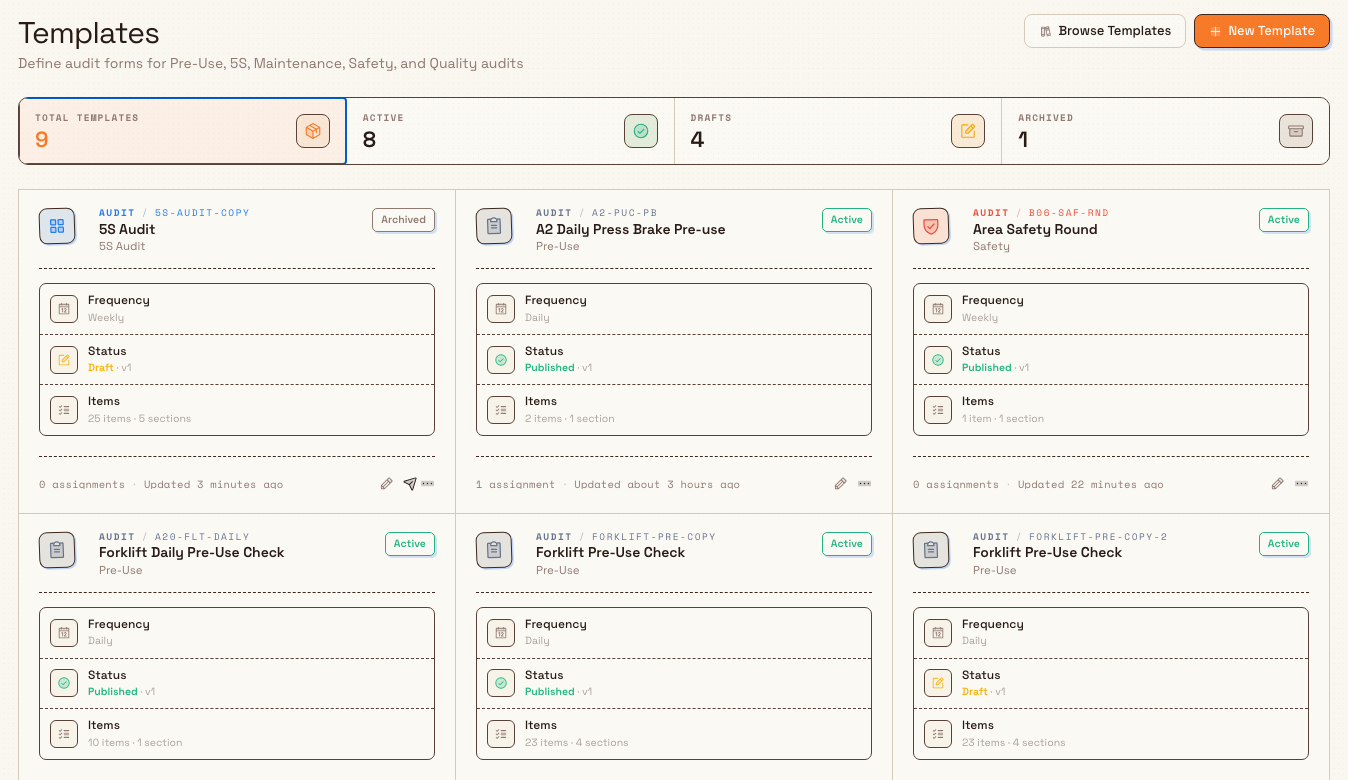
The page header is titled Templates, with the description “Define audit forms for Pre-Use, 5S, Maintenance, Safety, and Quality audits.” Two header actions sit on the right:
- Browse Templates — opens the pre-built template library (see below).
- New Template — opens the create dialog for a blank template.
Stat strip (filters)
A four-tile strip doubles as a status filter:
| Tile | What it counts |
|---|---|
| Total Templates | Every non-deleted template (active and archived) |
| Active | Templates with the Active lifecycle (is_active) |
| Drafts | Templates whose current form status is Draft |
| Archived | Templates that are not active |
Select a tile to filter the grid. Selecting the same non-Total tile again clears the filter back to all templates. If a filter leaves no cards, the empty state offers Clear filter.
Template cards
Each template is a card in a continuous sheet. A card shows:
- An Audit / code eyebrow (for example
Audit / FORK-PRE), the name, and the type label (Pre-Use, Maintenance, Safety, Quality, 5S Audit, or Custom). - A lifecycle pill: Active or Archived.
- Frequency — One-Time, Daily, Weekly, or Monthly (for asset-bound templates).
- Status — the form version: Published, Draft, or No Version, plus the version number when one exists (for example
v2). - Items — item count and section count.
- Footer meta: assignment count and when the template was last updated.
Card actions:
- Edit Form (pencil) — opens the form builder for the draft, or prompts you to create a new draft if the template is already published.
- Publish (paper-plane) — shown only when the status is Draft and the draft is ready to publish.
- More actions (⋯):
- Edit Details — name, description, and frequency (where editable).
- Edit Form — same as the pencil action.
- Duplicate — copy a chosen version into a new draft template.
- Archive (when Active) or Restore (when Archived).
- Delete — permanent delete when allowed; otherwise disabled with a tooltip explaining why.
If the site has no templates yet, the page shows No audit templates yet with a New Template action.
Two lifecycles to keep straight
Templates track two different “states”:
- Catalogue lifecycle (Active / Archived) — whether the template is available for ongoing use. Archiving turns it off without deleting history.
- Form version status (Draft / Published / No Version) — whether the form body is still being edited, is live for new audits, or has never had a version.
A template can be Active with a Draft open while a previous Published form still serves live work until you publish the draft. Publishing replaces the live form and archives the previous published version.
Create a blank template
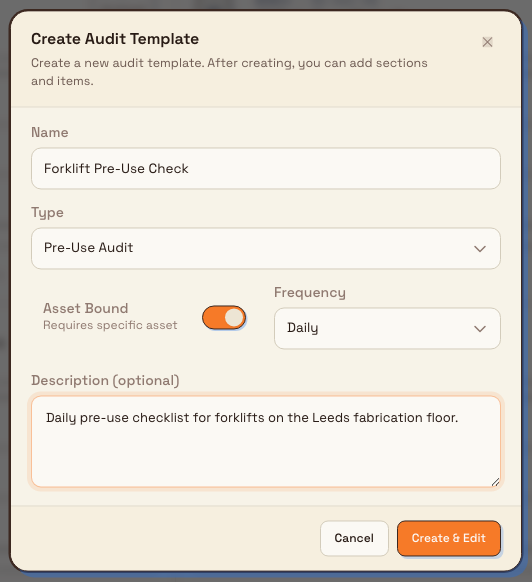
- Select New Template. The Create Audit Template dialog opens.
- Fill in:
- Name (required, up to 100 characters) — for example
Forklift Pre-Use Check. - Type — Pre-Use Audit, Maintenance Audit, Safety Audit, Quality Audit, 5S Audit, or Custom Audit. Type is fixed after creation.
- Asset Bound — on when the audit must target a specific asset (“Requires specific asset”). Off forces frequency to One-Time. This setting cannot be changed later.
- Frequency — shown when Asset Bound is on: One-Time, Daily, Weekly, or Monthly (default Daily in the create form).
- Description (optional, up to 500 characters).
- Name (required, up to 100 characters) — for example
- Select Create & Edit.
Bulk creates the template with a first draft version (code is auto-generated from the name), shows Audit template created, and opens the template builder so you can add sections and items. For 5S Audit, Bulk also pre-creates the five pillar sections (Sort, Set in Order, Shine, Standardize, Sustain) and a default scoring policy for 5S.
administration.audits.templates-02
Browse the template library
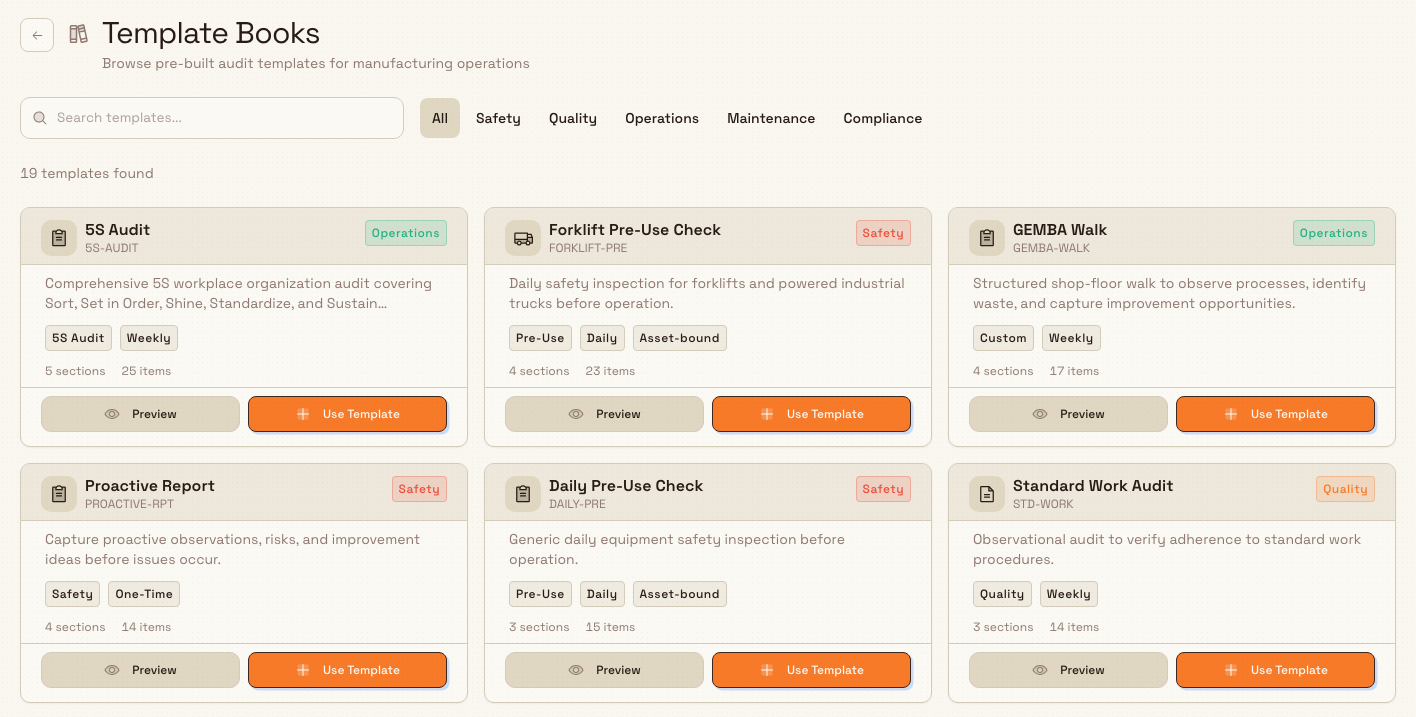
The library is a catalogue of pre-built manufacturing checklists you can copy into your site as editable drafts.
- On the Templates page, select Browse Templates. The library address ends in
/settings/audits/templates/library. - The page title is Template Books, with the description “Browse pre-built audit templates for manufacturing operations.”
- Use Search templates… and category toggles — All, Safety, Quality, Operations, Maintenance, Compliance — to narrow the list. The page shows how many templates match.
- Each library card shows name, code, description, type, frequency, optional Asset-bound badge, section/item counts, and actions:
- Preview — full structure (sections and items) in a dialog.
- Use Template — copies the system template into your site.
- In the preview dialog, select Use This Template (or use the card action directly).
Bulk creates a new draft template with the library content (sections, items, and default behavior policy where defined), shows Template created, and opens the form builder. You can then rename, adjust, and publish like any other draft.
The library is the same set of system templates for every site (for example 5S Audit, Forklift Pre-Use Check, Safety Inspection, Quality Checkpoint, Lockout/Tagout (LOTO) Procedure). Using one does not change the original library entry.
administration.audits.templates-03
Publish a draft
A draft is ready to publish when it has at least one section and at least one audit item, and no in-progress audits are still using the current published version (if one exists).
- On a card whose Status is Draft, select the Publish action when it is available.
- On success, Bulk shows Template published and the card’s version status becomes Published. The previous published version (if any) is archived. The live form for new audits is the one you just published.
If publish is blocked, the button is not shown (or publishing fails with a clear reason). Common reasons:
- Template must have at least one section / at least one audit item — finish the form in the builder first.
- Cannot publish: N in-progress audit(s) are using the current version — wait for those audits to finish, or complete them, then publish.
Edit an existing template
Edit details
From the card menu, select Edit Details. The Edit Audit Template dialog lets you change Name, Description, and Frequency (when the template is asset-bound). Code, Type, and Asset Bound are read-only after creation (“Auto-generated, cannot be changed” / “Type cannot be changed after creation” / “Set at creation, cannot be changed”). Save with Save Changes.
Edit the form (draft)
- If the template already has a draft, Edit Form opens the builder for that draft.
- If the template is Published with no open draft, Bulk shows Create New Draft Version: “To make changes, a new draft version will be created.” The published version stays active until you publish the new draft. Confirm with Create Draft, then the builder opens.
You cannot have two open drafts on the same template. If a draft already exists, create-draft returns “A draft version already exists. Edit the existing draft or publish it first.”
Duplicate a template
- From the card menu, select Duplicate.
- In Duplicate Template, pick which version to copy (each row shows Version N with Published, Draft, or Archived).
- Select Duplicate.
Bulk creates a new template named Original name (Copy) with a unique code, a single draft version containing the chosen structure, shows Template duplicated, and opens the builder. Use this when you need a similar checklist without changing the original.
Archive, restore, and delete
Archive
Archiving is the normal way to retire a template. From the menu, select Archive. The dialog explains that linked assignments and schedules will be disabled, while template and audit history are kept. If pending or in-progress audits exist, you can optionally turn on Force-cancel active audits. Confirm with Archive.
After archive, the card shows Archived. Bulk reports how many assignments and schedules were disabled and how many audits were cancelled.
Restore
On an archived template, select Restore. Linked assignments and schedules that were auto-disabled during archive are re-enabled. Confirm with Restore.
Delete permanently
Delete is only enabled when the template has zero audit executions (no history). If any execution exists, Delete stays disabled with a tooltip such as “Cannot delete: N audit execution(s) exist. Archive instead to preserve history.” (The card may also fall back to “Delete is blocked because this template has audit history.”)
When delete is allowed, the confirmation Delete Audit Template Permanently warns that the action cannot be undone and removes linked assignments and schedules. Prefer Archive whenever history or past audits matter.
Example: forklift checks at Granite Peak Manufacturing
Dana Winters configures pre-use checks for the Leeds Fabrication Plant.
She opens Settings → Audits → Templates and selects Browse Templates. In Template Books she filters Operations, opens Forklift Pre-Use Check, reviews the sections in Preview, then selects Use This Template. The builder opens on a new draft with visual inspection, controls, operational check, and fluid sections already filled.
She adjusts a few item labels for Granite Peak’s fleet, returns to the Templates list, and selects Publish. The card shows Active and Published. Operators on the floor can now start that pre-use audit against forklifts. Months later, when a new safety question is required, she selects Edit Form, confirms Create Draft, adds the item in the builder, and publishes again — in-progress audits keep the form they started on until they finish.
Expected result
- Active templates appear on the grid with Active and a Published (or Draft) form status.
- Published templates are available for assignments, schedules, and starting audits of that type.
- Drafts you are still building do not replace the live form until you publish.
- Archived templates keep history but stop new use via disabled assignments and schedules.
- Library-sourced templates behave like any other site template after you use them.
Feature state and limits
Managing audit templates and the template library is generally available. Keep these behaviors in mind:
- Templates are per site; they are not shared across plants.
- Type and Asset Bound are fixed at creation; only name, description, and frequency (when asset-bound) change in Edit Details.
- Only one draft version can be open per template.
- Publishing requires at least one section and one item, and is blocked while in-progress audits use the current published version.
- Permanent delete requires zero audit executions for that template; use archive to preserve history.
- The form builder, scoring rules, and behavior policy details are covered in Build an audit template.
Troubleshooting
- Publish is missing or fails with “Template must have at least one section/item.” — open Edit Form and add structure before publishing.
- Cannot publish: N in-progress audit(s) are using the current version. — wait for those audits to complete, then publish the draft.
- “A draft version already exists…” — open the existing draft with Edit Form, or publish/cancel that draft path before creating another.
- Delete is disabled with a tooltip about audit executions / history. — the template has been used. Archive it instead to keep history.
- Archive with open audits. — turn on Force-cancel active audits only if you intend to cancel pending and in-progress work; otherwise finish those audits first.
- New Template or library Use Template fails. — you need
audits.create(and related management permissions). Ask for Entity admin or Manager access on this site. - Library shows “No templates found.” — clear the search box or set the category filter back to All.
Related
- Audit configuration — overview of audit settings for a site.
- Build an audit template — sections, items, scoring, and behavior policy in the form builder.
- Manage audit areas — area hierarchy used with scheduled and 5S-style audits.
- Schedule audits — schedules that reference the templates you publish here.
- Roles and permissions — grant
audits.*permissions to a role. - Start an audit — how operators start work from a published template.
- Run an audit program — end-to-end audit program workflow.
Audit configuration
Set up audit templates, areas, and schedules for a site so operators can run pre-use checks, safety, quality, maintenance, 5S, and custom audits from a consistent catalogue.
Build an audit template
Build the sections, check items, field types, scoring, and behavior policy for an audit template draft, then preview and publish it for operators.