Configure an invoicing profile
Set the seller identity, invoice-timing rule, approval policy, and post-issue confirmation that Bulk freezes onto every invoice and credit note an entity issues.
An invoicing profile holds the seller details and the invoicing rules for one entity — a single site or plant in your organization, such as a fabrication plant or a coating line. Bulk keeps a separate profile for each entity, because each site bills under its own name, address, and approval rules.
You configure the profile once, before an entity issues its first invoice. When someone issues an invoice or credit note for that entity, Bulk copies (freezes) the current seller details onto the document, so the "bill from" party on a document never changes retroactively even if you edit the profile later.
Use this page to:
- Set the seller identity ("bill from" name, address, and email) that appears on invoices.
- Choose when production jobs can be invoiced.
- Require approval before invoices are issued, and name who approves them.
- Choose how issued invoices reach the confirmed state.
Before you start
You reach the profile from the settings area:
- Open Settings.
- Under Entity, select Invoicing.
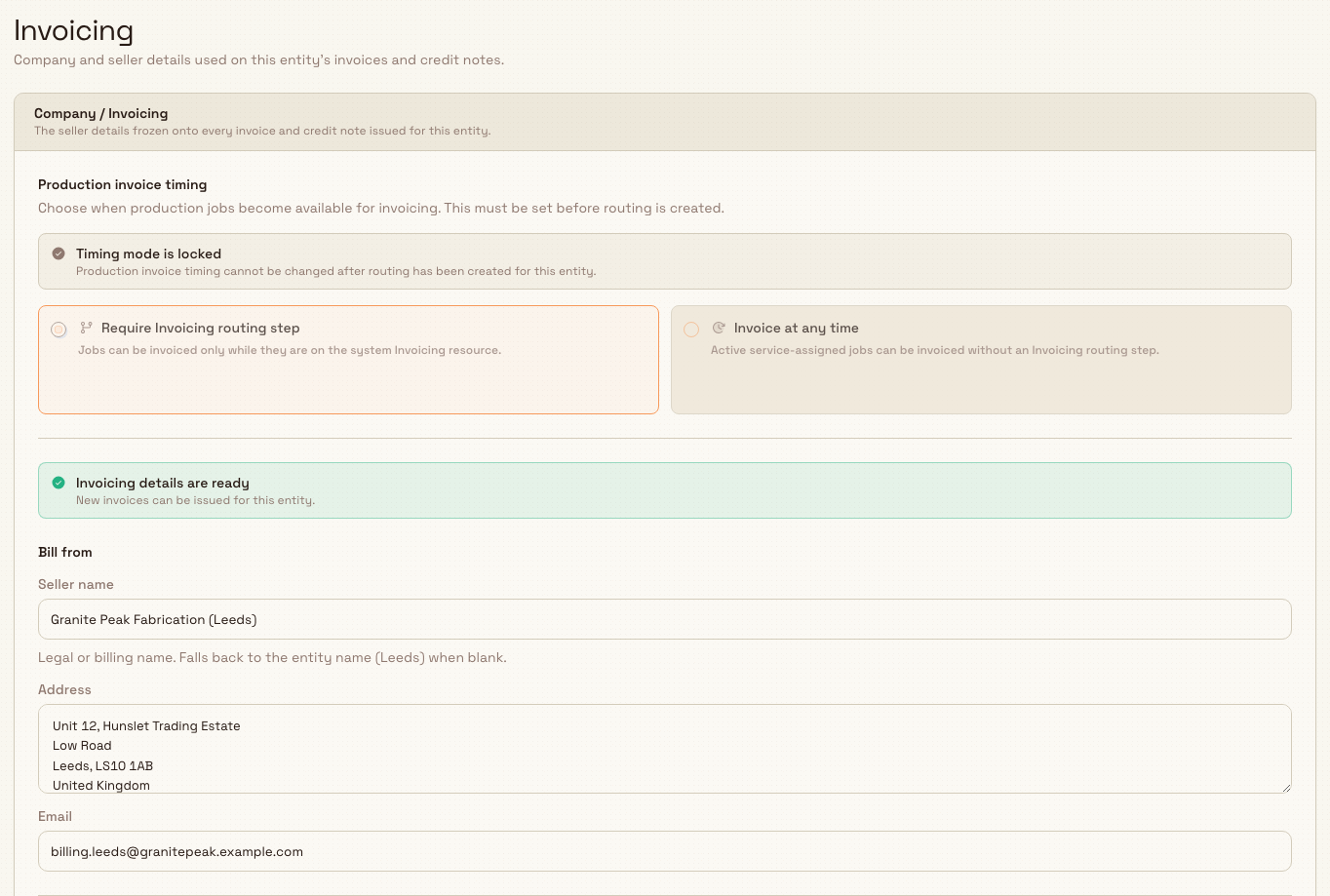
The page is titled Invoicing, and the form sits inside a card headed Company / Invoicing.
administration.entity.invoicing-profile-01
Who can view and edit
Access is controlled by role permissions:
- Viewing the profile requires the
entities.viewpermission. The Super user, Entity admin, Manager, Tablet user, Invoicing, and Dashboards roles all have it. - Saving any change — the seller details, the approval policy, the confirmation mode, or the timing rule — requires the
production_invoicing.configurepermission. Only the Super user, Entity admin, and Manager roles have it by default.
The dedicated Invoicing role can run an invoicing workstation and issue invoices, but it cannot edit this profile. If you can open the page but your changes will not save, ask an Entity admin to grant production_invoicing.configure or to make the change for you.
What you can configure
The card is split into sections, top to bottom. The Production invoice timing radios save on their own the moment you pick an option; everything else is saved together with the Save invoicing details button.
Production invoice timing
This setting decides when a production job becomes available for invoicing. Pick one option:
- Require Invoicing routing step — jobs can be invoiced only while they sit on the system Invoicing resource (a dedicated step in the job's routing).
- Invoice at any time — active service-assigned jobs can be invoiced without an Invoicing routing step.
Choosing an option here saves immediately and shows the toast Invoicing timing saved. You must set this before you create routings for the entity; until then the section shows the reminder Required before routing setup.
Invoice timing locks once routing exists
You can change the timing rule freely until the first production routing is created for the entity. After that, Bulk locks the choice and the section shows Timing mode is locked with the reason "Production invoice timing cannot be changed after routing has been created for this entity." Decide the rule before you build routings, because there is no in-app way to unlock it afterward.
Bill from (seller identity)
These fields are the "bill from" party frozen onto every invoice and credit note:
- Seller name — the legal or billing name. If you leave it blank, Bulk falls back to the entity name (for example, "Leeds Fabrication Plant").
- Address — the seller's postal address, entered across multiple lines.
- Email — a billing contact address. It must be a valid email or blank.
A banner above the fields tells you whether the profile is ready. An entity can only issue invoices once it has a resolvable seller name and a seller address:
- When both are present, the banner reads Invoicing details are ready — "New invoices can be issued for this entity."
- When something is missing, it reads Set up invoicing details and names the gap, for example: "Invoices can't be issued until you add: seller address."
Because the seller name falls back to the entity name, the address is usually the field that unblocks issuing.
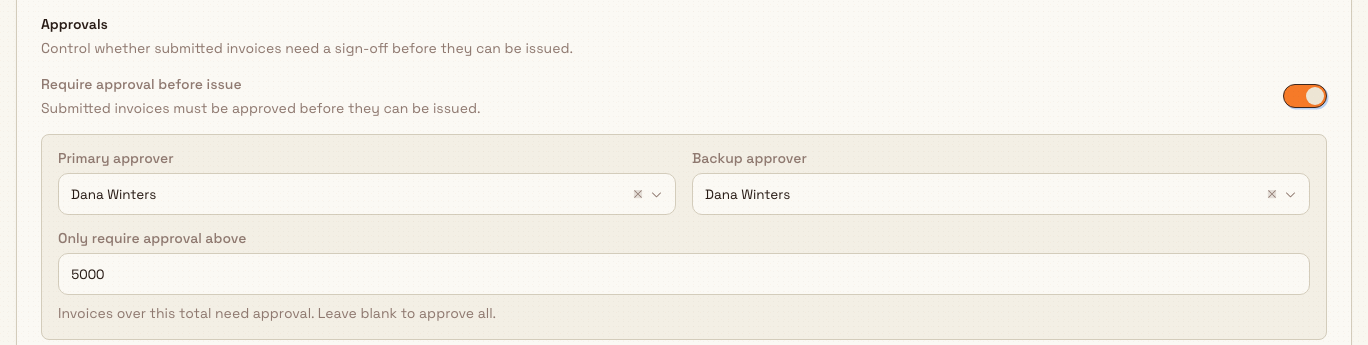
Approvals
Turn on Require approval before issue to make submitted invoices wait for a sign-off before anyone can issue them. When the switch is on, three more fields appear:
- Primary approver — the person who normally approves. This is required when approval is on; if you leave it empty, the form shows "Choose a primary approver" and will not save.
- Backup approver — an optional second approver.
- Only require approval above — a money threshold entered in the entity's currency. Invoices whose total is above this amount need approval; those at or below it skip the step. Leave it blank to require approval for every invoice.
Both approver fields are searchable pickers ("Search by name or email"). Only active users appear in the list.
Confirmation after issue
This section decides how an issued invoice advances to the confirmed state. The mode is frozen onto each invoice when it is issued, so changing it here affects future invoices only. Choose one:
- Manual — operators mark issued invoices as sent, then confirmed, by hand.
- Immediate — issuing an invoice confirms it straight away, with no extra steps.
- Workflow — a connected workflow advances issued invoices to confirmed automatically.
Settings apply to future documents
The seller details and the confirmation mode are copied onto an invoice at the moment it is issued. Editing the profile never rewrites invoices that were already issued — it only changes what the next issued document captures.
Saving your changes
The Save invoicing details button at the bottom saves the seller fields, the approval policy, and the confirmation mode together. It stays disabled until you change something, and a small Unsaved changes note appears while edits are pending. A successful save shows the toast Invoicing details saved. (The Production invoice timing radios are the exception — they save on their own as soon as you select an option.)
administration.entity.invoicing-profile-02
Example: Granite Peak Manufacturing
Granite Peak Manufacturing runs several plants. Dana Winters, an Entity admin, sets up invoicing for the Leeds Fabrication Plant entity so the plant can start billing customers:
- Dana opens Settings, then Entity, then Invoicing with Leeds Fabrication Plant selected.
- Under Production invoice timing, Dana picks Require Invoicing routing step, because Leeds wants a job to reach the Invoicing step in its routing before it can be billed. The choice saves immediately.
- In Bill from, Dana enters the seller name "Granite Peak Fabrication (Leeds)", the plant's postal address, and the billing email. The banner switches from Set up invoicing details to Invoicing details are ready.
- Under Approvals, Dana turns on Require approval before issue, names the plant controller as the Primary approver, adds a Backup approver, and sets Only require approval above to £5,000 — routine small invoices skip approval, larger ones do not.
- Under Confirmation after issue, Dana selects Manual, because the Leeds finance team confirms invoices by hand after sending them.
- Dana clicks Save invoicing details and sees Invoicing details saved.
Leeds Fabrication Plant can now issue invoices, and any invoice over £5,000 will route to the plant controller for approval first.
Expected result
When the profile is complete, the banner reads Invoicing details are ready and the entity can issue invoices and credit notes. Each document issued from that point captures the seller name, address, and email, plus the confirmation mode, exactly as they stood at issue time.

administration.entity.invoicing-profile-03
Feature state
The invoicing profile is generally available. It is per-entity, so repeat the setup for each site that issues invoices. There is no tax field on this page: the profile captures seller identity, the invoice-timing rule, the approval policy, and the confirmation mode only.
Limitations
- Timing cannot be changed after routings exist. Once a production routing is created for an entity, the Production invoice timing mode is locked and cannot be changed from this page. Set it first.
- Editing the profile does not touch issued documents. Seller details and the confirmation mode are frozen onto each invoice at issue, so profile edits only affect documents issued afterward.
- Saving requires a specific permission. Roles without
production_invoicing.configure(for example, the dedicated Invoicing role or a Tablet user) can open the page but cannot save changes.
Troubleshooting
- "Invoices can't be issued until you add: seller address" (or seller name). The profile is incomplete. Fill in the missing Bill from field and click Save invoicing details. The banner turns to Invoicing details are ready once a resolvable seller name and address are present.
- "Choose a primary approver." You turned on Require approval before issue without naming a primary approver. Select one in the Primary approver picker, then save.
- "Timing mode is locked." A routing already exists for this entity, so the timing rule can no longer be changed here. This is expected and cannot be overridden from the settings page.
- The Save button is greyed out. Nothing has changed yet, or a save is already in progress. Edit a field to enable it; a save-in-progress button reads Saving….
Related guidance
- Entity settings overview — the other per-entity configuration pages.
- Configure invoice fields — add custom fields to invoices and credit notes for this entity.
- Update entity settings — general settings for the entity, including its name.
- Submit and approve an invoice — how the approval policy set here plays out when an invoice is submitted.
- Issue or confirm an invoice — how issued invoices reach the confirmed state under each confirmation mode.
- Create a standard invoice — the day-to-day invoicing task this profile supports.
Update entity settings
Configure the operating rules and customer enforcement statuses that govern the manufacturing site you have selected in Bulk.
Configure invoice fields
Add and manage the custom fields Bulk captures on every invoice and credit note an entity issues — their label, type, default value, and whether they are required.