Submit and approve an invoice
Send a draft invoice for sign-off, then approve, request changes, or reject it before it can be issued.
Approval is the sign-off step between drafting an invoice and issuing it. When your site turns approval on, an invoice over the configured value cannot be issued until a named approver has reviewed it. This guide covers both halves of that flow: submitting a draft for approval, and acting on a submitted invoice as the approver — approving it, sending it back for changes, or rejecting it.
Use this flow when finance wants a second pair of eyes on invoices before they go out — for example, so that any invoice above a set amount is checked by a supervisor rather than issued directly by whoever built it.
Approval is optional and configured per site
Approval only applies when an administrator has turned it on for the entity (site) in Settings → Invoicing. If approval is off, or the invoice total is under the threshold, there is no approval step — you issue the draft directly. See Issue or confirm an invoice.
Before you start
You need the following in place:
- A draft invoice with at least one priced line and a total above zero. Submit is only offered on a
draftinvoice. To build one, see Create a standard invoice or the miscellaneous-invoice flow. - Approval turned on for the site. An administrator sets this in Settings → Invoicing, under the Approvals heading — "Control whether submitted invoices need a sign-off before they can be issued." Turn on Require approval before issue, choose a Primary approver (and optionally a Backup approver), and set Only require approval above to the amount over which approval is needed. Leaving that amount blank means every invoice needs approval. Configuring these settings needs the
production_invoicing.configurepermission. - The right permissions. Submitting a draft needs the
production_invoicing.submitpermission. Reviewing a submitted invoice is limited to the people named as the primary or backup approver for the site (holding theproduction_invoicing.approvepermission alone is not enough — you must be the named approver). In the default roles, the Operator role can submit but not approve, while the Invoicing, Manager, Entity admin, and Super user roles can do both.
Submit a draft for approval
- Open the draft invoice from the invoices list at Finance → Invoices.
- In the header toolbar, select Submit for approval. This is the primary action on a draft whenever approval is required for that total. If the button is disabled, the invoice has no priced line yet — the tooltip reads "Add a priced line to submit for approval". Add a line with a price above zero, then submit.
- The invoice moves to the Pending approval state. It is now locked for editing and records who submitted it and when.

finance.approve-invoice-01
A confirmation message reads "Invoice submitted for approval". You cannot submit an invoice that has no lines or a zero total, and you cannot submit one whose total does not actually require approval — in that case Bulk tells you to issue it directly instead.
After submitting, the invoice detail page shows a pending-approval banner. If you submitted it and someone else must approve, the banner reads "Submitted for approval. Awaiting review from" the named approver. If you are both the submitter and a named approver, it reminds you that you cannot approve your own request unless you are the site's sole approver.

finance.approve-invoice-02
Review the invoice as the approver
Only the named primary or backup approver sees the review controls. Open the approval screen one of two ways:
- From the pending invoice's detail page, select Review & approve in the banner, or
- Go directly to the approval screen at the invoice's
/approveaddress.
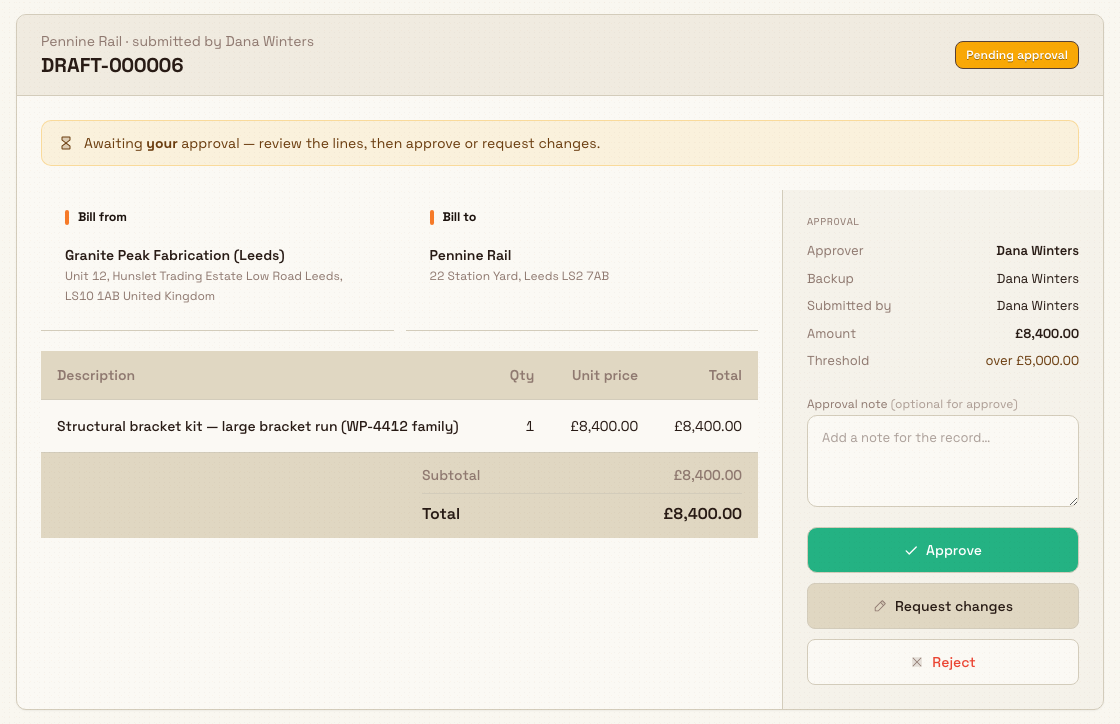
The approval screen shows the invoice read-only on the left — Bill from and Bill to parties plus the line table — and a decision panel on the right. A callout at the top reads "Awaiting your approval — review the lines, then approve or request changes." The panel's Approval readout lists the approver, backup, who submitted it, the Amount being approved, and the Threshold (shown as "over" the threshold value when the total exceeds it).
finance.approve-invoice-03
You have three decisions:
Approve
Optionally type an Approval note (the field is marked "optional for approve"), then select Approve. A message confirms "Invoice approved" and the invoice moves to the Approved state, ready to be issued. The screen returns you to the invoice detail page.
Approve & issue commits the invoice immediately
If your site's post-issue setting is immediate confirmation, the approve button reads Approve & issue and approving also issues the invoice in one step. Issuing is a financial commit: it assigns a permanent invoice number and marks the linked jobs as invoiced. To reverse an issued invoice you must void it. Approving with a manual confirmation setting only moves the invoice to Approved and leaves issuing as a separate action.
Request changes
If the invoice needs edits, type a note explaining what to change — the note is required here — and select Request changes. The invoice returns to Draft so the submitter can edit and resubmit it. A message confirms "Changes requested — sent back to draft". If you leave the note empty, Bulk prompts "Add a note explaining the changes needed."
Reject
To turn the invoice down, type a note explaining why — again required — and select Reject. The invoice returns to Draft and records the rejection. A message confirms "Invoice rejected". An empty note is blocked with "Add a note explaining the rejection."
The submitter cannot approve their own invoice
An approver cannot approve an invoice they submitted, so that the check is genuinely independent. The one exception is a site configured with a single approver — where the same person is set as both the primary and the backup approver — who is then allowed to approve their own submission.
Granite Peak example
At the Leeds Fabrication Plant, finance decides that any invoice over £5,000 should be checked before it goes out. An administrator opens Settings → Invoicing, turns on Require approval before issue, sets the Primary approver to the plant's finance lead, adds the site manager as Backup approver, and enters 5000 in Only require approval above.
A coordinator builds DOCS-INV-0007 for a large bracket run totalling £8,400. Because the total is over £5,000, the invoice detail page offers Submit for approval rather than Issue. The coordinator submits it; the invoice locks and shows "Submitted for approval. Awaiting review from" the finance lead.
The finance lead opens the invoice, selects Review & approve, and sees the Amount as £8,400 and the Threshold shown as "over £5,000". The lines look right, so they add the note "Checked against the purchase order" and select Approve. The invoice moves to Approved, and the coordinator can now issue it.
Expected result
- A submitted invoice is in Pending approval and is locked for editing.
- After Approve, the invoice is in Approved and can be issued (or is already issued when the site uses immediate confirmation).
- After Request changes or Reject, the invoice is back in Draft with the reviewer's note recorded, ready to be corrected and resubmitted.
- Each step appears on the invoice's lifecycle timeline — Created, Draft, Submitted for approval, Approved — so there is a clear record of who submitted and who decided.
Feature state and limitations
This capability is generally available. Note the following:
- Approval is per site (entity). The approver names, the threshold, and whether approval is required at all are set per entity in Settings → Invoicing. A user who belongs to several sites may see different approval rules on each.
- The approve permission is not sufficient on its own. Even with the
production_invoicing.approvepermission, you can only approve invoices for a site where you are the named primary or backup approver. If you open the approval screen without being a named approver, Bulk shows "You cannot approve this invoice — Only the configured primary or backup approver can review and approve submitted invoices." - Notes are stored, not private. The approval, change-request, and rejection notes are recorded against the invoice for the audit record.
- No tax, payments, or accounts-receivable. The approval flow governs whether an invoice may be issued; it does not calculate tax or record payment.
Troubleshooting
- Submit for approval is missing or disabled. Confirm the invoice is a
draftwith at least one line priced above zero. If the total is below the site's approval threshold, there is no approval step and you issue directly instead. If Submit is disabled with the hint "Add a priced line to submit for approval", add a priced line. - "This invoice does not need approval — issue it directly." The invoice's total does not exceed the configured threshold, so approval is not required. Issue the invoice from its detail page.
- "The submitter cannot approve their own invoice." A different named approver has to review it, unless the site is configured with a single approver who is both primary and backup. Ask the other approver to review it, or have an administrator adjust the approver settings.
- "Only invoices pending approval can be approved." The invoice has already left the pending state (it was approved, sent back, or issued). Reopen it from the invoices list to see its current state.
- A submitted invoice needs a correction. As the approver, use Request changes with a note; the invoice returns to draft so the submitter can fix and resubmit it.
Related guidance
Review an invoice
Open a production invoice to check its customer, order, line items, and totals before you submit, approve, or issue it.
Issue or confirm an invoice
Issue an approved or ready draft invoice to lock it and assign its permanent number, then advance it through the confirmation track to Issued Confirmed.