Create a standard invoice
Draft a standard invoice from a production order and its invoiceable jobs, including who can create one and what happens after the draft is made.
A standard invoice bills the production work you have already run for a customer. You pick one production order and the jobs on it that are ready to bill (a job is a single item of work inside an order), and Bulk opens a draft invoice linked to that order. This is the fastest way to invoice normal shop-floor work, and it is the option most invoices use.
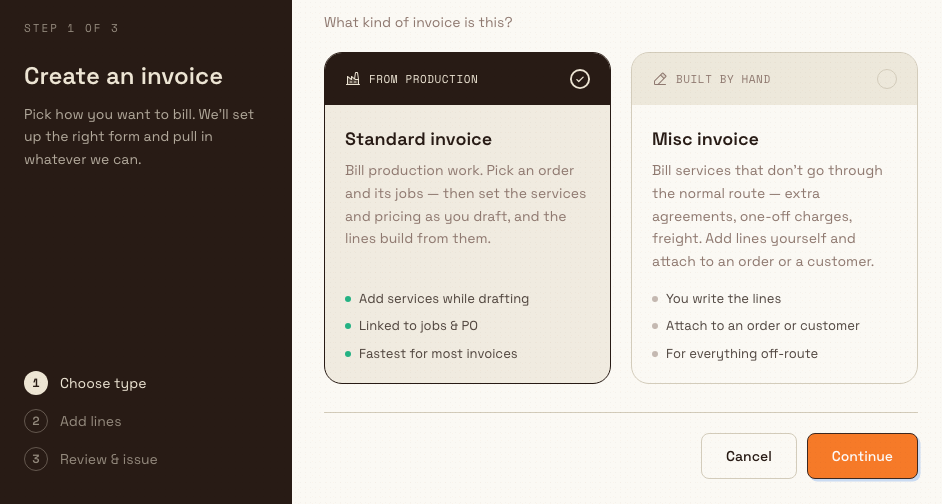
Use a standard invoice when the work went through the normal production route. If you instead need to bill something that did not come from an order's jobs — an extra agreement, a one-off charge, or freight — create a misc invoice instead, where you write the lines yourself. See Select an invoice type for the difference.
Before you start
You need all of the following:
- Permission to create invoices. Creating a standard invoice requires the
production_invoicing.viewandproduction_invoicing.createpermissions. In Bulk's built-in roles these are held by Super user, Entity admin, Manager, and Invoicing. If you do not have them, the Finance area and the New invoice pages are hidden or blocked for you. - At least one invoiceable order. An order only becomes invoiceable when it has a customer and at least one job that is open, in progress, or completed, has not been invoiced already, matches the customer's currency, and has reached the point in its route where your plant allows invoicing. Your entity settings decide whether a job can be billed at any time or only once it reaches the Invoicing routing step.
You do not need to set prices before you start. Jobs with no services yet are still selectable — you add the services (and therefore the billable lines) while drafting the invoice.
Where to find it
In the left sidebar, open Finance, then choose New invoice. Finance is part of the production module, so it appears only when that module is enabled for your plant.
finance.create-standard-invoice-01
Create the invoice
- On the New invoice screen, keep Standard invoice selected (it is the default) and choose Continue. This opens the standard flow at the New invoice / Standard screen.
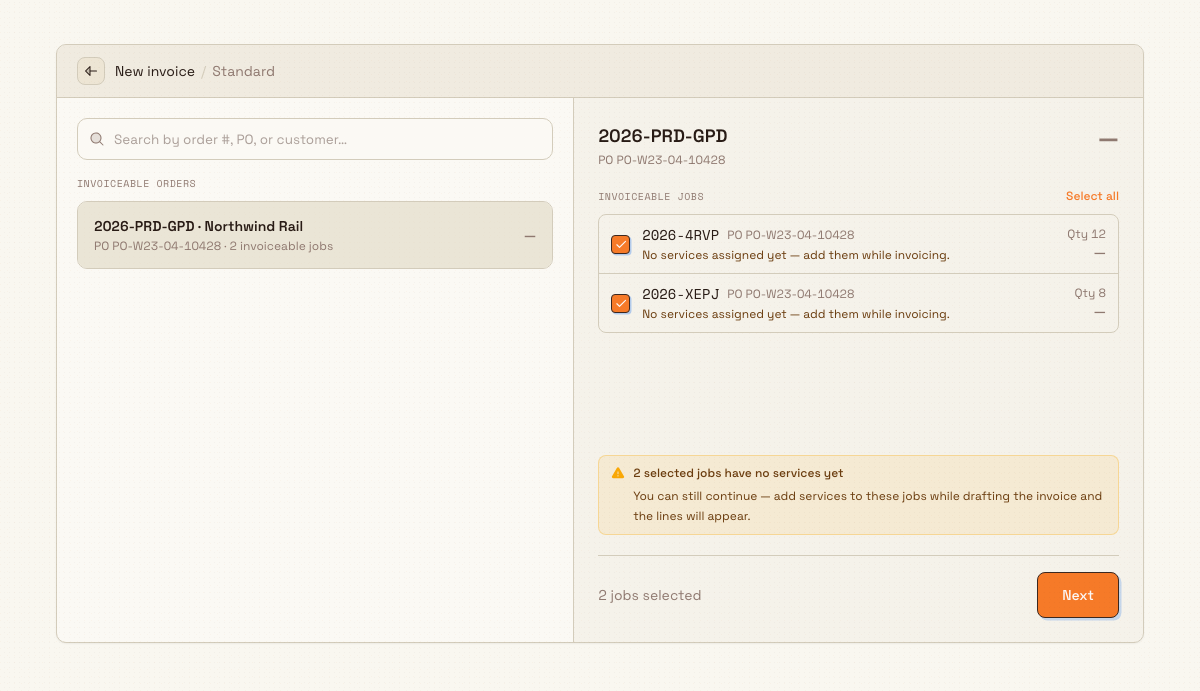
- In the left pane under Invoiceable orders, find the order you want to bill. Use the Search by order #, PO, or customer box to narrow the list, then select the order. If nothing matches, Bulk shows No matching orders; if no orders are ready at all, it shows No invoiceable orders.
- The right pane shows the selected order with its Invoiceable jobs. Every eligible job is checked for you by default. Clear any job you do not want to bill yet, or choose Select all to re-check them. A job with no services yet shows the note No services assigned yet — add them while invoicing and a dash instead of a price.
- Check the running count at the bottom — for example 3 jobs selected — then choose Next. Bulk creates the draft and shows Draft invoice created, then opens the new invoice so you can add services and pricing.
finance.create-standard-invoice-02
Example: Granite Peak Manufacturing
Granite Peak Manufacturing runs its Leeds Fabrication Plant on Bulk. Dana Winters, who holds the Invoicing role, needs to bill order SO-10428 for the customer Northwind Rail. The order's press-brake and welding jobs finished this week and have reached the Invoicing step on their route, so the order appears under Invoiceable orders.
Dana searches Northwind, selects SO-10428, and sees its two finished jobs checked in the right pane, priced in the customer's currency. One job still shows No services assigned yet, so Dana leaves it checked, knowing the service can be added on the next screen. With 2 jobs selected, Dana chooses Next, sees Draft invoice created, and lands on the new draft to add the welding service and review the lines before sending it for approval.
What happens next
Creating the invoice makes a draft. A draft:
- Is linked to the order and the jobs you selected.
- Uses the customer's currency.
- Gets a temporary draft reference in the form
DRAFT-followed by a number. The real, gap-free invoice number is only assigned when the invoice is issued, so drafts you abandon never use up a number.
From the draft you add or adjust services and pricing, then move it through the rest of the invoice lifecycle. See Review an invoice, Submit and approve an invoice, and Issue or confirm an invoice.
Serviceless jobs do not block you
You can create a standard invoice even when some selected jobs have no services yet. Those jobs produce no billable lines until you add services while drafting. Bulk shows a warning such as "2 selected jobs have no services yet" so you know which ones still need attention before you issue the invoice.
Limitations and feature state
Standard invoicing is generally available in the Finance module. Keep these verified behaviors in mind:
- One order per standard invoice. A standard invoice is created from a single production order and its jobs. To bill work that is not tied to an order's jobs, use a misc invoice.
- Single currency. A standard invoice uses the customer's currency. Jobs priced in a different currency are not offered as invoiceable and cannot be added to the same invoice.
- No re-invoicing. A job that is already on a non-voided invoice will not appear as invoiceable again, which prevents billing the same work twice.
Troubleshooting
- The order is not in the list. The order is only invoiceable once it has a customer and at least one job that is open, in progress, or completed, is not already invoiced, matches the customer's currency, and has reached the invoicing point on its route. If your plant only allows invoicing at the Invoicing routing step, jobs earlier in the route will not show yet.
- A job shows "No services assigned yet". This is expected and does not stop you. The job is billable once you add a service to it while drafting; until then it contributes no line and shows a dash instead of a price.
- You cannot start a draft for a customer. Your plant's customer statuses can restrict billing. A customer whose status blocks invoicing will stop a draft from being created; a status that only warns lets you draft but may block issuing later. Check the customer's operational status if a draft is refused.
Related guidance
Select an invoice type
Decide whether to bill production work with a standard invoice or capture off-route charges with a misc invoice, then continue into the matching draft.
Create a miscellaneous invoice
Bill one-off or off-route charges by building a miscellaneous invoice with lines you enter yourself, attached to an order or directly to a customer.