Update entity settings
Configure the operating rules and customer enforcement statuses that govern the manufacturing site you have selected in Bulk.
In Bulk, an entity is a single manufacturing site — one plant or location inside your organization. Entity settings control how that one site handles work: what it requires before an inbound document can start, how it counts quantities on new jobs, and how it restricts work for individual customers. An inbound document is a piece of customer paperwork (for example a purchase order or a drawing) that arrives into Bulk and is processed into production work.
Every value on this page applies only to the entity you currently have selected. An organization that runs several plants can therefore give each plant its own rules — one site can insist on quantity 1 per job while another counts real batch quantities, and each site can hold a shared customer independently.
Use this page when you are setting up a new site, or when a site's document policy, job-quantity model, or customer-hold rules need to change.
Before you begin
- Select the correct site first. The settings you change apply to the entity shown in the page subtitle, not to your whole organization. Switch sites from the entity selector before you make changes if you manage more than one plant.
- You need a role that can configure entity settings. By default the Super user, Entity admin, and Manager roles can change these settings. Other roles that can open Settings — such as Invoicing or Dashboards — can view the page but cannot save changes. See Roles and permissions for how these grants work.
- Changes are only possible before the site has production jobs. Once the site has created any production job, operating rules and customer statuses lock and further changes go through Bulk support. This is covered in When settings lock below.
Open entity settings
Go to Settings → Entity → Settings. In the navigation this entry is labelled Settings and currently carries a Beta badge. The page header reads Settings, and the subtitle names the site you are configuring — for example, "Configure operating rules for Leeds Fabrication Plant".
The page has two tabs:
- Operating rules — document and job behaviour for the site.
- Customer statuses — rules that gate work for individual customers.
administration.entity.general-01
Operating rules
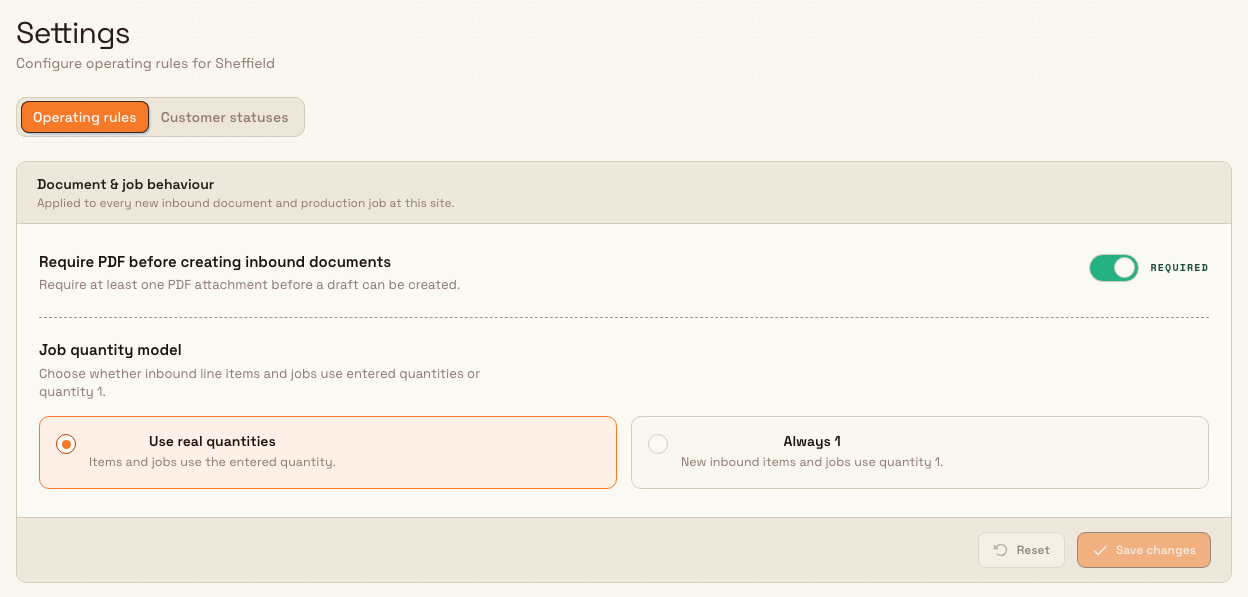
The Operating rules tab holds one card, Document & job behaviour, whose settings apply to every new inbound document and production job at this site.
Require PDF before creating inbound documents
This switch controls whether a PDF attachment is mandatory before someone can start an inbound document. When it is set to Required, a draft cannot be created until at least one PDF is attached. Set it to Optional to let drafts be created without a PDF. New sites start with this set to Required.
Job quantity model
This setting decides how quantities are populated on new inbound line items and production jobs. Choose one of:
- Use real quantities — items and jobs use the quantity that was entered.
- Always 1 — every new inbound item and job is created with quantity 1, and the quantity field is locked so it cannot be edited.
Choose Always 1 for a site that treats each physical piece as its own job — for example a fabrication shop making one-off weldments — rather than counting batches. Choose Use real quantities for a site that produces in counted batches.
After adjusting either control, select Save changes to persist them. Reset returns the controls to the last saved values. A successful save shows the confirmation "Entity settings saved". Each change is recorded for audit and appears in your activity logs.
Customer statuses
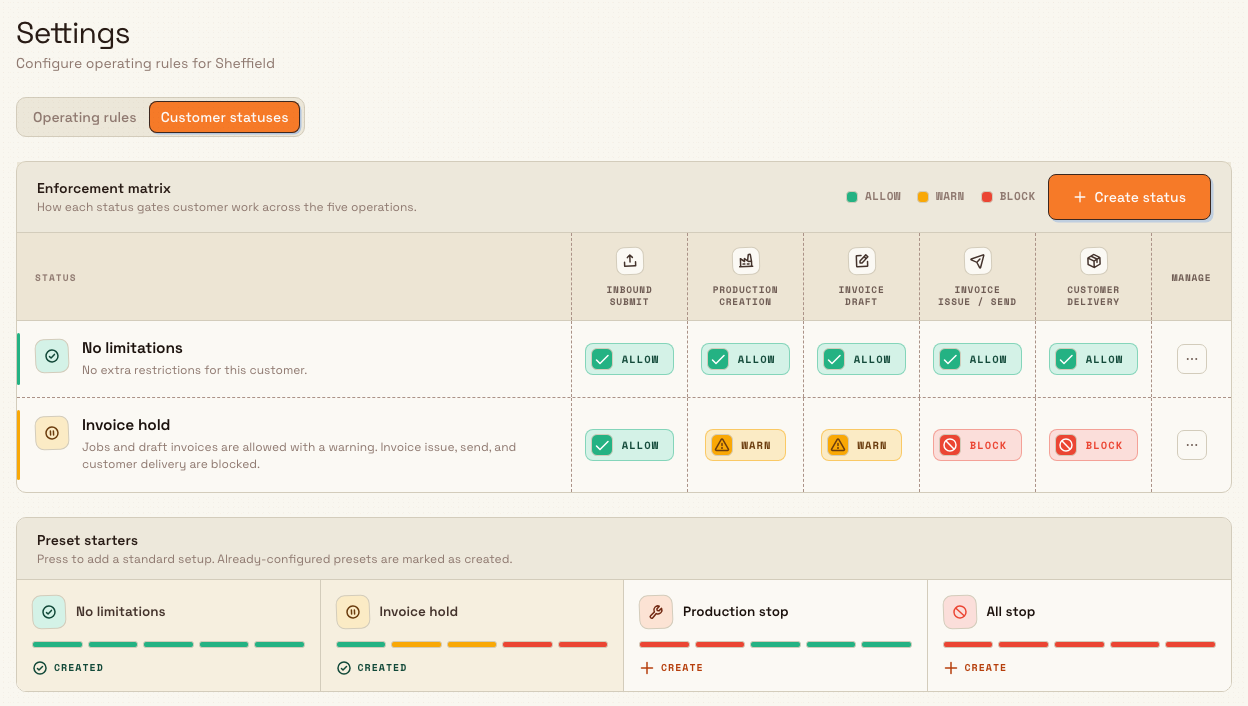
A customer status is a named policy — such as "Invoice hold" — that restricts what your team can do for any customer it is assigned to. Each status sets an effect for five operations, and Bulk enforces those effects when someone tries to create or advance that customer's work.
The three effects are:
- Allow — no restriction.
- Warn — the action is allowed, but the user sees a warning first.
- Block — the action is prevented, and the user sees an explanation.
The five operations, shown as the columns of the Enforcement matrix, are Inbound submit, Production creation, Invoice draft, Invoice issue / send, and Customer delivery. Invoice issue / send and Customer delivery accept Allow or Block only — they have no Warn option.
administration.entity.general-02
Add a status from a preset
The Preset starters card offers four ready-made setups. Select one to add it to your matrix:
- No limitations — no extra restrictions for the customer.
- Invoice hold — production and draft invoices are allowed with a warning; invoice issue, send, and customer delivery are blocked.
- Production stop — inbound work can stay in draft, but production jobs and orders are blocked.
- All stop — inbound submit, production, invoice drafts, invoice issue, send, and customer delivery are all blocked.
A preset that you have already added is marked Created and cannot be added again; edit it from the matrix instead.
Create or edit a status
Select Create status to open the status dialog, or open the row menu (the three-dots control) in the matrix and choose Edit status. In the dialog you set:
- Name — for example "Credit review".
- Description — optional; describe when the status applies and what it restricts.
- Operation rules — an Allow / Warn / Block control for each of the five operations.
Select Create status (or Save changes when editing) to confirm. To remove a status, open its row menu and choose Delete; the status is archived and disappears from the matrix.
Defining a status here does not restrict anyone on its own. A status only takes effect once it is assigned to a customer, which you do on the Customers master-data page. After assignment, Bulk evaluates the status whenever someone creates or advances that customer's work.
Example: Leeds Fabrication Plant
Granite Peak Manufacturing runs the Leeds Fabrication Plant as a make-to-order weldment shop where each part is a one-off. Dana Winters, an Entity admin, sets the site up like this:
- On Operating rules, Dana sets Require PDF before creating inbound documents to Required, so every inbound document must carry the customer's drawing before a draft can start.
- Still on Operating rules, Dana sets the Job quantity model to Always 1, so every inbound line and production job is created as a single piece with a locked quantity. Dana selects Save changes and sees "Entity settings saved".
- On Customer statuses, Dana adds the Invoice hold preset because the customer Pennine Structures Ltd has gone over its credit limit. Dana then assigns that status to Pennine Structures on the Customers page.
Now, when a planner tries to issue an invoice to Pennine Structures, Bulk blocks it and explains why; creating a production job for the same customer is allowed but shows a warning first. Every other customer at the site is unaffected.
Expected result
Your operating-rule changes take effect immediately for the selected site: new inbound documents and jobs follow the PDF and quantity rules you saved. Customer statuses you create appear in the enforcement matrix and begin gating work as soon as they are assigned to a customer. All changes are scoped to the entity in the page subtitle and leave your other sites untouched.
When settings lock
Settings lock once the site has production jobs
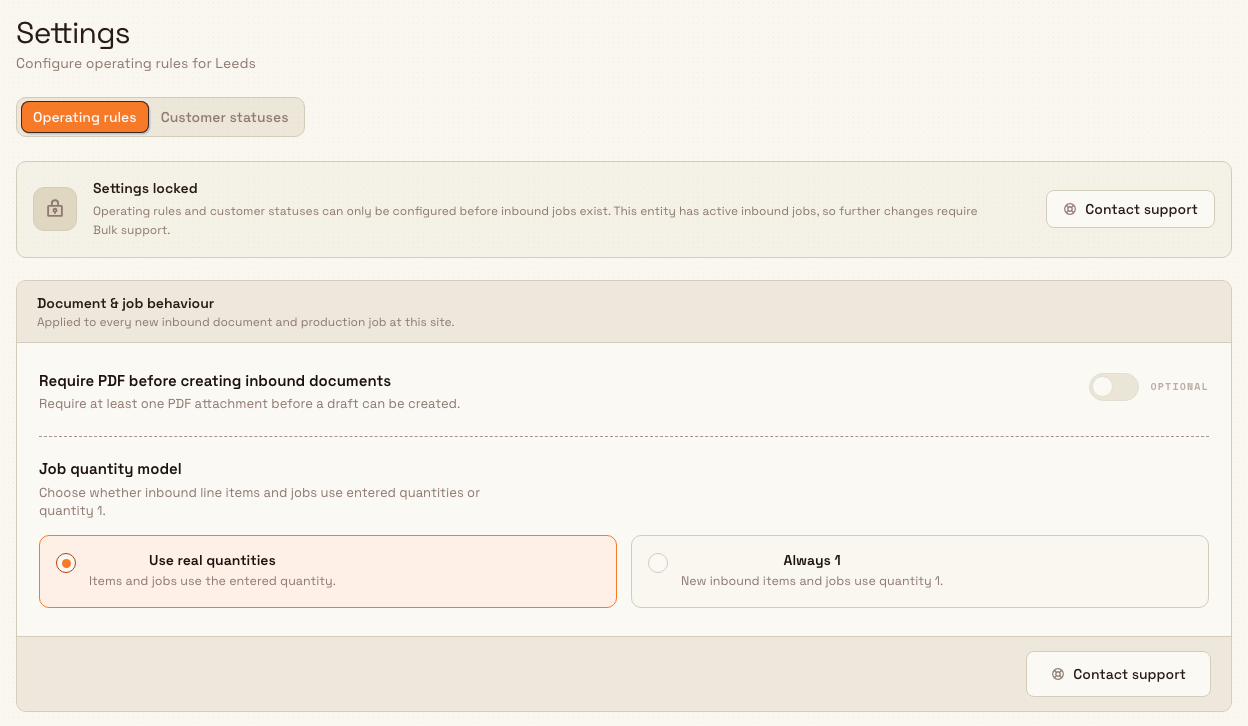
Operating rules and customer statuses describe how a site processes brand-new work. Once the site has any production job, changing those rules could retroactively confuse work that already exists, so Bulk locks the configuration. From that point a Settings locked banner appears, the controls become read-only, and the footer offers Contact support instead of Save. To change a locked site's settings, contact Bulk support.
The lock is evaluated each time you open the page: a site with no production jobs is fully editable, and a site with even one production job is locked.
administration.entity.general-03
Troubleshooting
- The controls are read-only and a "Settings locked" banner is shown. The site already has at least one production job, so its settings are locked. Use Contact support to request a change.
- Saving fails with a permission message. Your role can view entity settings but not change them. Ask a Super user, Entity admin, or Manager to make the change.
- A preset is greyed out and marked "Created". You have already added that preset. Edit the matching status from the enforcement matrix rather than adding it again.
- You cannot set "Warn" for invoice issue / send or customer delivery. Those two operations are Allow or Block only by design; there is no Warn option for them.
Related
- Entity settings overview
- Configure an invoicing profile
- Configure invoice fields
- Customers — assign a status to a customer
- Manage sites (entities)
Entity settings
The per-site settings that control how one entity handles inbound documents, production jobs, customer gating, and the invoices and credit notes it issues.
Configure an invoicing profile
Set the seller identity, invoice-timing rule, approval policy, and post-issue confirmation that Bulk freezes onto every invoice and credit note an entity issues.