Configure invoice fields
Add and manage the custom fields Bulk captures on every invoice and credit note an entity issues — their label, type, default value, and whether they are required.
An invoice field is a custom field — an extra piece of information beyond the amounts and line items Bulk already records — that your team captures on every invoice or credit note a single entity issues. An entity is one site or plant in your organization, such as the Leeds Fabrication Plant. A credit note is a finance document that reverses or reduces a previous invoice.
Use invoice fields when a plant needs to record something specific on its finance documents that Bulk does not capture out of the box — a laboratory certificate reference, a customer purchase-order number, an export declaration code, or an inspector's name.
Fields are configured per entity and per document kind, so each entity keeps one set of fields for invoices and a separate set for credit notes.
Use this page to:
- Add, rename, and remove the custom fields on invoices and on credit notes.
- Choose each field's data type and the default value new documents start with.
- Decide whether a field is required, and whether operators can edit it.
- Set the order the fields appear in.
Before you start
Open the builder from the settings area:
- Open Settings.
- Under Entity, select Invoice Fields.
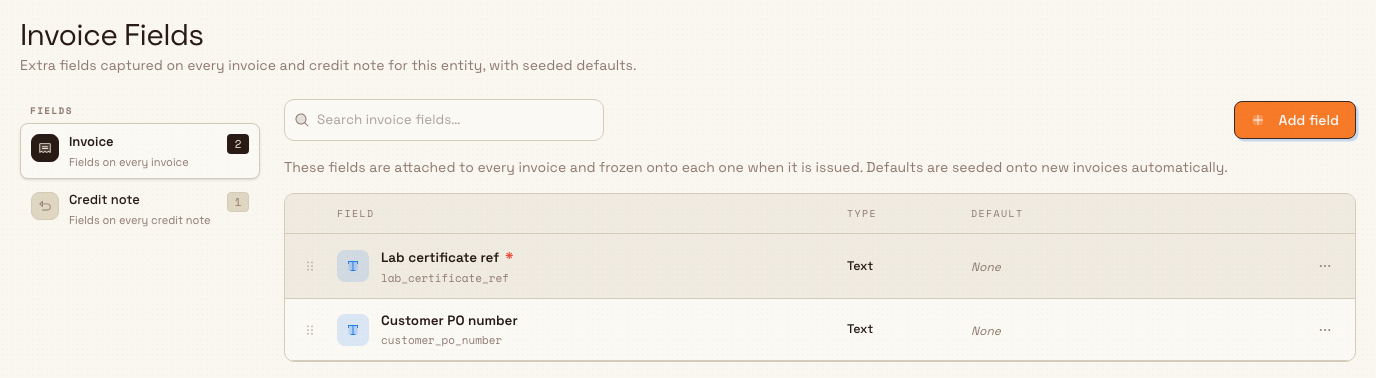
The page is titled Invoice Fields. A left rail switches between the Invoice and Credit note field sets, and each shows a count of how many fields it holds.
administration.entity.invoice-fields-01
Who can view and edit
Access is controlled by role permissions, shared with the Forms builder:
- Viewing the fields requires the
forms.viewpermission. - Adding, editing, reordering, or removing a field requires
forms.createandforms.update.
By default the Super user, Entity admin, Manager, and Master data roles hold these permissions. The dedicated Invoicing role — which can run an invoicing workstation and issue invoices — does not, so an invoicing operator can fill in invoice fields on a document but cannot change which fields exist. If the fields list fails to load, or a change is rejected when you save, you are missing the relevant permission; ask an Entity admin to grant it or to make the change for you.
How the builder is organized
The right pane lists the fields for the selected kind. Each row shows three columns:
- Field — the field's display label and, beneath it, its stable key (a lowercase identifier used in data and integrations). A red asterisk marks a required field.
- Type — the field's data type, such as Text, Number, Date, or Dropdown.
- Default — a preview of the value new documents start with, or None.
Above the list, a search box filters the current kind's fields by label or key, and Add field opens the field dialog. A line under the toolbar states: "These fields are attached to every invoice and frozen onto each one when it is issued. Defaults are seeded onto new invoices automatically." When an entity has no fields yet for a kind, the list shows No custom fields yet with an Add field action.
Add or edit a field
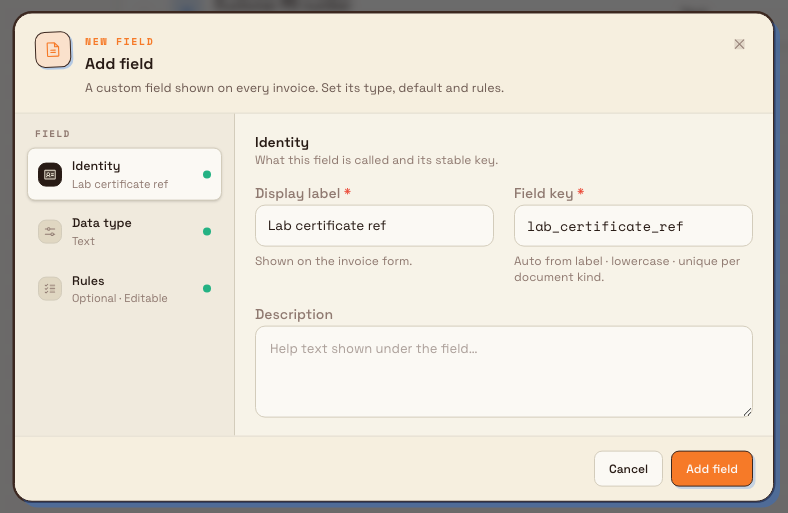
Select Add field to create one, or click a field row (or its Edit action) to change an existing one. Both open the same dialog, organized into three sections in a left rail:
Identity
- Display label — what the field is called on the document form, for example "Lab ID". This is required.
- Field key — a stable lowercase identifier, generated from the label as you type (for example
lab_id). It must be unique among that kind's fields. You can edit the key while creating a field; after the field exists the key is fixed. - Description — optional help text shown under the field on the document form.
Data type
- Type — how the value is captured and validated. Options include Text, Long text, Number, Currency, Date, Date & time, Yes / No, Dropdown, Multi-select, File, and User, plus Array and Object for structured values. Choosing a type reveals its own options — a Dropdown's choices, a Number's unit, or a Date's default — and, where relevant, a default value the field starts with on new documents.
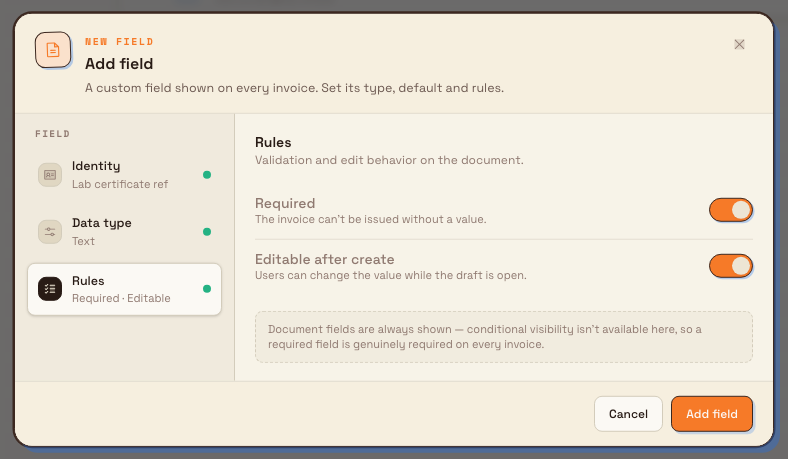
Rules
- Required — when on, the invoice or credit note cannot be issued until the field has a value.
- Editable after create — when on, users can change the value while the document draft is open.
Because invoice fields are always shown on the document — there is no conditional visibility here — a required field is genuinely required on every document of that kind.
The data type is chosen when you create the field and is fixed afterward, like the key. Save with Add field (creating) or Save changes (editing). A new field shows the toast "Field added"; an edited field shows "Field saved".
administration.entity.invoice-fields-02
administration.entity.invoice-fields-03
Reorder fields
Drag a field by its handle to change the order the fields appear in on the document. Reordering is available only when you are not searching, so clear the search box first. The new order saves as soon as you drop the field.
Remove a field
Open a field's actions menu and choose Delete. Bulk asks you to confirm ("Remove this field?") and explains that the field will no longer appear on new documents of that kind, while documents already issued keep their frozen values. Confirm with Remove field; the toast "Field removed" appears.
How invoice fields reach documents
Fields are seeded on create and frozen at issue
Bulk adds every active field to each new invoice or credit note and fills it with the field's default value. Operators can then change the value — if the field is editable — before issuing. When the document is issued, Bulk freezes the fields and their values onto it. Editing this page later never rewrites documents that were already issued; it only changes what the next new document starts with.
If a field is Required and left empty, issuing is blocked with the message "Required invoice fields are not filled." until the field is completed. This is how a required field genuinely stops an incomplete document from going out.
Example: Granite Peak Manufacturing
Granite Peak Manufacturing runs several plants. At the Leeds Fabrication Plant, every invoice must quote the laboratory certificate reference for the batch, and finance wants the customer's purchase-order number on file. Dana Winters, an Entity admin, sets this up:
- Dana opens Settings, then Entity, then Invoice Fields, with the Invoice set selected.
- Dana selects Add field and enters the Display label "Lab certificate ref"; the Field key fills in as
lab_certificate_ref. - Under Data type, Dana keeps Text, and in Rules turns Required on, because no invoice should leave Leeds without a certificate reference.
- Dana saves with Add field and sees "Field added".
- Dana adds a second field, "Customer PO number" (key
customer_po_number), leaves it Text and optional, and saves. - Dana drags "Lab certificate ref" above "Customer PO number" so it appears first.
- Switching the rail to Credit note, Dana adds a Dropdown field called "Reason code" with the choices Leeds uses when it credits a customer.
From now on, every new Leeds invoice starts with both fields, and an invoice cannot be issued until the lab certificate reference is filled. Credit notes carry their own Reason code field, independent of the invoice set.
Expected result
The selected kind's list shows your fields in order, each with its type and default. New invoices and credit notes for the entity include the fields automatically, seeded with their defaults, and any required field blocks issuing until it is filled. Documents already issued are unaffected by later changes on this page.
How invoice fields show up in Finance
Once fields exist for the entity:
- Operators fill them on the invoice or credit-note detail form while the document is still a draft.
- On the Invoices list, each invoice field (and linked order custom fields) can be turned on as an optional column via the columns control; they are off by default.
- List search matches those field values, so typing a lab certificate reference or similar value can surface the right invoice even when the invoice number is unknown.
- When you issue the invoice, field values are frozen onto the document with the rest of the snapshot.
Feature state
Invoice fields are generally available. They are configured per entity and per
document kind, so repeat the setup for each site that issues invoices, and configure
the Invoice and Credit note sets separately. This page uses the same
permission as the Forms builder (forms.view, forms.create, forms.update); it is
not governed by a separate invoicing permission.
Limitations
- Per entity, per kind. Fields apply only to the selected entity and the selected document kind. There is no organization-wide default set — repeat the setup for each entity, and separately for invoices and credit notes.
- Key and type are fixed after creation. You can rename a field's label and change its options at any time, but its key and data type are locked once the field exists. To change either, remove the field and add a new one.
- Always shown — no conditional visibility. Invoice fields cannot be hidden by a condition, so a required field is required on every document of that kind.
- Removal does not affect issued documents. Deleting a field only stops it appearing on new documents; issued invoices and credit notes keep the values and definitions frozen at issue.
Troubleshooting
- "A field with this key already exists." Another field of the same kind already uses that key. Change the label or the key so it is unique, then save.
- The fields list fails to load, or a change is rejected on save. You are likely missing the permission. Viewing needs
forms.viewand saving needsforms.createandforms.update; ask an Entity admin to grant it. - An invoice will not issue — "Required invoice fields are not filled." A required invoice field is empty on that document. Fill the field on the invoice, or, if the requirement no longer applies, turn Required off for that field here. Turning it off affects future issuing only; it does not change documents already issued.
- You cannot change a field's key or type. Both are fixed after creation. Remove the field and create a new one with the key and type you need.
Related guidance
- Entity settings overview — the other per-entity configuration pages.
- Configure an invoicing profile — the seller identity and invoicing rules for the same entity.
- Update entity settings — general settings for the entity, including its name.
- Create a standard invoice — where operators fill in these fields.
- Create a credit note — the credit-note task these fields appear on.
- Issue or confirm an invoice — where a required field is enforced.
- Custom fields and dates — custom fields for jobs and orders, which are configured separately from these document fields.
Configure an invoicing profile
Set the seller identity, invoice-timing rule, approval policy, and post-issue confirmation that Bulk freezes onto every invoice and credit note an entity issues.
Master data
Set up the shared records and templates — parts, assets, customers, routings, forms, and more — that the rest of Bulk relies on, either across your whole organization or for a single site.