Configure inbound forms
Set up form templates so inbound documents and items can collect structured data that follows into production orders and jobs.
Inbound forms are the structured templates people fill when work arrives — material certificates, purchase-order details, goods receipts, and similar paperwork. You design each template once for a site; operators then attach a filled copy to an inbound document or inbound item. When that work moves into production, the same filled form can follow onto the matching production order or job.
Configure inbound forms when you are standing up a new site, when a customer or quality process needs fixed fields instead of free text, or when you want one template to travel from inbound through production. Template design lives under Settings → Master Data → Forms; this guide focuses on the inbound choices: which flow to use, how templates show up on inbound work, and how filled forms carry over.
Forms is in beta
In the Settings sidebar, Forms shows a Beta badge. The area is available for day-to-day setup, but layout, options, and wording can still change. Prefer Archive over permanent delete while you settle templates.
Before you start
- Switch to the site you are configuring (for example the Leeds Fabrication Plant). Form templates are per site — they are not shared across plants.
- Open Settings, expand Master Data, and select Forms. The page address ends in
/settings/master-data/forms. - An older address,
/settings/master-data/inbound-forms, opens the same Forms list (it redirects). There is not a separate “inbound-only” master-data page.
You need two kinds of permission:
| What you do | Permissions |
|---|---|
| Design templates (list, builder, categories, archive) | forms.view, forms.create, forms.update, forms.delete |
| Attach and fill forms on inbound documents or items | form_instances.view, form_instances.create, form_instances.update (and form_instances.delete to remove a filled form) |
Built-in roles that include both template and filled-form management include Super user, Entity admin, Manager, and Master data. If New form is missing, or operators cannot use Add form on a document, ask an administrator to adjust roles.
For the full builder (sections, field types, categories, import/export), see Manage forms. This article stays on inbound configuration and how templates appear on inbound work.
How inbound forms fit together
Think in three layers:
- Form template — the design in Settings → Master Data → Forms: name, code, sections, fields, and form flow. Only Active templates appear for attachment.
- Filled form — a concrete copy of a template attached to one inbound document or one inbound item. Operators create it with Add form, then fill the fields.
- Carry-over — when inbound work is linked into production, filled forms whose flow includes the production target can follow onto the production order or job so shop-floor and planners see the same data.
Templates do not auto-attach to every new document. Someone with filled-form create permission picks them from the Form library when the paperwork is needed.
Choose the form flow (inbound)
When you create or edit a form, the Flow tab (labeled Form flow — “Choose where this form is available.”) sets the pair of records the template applies to. There are two options:
| Flow (UI label) | Targets | What it means for inbound |
|---|---|---|
| Inbound documents + production orders (default) | Inbound Documents and Production Orders | “One filled form follows from the inbound document to its production order.” Use for document-level paperwork (invoice, PO, goods receipt, header-level cert). |
| Inbound items + production jobs | Inbound Items and Production Jobs | “One filled form follows from each inbound item to its production job.” Use when each line needs its own form (per-part cert, line inspection). |
On the Forms list, each card shows scope badges for those targets (Inbound Documents, Production Orders, Inbound Items, Production Jobs). Match the flow to how work moves at your plant before you roll templates out to operators.
You can change flow later under Edit form → Flow, unless active filled forms already use a target you try to remove — Bulk then blocks the change (for example “Cannot remove production orders because active documents already use this form there”).
Create a template for inbound
- On Forms, select New form (or Create form on the empty state). The empty state is labeled Inbound setup when no active forms exist yet.
- On the Details tab, enter Name (required), Code (required; Bulk suggests an uppercase code from the name, unique on the site), optional Description, Category, Icon, and Colour.
- Open the Flow tab and choose Inbound documents + production orders or Inbound items + production jobs.
- Select Create form. Bulk seeds a first section named Details, shows “Form created”, and opens the builder.
In the builder, add sections and fields (text, dates, file uploads, and other types), mark Required fields, and save as you go. Starter templates such as Invoice, Purchase order, Material cert, and Goods receipt are available when the site has no active forms yet (or from the builder empty state) and give you a ready structure to edit.
Keep only live templates on the Active tab. Use Archive for experimental or retired designs so they no longer appear in the Form library.
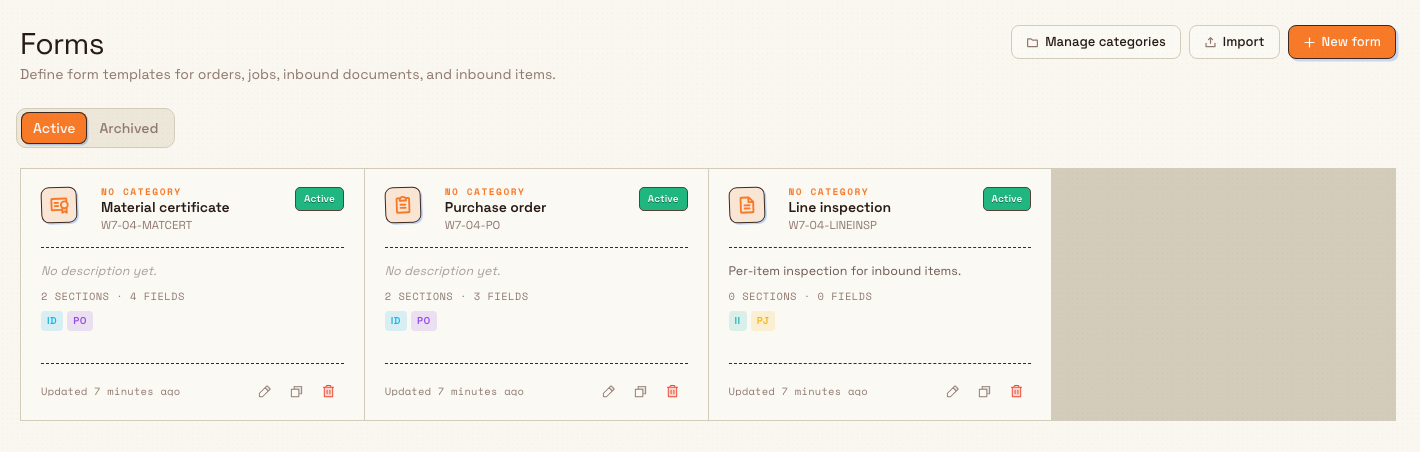
administration.inbound.forms-01
How templates appear on inbound work
On an inbound document
Open an inbound document (for example from Inbound → Inbound Documents), or start a draft under Inbound → New Document. Both surfaces include a Forms section so operators can attach and fill required paperwork before or after Create document. On the open document, the header includes a Forms strip:
- Count label Forms N.
- Add form (when the document is editable and the user can create filled forms).
- Empty state: No forms assigned, with the note that “Anything you attach here will travel with this inbound and carry over to any production orders created from it.”
- When forms are assigned, each shows as a card with name, progress (
filled/totalfields), and a fill bar. Select a card to open the fill dialog.
Add form opens the Form library dialog: “Forms available for inbound documents.” Only active templates whose flow includes inbound documents are listed. Search by name, code, description, or category; filter by category; sort A–Z, by field count, or by category. Already-attached templates appear under Already assigned. Picking a template creates a filled form (toast Form created) and opens it for entry.
On an inbound item
For item-level flows, open a line item on the document. A Forms rail on the item shows Core (item details) plus each assigned form. Use Add on that rail to open the Form library for inbound items (same library UX, filtered to item-flow templates).
Item assignment may be blocked when the item is no longer pending, is locked, or the parent document is not editable. Common messages:
- “Forms must be assigned before the item is marked ready.”
- “Inbound item is locked”
- “Inbound document is not editable”
Filling a form
The fill surface is a dialog (document header) or inline panel (item stack). Fields follow the template snapshot taken when the filled form was created. Dialog mode uses Save (toast Form saved) and Close; status progresses through New, Partial, and Completed as required fields are filled. Delete (when permitted) soft-deletes with “Delete this form?” and notes that the form can be restored later.
Carry-over into production
Form flow is not only about where you can attach a form — it also controls automatic linking when inbound work becomes production work:
- Document-level filled forms (flow Inbound documents + production orders) can be linked onto the production order created from that inbound document.
- Item-level filled forms (flow Inbound items + production jobs) can be linked onto the production job created from that inbound item.
Carry-over only happens when the template still applies to the production target, is active, and has not been deleted. Operators do not re-key the same certificate on the order if the form already followed from inbound.
Example: material cert at Leeds
Granite Peak Manufacturing’s Leeds Fabrication Plant receives steel plate that must carry a material certificate into production.
Dana Winters opens Settings → Master Data → Forms, selects New form, names it Material certificate, and on Flow keeps Inbound documents + production orders so one filled cert sits on the inbound document and can follow the production order. She builds Part #, Heat #, Date, and Inspector fields and marks Part # and Heat # required.
When plate arrives, a planner opens the inbound document, selects Add form, picks Material certificate from the Form library, fills the fields, and saves. After the document is promoted to production, the same filled form is available on the production order — quality does not re-enter the heat number.
If a line-level inspection were needed instead, Dana would create a second template with Inbound items + production jobs and attach it from the item Forms rail.

administration.inbound.forms-02
Expected result
- Active templates with the correct form flow appear in the Form library for inbound documents or inbound items.
- Add form creates a filled form on that record; progress shows filled vs total fields.
- Archived templates leave the library and are no longer offered for new attachment.
- When production is created from the inbound record, filled forms that include the production target in their flow can follow onto the order or job.
Feature state and limits
Inbound forms use the same Forms master-data surface (Beta badge in Settings). Keep these behaviors in mind:
- Templates and filled forms are per site.
- Only active templates with a matching
applies_totarget appear in the Form library for that document or item. - Templates do not auto-attach to every new inbound document; assignment is manual (or automatic only when existing filled forms are linked during production carry-over).
- Changing Flow cannot drop a target that still has active filled instances.
- Filled forms snapshot the template at creation; later template edits do not rewrite already-attached forms.
- The route
/settings/master-data/inbound-formsis only a redirect to/settings/master-data/forms.
Troubleshooting
- Form library is empty for inbound documents. No active template applies to inbound_documents. Create or edit a form, set flow to Inbound documents + production orders, and ensure it is Active (not archived).
- Form library is empty for inbound items. Need flow Inbound items + production jobs and an active template.
- Add form is missing or disabled. Document not editable, or missing
form_instances.create. On items, check pending status, locks, and the tooltips above. - Template missing after archive. Restore it from the Archived tab on Forms, or create a new template.
- Cannot change flow. Active filled forms still use a target you are trying to remove. Finish or remove those instances, or keep the target.
- Production order has no form that was on the inbound document. Confirm the template flow includes Production Orders, the template is still active, and production was linked from that inbound document (carry-over runs on that link).
- Permission errors in Settings. Need
forms.view/ create / update / delete for templates. Ask for Master data, Entity admin, Manager, or Super user.
Related
- Manage forms — full form builder: sections, fields, categories, import/export, archive/delete.
- Configure inbound OCR and extraction — automated extraction from inbound files (separate from form templates).
- Create an inbound document — day-to-day inbound document creation.
- Promote to production — when filled forms can follow into production.
- Roles and permissions — grant
forms.*andform_instances.*. - Manage entities — sites that own per-entity form templates.
Schedule audits
Link published audit templates to plant areas with daily, weekly, or monthly recurrence so due checks appear for operators on the right cadence.
Configure inbound OCR and extraction
Create inbound OCR configurations, choose an extraction model and automation level, and run the AI extraction wizard so uploaded PDFs become structured document and line-item data.