Master data
Set up the shared records and templates, such as parts, assets, customers, routings, and forms, that Bulk relies on across your organization or one site.
Last updated
Master data is where you set up the core records and templates that the rest of Bulk builds on. Almost everything you do in production — raising an order, running a job on a machine, pricing work for a customer, printing a document — draws on a record you first define here. Getting master data right once means the correct options appear everywhere else, so operators and planners choose from a curated list instead of typing free text.
You work in Master data when you are setting up Bulk for the first time, bringing a new site online, or keeping your operational setup current: adding a machine, introducing a new product, updating work instructions, onboarding a customer, or adjusting how orders and jobs are numbered. Day-to-day production work does not require you to come here — you visit Master data to change the building blocks, not to run the shop floor.
Find Master data in Settings
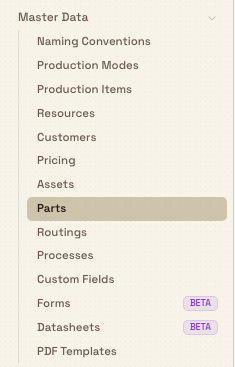
Master data is a group inside the Settings area, reached from the left-hand navigation. It is not a single page: expand the Master Data group in the Settings sidebar and each item opens one area of setup. There is no combined "Master data" screen, so you always land directly on the area you pick.
Most master-data lists share the same searchable table layout. Use the status filter to show Active records only, or switch to All or Archived when you need inactive ones.
What you can set up here
Each item below opens its own area. Follow the link for the full, step-by-step guide to that area.
Products, processes, and how work runs
- Parts — the products and components you make.
- Routings — the route a job follows through production: the ordered set of steps.
- Processes — versioned work instructions organised in catalogues. Each process code is a lineage of revisions; availability is separate from approval, and more than one active Approved revision can be offered for new work.
- Production modes — how production output is counted.
- Production items — what operators can record (good parts, scrap, inspection) and the data-entry steps they follow.
Machines and the tools people use
- Assets — the machines and workstations where work happens, along with asset types and their tablet layouts. Production-tablet types also configure Load Job columns and concurrent-job capacity (with a live preview of the operator table), and peaking / record-station types expose load-job and print defaults (scan-to-load limits, Print-all templates, and whether the bench records time) so operators get a consistent bench without per-job setup.
- Resources — tools and capabilities used in operations, for example a forklift or a QC inspector.
Customers and pricing
- Customers — customer records used on orders and jobs.
- Pricing — customer price agreements and their revisions. Pricing editors use the same compact pickers and menus as other Bulk lists so service codes and rates stay easy to scan while you revise an agreement.
Numbering, fields, and documents
- Naming conventions — the number formats for inbound documents, document items, production orders, and jobs.
- Custom fields — extra fields, including custom dates, that you can add to records such as jobs, inbound items, and exports.
- Forms — form templates for orders, jobs, inbound documents, and inbound items.
- Datasheets — customizable production-order spreadsheets with formulas, typed inputs, generated source arrays, publishing history, and reviewed import and export.
- PDF templates — templates used to generate job documents and printouts.
When defining a custom field, use Date for a calendar day such as a promised or inspection date. The chosen day then stays the same across records, exports, PDFs, and viewers in the site's fixed timezone. Use Date and time when the exact time matters; those values preserve the recorded moment and display it in the owning site's local time rather than being treated as a whole-day date. Weekly views use the organization's shared week-start rule.
Custom-field values also appear on module lists when you turn on the optional columns or search for a field value. Date fields format as calendar days; date-and-time fields format in the plant's timezone so list columns stay consistent with the detail form.
Consumables are set up under Inventory › Consumables rather than in this group. Each consumable carries Log amounts, up to 8 quick amounts such as 0.5 or 0.33 that a variant can override, and an Allow any amount switch that decides whether operators can log any amount greater than 0; see Manage consumables and variants.
Configure workstation logout
Workstation logout is configured per asset type. Open Settings › Master Data › Assets, edit an asset type, and find Workstation logout. From there you can:
- enable inactivity logout and set its timeout and warning countdown;
- choose whether automatic and expired-session logout stops eligible state or keeps all production state running; and
- select protected downtime reasons that must stay open after every logout.
The configured cleanup behavior is the default for the asset type. A manual logout still asks the operator whether to keep all state running or stop eligible state whenever a timer or downtime is active. Protected downtime stays open even when the operator chooses to stop. Logout itself completes immediately while eligible timer and downtime updates continue in the background.
Organization-wide versus per-site data
In Bulk, each site or plant is called an entity. Some master data is shared across your whole organization, and some is set up separately for each entity, so it is worth knowing which is which before you start.
Shared across your whole organization (define once, available everywhere):
- Customers
- Resources
- Production modes
Set up separately for each site (each entity has its own):
- Assets, Parts, Routings, Processes, and Production items
- Naming conventions and Pricing
- Custom fields, Forms, Datasheets, and PDF templates
If you run more than one plant, a customer you add is immediately usable at every site, while the machines and number formats you configure belong only to the site you set them up in. When you switch sites, per-site areas show that site's own records.
Who can open Master data
Each area is controlled by its own permission. To open an area you need its View permission — for example View parts (parts.view), View assets (assets.view), or View customers (customers.view). To add or change records you also need the matching create, edit, or delete permission for that area. If you do not have the right permission, the area rejects the request when you try to open it.
Three built-in roles include master-data permissions:
- Master data — a dedicated role described as "Manage core operational setup like assets, parts, processes, routings, consumables, and production configuration." Give this role to the people who maintain your setup.
- Entity admin — administrative access across the tenant; includes every master-data area.
- Super user — full access to everything.
An administrator assigns roles under Manage roles and permissions. If you can see an area but the add and edit controls are missing, your role is view-only for it — ask an administrator to grant the create and edit permissions.
Example: preparing Gotham at Wayne Corp
Wayne Corp runs more than one plant. When Gotham Applied Sciences comes online, Bruce Wayne, an administrator, prepares it through Settings → Master Data:
- Under Assets, he registers the plant's machines and workstations: the press brakes, the welding bays, and the inspection station.
- Under Parts, he adds the products Gotham will make.
- Under Routings and Processes, he defines the steps each job follows and the work instructions operators will see on the shop floor.
- Under Naming Conventions, he sets the number formats for Gotham production orders and jobs before the first order is raised.
Because Customers and Resources are organization-wide, the customer list Wayne Corp already maintains is available at Gotham with no re-entry, while the assets and naming conventions he just created belong only to the Gotham site.
Once these records exist, they appear as ready-made options throughout Bulk: parts and customers on orders, assets on the operator's asset-selection screen, and routings and processes on jobs. That is the point of master data — set the building blocks up once, and the rest of Bulk offers the right choices automatically.
Feature state and limitations
Master data is generally available. Keep these points in mind:
- Two areas are in beta. Forms and Datasheets carry a Beta badge in the Settings sidebar. They work, but their behavior and options may still change; treat them as evolving rather than settled.
- There is no single Master data page. Master Data is a group in the Settings sidebar, and each item opens a separate area. If you are looking for one screen that shows everything at once, it does not exist by design.
- Per-site records stay at their site. Assets, parts, routings, processes, production items, naming conventions, pricing, custom fields, forms, datasheets, and PDF templates each belong to the site where you create them; they are not shared across sites.
Troubleshooting
- An area is missing, or you get a permission error when you open it. You do not hold the View permission for that area. Ask an administrator to grant it, or to add you to a role — such as Master data — that includes the areas you need.
- A record you created at one site does not appear at another. Per-site master data belongs to the site where you created it. Switch to the correct site to see it, or recreate it there. Organization-wide data (customers, resources, and production modes) is shared automatically, so it does not need recreating.
- You cannot change a number format under Naming Conventions. Number formats lock once the first record of that type — an inbound document, order, or job — exists, which protects the numbers already in use. Set formats before you raise the first record. See Configure naming conventions for details.
Related guidance
- Administration — the full set of organization, entity, and configuration settings.
- Manage roles and permissions — control who can open and change each master-data area.
- Manage entities — set up the sites that per-site master data is scoped to.
Configure invoice fields
Add and manage the custom fields Bulk captures on every invoice and credit note an entity issues: label, type, default value, and whether required.
Configure naming conventions
Set per-site number formats for inbound documents, items, production orders, jobs, invoices, and credit notes from segments, and learn when a format locks.