Manage parts
Create, find, edit, and remove the site products and components that production jobs, datasheets, and reports reference in Bulk.
Last updated
A part in Bulk is a product or component that is manufactured at one of your sites: for example a bracket, a flange, or a machined housing. Each part has a part number that is unique to the site, plus optional details such as a name, a material type, a unit cost, and a description. Once a part exists, the rest of Bulk can reference it: production jobs, production items, datasheets, and performance reports all point back to the parts you define here.
Manage parts when you are setting up a new site's catalog, when a job needs a component you have not recorded yet, or when a part's details, such as its cost or description, change and you want every place that references it to stay accurate.
Parts belong to the site (facility) you are currently working in, not to your whole organization. A part number is unique within a site, and a part you add here is available only at that site. If you run more than one site, each maintains its own list of parts.
Before you start
The Parts page lives in site settings. To open it, go to Settings, open the Master Data group, and select Parts.
You need permission to work with parts:
- View the list requires the
parts.viewpermission. - Add, edit, and delete parts require the
parts.create,parts.update, andparts.deletepermissions.
Full access to add, edit, and delete parts is granted by the built-in Super user, Entity admin, Manager, and Master data roles. The Tablet user and Invoicing roles can view parts but not change them. If an action is denied, ask an administrator to review your permissions. A visible button does not grant permission to save. See Roles and permissions for how roles map to permissions.
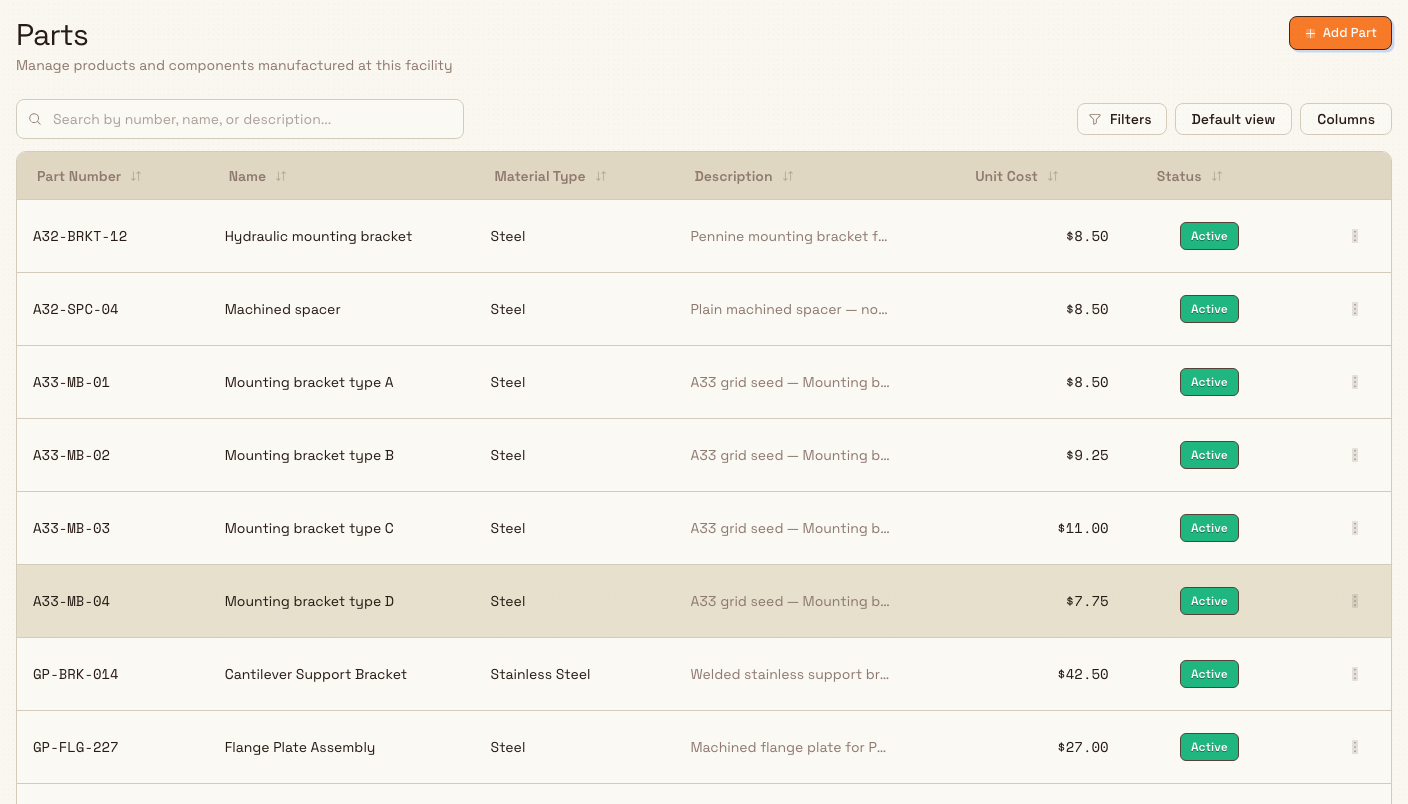
What the parts list shows
The parts table has one row per part. Its columns are:
- Part Number: the unique identifier for the part, shown in a fixed-width font.
- Name: a readable name for the part, or a dash when no name is set.
- Material Type: the material or category, such as
SteelorAluminum. - Description: a short description, shortened with an ellipsis when it is long.
- Unit Cost: the per-unit cost, shown with a dollar-sign prefix and two decimal places (for example
$42.50), or a dash when no cost is set. - Status: an Active or Inactive badge. New parts you add are always Active.
Any custom fields you have configured for parts appear as extra columns between Unit Cost and Status. The list is paginated, and you can sort it by selecting a column header. Only parts belonging to the current site are shown.
Add a part
- Select Add Part in the page header. The Create Part dialog opens with the subtitle "Add a new part or product to this facility".
- Fill in the fields:
- Part Number (required): the unique identifier, up to 50 characters. Bulk converts it to uppercase when you save, so
we-520is stored asWE-520. - Part Name: a readable name, up to 100 characters.
- Material Type: select a preset material or type your own. The presets are Steel, Stainless Steel, Aluminum, Titanium, Copper, Brass, Plastic, Rubber, Composite, and Other. To add your own, type it and choose Add; it is then reused for other parts at this site.
- Unit Cost: an optional cost per unit. Enter a positive number such as
42.50. - Description: an optional short description, up to 500 characters.
- Custom Fields: any extra fields your administrator has configured for parts appear in their own section below the standard fields.
- Part Number (required): the unique identifier, up to 50 characters. Bulk converts it to uppercase when you save, so
- Select Create.
The part number must be unique for the site. If a part with that number already exists, saving fails with the message "A part with number ... already exists in this facility": pick a different number and try again.
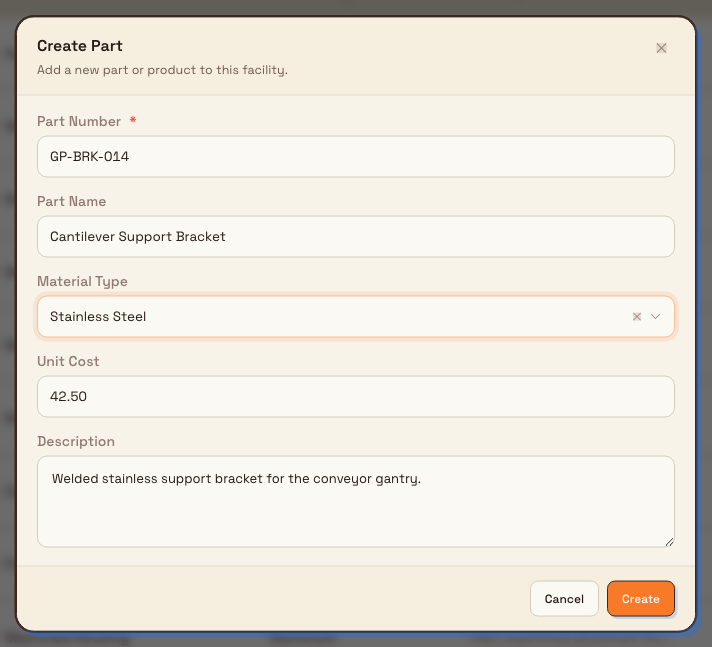
Example: adding a bracket at Wayne Corp
Bruce Wayne administers Wayne Corp and is building out the parts catalog for Gotham Applied Sciences. A new production run needs a guard mounting bracket, so Bruce selects Add Part and enters:
- Part Number:
we-520(saved asWE-520) - Part Name:
Guard Mount Bracket - Material Type:
Stainless Steel - Unit Cost:
42.50 - Description:
Stainless mounting bracket for the assembly cell safety guard.
In this example, after Bruce selects Create, the bracket appears in the list with an Active badge and a unit cost of $42.50. Production jobs and datasheets at Gotham Applied Sciences can then reference WE-520. The form picture shows the filled example before saving.
Edit a part
- Find the part in the list. Use search or filters if it is not on the current page.
- Select the actions menu at the end of the row and choose Edit. The Edit Part dialog opens with the subtitle "Update part details".
- Change any of the fields, then select Save Changes.
Editing a part updates it everywhere it is referenced. If you change the part number, the new number must still be unique for the site.
Delete a part
- Select the actions menu at the end of the part's row and choose Delete.
- A confirmation dialog appears, asking whether you are sure you want to delete the part and noting that the action cannot be undone.
- Select the confirm action to remove the part.
Deleting a part cannot be undone
Deleting removes the part from the list and from the pickers used elsewhere in Bulk. There is no undo, and the page does not warn you if the part is already referenced by a production job or item. Delete a part only when you are sure it is no longer needed, and edit it instead when you simply want to correct a detail.
Find and filter parts
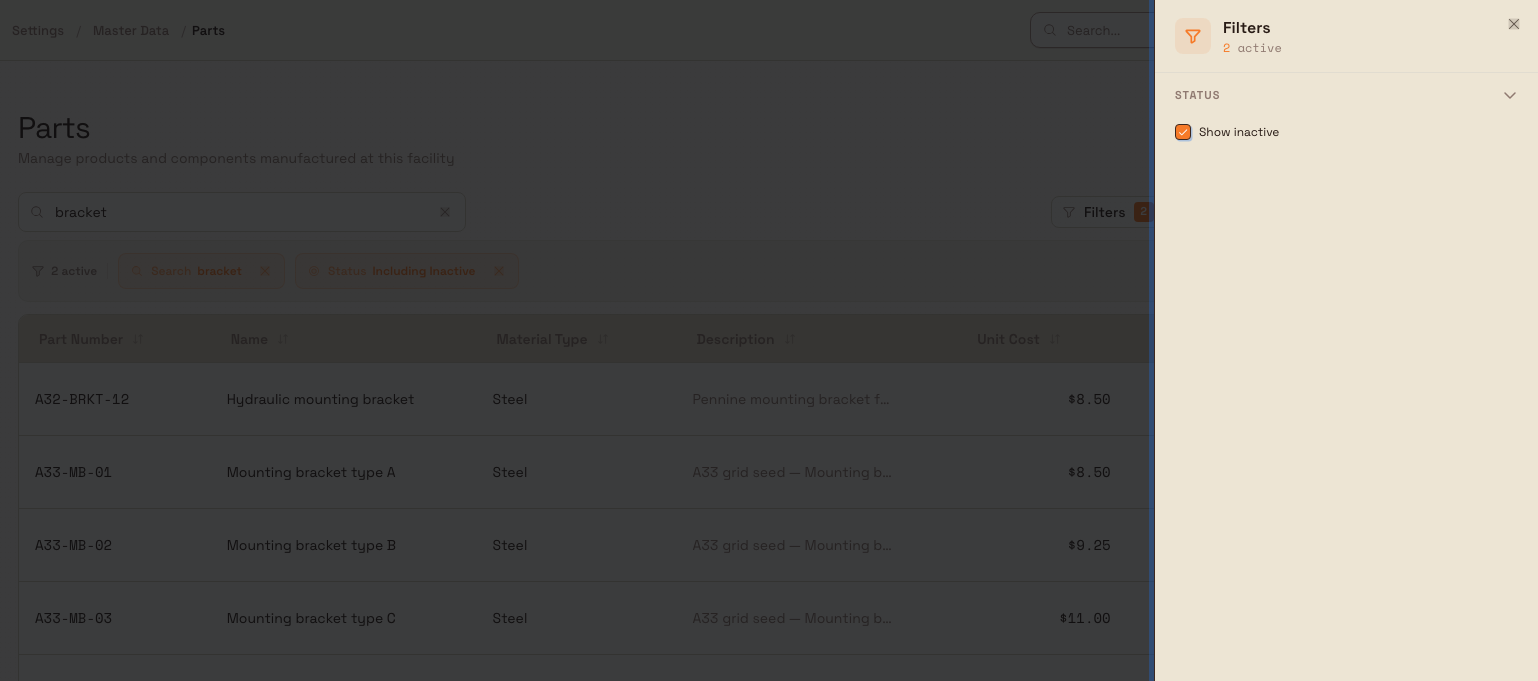
Use the Search by number, name, or description box above the table to filter as you type. Search is not case-sensitive and matches on part number, name, description, and material type.
By default the list shows only Active parts. Select All beside the search box to include inactive parts; select Active to return to active parts only. Active filters appear as chips above the table, such as Search and Status: Including Inactive. Clear them individually or select Clear all.
Material types
The Material Type field pairs a fixed set of presets with any custom types you create. The presets are Steel, Stainless Steel, Aluminum, Titanium, Copper, Brass, Plastic, Rubber, Composite, and Other. When you type a material that is not a preset and choose Add, Bulk keeps it and offers it the next time you add or edit a part at the same site, so your team reuses consistent wording instead of retyping variations.
Custom fields
An administrator can define custom fields for details such as a supplier code, drawing reference, or revision. Configured custom fields appear as their own section in the Create Part and Edit Part dialogs and as extra columns in the list. To set them up, go to Settings, open Master Data, and select Custom Fields. See Custom fields and dates for how to create and manage them.
Expected result
After you add a part, it appears in the list for the current site with an Active badge, and its part number becomes available to production jobs, production items, datasheets, and reports at that site. Edits are reflected everywhere the part is referenced, and a deleted part is removed from the list and from the pickers that offer parts.
Feature state and limitations
Managing parts is generally available. A few current behaviors are worth knowing:
- No active or inactive toggle on this page. New parts are created Active, and the Create Part and Edit Part dialogs do not include a control to switch a part between Active and Inactive. The Status column and the All filter still let you see inactive parts if any exist from an import or other source, but this page has no control for deactivating a part.
- Deletion is not checked against usage. Deleting a part does not currently warn you when the part is referenced by a production job or item.
- The Unit Cost column shows a dollar-sign symbol. The list formats unit cost with a
$prefix regardless of your organization's configured currency, so the symbol shown may not match the currency you work in. - Parts are added one at a time here. This page provides the Add Part form for creating parts individually; it does not include a bulk import control.
Troubleshooting
- "A part with number ... already exists in this facility." A part with that number is already defined for the site. Part numbers are unique per site and are stored in uppercase, so
we-100andWE-100count as the same number. Choose a different number, or find and edit the existing part instead. - "Part number is required." The Part Number field was left empty. Enter a value before saving.
- An action is denied. Your role may not include the create, update, or delete permissions for parts. Ask an administrator to grant a role that does, such as Manager or Master data.
- A part you expected is not in the list. It may be inactive or may belong to a different site. Select All, clear any search term, and confirm you are working in the correct site.
Related guidance
- Master data overview: every setup area for a site, including parts.
- Custom fields and dates: add extra fields to parts and other records.
- Production modes and items: the production items that reference parts.
- Routings: the process steps a part follows through production.
- Roles and permissions: control who can view and manage parts.
Manage assets and layouts
Set up shop-floor equipment in Bulk: asset types, lines, individual assets, multi-stations, and sensors, plus the operator screen layout for each type.
Manage routings
Create, version, publish, and retire routings — the ordered workflow a job follows on the floor — and set the approval policy each one uses.