Configure downtime reasons
Build the site catalogue of stop reasons operators pick when pausing production — classify each by OEE category and loss type, require comments when needed, and import industry presets.
Downtime reasons are the stop codes operators select when production pauses: equipment breakdown, changeover, waiting for parts, planned maintenance, and any other stop your plant tracks for OEE. Each reason belongs to an OEE category (Availability, Performance, or Quality), can carry a more detailed loss type, and can require a free-text comment so operators explain the stop.
You maintain this catalogue once per site so timer pauses, OEE events, downtime Pareto charts, and teamboard widgets all use the same codes and labels. Enabling OEE tracking on an asset type (so the pause action asks for a reason) is separate master-data work on the asset type; this page is where you define the reasons that picker shows.
Before you start
Open Settings, expand the OEE group, and select Reasons. The page address ends in /settings/oee/downtime-reasons. The sidebar label is Reasons; the page header itself is titled Downtime Reasons.
Permissions for this page:
- See the list requires View downtime reasons (
downtime_reasons.view). - Add, edit, reorder, and Import Presets require Create downtime reasons (
downtime_reasons.create) and Edit downtime reasons (downtime_reasons.update). - Delete requires Delete downtime reasons (
downtime_reasons.delete).
Full management permissions are included in the built-in Entity admin, Manager, and Super user roles. Tablet user and Dashboards can view reasons but not change them. If create or import fails, ask an administrator for the create/update (and delete) permissions or one of the management roles.
Downtime reasons are per site. Each entity (plant) keeps its own ordered catalogue. Switch site first if you need to configure another plant.
To make operators use these reasons on the floor, also turn on OEE Downtime Tracking for the relevant asset types under master data (assets and layouts). Without that toggle, a timer can pause without showing the reason picker.
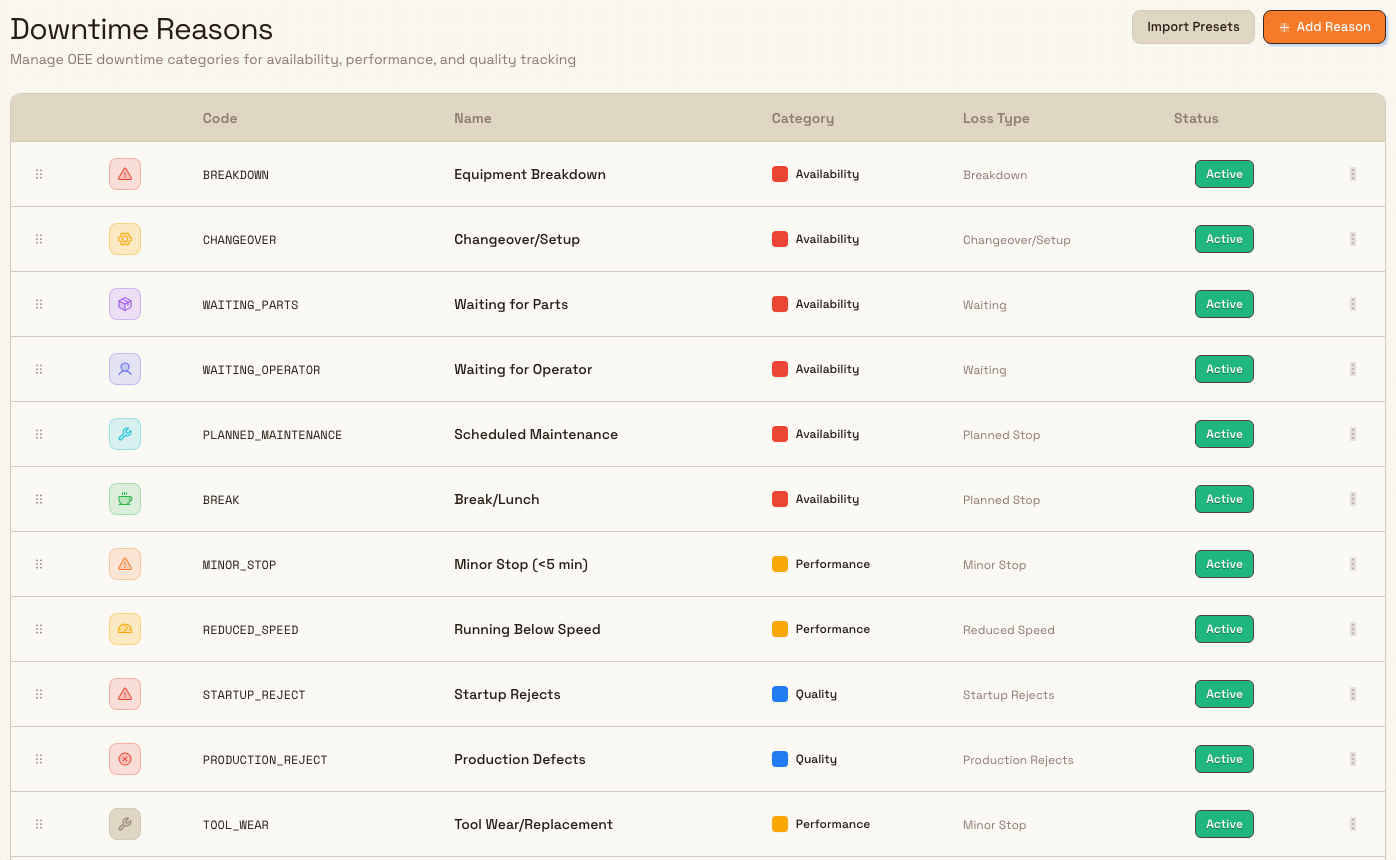
administration.oee.downtime-reasons-01
What the Downtime Reasons page shows
The page header is titled Downtime Reasons, with the description Manage OEE downtime categories for availability, performance, and quality tracking. Two actions sit in the header:
- Import Presets — add a starter set for your industry (existing codes are skipped).
- Add Reason — create a single reason by hand.
The table lists non-deleted reasons for the current site (including inactive ones if any exist), ordered by the site’s sort order. Columns:
| Column | What it shows |
|---|---|
| (icon) | Icon and color for the reason |
| Code | Short unique code (for example BREAKDOWN) |
| Name | Display name operators see |
| Category | OEE category: Availability, Performance, or Quality |
| Loss Type | Optional detail such as Breakdown or Changeover/Setup, or - if none |
| Status | Active or Inactive |
Rows are drag-ordered: use the drag handle on a row to change the order operators and pickers see. Order is saved for the site when you drop a row.
Each row has an actions menu with Edit and Delete.
If the site has no reasons yet, the empty state reads No downtime reasons yet with the description Create downtime reasons to track OEE losses, or import industry presets. and an Add Reason action.
OEE categories and loss types
Every reason maps to one of the three standard OEE loss pillars:
| Category | Typical meaning on this page | Loss types you can attach |
|---|---|---|
| Availability | The asset was not available to run | Breakdown, Changeover/Setup, Waiting, Planned Stop |
| Performance | The asset ran but below ideal rate or with short stops | Minor Stop, Reduced Speed, Idling |
| Quality | Time associated with rejects or scrap | Startup Rejects, Production Rejects |
When you create or edit a reason, changing OEE Category clears the current Loss Type so you can only pick types that belong to that category. Loss type is optional; the category alone is enough for high-level OEE reporting.
Import industry presets
The fastest way to start is to import an industry preset pack. Import always includes the generic universal reasons, then adds industry-specific reasons for the pack you choose.
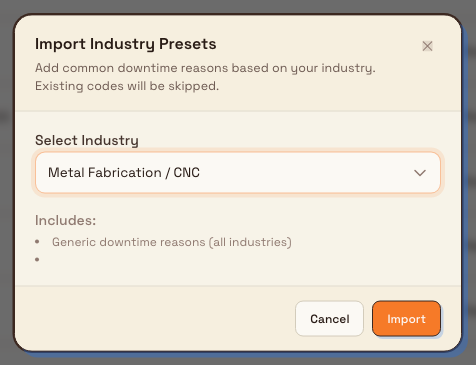
- Select Import Presets. The Import Industry Presets dialog opens.
- Under Select Industry, choose a pack. Labels include Generic (All Industries), Non-Destructive Testing (NDT), Food & Beverage, Automotive Manufacturing, Pharmaceutical / Life Sciences, Packaging, Electronics / Semiconductor, Plastics / Injection Molding, Metal Fabrication / CNC, and Chemical Processing.
- Review the Includes summary — every pack lists Generic downtime reasons (all industries); NDT, food, and automotive packs also describe industry-specific examples in the dialog.
- Select Import.
Bulk creates any codes that are not already present for this site and skips reasons whose codes already exist. The confirmation reports how many were created and how many were skipped (for example “Created 14 downtime reasons, skipped 0 existing.”).
Generic reasons that ship with every import include:
| Code | Name | Category | Loss type (typical) |
|---|---|---|---|
BREAKDOWN | Equipment Breakdown | Availability | Breakdown |
CHANGEOVER | Changeover/Setup | Availability | Changeover/Setup |
WAITING_PARTS | Waiting for Parts | Availability | Waiting |
WAITING_OPERATOR | Waiting for Operator | Availability | Waiting |
PLANNED_MAINTENANCE | Scheduled Maintenance | Availability | Planned Stop |
BREAK | Break/Lunch | Availability | Planned Stop |
MINOR_STOP | Minor Stop (<5 min) | Performance | Minor Stop |
REDUCED_SPEED | Running Below Speed | Performance | Reduced Speed |
STARTUP_REJECT | Startup Rejects | Quality | Startup Rejects |
PRODUCTION_REJECT | Production Defects | Quality | Production Rejects |
A Metal Fabrication / CNC import also adds shop-floor reasons such as Tool Wear/Replacement, Coolant Issue, and Fixture Changeover. After import, edit any reason to match your plant’s language — presets are a starting catalogue, not a final policy.
administration.oee.downtime-reasons-02
Add a downtime reason by hand
- Select Add Reason. The Create Downtime Reason dialog opens (Add a new reason for tracking production downtime).
- Fill in the fields:
- Code — required, up to 20 characters; letters, numbers, dashes, and underscores. Typed values are uppercased as you type (placeholder example:
BREAKDOWN). - OEE Category — Availability, Performance, or Quality (default Availability). Changing category clears Loss Type.
- Name — required, up to 100 characters (placeholder example:
Equipment Breakdown). - Loss Type (optional) — filtered to types valid for the selected category (placeholder Select loss type).
- Icon — icon for the table and pickers (default Warning).
- Color — accent color for the icon chip (system color picker; transparent is allowed and clears the color).
- Description (optional) — free-text notes, up to 500 characters.
- Workflow Options → Requires Comment — when on, Operator must add notes when selecting this reason.
- Code — required, up to 20 characters; letters, numbers, dashes, and underscores. Typed values are uppercased as you type (placeholder example:
- Select Create.
A success message confirms Downtime reason created with the name and code. The new row appears in the table with Active status, appended to the end of the current order.
Codes must be unique within the site. If you reuse a code, save fails with A downtime reason with code "…" already exists in this facility.
Edit a downtime reason
- Open the row’s actions menu and select Edit.
- The Edit Downtime Reason dialog (Update downtime reason details) shows the same fields as create: code, OEE category, name, loss type, icon, color, description, and Requires Comment.
- Select Save Changes.
A success message confirms Downtime reason updated. Editing labels and classification here updates the catalogue for future picks; historical OEE events keep the category and loss type values that were recorded when those events were logged.
Reorder downtime reasons
Drag a row by its handle to a new position in the table. Bulk saves the new order for the site so pickers and lists follow that sequence. If the save fails, an error toast appears and you can try again.
Delete a downtime reason
- Open the row’s actions menu and select Delete.
- Confirm in the Delete Downtime Reason dialog. The copy asks whether you are sure you want to delete the reason by name and code, and states that This action cannot be undone.
- Select Delete.
A success message confirms Downtime reason deleted. Deletion is a soft remove from the catalogue (the reason no longer appears for new picks). Bulk does not currently block delete when past OEE events or timer sessions already reference the reason — prefer edit or leave unused codes in place if you need historical labels to stay obvious in reporting, and only delete codes you are certain should leave the live catalogue.
Example: Leeds Fabrication Plant catalogue
Granite Peak Manufacturing runs the Leeds Fabrication Plant, where CNC cells and press brakes need consistent stop codes for OEE. Dana Winters opens Settings → OEE → Reasons and selects Import Presets, chooses Metal Fabrication / CNC, and imports. The table fills with generic reasons (equipment breakdown, changeover, waiting for parts, scheduled maintenance, minor stops, rejects) plus metal-fab reasons such as tool wear and coolant issues.
She edits Equipment Breakdown so Requires Comment is on — operators must write a short note when a cell goes down unplanned. She adds a custom reason with code FIXTURE_WAIT, name Waiting for Fixture, category Availability, loss type Waiting, then drags it next to the other waiting codes so the pause picker lists related stops together. After the catalogue is ready, she confirms OEE downtime tracking is enabled on the CNC asset type so the next timer pause shows these reasons.
Expected result
After you import or create reasons, the Downtime Reasons table lists an ordered set of Active codes with categories and optional loss types. When OEE downtime tracking is enabled on an asset type, operators who pause a timer on that type see these reasons (and must enter a comment when Requires Comment is on). OEE dashboards, downtime Pareto views, and teamboard downtime widgets can then group stops by the same codes and categories.
Feature state and limits
Configuring downtime reasons is a generally available feature. Keep these behaviors in mind:
- Reasons are per site (entity); they are not shared across plants.
- Codes are unique per site and stored uppercase.
- New reasons are created Active. The settings form does not currently offer an activate/deactivate control; status in the table reflects the stored active flag (inactive rows can appear if present, but day-to-day management is create, edit, reorder, and delete).
- Delete is soft and is not blocked by existing OEE event references; use care when removing codes that have history.
- Industry import always seeds the generic set first, then industry extras, and skips codes that already exist.
- Enabling the pause-time reason picker is an asset type setting (
OEE Downtime Tracking), not a control on this page.
Troubleshooting
- "A downtime reason with code "…" already exists in this facility" — choose a different code, or edit the existing reason instead of creating a duplicate.
- Code validation errors — use only letters, numbers, hyphens, and underscores; keep the code within 20 characters. The form also enforces a required name (max 100) and optional description (max 500).
- Loss Type list looks empty or wrong — pick the OEE Category first. Loss types are filtered to that category, and changing category clears the previous loss type.
- Operators never see the reason picker — reasons may be configured, but the asset type still has OEE downtime tracking off. Enable OEE Downtime Tracking for that asset type under assets and layouts, then pause again on an asset of that type.
- Import creates zero new rows — every code in that pack already exists for this site. The toast reports skipped counts; edit existing rows or use a different industry pack for additional codes.
- Add Reason, Import Presets, Edit, or Delete is missing or fails — you may have view-only access (
downtime_reasons.viewwithout create/update/delete). Ask an administrator for Entity admin, Manager, Super user, or the individual permissions.
Related
- Configure OEE dashboards — asset and user OEE dashboards that consume downtime data.
- Configure the asset board — live asset board setup that surfaces downtime state.
- Manage assets and layouts — enable OEE downtime tracking on an asset type so operators must pick a reason when pausing.
- Roles and permissions — grant downtime reason view/create/update/delete permissions.
Configure the asset board
Set up TV-ready asset boards per site: choose which assets appear, when the day resets, which daily output KPI drives progress, and which board loads by default.
Configure quality categories and root causes
Build the site catalogues for defect type categories (with severity) and 5M+E root cause codes that quality issues, holds, and analysis pickers use.