Configure the asset board
Set up TV-ready asset boards per site: choose which assets appear, when the day resets, which daily output KPI drives progress, and which board loads by default.
An asset board is a TV-ready performance dashboard for a site: a grid of the machines and work centres you care about, with live status, output, and efficiency for the current board day. You configure one or more boards under Settings so the live Asset Board in Analytics knows which assets to show, when that day starts and ends, and which daily output target to measure against.
Use this page when you bring a new line online, split boards for different areas of the plant, change when metrics roll over to the next day, or retire a board you no longer need. Day-to-day viewing and floor display happens on the Analytics Asset Board — not on this settings page.
Before you start
Open Settings, expand the OEE group, and select Asset Board. The page address ends in /settings/oee/asset-board.
You need permission for this site:
- View the list requires View OEE analytics (
analytics.view_oee). - Create, edit, reorder, duplicate, set default, and delete require Manage OEE dashboards (
analytics.manage_oee_dashboards).
These manage permissions are granted by the built-in Entity admin, Manager, and Super user roles. The Dashboards role can view OEE analytics but cannot change boards. Permission labels describe the capabilities as applying for the selected site. If Add Board or row actions fail, ask an administrator to adjust your role.
Asset boards are per site (entity). Each plant keeps its own catalogue. Switch site first if you need to manage another facility’s boards.
Before you create a useful board:
- At least one asset must already exist for the site under Master Data → Assets (the multi-select only lists this site’s assets).
- To show daily output progress, create a daily KPI that is available for this site, then link it as the board’s Daily Output KPI. Non-daily KPIs cannot be used for output targets.
administration.oee.asset-board-01
What the Asset Boards page shows
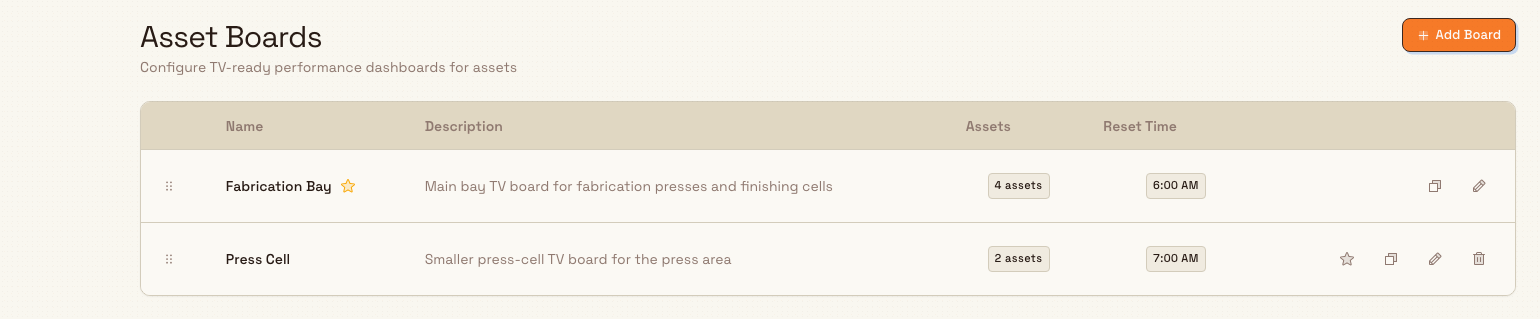
The page title is Asset Boards, with the description Configure TV-ready performance dashboards for assets and an Add Board button in the header.
When boards exist, they appear in a sortable table you can drag to reorder. Columns:
| Column | What it shows |
|---|---|
| Name | Board name; the default board also shows a filled star |
| Description | Optional notes, or a dash when empty |
| Assets | Badge with how many assets are on the board (1 asset or N assets) |
| Reset Time | When the board day rolls over (for example 6:00 AM) |
Row actions (right side):
- Set as default (star) — only when the board is not already default
- Duplicate
- Edit
- Delete — only when the board is not the default and you can manage boards
If the site has no boards yet, the page shows No asset boards yet with the message to create boards to visualize performance and efficiency, and an Add Board action.
Create an asset board
- Select Add Board.
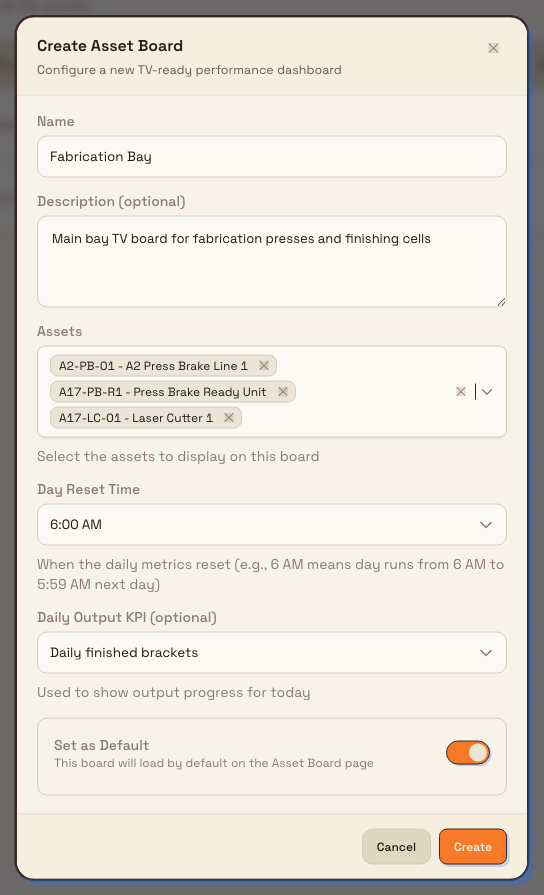
- In the Create Asset Board dialog, fill in:
- Name (required) — for example
Fabrication Bay. Maximum 100 characters. - Description (optional) — brief notes about who uses the board. Maximum 500 characters.
- Assets (required) — multi-select of this site’s assets, shown as
code - name. Choose at least one; the helper text is “Select the assets to display on this board”. - Day Reset Time — hour of day when daily metrics reset. For example, 6:00 AM means the board day runs from 6:00 AM through 5:59 AM the next day. Options cover every hour from 12:00 AM (Midnight) through 11:00 PM.
- Daily Output KPI (optional) — pick a daily KPI for today’s output progress, or leave No KPI linked. The helper text is “Used to show output progress for today”.
- Set as Default — when on, this board loads by default on the Analytics Asset Board page. Only one board per site can be default; turning this on clears the previous default.
- Name (required) — for example
- Select Create. A success toast confirms Asset board created.
administration.oee.asset-board-02
Edit a board
- Select Edit on the board row.
- The Edit Asset Board dialog loads the full configuration (name, description, assets, reset time, linked KPI, and default switch).
- Change any fields, then select Save Changes. A success toast confirms Asset board updated.
Set the default board
The default board is what the live Asset Board opens first when no specific board is chosen.
- On a non-default row, select the Set as default star. A toast confirms Default updated and names the new default.
- You can also turn on Set as Default while creating or editing a board.
Only one board per site is default at a time. Setting a new default clears the previous one.
Duplicate a board
Select Duplicate on a row. Bulk copies the name (as {name} (Copy)), description, assets, reset hour, output KPI, and related thresholds into a new board that is never marked default. A toast confirms Asset board duplicated. Use this when a second bay needs the same asset mix with only small changes.
Reorder boards
Drag a row by its handle to change list order. Order is stored per site and is how boards are listed for switching on the live Asset Board and in this table.
Delete a board
- Select Delete on a row that is not the default (the delete control is hidden for the default board).
- Confirm in the Delete Asset Board dialog, which asks whether you are sure and states that the action cannot be undone.
- Select Delete. A toast confirms Asset board deleted.
If you attempt to remove the default board through the API or after a race, Bulk returns: Cannot delete the default board. Set another board as default first. Set a different default, then delete the board you no longer need. Deletion is a soft delete: the board leaves the list but is not hard-purged.
Example: Fabrication Bay at Granite Peak Manufacturing
Granite Peak Manufacturing runs the Leeds Fabrication Plant. Dana Winters wants a TV in the bay to show only the fabrication assets, with metrics rolling over at the same time the day shift starts.
She opens Settings, expands OEE, and selects Asset Board. She selects Add Board, names it Fabrication Bay, and describes it as the main bay TV board. She multi-selects the fabrication presses and finishing cells (shown as codes and names), sets Day Reset Time to 6:00 AM, links the plant’s daily output KPI for finished brackets, and turns on Set as Default. She selects Create.
Later she duplicates that board as a starting point for a smaller Press Cell board, trims the asset list, and leaves the duplicate off the default so operators still land on Fabrication Bay first.
Expected result
After configuration:
- The settings table lists each board with asset count and reset time; the default board shows a star next to its name.
- Opening Analytics → Asset Board (
/analytics/assets-board) loads the default board (or the board you pick in the switcher) with the assets you selected and metrics for the board day defined by Day Reset Time. - When a daily output KPI is linked, the board can show today’s output progress against that target.
- If a board has no assets (or none resolve for the site), the live page shows No assets configured and offers Go to settings back to this page.
Feature state and limits
Configuring asset boards is a generally available feature. Keep these behaviours in mind:
- Boards are per site; they are not shared across plants.
- You must select at least one asset; empty asset lists are rejected.
- Only daily KPIs can be linked for output targets. If a KPI is not available for this site or is not daily, Bulk blocks the link.
- Only one default board exists per site.
- You cannot delete the default board until another board is set as default.
- Efficiency colour thresholds and hourly target rate exist on the board record with backend defaults, but this settings form does not expose controls for them — create/update uses defaults unless changed elsewhere.
- Soft-deleted boards no longer appear in the list or live switcher.
Troubleshooting
- "Select at least one asset" — the form or API requires a non-empty asset list. Add at least one asset from this site.
- Asset not found / does not belong to this entity — the asset was deleted or belongs to another site. Refresh the multi-select and pick assets for the current site.
- "KPI must be daily to use for output targets" — choose a daily KPI, or leave No KPI linked.
- "KPI is not available for this entity" / "KPI not found" — the KPI is restricted to other sites, deleted, or outside the tenant. Use a KPI available for this plant.
- "Cannot delete the default board. Set another board as default first." — mark another board as default, then delete.
- Delete is missing on a row — that board is the default, or you only have view permission. Set another default, or request Manage OEE dashboards.
- Add Board or save actions fail / controls missing — you may only have View OEE analytics. Ask for Manage OEE dashboards on a suitable role.
- Live Asset Board shows "No assets configured" — the selected board has no valid assets. Edit the board here and add assets, or open a different board.
Related
- Use the asset board — view the live TV-ready board and switch boards.
- Configure OEE dashboards — asset and user OEE dashboards under the same Settings OEE group.
- Configure downtime reasons — stop reasons that feed status and downtime labels on the board.
- Manage assets and layouts — create the assets you attach to a board.
- KPI categories — structure KPIs, including daily targets used for output progress.
- Roles and permissions — grant View OEE analytics and Manage OEE dashboards.
Configure OEE dashboards
Create and manage asset OEE timeline dashboards for a site — choose which machines appear, set display options, pick a default, and keep the Analytics OEE Timeline ready for the floor.
Configure downtime reasons
Build the site catalogue of stop reasons operators pick when pausing production — classify each by OEE category and loss type, require comments when needed, and import industry presets.