People configuration
Set up the site-level building blocks for your workforce — departments, job titles, absence types, and shifts — so employee records, leave, and scheduling use a consistent catalogue.
People configuration is where you define the shared lists and patterns that employee records, absences, and scheduling draw on. You set these up once per site so the rest of People offers curated options — which department someone belongs to, which job title they hold, which leave type they request, and which shift they work — instead of free text that drifts from plant to plant.
You work here when you bring a site online, restructure how teams are grouped, introduce a new leave category, or change how shifts rotate. Day-to-day people work — hiring someone into a record, approving leave, browsing the org chart — does not require you to stay in these settings; you visit them to maintain the building blocks, not to run the workforce day to day.
Find People configuration in Settings
People configuration is a group inside the Settings area, reached from the left-hand navigation. It is not a single combined page: expand the People group in the Settings sidebar and each item opens one area of setup. These lists use the same searchable table and status filters as other Settings areas, so you can focus on active records or review archived ones.
The Settings → People group lists four areas:
- Departments —
/settings/people/departments - Job Titles —
/people/job-titles(opened from Settings, but the route lives under the People module path) - Absence Types —
/settings/people/absence-types - Shifts —
/settings/people/shifts
None of these items carries a Beta badge. There is no separate “People configuration” landing screen, so you always land directly on the area you pick.
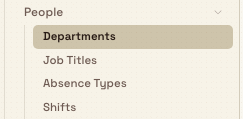
administration.people.overview-01
What you can set up here
Each item below opens its own area. Follow the link for the step-by-step guide to that area.
How people are grouped and classified
- Configure departments and job titles — departments nest into a hierarchy with managers and optional cost centres; job titles are the standard roles you assign on employee records (and that training can key off).
Leave and time off
- Configure absence types — the catalogue of leave categories (for example annual leave or sick leave), including whether they are paid, need approval, default entitlement days, and max carry-over. You can start from regional Import Presets or add types by hand.
When people work
- Configure shifts — named shifts with multi-week rotation patterns (up to six weeks), daily start/end times, and break duration.
These areas feed the operational People module (employees, absences, absence calendar, org structure, company news). Configuration lives under Settings; day-to-day work lives under the People module in the main navigation.
Site-scoped setup
In Bulk, each site or plant is an entity. All four People configuration areas are scoped to the site you currently have selected:
- Departments, job titles, absence types, and shifts are stored per entity (
tenant+entity). - When you switch sites, each area shows that site’s own catalogue — not a shared company-wide list.
If Granite Peak runs both Leeds and another plant, Dana must set up departments and shifts for Leeds separately from the other site. Employee records themselves are a separate surface under the People module; do not assume every people-related list is organization-wide.
Working hours (site or organization calendars for when the business operates) live under Settings → Organization → Working hours, not under the People configuration group.
Who can open People configuration
Each area is controlled by its own permissions. To open and change records you need the matching view or manage permission for that area.
| Area | View | Create / edit / delete (or manage) |
|---|---|---|
| Departments | View departments (departments.view) | departments.create, departments.update, departments.delete |
| Job titles | View job titles (job_titles.view) | job_titles.create, job_titles.update, job_titles.delete |
| Absence types | Listing types uses absence view access (absences.view_own); managing types needs Manage absence types (absences.manage_types) | Create, edit, delete, and Import Presets require absences.manage_types |
| Shifts | View shifts (shifts.view) | shifts.create, shifts.update, shifts.delete |
Permission labels in Bulk describe these capabilities as applying for the selected site.
Built-in roles that include full People configuration permissions:
- People — dedicated role described as “Manage employees, job titles, working hours, and training operations.” Give this to HR or people ops owners for a site.
- Entity admin — broad administrative access across the tenant; includes departments, job titles, shifts, and absence-type management.
- Manager — full operational management access; includes the same People configuration permissions.
- Super user — full access to everything.
An administrator assigns roles under Manage roles and permissions. If an area rejects the request when you open it, or create/edit actions fail, ask an administrator to grant the matching permissions or add you to the People role.
Example: preparing Leeds for workforce records
At Granite Peak Manufacturing, before the Leeds Fabrication Plant starts logging absences and assigning people to production teams, Dana Winters — with the People role — prepares Settings → People for Leeds:
- Under Departments, she creates Production, Quality, Warehouse, and Maintenance, nesting sub-teams where the org chart needs them and assigning department managers.
- Under Job Titles, she adds standard titles such as Press Brake Operator, Welder, and Quality Inspector so employee records and training requirements share the same labels.
- Under Absence Types, she uses Import Presets for the United Kingdom, then adjusts default entitlement and approval rules for annual leave and sick leave.
- Under Shifts, she defines Day and Night patterns so schedulers and employee records can assign a consistent rotation.
Once these catalogues exist, they appear as ready-made options when someone creates an employee, logs leave, or works with the org structure. That is the point of People configuration: set the site’s building blocks once, then run the workforce against a stable list.
Feature state and limitations
People configuration is generally available. Keep these points in mind:
- There is no single People configuration page. People is a group in the Settings sidebar; each item opens a separate area.
- Job Titles uses a People-module URL. It is listed under Settings → People, but the route is
/people/job-titles, not under/settings/people/…. - Everything here is per site. Departments, job titles, absence types, and shifts are not shared across plants; recreate or reconfigure them when you onboard another entity.
- Child how-to guides. The deep step-by-step articles for each area are linked above; follow those for field-by-field create/edit flows, delete guards, and shift-pattern editors.
Troubleshooting
- A People settings item is missing, or you get a permission error when you open it. You do not hold the required permission for that area. Ask an administrator to grant the matching
departments.*,job_titles.*,shifts.*, orabsences.manage_typespermission, or to add you to the People, Entity admin, or Manager role. - You can open Absence Types but cannot add, edit, or import presets. Viewing absence type data can work with broader absence view access, but creating, editing, deleting, and Import Presets require Manage absence types (
absences.manage_types). - Departments or shifts from another plant do not appear at Leeds. People configuration is entity-scoped. Switch to the correct site in the entity switcher, or create the records again for that site.
- You expected Working hours under People. Working hours live under Settings → Organization → Working hours, not in the People configuration group.
Related guidance
- Configure departments and job titles — hierarchy, managers, and role labels for a site.
- Configure absence types — leave catalogue, entitlements, and presets.
- Configure shifts — rotation patterns and schedules.
- Manage roles and permissions — who can open and change each area.
- People — day-to-day employee, absence, and org-structure work that uses these catalogues.
- Organization settings — working hours and other organization-level settings outside this group.
Manage PDF templates
Create, design, publish, and export reusable PDF layouts for production orders, production jobs, inbound documents, and inbound items.
Configure departments and job titles
Build the site's department hierarchy with managers and cost centres, and maintain the standard job titles used on employee records and in training.