Organization settings
The organization-wide settings that apply across every site in your Bulk tenant — your organization's name and localization, its sites and legal entities, and shared configuration for units, currencies, working hours, displays, imports, workflow automation, and access.
Organization settings are the configuration that applies to your whole organization in Bulk, rather than to a single site. Your organization — sometimes called the tenant — is your company's entire Bulk account. Inside it you can run one or more entities, also called sites: individual facilities such as a plant or a lab. Organization settings are the shared layer above those sites. What you set here is the same for every site your organization runs.
This is the counterpart to entity settings, which apply only to the one site you currently have selected. Use organization settings when the change should be consistent everywhere — your organization's name, the units and currencies used to display quantities and prices, who has access, and the automations that watch your shop floor. Use entity settings when a rule belongs to a single site. Shared production modes and customer records (including each customer's delivery, invoice, and business addresses) live with organization-wide master data, while production items stay on the site you have selected. This page explains each area you can configure and links you to the step-by-step guide for it. For managing customer addresses, see Manage customers.
When a production-order Datasheet uses connected setup values, Bulk refreshes changes to units, asset lines, custom-field definitions, site assignments, and legal entities before allowing that Datasheet to be locked.
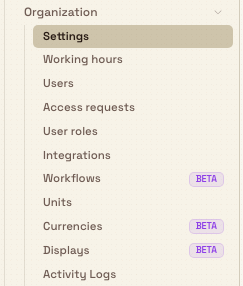
You reach these settings under Settings › Organization in the left sidebar. The group holds these pages: Settings, Working hours, Users, Access requests, User roles, Integrations, Workflows, Units, Currencies, Displays, and Activity Logs. Multi-section pages such as Organization Settings, Users, and Workflows use a shared page header with underline page tabs. Three of them carry a Beta badge — Workflows, Currencies, and Displays — meaning they are still maturing and their behaviour may change.
administration.organization.overview-01
Before you start
These are administrative pages, so you need a role whose permissions cover them. Bulk ships a set of default roles:
- The Super user role has every permission, so it can open and edit every organization setting.
- The Entity admin role has, in Bulk's own words, "Administrative access across the tenant (excludes billing, integrations, and role management)." That means an Entity admin can work in most areas but not in Integrations or User roles.
Each area also enforces its own permission. For example, editing which imports are available needs the imports management permission, and viewing or changing Workflows, Integrations, or Access requests each requires their own permission. If a page opens but its controls are read-only, your role has view access but not the matching edit permission — ask an administrator to grant it. See Manage roles and permissions for how roles map to permissions.
Because these settings apply organization-wide, a change you make here takes effect for every site at once. Confirm you intend an organization-wide change before you edit, rather than a change to a single site.
What you can configure
Settings — organization profile, localization, sites, and imports
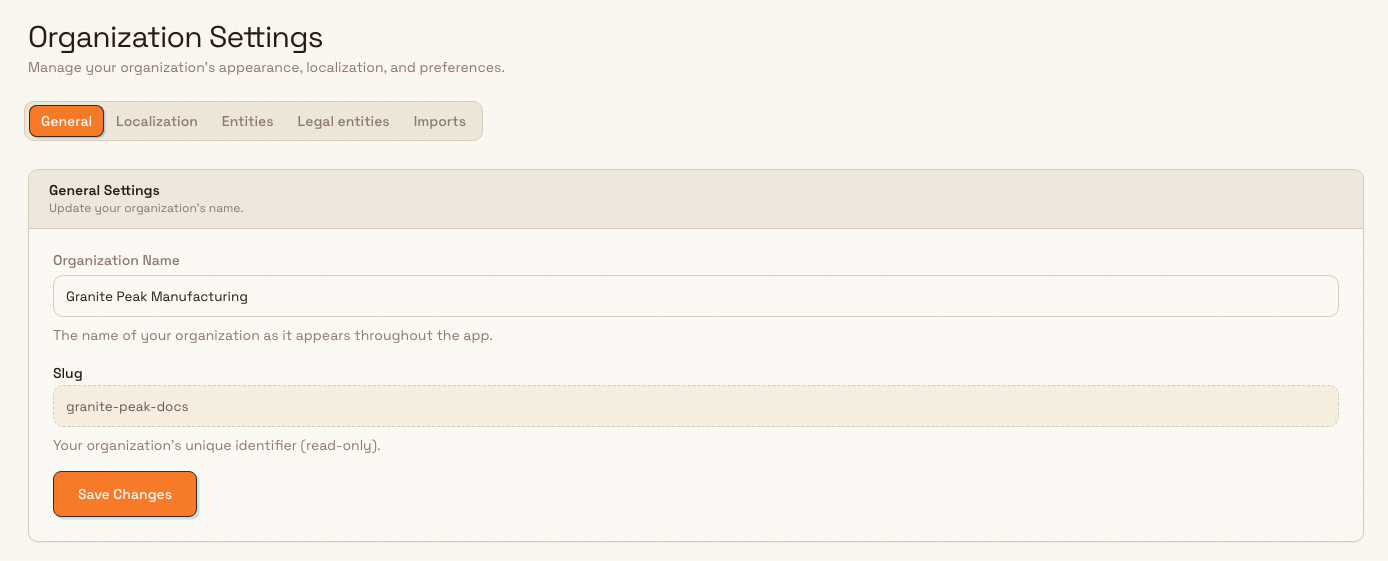
The Settings page holds your organization's core profile across five tabs:
- General sets your Organization Name, the name shown throughout Bulk.
- Localization sets the organization's default Timezone. The Locale (language and regional format) is shown here as read-only and is fixed to English (UK).
- Entities lists the sites in your organization, each with its code and fixed timezone. A site's timezone controls its business day and local event-time display, regardless of the viewer's computer timezone. This list is read-only on this page.
- Legal entities is where you create and manage the legal entities that sites are assigned to — the invoicing bodies behind your plants.
- Imports controls which import types are available to your team, with a toggle for each.
For the step-by-step guides, see Update organization settings, Configure localization, Manage entities, and Configure import availability.
administration.organization.overview-02
Working hours — the shared working calendar
Working hours define the days and hours your organization treats as working time. Bulk uses this calendar when it reasons about elapsed and remaining time. See Configure working hours.
Units — units of measurement and currency symbols
Units are the units of measurement and currency symbols Bulk uses to display quantities, prices, and KPI values everywhere in the app. Maintaining them centrally keeps every site consistent. See Manage units.
Currencies — global display currency and conversion rates
Currencies (Beta) sets your organization's global display currency and maintains dated conversion rates between the currencies you trade in, so prices captured in one currency can be shown in another. See Manage currencies.
Displays — shop-floor screens
Displays (Beta) is where you pair shop-floor screens to Bulk and choose which board or dashboard each screen shows, then monitor the whole fleet from one page. See Manage displays.
Workflows — no-code automation
Workflows (Beta) is the no-code automation area. You build, publish, and monitor automations so Bulk reacts on its own to shop-floor changes and overdue work, without anyone watching a screen. See Manage workflow automation.
Integrations — transport into and out of Bulk
Integrations connects external systems without giving them a separate path around Bulk's normal processes. Some connector configuration is scoped to the site currently selected even though you open it from the Organization group. For example, Microsoft Dynamics 365 configuration owns that site's Service Bus connections, channels, payloads, and exact column mappings. An inbound payload supplies typed input to one assigned Workflow; only that Workflow's standard Actions may change Bulk business data. For outbound messages, a Send payload defines one supported Bulk record type and its field map, while the Workflow chooses the compatible starting record, earlier-step output, or lookup record to send. D365 and Workflow logs stay linked so an administrator can see whether routing and processing succeeded, fix a failure, and retry it. See Configure Microsoft Dynamics 365 and Manage workflow automation.
Activity Logs — the organization-wide audit trail
Activity Logs is the organization-wide audit trail of who changed what and when across your tenant. Use it for compliance reviews and investigations. See Review activity logs.
People and access
Three pages in this group govern who can use Bulk and what they can do. Because they share the access model, their guides live together under Access:
- Users — the people in your organization and their roles. See Manage users.
- User roles — the roles that decide what each person can see and do. See Manage roles and permissions.
- Access requests — approve or deny requests from people who need access to one of your sites. See Review access requests.
Not everything that shapes what you see is an administrator's decision. How an individual arranges a screen — which columns a list shows, how it is sorted and filtered, and on screens like the Scheduling planning board what its blocks and cards are titled and which machines appear — is a personal preference. Bulk saves those per person and per site, so they follow you back to the same screen without changing what anyone else sees and without an administrator setting them.
Organization-wide, not per-site
Settings in this group apply to your whole organization. If you instead need to change how one site handles inbound documents, production jobs, or invoicing, use Settings › Entity — those settings apply only to the site selected in the site switcher at the top of the app.
Example: Granite Peak Manufacturing
Granite Peak Manufacturing runs two sites in Bulk: its established Sheffield Works and a new Leeds Fabrication Plant coming online. Dana Winters, an administrator with the Super user role, sets up the shared organization layer once so both sites behave consistently:
- On Settings › Organization › Settings › General, Dana confirms the Organization Name reads
Granite Peak Manufacturing, the name that appears throughout the app. - On the Localization tab, Dana sets the default Timezone to the UK zone both plants operate in.
- On Units, Dana makes sure the units the plants quote in — kilograms, metres, and each — are present so quantities read the same on every job at both sites.
- On Currencies, Dana sets the global display currency to
GBPand adds aEURconversion rate for the plant's European customers. - On User roles and Users, Dana reviews which roles the Leeds team members hold, and on Access requests approves the new Leeds supervisors who have asked for site access.
- On Workflows, Dana enables an automation that flags overdue jobs, so both sites get the same early warning.
Because all of this is organization-wide, Dana configures it once and both Sheffield Works and Leeds Fabrication Plant inherit it. Anything specific to one plant — its invoicing profile, its inbound-document rules — Dana handles separately in that site's entity settings.
Expected result
With organization settings configured, your whole organization shares one consistent foundation: a single name, default timezone, locale, and week-start rule; the same units and currency handling on every site; one set of users, roles, and access decisions; and shared displays, working hours, and automation. Each site then layers its own fixed timezone and entity settings on top for the parts that differ. Different site timezones do not create different week numbers.
Limitations and feature state
- Some areas are Beta. Workflows, Currencies, and Displays carry a Beta badge in the product. They are usable but still maturing, so expect their behaviour to change. The other pages in this group are generally available.
- Locale is read-only. On the Localization tab, the timezone is editable but the locale is fixed to English (UK). You cannot change the display language from this page.
- Entities are listed but not created here. The Entities tab shows your sites read-only. It is a reference list on this page; you do not add a site from here.
- These settings are organization-wide. Every value here applies to all sites at once. For anything that should differ between sites, use Settings › Entity instead.
- You only see the pages your role permits. Areas such as Integrations and User roles are excluded from the Entity admin role, so not every administrator sees every page.
Troubleshooting
- A page opens but the controls are read-only. Your role has view access but not the edit permission for that area. Ask an administrator to grant the relevant permission, or see Manage roles and permissions.
- You cannot find a page in the Organization group. Your role may not include it. Integrations and User roles are not part of the Entity admin role — an administrator with the Super user role can open them or grant you access.
- A change did not take effect on one site. Organization settings apply to every site, so this usually means the setting you meant to change is a per-site one. Check Settings › Entity for that site instead, and confirm the correct site is selected in the site switcher.
- You expected a billing page and it is not there. Billing is not part of the Organization settings group in Bulk.
Related guidance
- Update organization settings — set your organization's name on the General tab.
- Configure localization — set the default timezone.
- Manage entities — review the sites in your organization and their legal entities.
- Configure import availability — choose which import types your team can use.
- Configure working hours — define the shared working calendar.
- Manage units — maintain units of measurement and currency symbols.
- Manage currencies — set the global display currency and conversion rates.
- Manage displays — pair and manage shop-floor screens.
- Manage workflow automation — build and monitor no-code automations.
- Review activity logs — inspect the organization-wide audit trail.
- Manage users — add people and set their roles.
- Manage roles and permissions — control what each role can see and do.
- Review access requests — approve or deny requests for site access.
- Entity settings — the per-site settings that sit alongside these organization-wide ones.
Administration
Where administrators configure Bulk — organization-wide settings, per-site entity settings, master data, and the operational setup every module draws on — all reached under Settings in the left navigation.
Update organization settings
Set your organization's name, timezone, and language, review your sites, manage the legal entities used on invoices, and control which import types your team can use.