Configure shifts
Define named work shifts with multi-week rotation patterns, daily start and end times, and breaks so employee records and scheduling share a consistent catalogue per site.
A shift is a named work pattern for a site: which days people work, what time each day starts and ends, how long the break is, and how that pattern repeats over one to six weeks. You configure shifts once under Settings so employee records can pick a Default Shift, schedulers and people tools share the same names and times, and multi-week rotations (for example a two-week Day / Night cycle) stay consistent across the plant.
Use this page when you bring a site online, add a new crew pattern, change start times or break length, or retire a shift that is no longer used. Day-to-day assignment of people to shifts happens on employee records and related People workflows — not on this settings page.
Before you start
Open Settings, expand the People group, and select Shifts. The page address ends in /settings/people/shifts.
You need permission for this site:
- View the list requires View shifts (
shifts.view). - Create requires Create shifts (
shifts.create). - Edit name, colour, pattern, and list order requires Edit shifts (
shifts.update). - Delete requires Delete shifts (
shifts.delete).
These management permissions are granted by the built-in People, Entity admin, Manager, and Super user roles. Permission labels describe the capabilities as applying for the selected site. If New Shift or edit actions fail, ask an administrator to adjust your role.
Shifts are per site (entity). Each plant keeps its own catalogue. Switch site first if you need to manage another facility’s shifts. Site working hours (when the business operates) live under Settings → Organization → Working hours, not here.
administration.people.shifts-01
What the Shifts page shows
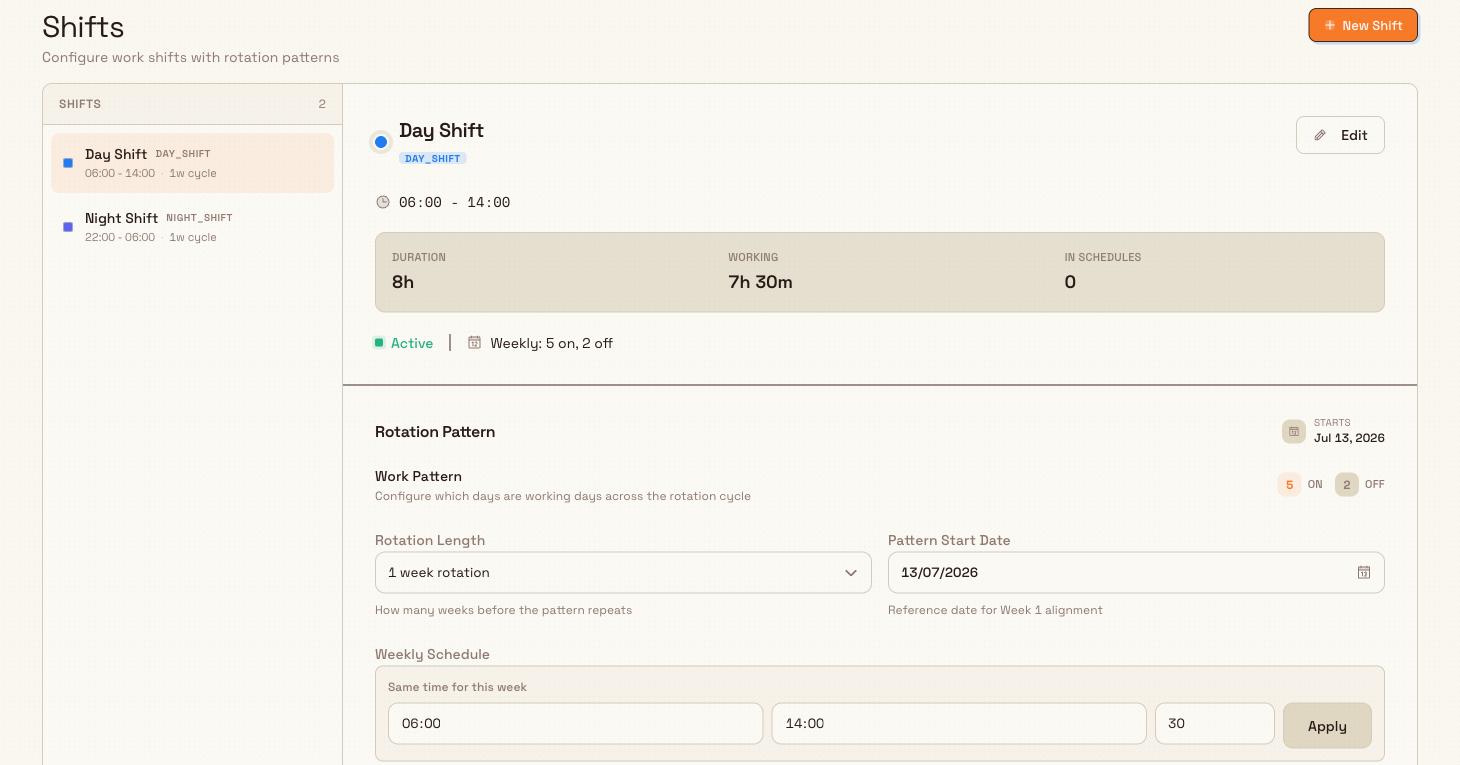
When at least one shift exists, the page uses a two-panel layout.
Left list
- Each row shows a colour dot, the shift name, its short code, a time label (for example
06:00 - 14:00, or Varies by day when enabled days use different times), and the rotation length as an Nw cycle (for example1w cycle). - Hover a row to move it up or down (list order) or open Delete.
- The panel header shows Shifts and the total count.
Right detail panel
- Selecting a row opens the shift’s detail: name, code badge, clock times, Duration and Working hours (working hours subtract break time), In Schedules count, Active / Inactive status, and a pattern summary such as
Weekly: 5 on, 2 offor a multi-week summary. - Below that, Rotation Pattern shows the full work-pattern editor for that shift.
- If nothing is selected, the panel prompts No shift selected and asks you to choose a shift from the list.
If the site has no shifts yet, the page shows No shifts yet with the message to create the first shift for scheduling, and a Create Shift action.
How a rotation pattern works
Every shift stores a multi-week pattern:
| Setting | What it means |
|---|---|
| Rotation Length | How many weeks before the pattern repeats — 1 to 6 weeks. |
| Pattern Start Date | Reference date that aligns Week 1 of the cycle (shown as “Starts” on the detail panel). |
| Weekly schedule | For each week in the cycle: seven days (Sun–Sat), each On or Off, with start time, end time, and optional break in minutes. |
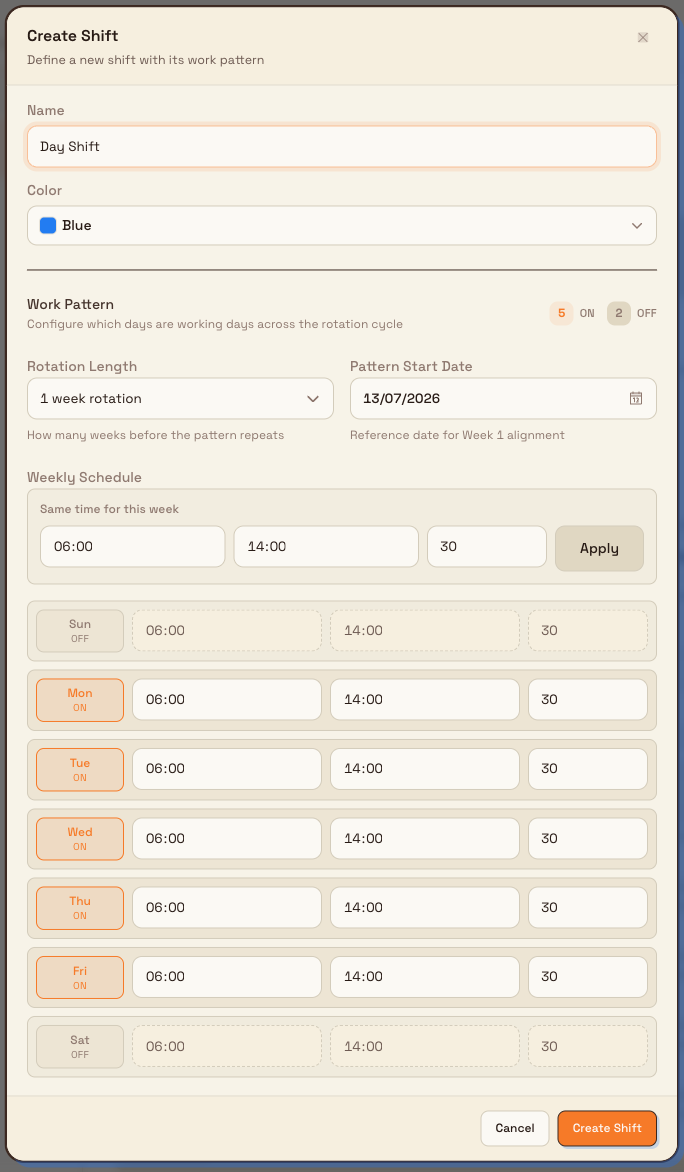
Defaults for a new week are Monday–Friday on, Saturday–Sunday off, 06:00–14:00, and a 30-minute break on working days. Overnight windows are allowed: if the end time is at or before the start time, Bulk treats the shift as crossing midnight when it calculates duration.
For a single-week rotation you edit one Weekly Schedule. For multi-week rotations, Week 1 … Week N tabs appear; each tab shows how many working days that week has (for example Week 2 (4d)). A header counter shows total on and off days across the whole cycle.
Use Same time for this week with Apply to push the same start, end, and break onto every day of the open week (useful when only the on/off days differ). You can still fine-tune individual days after that.
Add a shift
- Select New Shift (or Create Shift from the empty state). The Create Shift dialog opens with the description “Define a new shift with its work pattern”.
- Enter a Name (up to 100 characters), for example
Day Shift. Bulk builds a short code from the name automatically (letters and numbers, underscores for other characters, up to 20 characters). If that code is already used on this site, Bulk makes the stored code unique. - Optionally choose a Color so the shift is easy to recognise in lists and on employee records.
- Under Work Pattern, set Rotation Length and Pattern Start Date, then mark each day On or Off and set start, end, and break times. Use Same time for this week → Apply when most days share the same times.
- Select Create Shift.
A confirmation reads Shift created. The new shift is selected in the list so you can review it immediately.
administration.people.shifts-02
Edit a shift
- Select the shift in the left list.
- To change Name, Code, or Color, select Edit in the detail header. Name and Color are editable; the Code field is shown read-only and stays aligned with the name as you type. Select Save Changes (confirmation: Shift updated), or Cancel.
- To change the rotation, edit Rotation Pattern directly in the detail panel. Pattern changes save as you adjust them (there is no separate Save for the pattern editor).
Reorder the catalogue with the up/down controls on each list row so Day, Night, and other crews appear in the order your site prefers.
Delete a shift
- Hover the shift in the list and select the delete control, or use delete when available for that row.
- Confirm in the Delete Shift dialog. It names the shift and code and warns that the action cannot be undone.
- Select Delete. A confirmation reads Shift deleted.
Deletion is a soft delete: the shift leaves the active catalogue for this site. Prefer not to delete a shift that is still assigned as someone’s Default Shift on employee records — update those people first, then remove the shift.
Example: Day and Night at Leeds Fabrication Plant
At Granite Peak Manufacturing’s Leeds Fabrication Plant, Dana Winters sets up the two main crews before HR assigns default shifts on employee records.
She opens Settings → People → Shifts and selects New Shift. She names the first shift Day Shift, picks a blue colour, leaves Rotation Length at 1 week, and keeps Monday–Friday On at 06:00–14:00 with a 30-minute break. She selects Create Shift.
She adds Night Shift the same way, sets times to 22:00–06:00 (overnight), and confirms working days match the night crew. For a maintenance team that rotates every two weeks, she would set Rotation Length to 2 weeks, mark different on/off days under Week 1 and Week 2, and set Pattern Start Date to the Monday when Week 1 begins.
When onboarding welders later, the Default Shift field on the employee form lists these named shifts so Leeds does not invent free-text shift names plant by plant.
Expected result
After configuration, the left list shows each shift with its time label and cycle length, and the detail panel shows Active, computed duration/working hours, and the full rotation. Those shifts appear as options when someone assigns a Default Shift on an employee (create, edit, or bulk flows). Changing a pattern updates how that shift is defined for the site going forward; people already assigned keep their link to the same shift record.
Feature state and limits
Configuring shifts is generally available. Keep these behaviours in mind:
- Shifts are per site; they are not shared automatically across plants.
- Rotation length is 1–6 weeks; times use HH:MM.
- The create dialog does not show the code field — the code is generated from the name and stored with the shift.
- Pattern edits on an existing shift save immediately; basic info (name/colour) uses Save Changes.
- The detail panel can show Inactive and an In Schedules count; soft-deleted shifts are removed from the list. There is no separate “deactivate without delete” control on this page — new shifts are created Active, and delete marks them inactive and soft-deleted.
- Working hours (organization calendars) are a different Settings area under Organization.
Troubleshooting
- The Shifts page is empty or actions fail with a permission error. You need
shifts.viewto see the list andshifts.create/shifts.update/shifts.deleteto change it. Ask an administrator for the People role or matching permissions for this site. - Shifts from another plant do not appear. Switch to the correct site in the entity switcher, or create the shifts again for that site.
- Time fields reject the value. Use HH:MM (for example
06:00or14:30). Break duration must be zero or a positive number of minutes. - “Varies by day” appears instead of a single time range. Enabled days in the pattern use different start, end, or break values. Align times with Same time for this week → Apply, or leave them different if that is intentional.
- You expected Working hours under People. Configure business open hours under Settings → Organization → Working hours. People → Shifts is only for named crew patterns.
Related
- People configuration — departments, job titles, absence types, and shifts as a group.
- Configure departments and job titles — how people are grouped and classified on the same site.
- Configure absence types — leave categories used with People absences.
- Configure working hours — site or organization operating calendars (not shift crews).
- Manage roles and permissions — grant
shifts.*to a role. - People — day-to-day employees, absences, and org structure that use these catalogues.
Configure absence types
Build the leave catalogue for a site — import regional presets or add types by hand, set paid leave, approval, default entitlement days, and max carry-over.
Configure OEE dashboards
Create and manage asset OEE timeline dashboards for a site — choose which machines appear, set display options, pick a default, and keep the Analytics OEE Timeline ready for the floor.