Recover your password
Reset a forgotten Bulk password from the sign-in screen: request a reset link by email, then choose a new password and sign back in.
Last updated
You recover your password when you cannot remember it and cannot sign in. Bulk is a Manufacturing Execution System (MES), the shared workspace where your team runs production, quality, scheduling, and audits. Every person works under their own account, so your password is personal to you. Recovery is self-service: you ask Bulk to email you a one-time link, open that link, and choose a new password. As long as you can reach the inbox for the email your account uses, you can do this yourself without waiting for an administrator.
This is the right guide when you already have a Bulk account but have forgotten the password. If you have never signed in before and were invited to set up your account, follow Create an account instead.
Before you start
- Access to your account's email inbox. The reset link is sent to the email address your account was created with. If you cannot open that inbox, you cannot complete a self-service reset. See the troubleshooting section below.
- Your organization's Bulk web address. This is the link your team uses to reach Bulk (usually a saved browser bookmark). Opening it while signed out shows the sign-in screen, where recovery starts.
- An existing account. Recovery only sets a new password on an account that already exists. An administrator creates accounts directly or sends invitations. Recovery does not create an account.
You do not need any special role or permission. Recovering your own password is available to every Bulk user.
Request a reset link
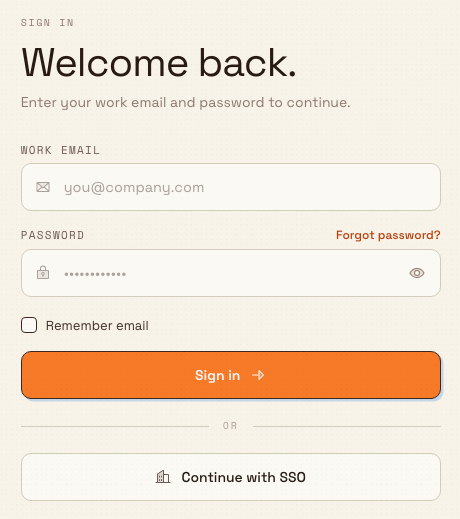
- Open your organization's Bulk web address. When you are signed out, Bulk shows the sign-in screen headed Welcome back.
- Select Forgot password? next to the Password field label.
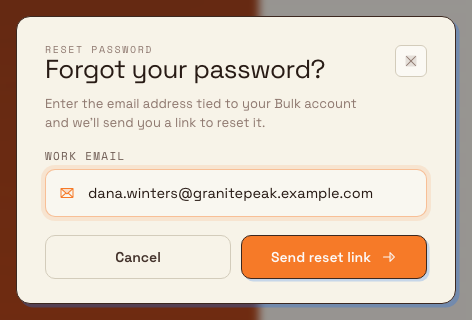
- In the Forgot your password? dialog, check the Work email field. Bulk pre-fills whatever email you had already typed on the sign-in screen; make sure it is the address your account uses.
- Select Send reset link. To back out without sending anything, select Cancel.
Bulk confirms with Reset link on its way. and shows the address it sent to, along with the message that a link was sent if an account exists for that address. Bulk shows this confirmation whether or not the email matches a real account. This prevents people from using the screen to discover which email addresses have Bulk accounts. Because of that, seeing the confirmation does not by itself prove an account exists for the address you typed.
If the email does not arrive, select resend in the same dialog, or check your spam folder. Reset requests are limited to a few per hour for each email address, so if you request several in a row, later ones may be quietly skipped. Wait a while before trying again.
Open the link and set a new password
- Open the email titled Reset your password for your organization, and select the reset button inside it. This opens the reset-password page in your browser.
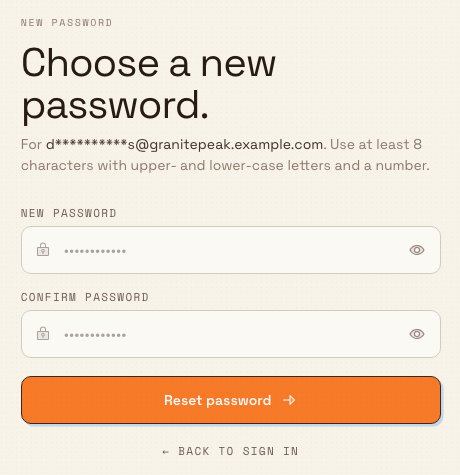
- On the Choose a new password. page, type your new password in the New password field and again in Confirm password. Use the eye icon inside each field to show or hide what you type.
- Select Reset password.
Your new password must be at least 8 characters with upper- and lower-case letters and a number. Bulk shows the address the link belongs to at the top of the form, so you can confirm you are resetting the right account.
Each reset link works once and expires 30 minutes after it is created. Open it promptly, even if the email states a longer period. Requesting a new link makes any earlier link stop working.
When the reset succeeds, Bulk shows You're all set. and returns you to the sign-in screen shortly after. Sign in with your new password.
Treat the reset link like a key to your account
Anyone who opens your reset link can set your password and take over your account. Do not forward the reset email or share the link, and remember that Bulk will never ask you to send your password by email. If you receive a reset email you did not request, you can ignore it. The link expires unused.
What to expect after resetting
- You are signed out of Bulk everywhere. For security, completing a reset ends your existing Bulk sessions, so you will need to sign in again with the new password on every device you use, including the shop-floor workstation, your phone and other browsers.
- Your username and email do not change. Only the password is updated.
- The used reset link stops working, so keep the new password somewhere safe rather than relying on the email.
Example: getting back on the floor in Gotham
Suppose Bruce Wayne returns to Gotham Applied Sciences after leave and cannot remember his Bulk password. He opens the Wayne Enterprises Bulk bookmark, selects Forgot password? and checks that the dialog contains his work email before requesting a reset link.
He opens the reset email promptly, follows the link and chooses a unique password with an upper-case letter, a lower-case letter and a number. After confirming the password and selecting Reset password, he returns to sign-in and uses the new password.
If recovery does not work
- No email arrives. Confirm you used the exact email your account was created with, then check your spam folder and wait a moment. You can select resend in the dialog, but requests are limited to a few per hour per address. Remember that the confirmation screen appears even for an unknown email, so a missing message can also mean there is no account for that address. In that case, you may need an invitation. See Create an account.
- "This link won't work." The link is expired or invalid. Select Request new link to return to the sign-in screen with the reset dialog open, then request a fresh email. This also happens if you opened an older link after requesting a newer one.
- "This reset link has already been used." Each link is single-use. Request a new link and complete the reset in one sitting.
- "We couldn't check this link." Bulk could not verify the link, usually a connection problem. Select Try again, and check your network if it keeps failing.
- You cannot reach your account's inbox at all. Self-service recovery needs the email. If you have lost access to that inbox, ask an administrator: from Settings they can set a new password on your account directly, without an email link.
If your workspace uses single sign-on
For company identity-provider credentials, use your provider’s recovery process or ask your administrator. The current Bulk Continue with SSO action displays a not-configured message and directs you to your administrator or email-and-password sign-in. See Sign in to Bulk.
Availability and limits
Recovering your own password is generally available to every Bulk user. Self-service recovery requires access to the inbox for your account's email address. Reset links are single-use and expire after 30 minutes. Reset requests are limited to a few per hour for each email address. Recovery sets a new password on an existing account; it does not create accounts. Ask an administrator to create your account or send an invitation.