Getting started
Sign in, choose the plant you work in, and find your way around the Bulk workspace, with links to every first-run task.
Last updated
Bulk is a Manufacturing Execution System (MES): the software your team uses to run day-to-day work on the shop floor and the offices around it. Production, quality, scheduling, audits, inventory, people, and more work together in one place. This section walks you from your first sign-in to a workspace you can navigate with confidence, and links to a short task article for each step.
What "getting started" covers
Your first session in Bulk follows a simple path:
- Sign in with your work email and password.
- Choose a plant, the site you want to work in.
- Find your way around the workspace and open the tools you need.
Everything below expands on that path. Each step is a standalone article, so you can read this page top to bottom or jump straight to the task you need.
Before you begin
To use Bulk you need two things:
- A Bulk account. Bulk does not offer open self-service sign-up. An administrator at your organization creates your account by sending an email invitation and assigning your starting role. When the invitation arrives, you follow the link to set your password and finish creating your account.
- Access to at least one plant. A plant (Bulk also calls these sites or entities) is a factory, workshop, or fabrication plant you operate. Each plant is a self-contained workspace with its own production, quality, scheduling, and people. Your administrator grants you access to the plants you work in.
Don't have an invitation yet?
Ask your organization's Bulk administrator to invite you and grant access to your plant. If you can sign in but no plants appear, contact your administrator to request plant access.
What you can see and do once you are in depends on your role (for example Operator, Manager, or an administrator role) and on which plants you have access to. Two people signed into the same organization can see different menus and pages.
Your first few minutes
Start with these steps in order. Each links to a full walkthrough.
- Create an account: accept your invitation and set your password.
- Sign in to Bulk: enter your work email and password on the sign-in screen. You can turn on Remember email to save typing next time, or use Continue with SSO if your organization has single sign-on set up.
- Recover your password: if you cannot sign in, use Forgot password? on the sign-in screen to reset it.
- Select an entity: choose which plant to work in. After sign-in, Bulk shows the Choose a plant screen with a card for each site you can access. If you have access to only one plant, Bulk opens it for you automatically.
After you choose a plant, Home gives you company news and the Your apps catalogue. Open an app card to reach the tools you need, or use Browse apps to view the app catalogue.
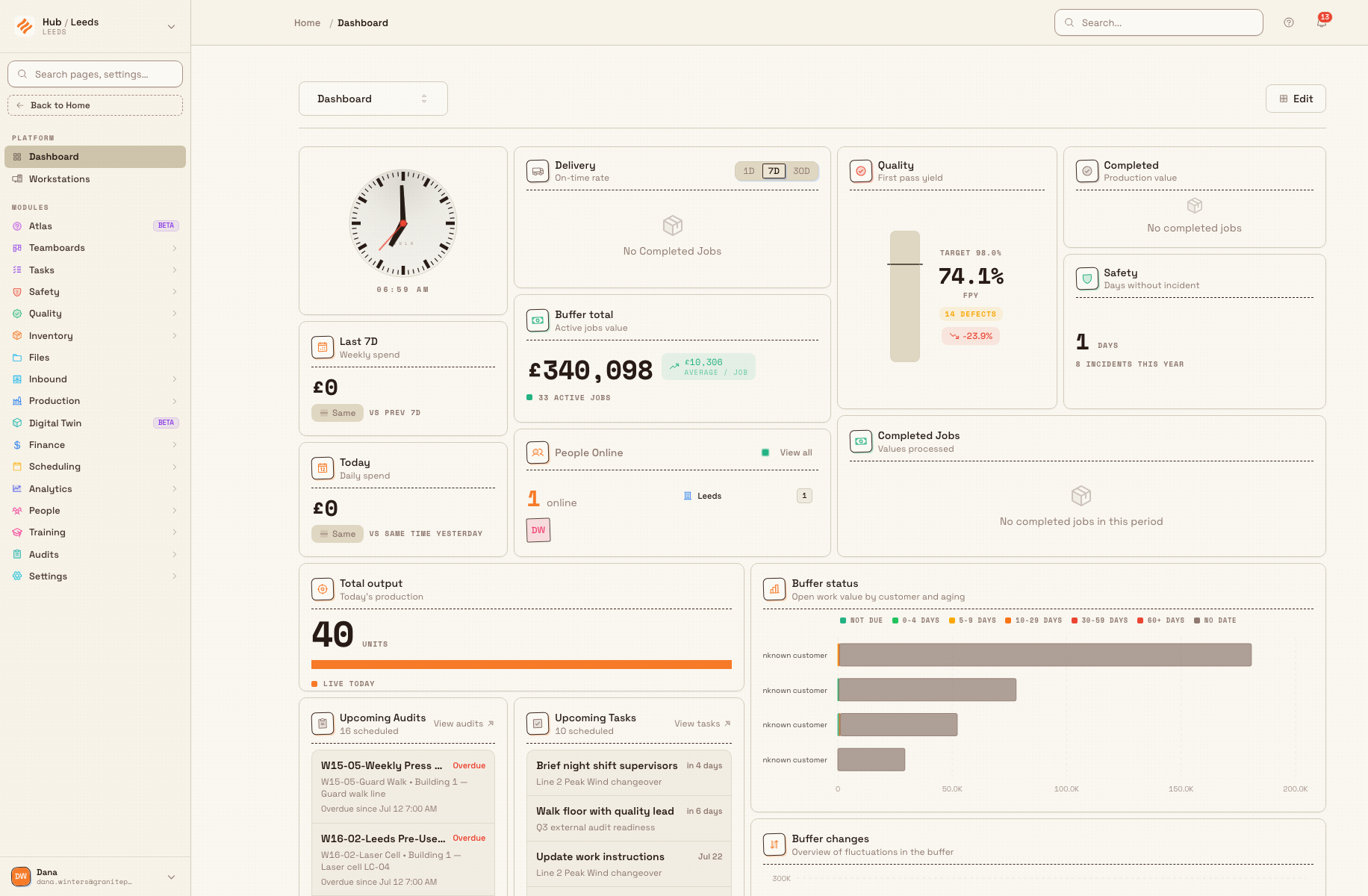
How your workspace is organized
Start with Home's header and app cards. App pages also provide navigation for the area you opened.
- Plant switcher (top left). Shows the current plant and its short code. Open it to switch to another plant you have access to, or choose See all sites to return to plant selection. See Switch operational context.
- Your apps (below company news). Cards open installed apps such as Production, Quality, Safety and Training. Each card includes a preview of activity where available. The Hub opens central tools and administration. App pages provide their own navigation. See Navigate Bulk.
- Header controls (top). Use search to find pages and records, help for assistance, and the notifications bell for updates. App pages also show breadcrumbs. See Work with notifications.
- Account menu (top right). Open your name or avatar for Account, Settings, Notifications, appearance options and Log out. See Update personal account settings.
Two places are worth opening early:
- Open a dashboard: review what is happening across the plant.
- Open a workstation: open Production for the focused shop-floor view an operator uses at a machine or station.
A day-one example at Wayne Corp
Say you are a new shift supervisor at Wayne Corp. An administrator invites you by email and gives you the Manager role with access to Gotham Applied Sciences.
- You open the invitation, set a password, and create your account.
- You sign in with your work email at the sign-in screen.
- Because you have access to more than one Wayne site, Bulk shows Choose a plant. You pick Gotham Applied Sciences and arrive at Home.
- You read the production briefing, then open Production under Your apps to choose a workstation and review the operator view at a machining bench.
- Before the next shift, you use the plant switcher to open another Wayne site, then switch back to Gotham.
Within a few minutes you have signed in, landed in the right plant, and found the two tools your shift depends on.
Expected result
When you have finished the first-run path you can:
- sign in reliably (and recover your password if you forget it);
- open the correct plant, and switch plants when your work moves between sites;
- use Home and app navigation to find the tools you have access to; and
- open a dashboard and a workstation.
Feature state and what to expect
Getting started is generally available. These are the standard entry points for Bulk users.
A few things are worth knowing up front:
- Installation and access both matter. Your apps lists installed apps. Your permissions and plant access determine which tools and records you can open. If an app you expect is missing or unavailable, ask your administrator to check installation and access. See Understand access and visible navigation.
- Some areas are in Beta. Menu items marked Beta are still maturing. They work, but behavior and screens may change, so treat them as previews rather than finished features.
- Security options. To add a second layer of protection to your sign-in, see Enable two-factor authentication.
Where to go next
Once you are comfortable signing in and moving around, these sections go deeper:
- Browse by role: task guides organized around what your job needs day to day.
- Workflows: end-to-end guides that string individual tasks into a complete process.
- Product reference: detailed descriptions of each module and its concepts.
- Administration: guides for administrators setting up users, roles, plants, and organization-wide settings.
- Integrations: connect Bulk to the other systems your business runs on.
Bulk documentation
Start here to learn what Bulk does, how this documentation is organized, and where to go first — by getting-started guide, workflow, role, or product area.
Sign in to Bulk
Sign in to Bulk with your work email and password, clear a two-factor prompt if enabled, and land in your workspace.