Select an entity
Choose which plant to work in on the Choose a plant screen, understand when Bulk picks one for you, and request access to a plant you cannot yet open.
Last updated
Selecting an entity is how you tell Bulk which site you want to work in. In Bulk an entity is a single manufacturing site you operate — a factory, workshop, or fabrication plant. Bulk calls these plants or sites as well, and the screen where you choose one is headed Choose a plant. Everything you do next — production, quality, scheduling, people, audits — happens inside the plant you pick, so choosing the right one is the first thing you do after signing in.
Each plant is a self-contained workspace with its own orders, machines, and team. Picking a plant sets your working context; Bulk then shows only that plant's data until you switch to another one.
When you see the Choose a plant screen
Bulk decides whether to show you the plant picker based on how many plants you can open:
- Only one plant is listed and you can access it. Bulk opens it for you automatically and takes you straight to your workspace. You never see the picker.
- A plant you used before. When you return, Bulk reopens the last plant you worked in and skips the picker.
- Access to more than one plant, with none remembered. Bulk shows the Choose a plant screen so you can pick where to start — for example on your first sign-in.
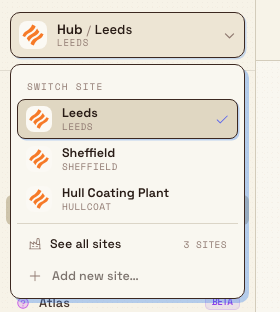
You can also open the picker yourself at any time. Use the site switcher at the top-left of the Bulk header (it shows your plant name with its legal entity code beneath), open it, and select See all sites. This returns you to the Choose a plant screen even when a plant is already open.
Before you start
- You are signed in. The plant picker only appears after you sign in. See Sign in to Bulk.
- You have access to at least one plant. An administrator grants you access to the plants you work in. If you can sign in but no plants appear, you have an account but no plant access yet — ask your administrator to add you.
A plant you can open is one an administrator has added you to. Plants in your organization that you have not been added to still appear on the screen, but as locked cards you cannot enter until you are granted access. Requesting that access is covered below.
Choose a plant
On the Choose a plant screen, each plant you can open is shown as a card. To select one:
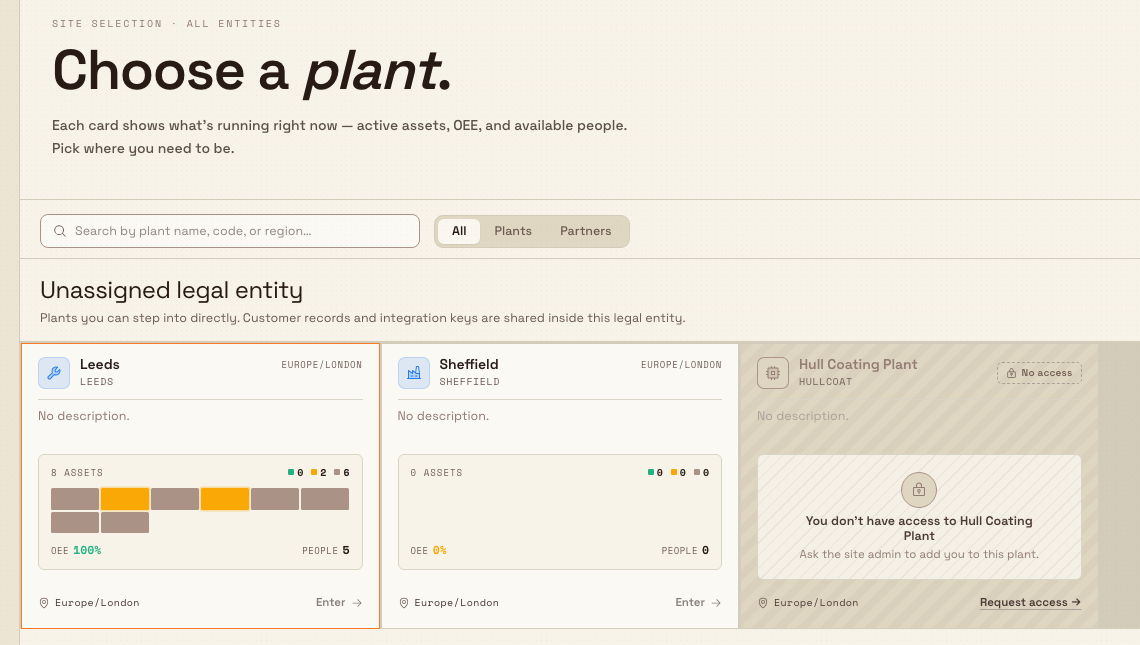
- Find the plant you want. The masthead reads Choose a plant with a short summary of your whole network — total Assets, network OEE, and available People — across every plant you can see.
- Select the plant's card. You can select anywhere on the card to open the plant.
- Bulk opens that plant and takes you to where you were heading — normally Home, where you can open your apps.
What each plant card shows
A plant card is a live snapshot of that site, so you can pick where you are most needed at a glance:
- Name. The plant name, such as Gotham Applied Sciences. Cards are grouped by legal entity, such as WAYNE-UK / Wayne Enterprises Ltd. The current plant has a selected outline.
- Region. The plant's time zone, shown next to a location pin.
- Assets. How many machines the plant has, split into running, paused, and idle. An asset is a machine or piece of equipment on the floor.
- OEE. The plant's Overall Equipment Effectiveness — a standard manufacturing score, shown as a percentage, for how effectively its equipment is being used.
- People. How many people are available at the plant right now.
Find a plant quickly
When you have access to many plants, use the search field above the cards:
- Search. Type in the field marked Search by plant name, code, or region… to filter the cards. Search matches a plant's name, its short code, its legal-entity code or name, and its time zone.
If a search or filter matches nothing, Bulk shows No sites match your filters. with a Clear filters button to reset the view.
Request access to a locked plant
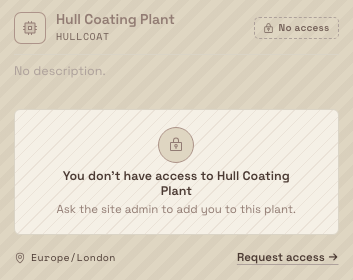
If your organization runs plants you have not been added to, they appear as locked cards marked No access. A locked card shows You don't have access to [plant] and the hint Ask the site admin to add you to this plant. You cannot open a locked plant, but you can ask for access without leaving the screen:
- On the locked card, select Request access →.
- Bulk records your request and confirms with the message Access requested. The site admin has been notified.
- The card updates to show Access requested so you know your request is pending.
An administrator for that plant reviews the request and grants access. Once they do, the plant becomes a normal card you can open. Requesting access again while a request is already pending does not send a duplicate.
Example: choose a Wayne plant
Bruce Wayne can open Gotham Applied Sciences, Blüdhaven Fabrication, and Wayne Aerospace. He opens the site switcher and selects See all sites to compare their cards under WAYNE-UK / Wayne Enterprises Ltd, then selects the plant where he needs to work. The header shows the selected plant name; WAYNE-UK identifies the shared legal entity.
A colleague without access to one of those plants sees a locked card instead. That colleague can request access from the card and wait for a site administrator to review it.
Expected result
After you select a plant:
- Bulk opens that plant and lands you on Home (or the page you were originally heading to).
- The plant becomes your current site: its name and legal entity code show in the site switcher at the top-left of the header.
- Bulk remembers your choice, so next time you sign in it reopens the same plant and skips the picker.
- You can switch to another plant you can open whenever your work moves between sites. See Switch operational context.
Availability and limits
Selecting a plant is generally available and is the standard way every Bulk user chooses a site.
- Single-plant auto-select. When only one plant is listed and you can access it, Bulk selects it for you and does not show the picker. This is expected — the picker only helps when there is a real choice to make.
- Every active plant in your organization is listed. The screen shows all active plants in your organization: the ones you can open first, then any locked ones you can request access to. It is not limited to plants you already belong to.
- Live snapshots. The numbers on each card — assets, OEE, and people — are live and can take a moment to appear when the screen first loads.
If something goes wrong
- No plants appear. If the screen reads No plants available ("No plants have been configured for your organization yet. Contact your administrator to set up your first plant."), your account has no plant access yet, or your organization has not set up a plant. Contact your administrator to be added to a plant.
- A plant you expect is locked. If a plant shows No access, you have not been added to it. Select Request access → on its card, then wait for an administrator to grant access.
- A card shows Offline. If your connection drops, cards switch to an Offline state and show the last data Bulk received ("working from cache"). Select Reconnect on a card once your connection returns to refresh the screen.
- A card shows an error with Retry. If a plant's live snapshot fails to load, its card shows an error with a Retry link. Select Retry to load it again. You can still open the plant even if its snapshot is briefly unavailable.
- Your search finds nothing. If you see No sites match your filters., select Clear filters to show every plant again, then refine your search.
Related guidance
- Dates belonging to the selected plant use that plant's fixed timezone. Calendar-only dates stay on the selected day, while event timestamps keep their exact moment; every plant in the organization still follows the same week-start rule and week numbers.
- Sign in to Bulk
- Switch operational context
- Navigate Bulk
- Getting started