Open a workstation
Open the Workstations launcher, read the asset grid, and pick the station you'll operate so Bulk shows its queued jobs and focuses the app on your bay.
Last updated
Opening a workstation is how an operator starts working at a specific machine on the shop floor. In Bulk a workstation is the focused, full-screen view you run at one asset, a machine, bench, or piece of equipment on the floor. Before you can book time, record output, or complete steps, you tell Bulk which asset you are standing at. You do that on the Select asset launcher, and this page walks you through it.
This is the everyday starting point for production work. When you open a workstation, Bulk shows that station's queued jobs and focuses the app on that one bay, so everything you see next is scoped to the machine you are operating. Opening a workstation does not load a job; loading work is a separate production action.
What a workstation is
A few Bulk terms make the launcher easier to read:
- Asset: a single machine or piece of equipment, such as a laser cutter or a press. Each asset has a name and a short code.
- Asset line: a grouping of assets that belong together, such as a cell or a production line. The launcher groups stations by their line.
- Workstation: the operator view you open for an asset. The kind of screen that opens depends on the station's type (a standard tablet station, a peaking/recording bench, or a grouped multi-station view), which an administrator sets up in master data.
The launcher opens the right screen for the station type when you pick an asset.
Before you begin
To open a workstation you need to be:
- Signed in. See Sign in to Bulk.
- In a plant. A plant (Bulk also calls these sites or entities) is the site you are working in. See Select an entity.
- Able to view production. The launcher loads its data with the view production jobs permission (
production_jobs.view). Without it, the launcher opens but cannot load the asset grid.
Your plant also needs at least one asset set up. An administrator creates asset lines and assigns assets in master data. If none exist yet, the launcher tells you so and links you to the asset settings. See If something goes wrong below.
Open the Workstations launcher
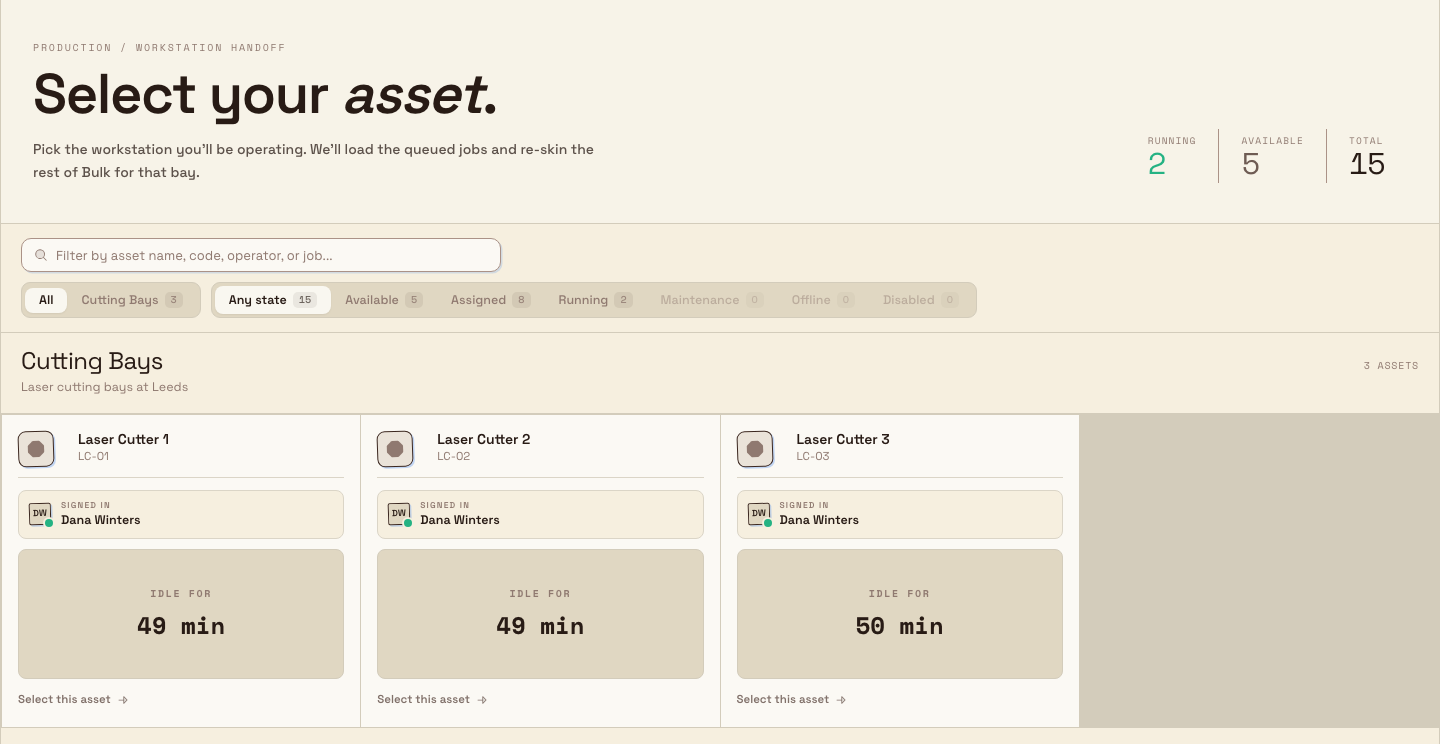
From anywhere in Bulk, open the navigation sidebar on the left. Under the PLATFORM group, select Workstations. Bulk opens the Select asset launcher as a full-screen grid with no left sidebar, so operators stay focused on choosing a station.
The launcher is headed Select your asset. with the eyebrow Production / workstation handoff. Four timer totals sit at the top so you can read current activity:
- Running: assets with an active timer.
- Paused: assets on downtime.
- Stopped: assets with work loaded and no running timer.
- Idle: assets with no loaded work.
Read the grid
Each tile is one station. Tiles are grouped into sections by asset line; any assets without a line appear under Unassigned assets. Each tile shows its asset name, type and current state. Idle tiles show how long the station has been idle; loaded tiles show their timer and loaded job context. The state filters help find stations:
- Running: work is in progress, usually with a live timer and the operator shown.
- Assigned: claimed by an operator but not actively timing.
- Available: free for you to pick up.
Some states cannot be opened, and the tile tells you why:
- Maintenance: tagged for scheduled downtime.
- Out of service: tagged out of operation until cleared.
- No access: restricted to qualified operators; you are not one yet.
- Turned off: disabled in settings.
- Decommissioned: retired, kept only for records.
Select an eligible tile to open that workstation, including a station with work already loaded. Opening it alone does not start its timer.
Find a station
When a plant has many stations, use the toolbar above the grid:
- Search. Type in the field marked Filter by asset name, code, operator, or job... to narrow the grid. It matches the station name and code, the operator working it, and the jobs loaded on it.
- Asset line. Switch between All and each configured line to show only that line's stations. Assets without a line appear under Unassigned assets when All is selected.
- State. Filter by status: Any state, Available, Assigned, Running, Maintenance, Offline, or Disabled.
- Clear. Once a search or filter is active, a Clear control resets the grid to every station again.
Open a station
There are two ways to open a station once you have found it:
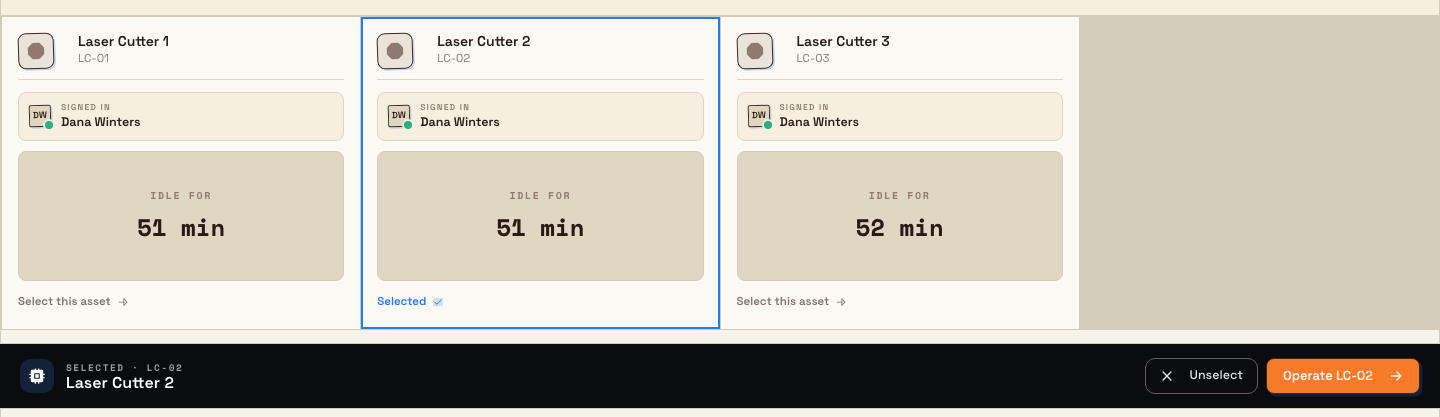
- Select, then confirm. Single-click a tile. It highlights, and a bar slides up from the bottom of the launcher showing Selected followed by the station's code and name, with Unselect and Operate [code] buttons. Select Operate [code] to open it. Select Unselect to pick a different one.
- Open directly. Double-click a tile to open it immediately, skipping the confirm bar.
Either way, Bulk opens the operator view for that station. What opens depends on the station's type: a standard tablet station opens its home screen, a peaking bench opens the recording station, and a grouped station opens its multi-station screen. Bulk routes you to the right screen for the configured type. Only selectable tiles respond; a station in Maintenance, Out of service, No access, Turned off, or Decommissioned cannot be opened.
What you land in
Once a station opens, Bulk focuses the whole app on that bay:
- The header shows the station name and a Select asset control. Notifications are hidden so operators stay focused.
- The station's queued jobs and Home widgets appear, ready for you to choose work. Selecting the workstation alone does not load a job.
- To leave, use the Select asset link in the header to return to the launcher and pick another station.
Note
Shop-floor stations run on shared tablets, so an administrator can set a station to sign you out automatically after a period of inactivity. When that is switched on, Bulk shows a countdown warning first and lets you stay signed in. It is off unless your administrator configures it for that station type.
Example: opening a review bench at Gotham Applied Sciences
Bruce Wayne opens Workstations at Gotham Applied Sciences and searches for Housing Review Bench. He chooses Gotham Housing Cell to see its four review benches, then selects Housing Review Bench 1.
The action bar shows code GTH-R1, the bench name, Unselect and Operate GTH-R1. Bruce chooses Operate GTH-R1 to open the bench's Home. Its configured queue and widgets are available, but selecting the workstation has not loaded or started any job. Select asset returns him to the launcher.
Expected result
After you open a station you can:
- reach the Select asset launcher from Workstations in the sidebar and read the Running / Paused / Stopped / Idle totals;
- filter the grid by search, asset line, and state to find the station you want;
- select a tile to preview it and Operate it, or double-click to open it directly; and
- work in a focused operator view scoped to that one station, returning to the launcher via Select asset when you are done.
Feature state and what to expect
The Workstations launcher and the open flow are generally available and are the standard way operators start work at a machine.
A few things are worth knowing:
- The grid depends on setup. Tiles only appear for assets an administrator has configured. A brand-new plant with no assets shows an empty launcher until assets are added.
- Station types differ. Standard tablet stations, peaking/recording benches, and grouped multi-stations open different operator screens. The launcher opens the correct one for you.
- Live figures settle briefly. The counts and each tile's status are live and can take a moment to populate when the launcher first loads.
If something goes wrong
- "No assets assigned to this entity." The plant has no stations set up yet. The launcher shows this message with an Open asset settings button. An administrator creates asset lines and assigns assets there before operators can pick a station.
- "No assets match these filters." Your search or filters hid every tile. Select Clear filters to show the full grid again, then refine.
- A tile you expect will not open. Check its badge. Maintenance, Out of service, No access, Turned off, and Decommissioned stations are not selectable; the badge explains why. No access means the station is restricted to qualified operators. Ask an administrator if you should be one.
- The grid never loads. The launcher needs the view production jobs permission to load its data. If tiles never appear even though stations exist, ask an administrator to confirm your role includes it.
Related guidance
Open a dashboard
Open your Dashboard, a personal view of a plant built from live widgets, then switch pages, add and rearrange widgets, and save your own layout.
Work with notifications
Read, filter, and clear in-app alerts from the bell and the Notifications page, which are scoped to your current plant, and choose which alerts you get.