Switch operational context
Change which plant you are working in using the site switcher, so everything you see and record is scoped to the right site.
Last updated
Your operational context is the single plant you are currently working in. In Bulk a plant (also called a site or an entity) is one self-contained facility: a factory, workshop, or fabrication plant: with its own production, quality, scheduling, inventory, and people. Almost everything you see and record in Bulk is scoped to your current plant, so switching context is how you move your whole workspace from one site to another without signing out.
You switch context whenever your work moves between sites: for example a manager who oversees two plants, or a supervisor covering a second site for a shift. If you only ever work in one plant, you rarely need to switch: Bulk keeps you in that plant automatically.
Before you start
- Assigned to more than one plant. Switching is only useful when you are assigned to two or more plants. The menu still lists the other active plants in your organization, but a plant you are not assigned to is disabled. Your administrator assigns you to a plant. If you are assigned only to the plant you already have open, there is nothing you can switch to.
- You are signed in and inside a plant. The switcher lives in your workspace, so you need to be signed in with a plant already open. See Sign in to Bulk and Select an entity.
Where to find the site switcher
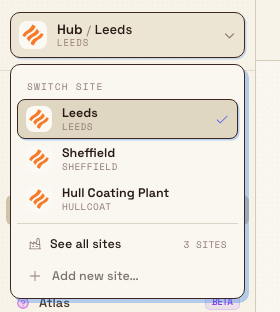
The site switcher sits at the left of the top header. It shows your current plant name, such as Gotham Applied Sciences, with the legal entity code WAYNE-UK below it and a downward caret. The code identifies the legal entity, so several sites can show the same code. On a narrow screen, the control shows the plant name and arrow without the code.

Switch to another plant
- Select the site switcher in the header. A menu opens with the available sites.
- The menu lists every active plant in your organization. Plants you are assigned to come first. Your current plant is marked with a check. A plant you are not assigned to is still listed, after those, but that row is disabled.
- Select a plant you are assigned to.
A disabled row still shows the plant name and its short code, in lighter text. Pointing at it does not highlight the row, and the pointer shows you cannot select it. There is no tooltip and no other message on the row. Selecting it does not switch plants. To ask for access, select See all sites. See Select an entity.
Bulk switches straight away. There is no page reload and you do not sign out. The plant name at the top updates, and the whole workspace re-scopes to the plant you chose: production orders, quality records, scheduling, dashboards, and people all now reflect that site.
Your choice is remembered
When you switch, Bulk remembers the plant on this browser for the rest of your session and saves it as your current plant, so it is the one that opens the next time you sign in. Switching is fully reversible: open the menu again and pick the previous plant to switch back.
See all sites and other menu options
Beneath the list of plants the menu has two more entries:
- See all sites opens the full plant-selection screen. That screen shows a card for every plant with what is running right now, lets you search, and is where you request access to a site you cannot yet open. See Select an entity.
- Add new site… appears but is not active from this menu. Creating a new plant is an administrator setup task, not part of switching context.
When switching is not available
On some full-screen views the switcher shows your current plant but is locked: you cannot switch context while that view is open. This keeps a focused, single-site screen from changing site underneath you. Locked views include:
- Workstations: the shop-floor screen an operator runs at a machine or station. Here the switcher shows the workstation name instead of an open menu.
- Boards and certain full-screen dashboards: where the switcher displays the current site as a fixed label.
To switch context from one of these views, leave it first (return to the Hub), then use the switcher as usual.
Example: covering a second site at Wayne Corp
Wayne Corp runs Gotham Applied Sciences, Blüdhaven Fabrication, and Wayne Aerospace. A supervisor assigned to Gotham and Wayne Aerospace is covering aerospace production for an afternoon.
- The supervisor starts in Gotham Applied Sciences, shown in the header.
- They open the site switcher and select Wayne Aerospace. If they are not assigned to Blüdhaven, that site is listed but disabled.
- The workspace now shows Wayne Aerospace's dashboards, orders, and people.
- They pick Gotham Applied Sciences to return at the end of the visit.
Both sites show WAYNE-UK because they belong to the same legal entity.
Expected result
After switching, the plant name in the header matches the plant you chose, and every module reflects that site's data. Your selection sticks for the rest of your session on this browser and becomes your default plant the next time you sign in.
Availability and limits
Switching operational context is generally available to every Bulk user who has access to more than one plant.
- Plants you are not assigned to are disabled in the menu. The name and code stay visible in lighter text, you cannot select the row, and there is no tooltip. Select See all sites to request access. See Select an entity.
- One assigned plant means there is nothing to switch to. Bulk opens that plant for you. Other active plants in the organization still appear in the menu, disabled, until an administrator assigns you to them.
- Context switches are recorded. For traceability, Bulk logs an entry in the audit trail each time you change your current plant.
If switching does not work
- A plant is listed but you cannot select it. You are not assigned to that plant. Its row is disabled: the name and code are in lighter text, the row does not highlight when you point at it, and the pointer shows you cannot select it. There is no tooltip. Select See all sites and request access, or ask your administrator. See Select an entity.
- A plant you expect is missing from the menu. The menu lists active plants in your organization, including plants you are not assigned to. If a plant is not listed, it is not an active plant in this organization. Ask your administrator.
- The switcher is greyed out or shows no menu. You are on a locked full-screen view such as a workstation, a board, or a full-screen dashboard. Return to the Hub first, then switch.

Related guidance
Select an entity
Choose which plant to work in on the Choose a plant screen, understand when Bulk picks one for you, and request access to a plant you cannot yet open.
Navigate Bulk
Find your way around Bulk: the Home launcher, the left sidebar with its Platform and Modules groups, the header, and the search that opens any page.