Rotate an API key
Replace a REST API secret while keeping the same name, site scope, permissions, and expiry — then copy the new secret once and update every integration that used the old key.
Rotating an API key retires the current secret and issues a new one with the same name, entity (site) scope, permissions, and expiry. The old secret stops working immediately. Use rotation when a secret may have leaked, when your security policy requires regular replacement, or when you need a fresh secret without redesigning who the key can call.
Rotation is different from revoking (which ends access without creating a replacement) and from creating a new key (where you choose name, entity, and permissions again). After you rotate, you must update every system that still uses the old secret.
Before you start
- Open Settings, expand Organization, and select Integrations. The page address ends in
/settings/organization/integrations. - On the REST API & Tokens card, select API Keys. You land on the API keys page at
/settings/organization/integrations/api-keys.
You need organization-level API key permissions:
- View the list requires
api_keys.view. - Rotate requires both
api_keys.createandapi_keys.delete(the rotate control is enabled only when you have both). - Built-in Super user and Entity admin roles include these permissions. Other seeded roles do not grant
api_keys.*by default.
Have ready:
- The active key you intend to replace (inactive or expired keys cannot be rotated from the list actions).
- Access to every integration that still uses the old secret, so you can paste the new secret without a long outage.
- A secrets manager or secure config store for the new value.
The old secret stops working immediately
Confirming rotation deactivates the current key at once. Any call that still sends the old Authorization: Bearer value will fail until you deploy the new secret. Coordinate with the teams that run reporting jobs, gateways, and ERP feeds before you rotate production keys.
integrations.rest-api.rotate-key-01
What rotation keeps and what changes
| Kept from the old key | Replaced |
|---|---|
| Name | Full secret (shown once) |
| Entity scope | Key prefix used to identify the card |
| Permissions list | Underlying key id (a new key record is created) |
| Expiry (or no expiry) | Created by (you become the creator of the new key) |
The old key is set inactive. On the default list it disappears (only usable active keys show). With Show inactive keys, the retired row shows status Revoked. The new key appears as Active with a new prefix (keys typically start with hk_; the list shows a short prefix such as the first eight characters).
You cannot change name, entity, permissions, or expiry during rotate. To change scope or rights, create a new key with the settings you need, cut over integrations, then revoke the old key.
Rotate a key
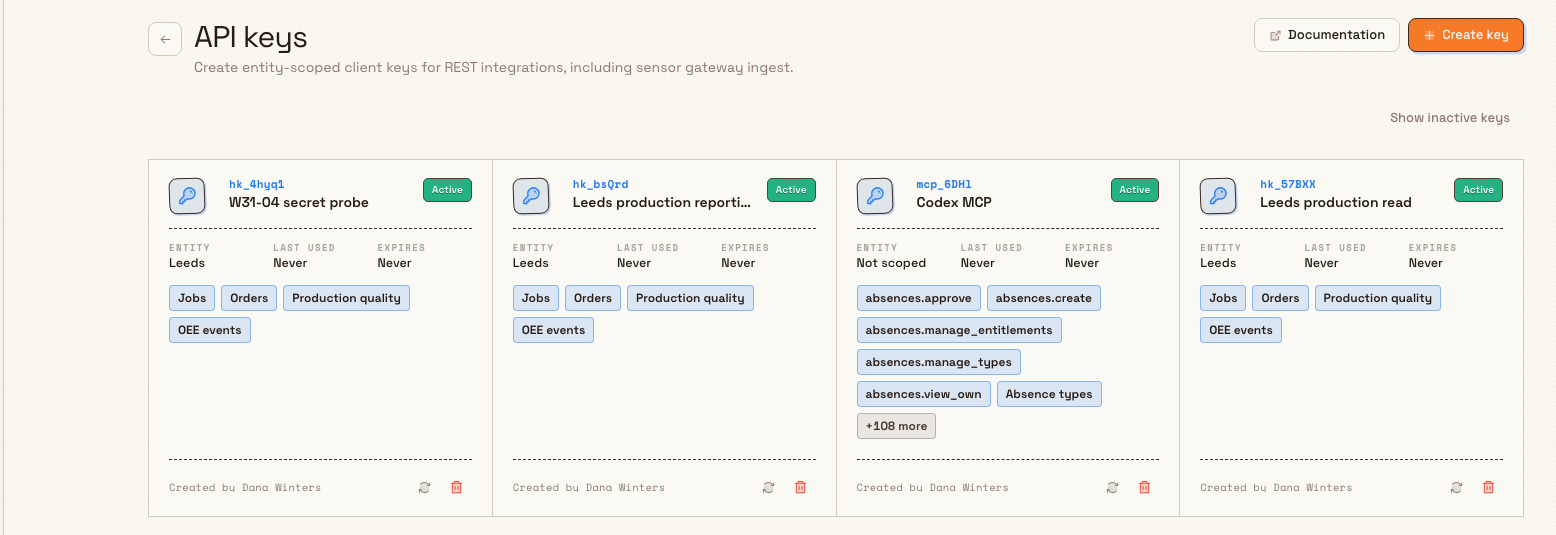
- On the API keys page, find the Active card for the key you want to replace. Confirm the Entity, permission chips, and Expires value match what integrations still need.
- Select the Rotate action on that card (icon control labeled Rotate with the key’s name for assistive technology). If the control is disabled, you lack create or delete permission, or the key is not active.
- In the Rotate API key dialog, read the confirmation. It names the key as
{name}({key_prefix}) and explains that the current key stops working immediately and that you will see the new secret once; copy it before dismissing. - Select Rotate key (or Cancel to leave the key unchanged).
Bulk deactivates the old key, creates a new key with the same settings, and shows the one-time secret panel. A confirmation toast reads API key rotated.

integrations.rest-api.rotate-key-02
Copy the new secret and update integrations
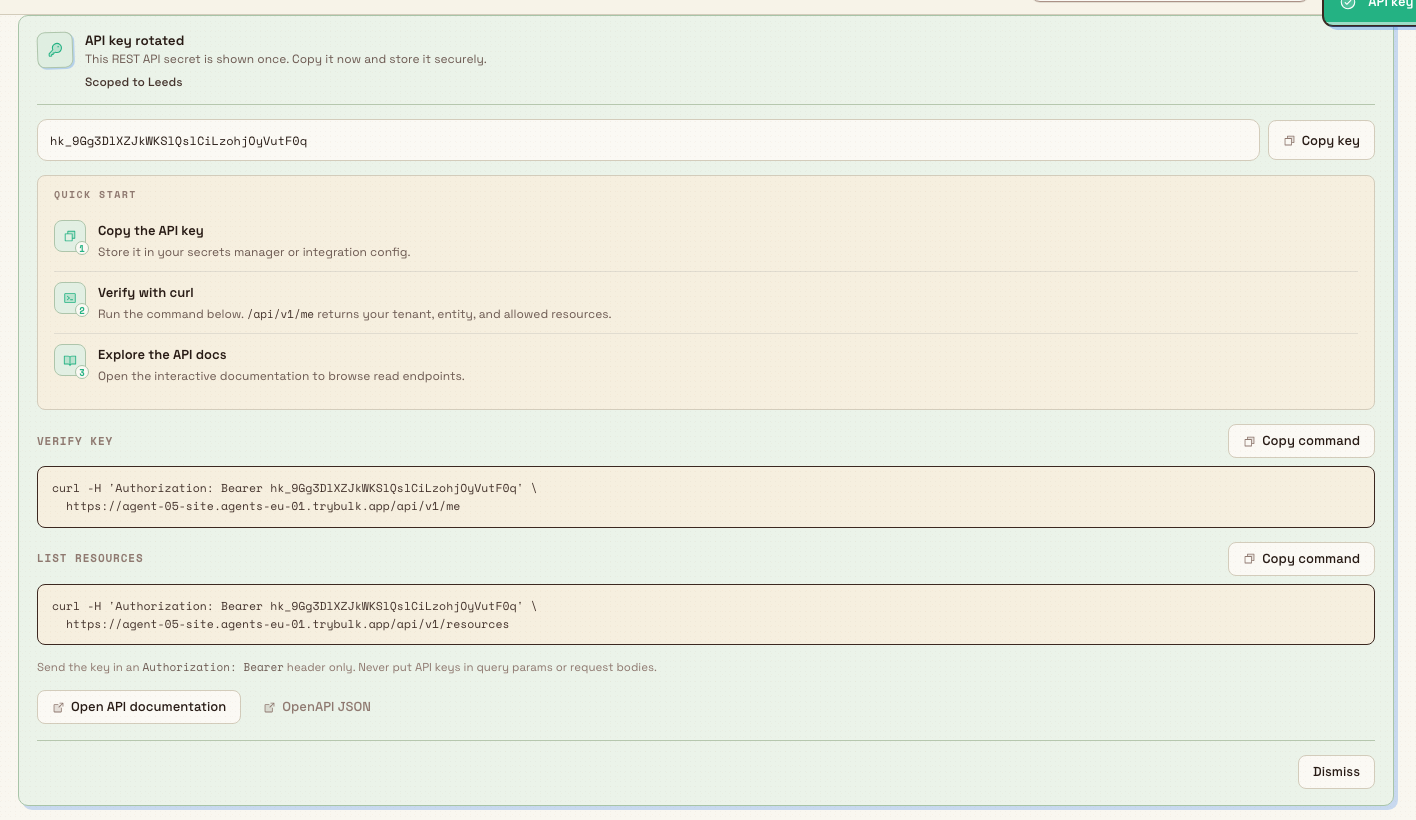
After a successful rotate, the page shows an API key rotated panel (same layout as after create, with the rotated title):
- Select Copy key and store the value in your secrets manager. Toast: API key copied.
- Optionally run the Verify key and List resources curl examples (
GET /api/v1/meandGET /api/v1/resourceswithAuthorization: Bearer …). - Update every integration that used the old secret to use the new value.
- Select Dismiss, then confirm Dismiss API key secret? — the dialog warns that the full key for that new prefix will not be shown again.
Send the key only in an Authorization: Bearer header. Do not put API keys in query parameters or request bodies.
If you dismiss without copying, you cannot redisplay the secret. Rotate again (or create a new key) to get another secret, knowing each rotate again invalidates the previous one.
integrations.rest-api.rotate-key-03
After rotation: what the list shows
- The new key appears as an Active card: same name, entity, permission chips, and Expires as before, but a new prefix, and Created by set to the person who rotated.
- The old key is inactive. Use Show inactive keys to see it with status Revoked (and the old prefix). Inactive cards do not offer rotate or revoke.
- Last used on the new key stays Never until something authenticates with the new secret.
Example: rotating Leeds production reporting at Granite Peak
Dana Winters manages a nightly reporting job for the Leeds Fabrication Plant. The key is named Leeds production reporting, scoped to that plant, with production read permissions.
Security asks her to rotate the secret after a contractor laptop is retired. She opens Settings → Organization → Integrations, selects API Keys, finds the Active card, and selects Rotate. She confirms Rotate key, copies the new secret from the API key rotated panel into the reporting vault, updates the job’s environment variable, and runs the verify curl against /api/v1/me. The old secret fails immediately; the job resumes on the new secret. She dismisses the panel only after the vault and the job config both hold the new value.
Expected result
- The previous secret no longer authenticates.
- A new Active key exists with the same name, entity, permissions, and expiry, and a new prefix.
- You copied the new full secret once and stored it securely.
- Integrations updated to the new secret call the client REST API successfully; anything still on the old secret receives authentication failures.
Feature state and limits
API key rotation is generally available. Keep these behaviors in mind:
- Rotation needs both
api_keys.createandapi_keys.delete. Having only one is not enough. - Only active keys show an enabled rotate control in the UI. Revoked or inactive rows cannot be rotated from the card actions.
- Rotation does not edit permissions or entity; it copies them onto a new key record and deactivates the old one.
- The full secret is never recoverable from the list — only the prefix remains for identification.
- There is no grace period where old and new secrets both work; cutover is immediate.
Troubleshooting
- Rotate control is missing or disabled. — you need both
api_keys.createandapi_keys.delete, and the key must be Active. Ask an admin for Super user, Entity admin, or a custom role with both permissions. - "You don’t have permission to view API keys." — your role lacks
api_keys.view. You cannot open the list to rotate. - "API key not found". — the key was removed or is not in your tenant. Refresh the list and try again.
- Integrations fail right after rotate. — expected until each client uses the new secret. Confirm vaults and config were updated; verify with the curl examples from the secret panel while it is still open.
- Lost the new secret after dismiss. — rotate again (or create a new key). The dismissed full secret cannot be shown again.
- Need different permissions or another plant. — do not rotate. Create and scope a new API key, cut over, then revoke the old key.
- Want to stop access without a replacement. — revoke the key instead of rotating.
Related
- REST API access — how client REST keys fit with other integrations.
- Create and scope an API key — issue a new key when name, entity, or permissions must change.
- Revoke an API key — cut off access without issuing a replacement.
- Integrations — organization integration catalog, including REST API & Tokens.
- Roles and permissions — grant
api_keys.view,api_keys.create, andapi_keys.delete.
Create and scope an API key
Create an entity-scoped REST API key, choose the permissions your integration needs, and copy the secret once before storing it securely.
Revoke an API key
Immediately stop an API key from authenticating so a retired or compromised integration can no longer call Bulk’s client REST API.