Revoke an API key
Immediately stop an API key from authenticating so a retired or compromised integration can no longer call Bulk’s client REST API.
Revoking an API key turns it off for good. Any external system still using that secret loses access as soon as the key is revoked — there is no grace period and no undo. Use revoke when you are retiring an integration, when a secret may have been exposed, or when a key should never be used again.
If you still need the same name, site, and permissions with a new secret, rotate the key instead. Rotation also stops the old secret immediately, but issues a replacement you can put into the integration.
Before you start
- Open Settings, expand Organization, and select Integrations. The page address ends in
/settings/organization/integrations. - On the REST API & Tokens card, select API Keys. You land on the API keys page at
/settings/organization/integrations/api-keys.
You need organization-level API key permissions:
- View the list requires
api_keys.view. - Revoke a key requires
api_keys.delete.
Built-in Super user and Entity admin roles include these permissions. Without view permission, the page shows You don’t have permission to view API keys. Without delete permission, the revoke control on each card is disabled.
Before you revoke:
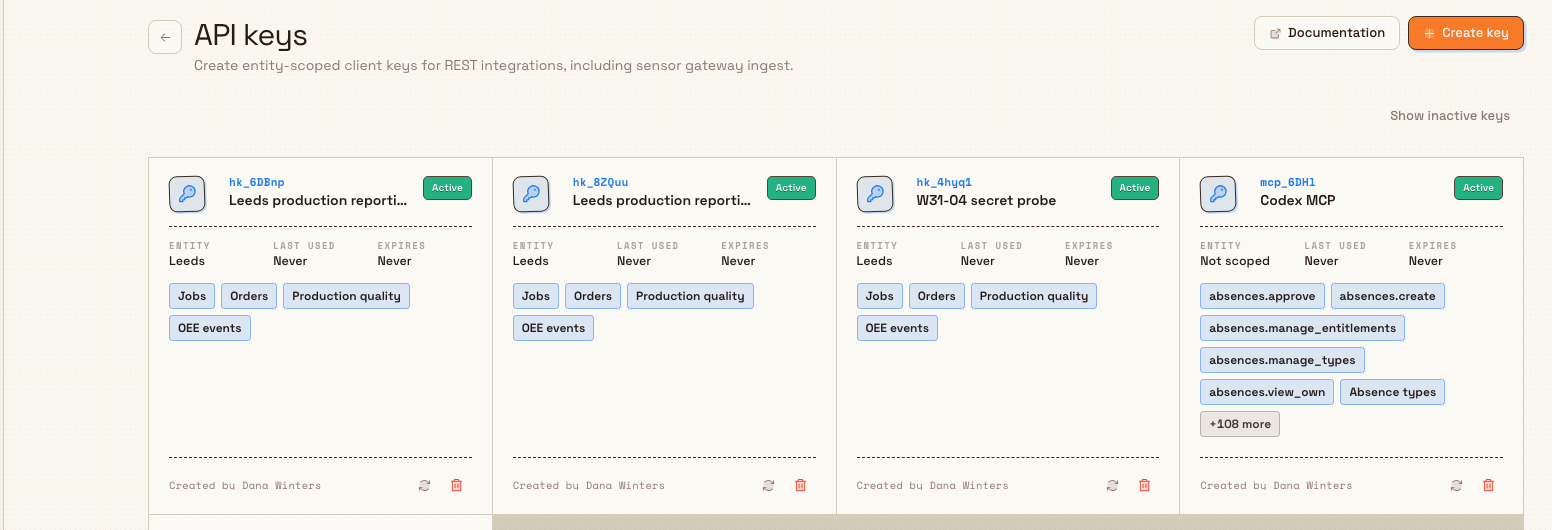
- Confirm which integration uses the key (match the name and short key prefix on the card).
- Update or stop that integration so it is not still calling Bulk with the old secret after you cut access — or plan the cutover deliberately if you are shutting the integration down.
- Prefer rotate if the integration must keep working under a new secret with the same scope.
integrations.rest-api.revoke-key-01
What revoke does
Revoking sets the key inactive on the server. After that:
- Client REST calls that still send the old secret fail authentication (they no longer verify as a usable key).
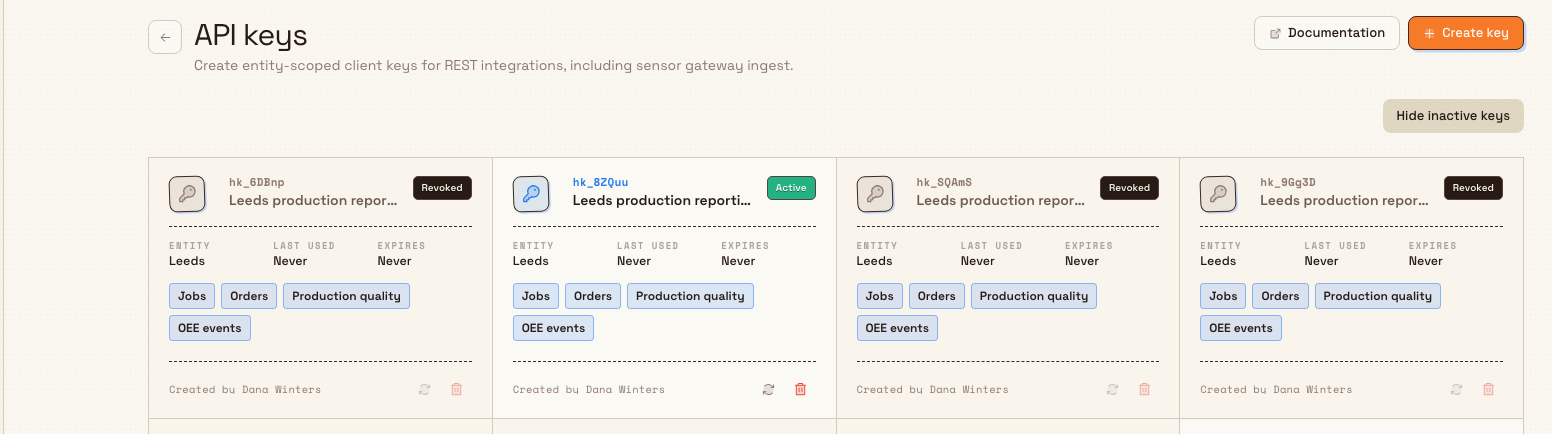
- The card status becomes Revoked (not Expired — expired means the optional end date passed while the key was still active).
- Revoke and Rotate on that card stay disabled because the key is no longer active.
- The default list shows only usable keys (active and not past expiry). A revoked key drops off that list until you choose Show inactive keys.
Revoke does not delete the row from history: the prefix, name, entity, permissions, and creator remain visible when inactive keys are shown, so operators can still identify what was retired. The full secret was never listed after create/rotate, and revoke does not re-show it.
Revoke a key
- On the API keys page, find the active key you want to stop. Use the name and key prefix (for example the first eight characters of an
hk_…secret) to be sure you have the right card. - On that card’s footer, select the Revoke action (trash control, labelled Revoke with the key name for accessibility).
- Confirm in the Revoke API key dialog. The description names the key and prefix and states that integrations using this key will lose access immediately, and that the action cannot be undone.
- Select Revoke key to confirm, or Cancel to leave the key active.
On success, Bulk shows the toast API key revoked. The key no longer appears in the default (active) list.

integrations.rest-api.revoke-key-02
After you revoke
- Optionally select Show inactive keys to confirm the card now shows the Revoked status badge (and that rotate/revoke actions are disabled).
- Select Hide inactive keys when you want the list back to active keys only.
- If the integration still needs access, create a new key with the correct entity and permissions (or use rotate before you would have needed a permanent cut-off).
- Remove the old secret from secrets managers, CI variables, and partner systems so it is not redistributed by mistake.
If the active list is empty after revoke but inactive keys remain, the empty state may read No active API keys with a prompt to Show inactive keys or create a new key.
integrations.rest-api.revoke-key-03
When to revoke vs rotate
| Situation | Prefer |
|---|---|
| Integration is decommissioned; no replacement secret needed | Revoke |
| Secret may be leaked; you still need the same access | Rotate (then store the new secret) |
| Wrong permissions or entity on the key | Create a new key with the right scope, switch the integration, then revoke the old key |
| Key already Expired or Revoked | No further revoke; create a new key if access is still required |
Rotate requires both api_keys.create and api_keys.delete. Revoke needs only delete (plus view to open the page).
Example: retire a reporting key at Granite Peak
Granite Peak Manufacturing decommissions a nightly warehouse report that used the key Leeds production reporting for the Leeds Fabrication Plant.
Dana Winters opens Settings → Organization → Integrations, selects API Keys on REST API & Tokens, and matches the card by name and prefix. She confirms the reporting job is disabled in the plant’s scheduler, then selects Revoke, reads the warning that access stops immediately, and selects Revoke key. The toast API key revoked appears. She turns on Show inactive keys, sees Revoked on the card, then removes the old secret from the report vault so it cannot be reused.
If the same report were only migrating to a new host and still needed access, she would have rotated instead, copied the new secret once, and left the name and Leeds Fabrication Plant scope unchanged.
Expected result
- Integrations that used the revoked secret can no longer authenticate to the client REST API with that key.
- The key is inactive with status Revoked when inactive keys are shown.
- The default API keys list no longer shows that key among active keys.
- Audit history records the revoke (API key deleted/revoked event) for security review; the UI does not offer “re-activate.”
Feature state and limits
Revoking API keys is generally available. Keep these behaviors in mind:
- Revoke is immediate and not reversible. There is no restore control — only a new key (or a prior rotate) can restore access for an integration.
- Revoke deactivates the key (
is_activefalse). It does not wipe the list history; use Show inactive keys to review retired keys. - Expired is different from Revoked: expiry is the optional end date; revoke is an administrator action that turns the key off regardless of expiry.
- Keys are managed at organization level; each usable key remains entity-scoped for REST calls. Revoking one site’s key does not affect keys scoped to other plants.
- Owner profile inactivity and rate limits still apply to remaining keys; revoking one key does not change those rules for other keys.
Troubleshooting
- "You don’t have permission to view API keys." — your role lacks
api_keys.view. Ask an administrator for Super user, Entity admin, or a custom role with API key permissions. - Revoke is disabled or missing effect. — you need
api_keys.delete, and the key must still be active. Already revoked or inactive keys cannot be revoked again. - The key disappeared after revoke. — the default list hides inactive keys. Select Show inactive keys to see Revoked (or Expired) cards.
- Calls still fail after I meant only to rotate. — revoke stops access without issuing a new secret. If you needed continued access, create a new key or use rotate on an active key before it is gone.
- 401 Invalid API key after revoke. — expected: the secret no longer verifies. Point the integration at a new or rotated key, or stop calling the API.
- Wrong key revoked. — you cannot undo. Create a replacement key with the correct entity and permissions, update the integration, and treat the revoked secret as permanently dead.
Related
- REST API access — how client REST access and API keys fit together.
- Create and scope an API key — issue a replacement key with the right entity and permissions.
- Rotate an API key — replace a secret while keeping the same name, entity, and permissions.
- Integrations — organization integration catalog, including REST API & Tokens.
- Roles and permissions — grant
api_keys.view,api_keys.create, andapi_keys.delete.
Rotate an API key
Replace a REST API secret while keeping the same name, site scope, permissions, and expiry — then copy the new secret once and update every integration that used the old key.
Model Context Protocol connections
Connect AI agents such as ChatGPT, Codex, and Claude Code to Bulk over MCP — scoped by organization policy, audited on every tool call, and gated by approval for guarded production and destructive actions.