Create and scope an API key
Create an entity-scoped REST API key, choose the permissions your integration needs, and copy the secret once before storing it securely.
An API key lets an external system call Bulk’s client REST API on behalf of your organization. Each key is scoped to one site (entity) and carries only the permissions you grant it — so a reporting tool, ERP feed, or sensor gateway gets just the access it needs.
Create a key when you are connecting a new integration, when you need a separate key for a different plant, or when a service needs a different permission set from keys you already use. Keys live under organization Integrations; rotating and revoking existing keys are covered in related guides.
Before you start
- Open Settings, expand Organization, and select Integrations. The page address ends in
/settings/organization/integrations. - On the REST API & Tokens card, select API Keys. You land on the API keys page at
/settings/organization/integrations/api-keys.
You need organization-level API key permissions:
- View the list requires
api_keys.view. - Create a key requires
api_keys.create. - Revoke a key requires
api_keys.delete(rotation needs both create and delete).
Built-in Super user and Entity admin roles include these permissions. If the page says you don’t have permission to view API keys, or the Create key button is missing, ask an administrator to grant api_keys.view and api_keys.create on your role.
Have ready:
- The entity (site) the integration should read or write against — for example Leeds Fabrication Plant.
- A clear name for the key so others can tell what uses it.
- Which permissions the integration actually needs (prefer the smallest set).
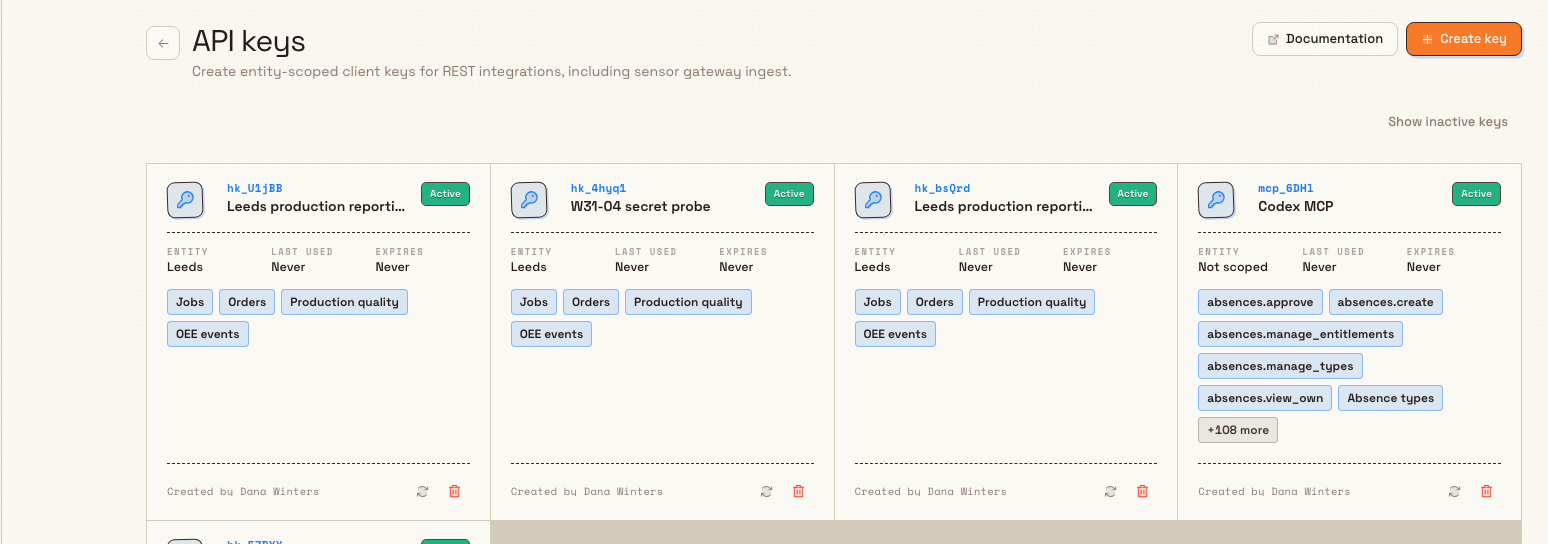
integrations.rest-api.create-key-01
What an API key scopes
When you create a key you choose three things that define its reach:
| Setting | What it does |
|---|---|
| Entity | Limits the key to one site. The REST client API requires entity scope; keys without a site are rejected at authenticate time. |
| Permissions | Lists which client resources the key may use (mostly read access, plus sensor gateway ingest when needed). |
| Expiry | Optional end date. After that day the key is treated as expired and can no longer authenticate. Leave empty for no expiry. |
The full secret is shown only once when the key is created (or rotated). After you dismiss that panel, Bulk only shows a short prefix (for example the first eight characters of a key that starts with hk_) so you can identify the key without recovering the secret.
Create a key
- On the API keys page, select Create key. The Create API key dialog opens.
- Enter a Name (for example
Leeds production reporting). The name must be at least two characters after trimming spaces. Placeholder text is Client integration. - Choose the Entity from the list of active sites (shown as name and code). The first active entity is pre-selected when the dialog opens.
- Under Permissions, either:
- Use a preset button to fill a common set, then adjust checkboxes; or
- Tick individual permissions by module, or use Select all on a module group.
- Optionally set an Expiry date (placeholder No expiry). The date must be today or later; past dates are not allowed.
- Select Create key.
Bulk creates the key and shows the one-time secret panel. A confirmation toast reads API key created.
Permission presets
| Preset | What it selects |
|---|---|
| Sensor gateway | Sensor gateway ingest only (asset_sensors.ingest) — for gateways that post readings and heartbeats. Dialog hint: For sensors, choose the Sensor gateway preset and scope the key to the entity where those sensors live. |
| Operational core | Every client permission in the picker. |
| Production only | Production module reads: Jobs, Orders, Production quality, and OEE events. |
| Clear | Removes all selections so you can build a custom set. |
The default when the dialog opens is Jobs and Orders (production_jobs.view and production_orders.view). You must leave at least one permission selected; otherwise creation stops with Select at least one permission.
Permissions are grouped by module in the picker:
- Production
- Inbound and inventory
- Quality, safety, audits
- Projects and settings
- Asset Sensors (ingest and sensor lookup)
- People and training
Most client permissions are view (read) access to curated REST resources. Sensor gateway ingest is the main write-style permission for posting sensor data. Prefer the smallest set that makes the integration work.
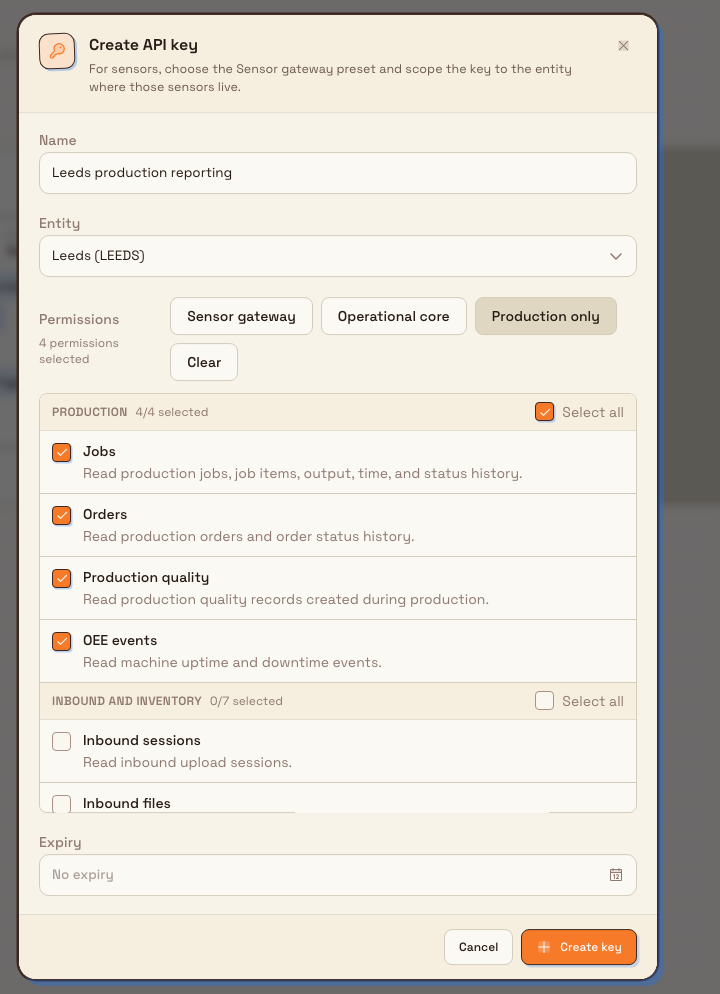
integrations.rest-api.create-key-02
Copy the secret once
After a successful create, the page shows an API key created panel (not the full secret again later):
- Select Copy key and store the value in your secrets manager or integration config.
- Optionally use the Verify key and List resources curl examples (they call
/api/v1/meand/api/v1/resourceswithAuthorization: Bearer …). - Open Open API documentation if you need the interactive client API docs (
/api/v1/docson your Bulk HTTP site host). - Select Dismiss, then confirm Dismiss API key secret? — the dialog warns that the full key for that prefix will not be shown again.
Send the key only in an Authorization: Bearer header. Do not put API keys in query parameters or request bodies.
If you close the secret without copying it, create a new key (or rotate a working key) — there is no way to redisplay the old secret.
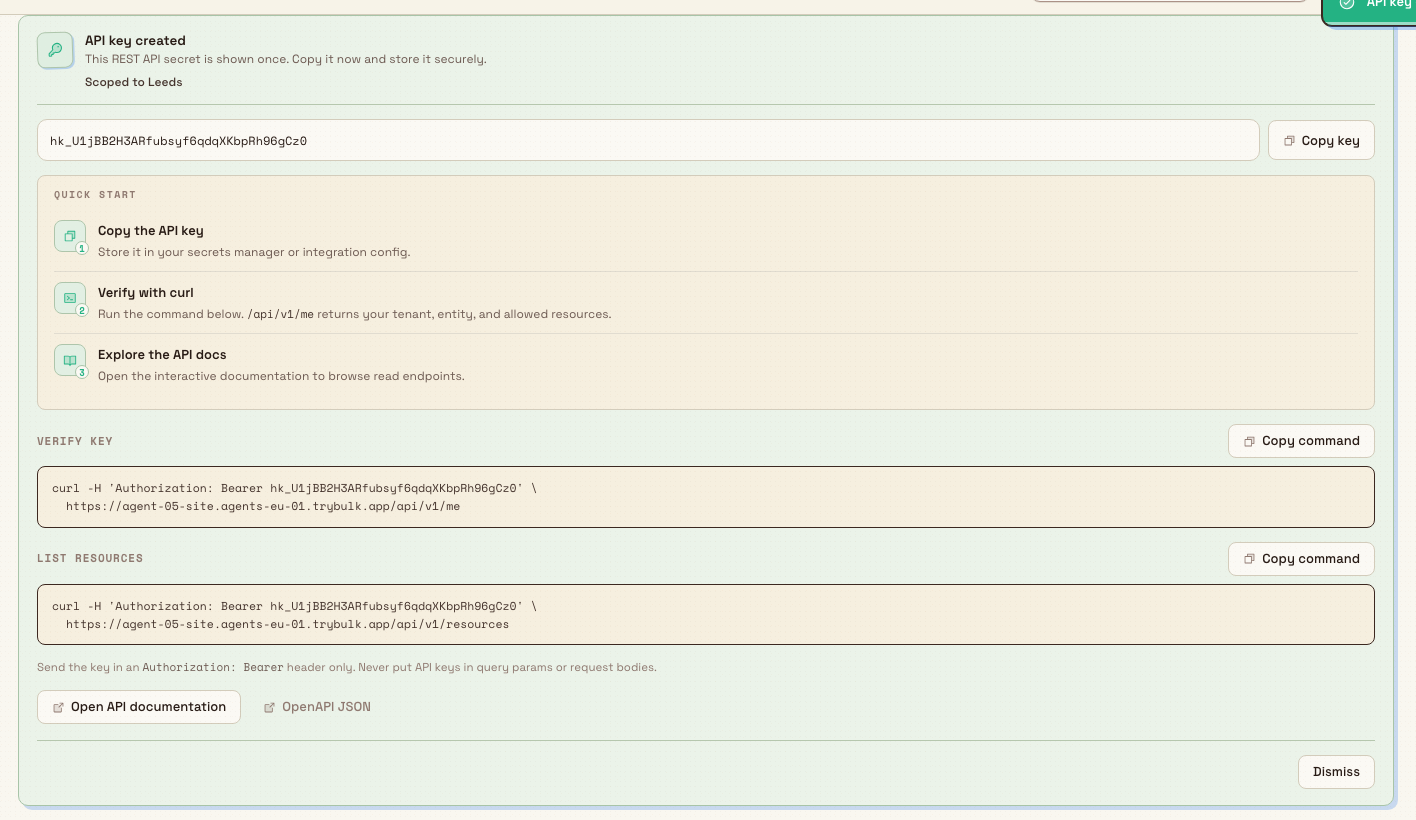
integrations.rest-api.create-key-03
What the list shows after creation
Each key is a card on the API keys grid. An active card shows:
- The key prefix and name, with an Active status badge.
- Entity (site name), Last used, and Expires (or Never when unset or never used).
- Up to six permission chips (extra permissions summarized as +N more).
- Created by and actions to Rotate or Revoke (when your role allows).
Use Show inactive keys / Hide inactive keys to include revoked or otherwise inactive keys. Inactive cards show status Revoked or Expired as appropriate. An empty active list may say No API keys yet or No active API keys if only inactive keys exist.
Example: production reporting at Granite Peak
Dana Winters connects a nightly reporting job that only needs production data for the Leeds Fabrication Plant.
She opens Settings → Organization → Integrations, selects API Keys on REST API & Tokens, then Create key. She names the key Leeds production reporting, keeps Entity on Leeds Fabrication Plant, selects Production only, leaves Expiry empty, and creates the key. She copies the secret into the reporting service vault, runs the verify curl against /api/v1/me, confirms the entity and permissions look right, then dismisses the secret panel.
A sensor partner later needs only ingest: she creates a second key named Leeds sensor gateway, scopes it to the same plant, chooses the Sensor gateway preset, and stores that secret separately so reporting never shares sensor credentials.
Expected result
- A new card appears with status Active, the entity you chose, and the permission chips you selected.
- The full secret was shown once and copied into a secure store.
- Calls to the client REST API with
Authorization: Bearer <secret>authenticate as that key’s tenant and entity, and only succeed for permissions on the key. - The list continues to show the key prefix, last used time (once used), and expiry for operators who manage integrations later.
Feature state and limits
Creating and scoping API keys is generally available. Keep these behaviors in mind:
- Keys are tenant-wide to manage, but each usable REST key is entity-scoped. Prefer always selecting an entity in Create API key (the UI requires it).
- The full secret is never stored in a retrievable form for the UI after create/rotate.
- Client REST access is largely read-only curated resources; Sensor gateway ingest is the primary exception for writing sensor traffic.
- Status labels on cards (Active, Expired, Revoked) come from the server; expired active rows are filtered out of the default list until you show inactive keys.
- Interactive API docs and OpenAPI URLs depend on the deployment’s HTTP site base URL; the Documentation button appears when that URL is configured.
Troubleshooting
- "You don’t have permission to view API keys." — your role lacks
api_keys.view. Ask an admin for Super user, Entity admin, or a custom role with API key permissions. - Create key is missing. — you can view but not create. You need
api_keys.create. - "Name is required" / name too short. — enter a non-empty name of at least two characters.
- "Entity is required" / "Entity is not available". — pick an active site. Deactivated or deleted entities cannot be used.
- "Select at least one permission". — tick at least one permission or apply a preset other than Clear.
- "Expiration must be in the future". — choose today or a later date (expiry is applied through the end of that UTC day).
- REST calls return that the key is not scoped to an entity. — the key has no entity. Create a new entity-scoped key; unscoped keys are rejected by the client API.
- 401 Invalid API key / 403 missing permission. — wrong secret, revoked/expired key, or the key lacks the permission that endpoint requires. Check the prefix on the card, permissions chips, and status badge.
- Lost the secret after dismiss. — create another key (or rotate if you still control a working key). The old full secret cannot be shown again.
Related
- REST API access — how client REST access fits with other integrations.
- Rotate an API key — replace a secret while keeping the same name, entity, and permissions.
- Revoke an API key — cut off access immediately when a key is compromised or retired.
- Integrations — organization integration catalog, including REST API & Tokens.
- Roles and permissions — grant
api_keys.view,api_keys.create, andapi_keys.delete.
REST API access
Use entity-scoped API keys so external systems can securely read Bulk data and post sensor gateway traffic over the client REST API.
Rotate an API key
Replace a REST API secret while keeping the same name, site scope, permissions, and expiry — then copy the new secret once and update every integration that used the old key.