Update inbound custom fields
Fill in and change customer-specific custom field values on an in-progress inbound document and its line items, from the Custom fields card and items sheet.
Last updated
An inbound document is the record Bulk creates when customer work arrives: it holds the customer, the reference numbers, and a line item for each thing to be made. Custom fields are extra fields your organization adds on top of Bulk's built-in ones, so you can capture the details that matter for a particular customer: a heat-treatment specification, a coating colour, a "certificate required" flag, and so on.
This guide explains how to update the values in those fields on an existing inbound document: both the document-level fields and the per-line-item fields. It does not cover creating the fields themselves; that is done once in settings and is linked at the end.
When custom fields appear
Custom fields are tied to the customer. They only show on a document when both of these are true:
- The document has a customer assigned. Custom fields are scoped to customers, so a document with no customer shows no custom-field controls.
- That customer has custom fields defined for inbound work. Fields can apply to every customer or to specific customers, and line-item fields can also be limited to specific process types (a process type is the kind of manufacturing route a line item follows). A line-item field that does not apply to a row's route stays blank and cannot be edited on that row.
If you expect a field and do not see it, that is almost always because one of the conditions above is not met: see Troubleshooting.
Before you start
To change custom field values you need all of the following:
- An editable document. You can only edit an inbound document while it is In Progress. Once it is submitted for approval, approved, completed, cancelled, or on hold, editing is locked and the fields become read-only. Documents that are still in Draft are handled in the creation wizard instead.
- The right permission. A permission is the right to perform a specific action. Document-level fields require Update inbound documents (
inbound_documents.update); line-item fields require Update inbound items (inbound_items.update). By default the Owner (Super user), Entity admin, and Operator roles include both. If you cannot edit, ask an admin to check your role. - The document is not locked. If someone is finalizing the document it can be briefly locked; wait and try again.
Update document-level custom fields
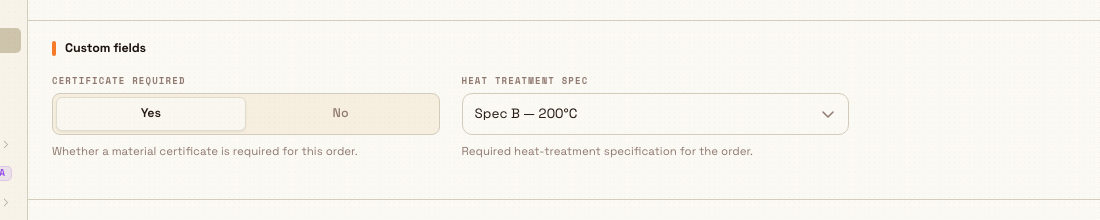
Document-level custom fields describe the whole document: for example a required certificate or an overall specification.
- Open the inbound document from the Inbound list.
- Below the document details, find the Custom fields card. It lists every document-level custom field for this customer, each with the input that matches its type (a dropdown, a date picker, a Yes/No toggle, a number box, and so on).
- Change a value directly in the field. There is no separate Save button: your change is saved automatically a moment after you stop typing or as soon as you pick a value.
- Watch the sync indicator near the top of the document. It shows while your change is being saved and confirms once it is stored; it switches to an error state if a save does not go through.
Update line-item custom fields
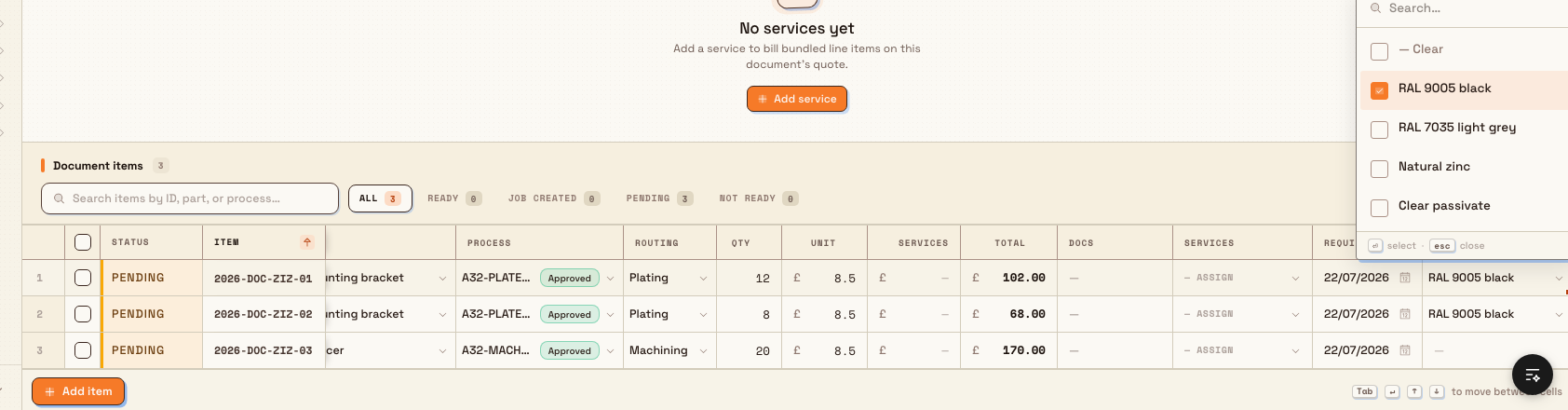
Line-item custom fields describe a single line: for example a per-item colour, finish, or inspection note. In the grid view each line-item custom field is an extra column in the items sheet.
- In the same document, scroll to the items sheet (the table of line items).
- Find the column for the custom field you want to change. Line-item custom-field columns sit alongside the built-in item columns.
- Double-click the cell to open its editor, then change the value: type into a text or number cell, pick from an in-cell dropdown, toggle Yes/No, or choose a date. The value is committed when you leave the cell.
- If a cell shows a plain dash and will not open an editor, that field is absent from the line's stored field setup. This can happen when the field does not apply to its routing or was added after the line was created.
You can copy a value down a column to fill several rows at once using the sheet's fill-down, the same as any other item column.
Document fields and item snapshots
The document-level card uses the current fields configured for the customer. The items sheet uses field definitions stored on each line item. New or duplicated items capture the fields that apply to their routing at creation. A line created before a field was added may still show an inert dash, even if its routing now uses that field.
Example: a housing receipt at Gotham Applied Sciences
Wayne Enterprises receives a housing finish pack for Gotham Rail Works. The customer has document-level fields Customer PO reference and Release certificate, plus a line-item dropdown Surface finish limited to the Housing Fit Verification routing.
Bruce opens the In Progress receipt 2026-DOC-NKP. In the Custom fields card, he enters GRW-260104 and sets Release certificate to Yes. In the items sheet, he selects Satin black for a housing line on Housing Fit Verification. A Wayne Drive Coupling line on Precision Machining has an inert dash in that column because its routing does not use the finish field.
Expected result
- Each value you change is saved automatically; the sync indicator confirms it is stored.
- The new values persist on the document and its line items, and are visible to anyone else who opens the document.
- Custom field values travel with the work: they are carried into the document's snapshot and are available downstream when line items become production jobs.
Feature state and limits
Custom fields on inbound documents are a generally available part of Bulk. Keep these points in mind:
- Customer-scoped. Fields only appear for a document that has a customer with fields defined for it. Change the customer and the set of custom fields changes with it.
- Editable window. You can change values only while the document is In Progress. After submission, approval, completion, cancellation, or while on hold, the fields are read-only.
- Read-only fields. A field can be configured as not editable. Those fields display their value but cannot be changed here.
- Required fields are enforced at milestones, not on every keystroke. You can save a document with a required custom field still empty, but a required document field must be filled before the document can be created, and a required line-item field must be resolved before that line can be marked ready (which is needed before it becomes a job).
- Definitions are managed elsewhere. Which fields exist, their types, options, and whether they are required or read-only are all set in settings, not on the document.
Troubleshooting
- No custom fields on the document. Check that the document has a customer assigned and that the customer has inbound custom fields defined. With no customer, or a customer with no fields, the Custom fields card and custom-item columns do not appear.
- A line-item cell only shows a dash. The line has no stored definition for that field. Check its routing and when the line was created. Fields can be limited to specific routes, and older lines may predate the field.
- The fields are read-only / I can't type. The document is probably not In Progress: it may be submitted, approved, completed, cancelled, or on hold, or you may be missing the Update inbound documents or Update inbound items permission. Confirm the document status and your role.
- A value won't save (sync shows an error). The document may have just been locked or changed by someone else. Wait a moment and re-enter the value; if it persists, refresh the document and try again.
- A required field is blocking me. If you cannot create the document or mark a line ready, look for a required custom field that is still empty and fill it in first.
- A field looks different from the current settings. The document card reads current customer settings, while line-item cells use stored field definitions (see the note above). Newly created or duplicated lines pick up current applicable definitions.
Related
- Set up custom fields and dates: define the custom fields, their types, options, and whether they are required.
- Create an inbound document: where required custom fields are first filled in.
- Edit an inbound document: change the document's customer, references, and other details.
- Work with the inbound grid: how the grid view and items sheet work.
- Services and items: manage the line items custom fields attach to.
- Inbound: overview of the inbound area.
Attach files to inbound work
Add PDF references such as purchase orders, drawings, and specs to an inbound document, open them from the document workspace, and manage them while editable.
Promote inbound work to production
Turn an approved inbound document's ready items into production jobs under a production order, and see what changes once it reaches In production.