Manage inbound services and items
Add line items to an inbound document and attach billable catalogue services to build the document's quote.
Last updated
An inbound document: the structured record Bulk creates from a customer's purchase order, delivery note, or job sheet: breaks down into line items: the individual parts, materials, or products on that order. Services are the billable work you add on top of those items: tests, treatments, finishing, or handling: that you author once on the document and then attach to the line items they apply to. Together, items and services make up the document's quote: the priced picture of what the customer is charged.
Use this screen when an inbound order needs priced work beyond the parts themselves. A plate arrives that must be laser-cut and tensile-tested; a casting needs shot-blasting and a certificate. You capture the parts as line items, add each service once, and assign it to the items it covers: instead of retyping the same charge on every line.
Services live in the document workspace
The Services panel is part of the current inbound document workspace. Open a document from Inbound Documents to see it. For the overall layout, see Work in the document grid.
Before you start
- Open a document. The Services panel and the per-item Services column appear in the document workspace.
- You need the Edit inbound documents permission (
inbound_documents.update) to add, edit, or assign services and to edit line items. Without it a document opens read-only. The built-in Operator, Manager, Entity admin, and Super user roles include it by default. - Picking a service code from the registry needs the View service codes
permission (
service_codes.view). Without it the registered-code picker is disabled in the current grid. - The document must be editable. Services and items can only be changed while the document is in Draft or In progress, and not while it is locked or on hold. In any other status the controls are hidden or disabled.
- Catalogue services and rate templates come from Settings. The From
catalogue and Apply template actions read from Settings → Master Data →
Pricing and require View pricing agreements (
pricing.view). If they are empty, set them up there first: see Set up pricing.
Line items
A line item is one row of work on the document: a part, a quantity, and its price. Each item carries three base pricing fields:
- Quantity: how many units the line covers.
- Unit Price: the price for one unit, in the document's currency.
- Total Price: the line total for the base part.
You add and edit items in the Document items grid lower down the same screen. Items can also carry custom fields your plant has defined. Because item editing is a topic of its own, this article focuses on services and how they attach to items; for the full item-editing workflow see Edit an inbound document and Fill in custom fields.
Read base and service charges separately
Base pricing stays with the part. In the current grid, the numeric Services column shows assigned service charges and Total adds those charges to the base line subtotal. For example, 4 parts at GBP120 plus GBP230 of assigned services display a payable Total of GBP710.
Services
The Services panel lists every service defined on the document. Each service has a short row ID (SVC-01, SVC-02, and so on), a name, an optional colour tag, and one or more billing lines. A billing line is one charge in the service, for example a fixed setup charge plus a per-sample charge. The table columns are ID, Service (or Service code when you pick from the registry), Line item, Billing rule, Qty, Price, and Unit. The ID shows the assignment count beside the code, such as SVC-01 (2). Point at the ID to read it, for example This service is assigned to 2 items.

You add services in three ways, using the buttons in the panel header:
- Add service creates a blank service row on the document. In the current registry layout, choose its Service code and fill the Line item label and price. Add billing lines with Add line item, selecting a code on each line before saving its charges. The new service, and each line you add, starts blank with Billing rule set to Manual quantity, so you type Qty yourself. Per attached job counts the items or jobs the service is assigned to and locks Qty. Tracked hours follows production time. Use Add service for one-off work that is not in your catalogue.
- Apply template: opens the Apply pricing template dialog. Pick a saved rate template (a preset bundle of services and charges from the Pricing module) and Bulk copies it in as one service named after the template, with the template's base price, bundled services, and additional charges as its billing lines. The copy is a snapshot: later edits to the template do not change what you have already added. Filter templates by This customer, General, Other customers, or All.
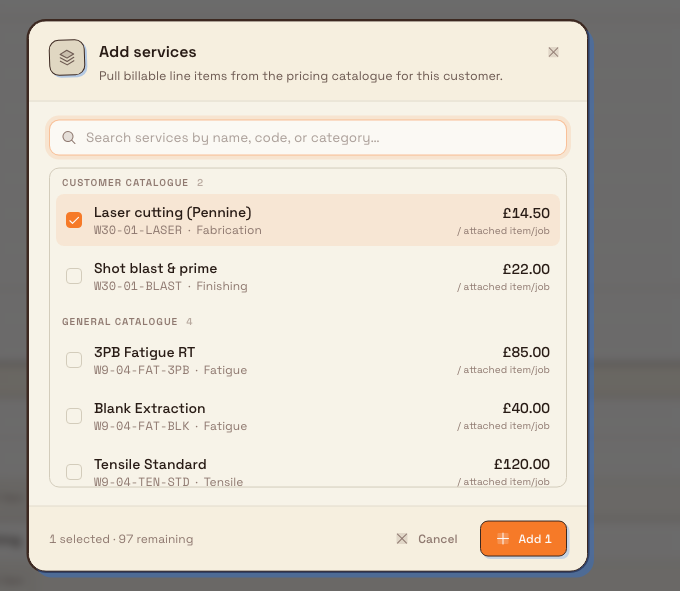
- From catalogue: opens the Add services dialog. Search your billable catalogue services, grouped into Customer catalogue (scoped to the document's customer) and General catalogue. Select one or more, and each becomes its own service on the document.
A line brought in from the catalogue or a pricing template can be a percent charge. Unit then shows %, and that line does not use Billing rule. Add line item does not create a percent line.
Template vs. catalogue
Reach for Apply template when a customer or job type always needs the same bundle of services: it lands as a single, pre-costed service. Reach for From catalogue when you want to pick individual services one at a time. Both read from Settings → Master Data → Pricing, so the tidier that catalogue is, the faster this step becomes.
Add a service priced from process hours
A catalogue service can use the Timed / process hours pricing model when its charge must come from time recorded on production jobs. Timed services are deliberately hidden from an inbound document's From catalogue dialog: an inbound document has no jobs whose time Bulk could bill.
To use one:
- Submit the inbound document to production.
- Open the resulting production order and select its Jobs tab. In the Services panel above the jobs table, select From catalogue and add the timed service.
- In the jobs table, assign the service to every job whose time it should bill.
- Select the service's locked Qty at any time: including while it shows 0: to open Timed service, the per-job process-hours breakdown.
The breakdown has Timer, Manual, Adj, OEE, Billable h, and Amount columns. Only time sources and routing resources enabled in the service's Pricing setup contribute. Each assigned job gets its own row; an assigned job with no included time shows a zero row. If no jobs are assigned, the dialog instead says: No process hours yet. Hours appear when timers stop (or manual time is entered) on jobs assigned this service. A row marked incomplete means the service is restricted to resources that do not occur in that job's routing.
See the populated breakdown in Review a timed service by job.
Bulk refreshes the locked quantity and amounts after service or job assignment changes, after a timer stops, after manual time or an adjustment is entered, and after qualifying OEE downtime closes. A running timer is not previewed, so its time appears only after the timer stops. Billable hours and amounts are rounded per job; the service total is the sum of those per-job amounts.
Pricing setup is snapshotted
Settings → Master Data → Pricing supplies the starting hourly rate, allowed time sources, and chargeable resources. Bulk snapshots that timed configuration when you add the service to the production order, so later catalogue changes do not rewrite the order. The rate can still be edited on an editable order; the time-source and resource rules cannot. See Set up pricing.
Production permissions and locks
Opening the order needs View production orders (production_orders.view).
Adding or editing its service needs Edit production orders
(production_orders.update) and browsing From catalogue also needs
pricing.view. Assigning the service to jobs additionally needs Edit production
jobs (production_jobs.update). A completed order is read-only. Completed,
cancelled, deleted, awaiting-approval, or invoiced jobs cannot have service
assignments changed, and a submitted invoice can lock an affected service.
Assign services to items
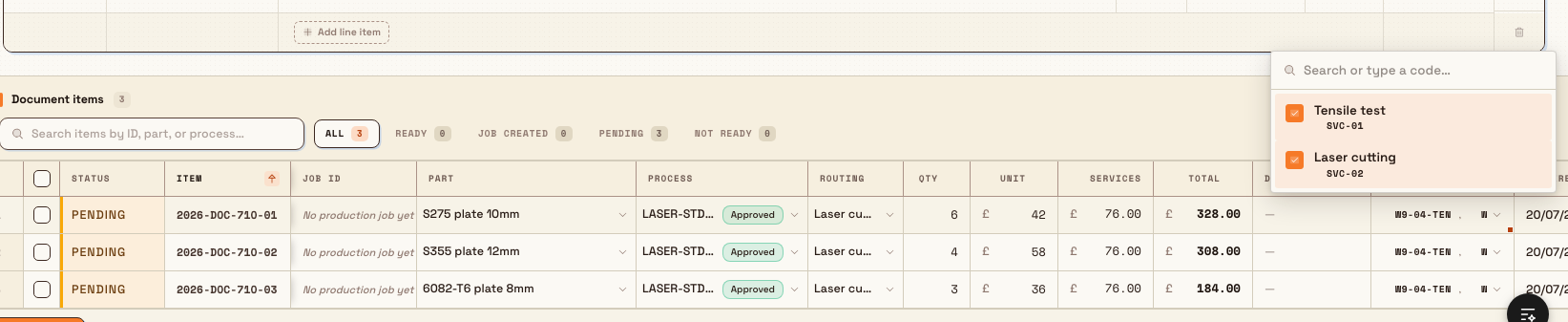
Defining a service does not bill it yet: you attach it to the line items it applies to. Every item row in the Document items grid has a Services cell showing Assign when nothing is attached, or coloured chips listing the assigned registry codes, such as CNC and DIM. The picker also shows the short document row ID, such as SVC-01. The numeric Services column is the cost; use the separate assignment cell with the chips to choose services.
- In the Document items grid, click the Services cell on the line item you want.
- In the popover, use Search or type a code… to find a service, then click it to toggle it on or off. A tick marks the services attached to that item. Each choice shows the service name and its code. When the service has a description that is not the same as its name, that description is shown under the name so you can tell matching names apart. Search matches the description as well as the name and code. You do not type a separate description on this panel. Bulk uses the service's own description when it has one, including a pricing template description copied onto the service. If there is no separate description, the picker shows the first Line item label when that label differs from the name.
- Repeat for other items. The count on each service ID updates to show how many items it now covers.
To attach the same service to many items at once, select the item rows with their checkboxes and use Apply service on the bulk action bar. That menu lists the same name, code, and description. It does not have its own search.
Example: machining and inspection for Fox Precision
At Gotham Applied Sciences, Fox Precision sends couplings and transit brackets for machining and inspection. The coordinator opens 2026-DOC-0ZK and first records two priced line items.
- Line items. Four Wayne Drive Couplings at GBP120 each and six Transit Mounting Brackets at GBP85 each retain their own base quantities and prices.
- Services. From catalogue adds Machining setup at GBP45. Add service creates Dimensional inspection with a GBP65 setup line and ten per-part inspections at GBP12. Both inspection lines use the DIM registry code.
- Assignment. The coupling item receives machining and inspection. The bracket item receives inspection. The initial ID counts show one and two items; their service costs are GBP230 and GBP185 respectively.
The grid shows payable totals of GBP710 and GBP695, including each row's assigned service costs. The assignment chips make it clear which work belongs to each item. The assignment screenshot also includes four further bracket rows created with Duplicate multiple, carrying the same DIM service.
Expected result
- The services you added appear as rows in the Services panel, each with its billing lines.
- Every item you assigned a service to shows the service's coloured chip in its Services cell.
- The count on each service ID matches the number of items it is attached to.
- A service you add with Add service, and each line you add with Add line item, starts with Billing rule set to Manual quantity.
- In the Services cell and in Apply service, a description appears under the service name when that text differs from the name.
- The document's quote reflects both the line items' base pricing and the assigned services. Changes save automatically as you edit.
Feature state and limitations
This capability is generally available in the inbound document workspace. Keep these boundaries in mind:
- Current document workspace only. Services are managed on the document.
- Editable states only. You can add, edit, or assign services only while the document is in Draft or In progress, and not while it is locked or on hold.
- Limits. A document can hold up to 100 services; each service can have up to 20 billing lines; and each line item can have up to 20 services assigned. Bulk stops you at these limits with a message.
- Base pricing stays distinct. The numeric Services column shows assigned service costs; the grid's Total includes base subtotal plus those costs.
- Timed services are added after promotion. They do not appear in the inbound document catalogue picker. Add them from the production order's Jobs tab. An order can hold up to 100 services and each service up to 20 billing lines, with at most one Timed / process-hours line per service.
Troubleshooting
- The Add service / Apply template / From catalogue buttons are missing or greyed out. The document is probably not editable: check that it is in Draft or In progress and is not on hold or locked: or your role lacks the Edit inbound documents permission. Ask an Owner or Entity admin to grant it or to release the hold.
- You cannot pick a service code. Choosing a registered code needs the View service codes permission. The registered-code picker is disabled without it in the current grid.
- The catalogue or template list is empty. Nothing has been set up yet in Settings → Master Data → Pricing. Add catalogue services and rate templates there, then reopen the dialog: the Add services empty state links straight to the pricing catalogue.
- A service will not save. Each service needs a name (or a registry code) and at least one billing line with a price; removing a service's last line removes the whole service rather than leaving a blank row.
- A timed service still shows 0 hours after production starts. Check that you added it to the production order, assigned it to the correct jobs, and that its snapshotted Pricing setup includes the recorded time source and routing resource. A running timer does not change the quantity until it stops. If the per-job row says incomplete, the selected resources do not occur in that job's routing.
Related
Submit or cancel inbound approval
Send an inbound document for sign-off when its routing requires approval, and cancel a pending approval by withdrawing it so the document unlocks for edits.
Attach files to inbound work
Add PDF references such as purchase orders, drawings, and specs to an inbound document, open them from the document workspace, and manage them while editable.