Review an inbound import
Open an upload session from Import History to confirm each file was read correctly, retry failures, and open the documents and orders it created.
Last updated
When you upload customer files under Import Documents, Bulk groups that batch into an upload session, a single record of one import that keeps every file in the batch together. Reviewing an import means opening that session afterwards to confirm that each file was read correctly, see how far each one has moved, retry anything that failed, and open the inbound documents and production orders the import created.
An inbound document is the structured record Bulk builds from a customer file (a purchase order, order form, or job sheet), holding the order header and its line items, the individual parts or tasks to make. You review an import right after uploading a batch, to catch any file that did not read cleanly before it becomes production work, and later whenever you need to trace how a particular batch was processed.
The Upload → Inbound → Production pipeline
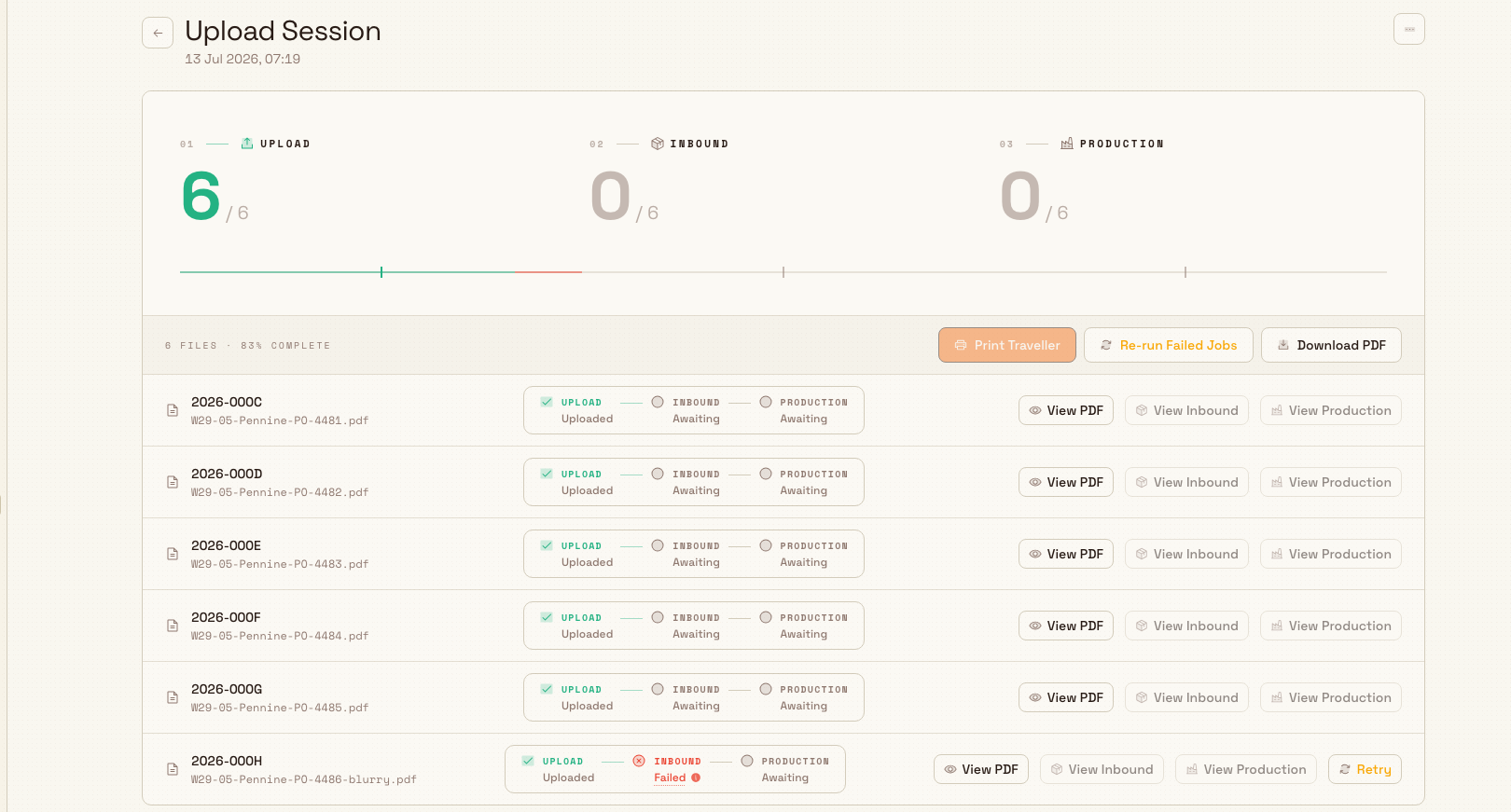
Every uploaded file moves through three stages: Upload (the file lands in Bulk), Inbound (the file is read and a document with line items is created), and Production (jobs are created from that document's items). The import review screen is built around this pipeline, so at a glance you can see which stage every file in the batch has reached. See the Inbound overview for the full picture.
Where to find it
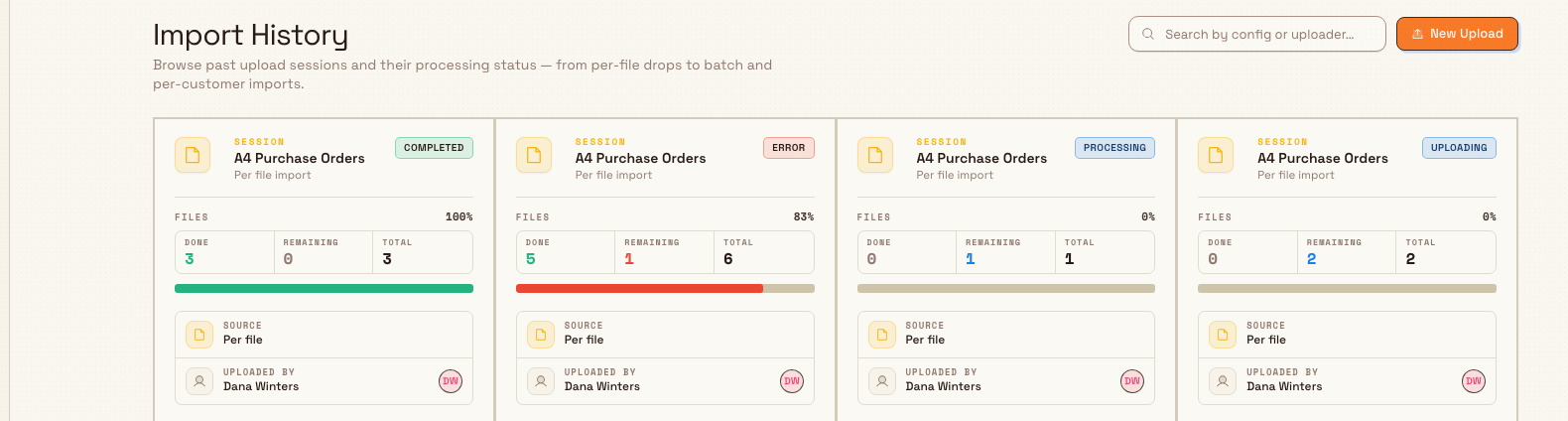
Open Inbound from the main sidebar, then open Import History. This is the list of every past upload session for the plant, called an entity in Bulk, that you currently have selected. You only see the imports for that plant.
Each session appears as a row in the history table. The default columns show Session, Customer, Status, Files, Items, Progress, Uploaded by, and When. The session name is the inbound configuration used. Statuses include Initializing, Uploading, Processing, Completed, Error, and Cancelled.
Use the search box to find an import by configuration, customer or uploader, then select its session name to open it. Columns controls the visible columns. New Upload starts another batch under Import Documents.
Before you start
Reviewing an import draws on a few separate permissions, which are set by role. By default the Super user, Entity admin, and Operator roles can do everything on this screen; the exact grants are:
- View upload sessions: needed to open Import History and any import at all. Without it, the session opens as Session not found.
- Retry files: needed to re-run a file that failed to read or failed to build a document.
- Delete upload sessions: needed to cancel a running import or delete a finished one.
These session permissions are separate from the permissions that govern inbound documents. A role can be allowed to approve documents yet still not have access to imports, so if Import History or its actions are missing, this is the first thing to check with your administrator. Roles are configurable per tenant, so treat these as the default grants rather than a guarantee. You also need access to the plant the import belongs to.
What the review screen shows
Opening a session shows its configuration name as the heading, with the customer and actual creation date below it. Files is a table on the left, and Overview on the right summarizes the batch. The header offers Resume Processing, Download PDF, Print Traveller, and Session actions.
The overview
Overview shows Files complete, the failed-file count, and the Upload, Inbound, and Production counts against the batch total. For example, Upload 1/1, Inbound 0/1, and Production 0/1 means the file arrived but has not produced an inbound document or production work. It also shows the customer, uploader, and actual Created and Completed dates.
The header actions
- Resume Processing resumes files that need attention and can be retried. It is disabled when no file can resume.
- Download PDF collects the source PDFs into a ZIP archive.
- Print Traveller opens generation of job cards for production orders from the session. It is disabled before the session has production orders.
The file table
Each file occupies one row with File, Upload, Inbound, and Production columns. Read its states from left to right. The File cell shows the file number and original filename. An uploaded PDF has a View PDF icon in its Upload cell.
A failed inbound stage can read Needs attention. Hover it to read the actual error and suggested next step. When processing can continue, its Inbound cell has a Resume icon. Other stages can show Awaiting, Processing, or Blocked, depending on the current record. View Inbound and View Production appear in their step cells once those records exist.
Review an import, step by step
- Open Inbound, then Import History, and select the session name.
- Read Overview and compare the three stage counts with the batch total.
- Scan the file table for Needs attention or Blocked. Hover the state to see what went wrong.
- For each file that produced a document, click View Inbound to open it and check the extracted values against the original. Bulk reads files automatically using extraction, which uses OCR to pull text off the page. Confirm quantities and part numbers before releasing work. See Review an inbound document.
- Use Resume for retryable failures (see below), and use Print Traveller or Download PDF once the batch looks right.
Retry files that failed
A file can stop for one of a few reasons, and only some can be retried from here:
- Extraction failed: Bulk could not read the file. This is retryable.
- Document creation failed: the file was read but the document could not be built. This is retryable.
- Validation failed: the file was rejected before reading (for example, an unsupported file). This is not retryable; upload a corrected file instead.
To retry a single file, select its Resume icon. To retry every retryable file in the batch at once, use Resume Processing in the header. Bulk queues the work and confirms with a Retry started message; the file's badges update as it re-processes. Read the error and suggested next step before resuming. A temporary provider error may be retryable; a rejected source file needs correction first.
A Blocked Production badge means the document needs attention
When a file's Production badge reads Blocked, the document was created but its items could not become production jobs, usually because a required value is missing. Click the badge to see which items were blocked, then open the document with View Inbound to fix them. See Promote inbound work to production.

Cancel or delete an import
Both actions live under the three-dots (actions) menu in the page header and both need the delete permission:
- Cancel Session appears while the import is still running (Initializing, Uploading, or Processing). It stops the batch and marks any file that has not finished as cancelled.
- Delete Session appears once the import has finished (Completed, Error, or Cancelled). On this screen it is only available while the batch's files are still upload-only; once any file has been processed into a document, delete is disabled and the menu shows Cannot delete: files have been processed. Bulk also blocks deletion if any item from the batch has already been promoted to a document or production. Those records must be archived first.
Deleting an import cannot be undone
Deleting an upload session removes the session and its file records, and Bulk warns that this can't be undone. Cancel a running import if you only want to stop it; delete only when you are sure the batch and its files are no longer needed.
Example: reviewing a mixed Fox import
Bruce uploads Fox-PO-261006-received.pdf and a supporting Fox receiving memo using Fox Purchase Orders. The purchase order creates an inbound item, while the receiving memo's inbound stage Needs attention.
Bruce compares the purchase order with the saved item, confirms WE-220, quantity 4 and GBP 120 per unit, and corrects any values that did not copy correctly. He selects the approved Coupling finish inspection process and Assembly and Verification routing, marks the item ready, and submits it to production.
After the production work is created, the purchase order's row shows 1 item and 1 job, with links to those records. The memo still shows Needs attention and Awaiting production. Overview records one complete file out of two, one failed file, Upload 2/2, Inbound 1/2 and Production 1/2. The failed file remains part of the batch's history.
What you should see
A successful import has completed file states and links to its inbound records. Production counts and links fill only after work has actually been promoted. A file that needs attention remains visible with its error and available recovery action, so you can trace the batch without inventing missing records.
Feature state and limitations
Reviewing imports is generally available. A few things are worth knowing:
- Extraction is an assist, not a guarantee. Always confirm extracted values against the source before the work is approved, especially quantities and part numbers. Poor-quality scans read less reliably.
- Validation failures cannot be retried here. A file rejected at validation must be corrected and uploaded again; only extraction and document-creation failures can be retried.
- Delete is protected. You cannot delete an import once its files have been processed into documents, or once any of its items have been promoted onward.
- Resume from the session. Open the session and use a file Resume icon or the header Resume Processing action.
- Session actions are role-gated separately from documents. Holding document-approval permissions does not by itself grant access to imports; the View, Retry, and Delete session permissions are granted per role.
Related guidance
Import inbound documents
Upload customer files so Bulk reads them automatically and builds inbound documents with their line items already filled in.
Work with the inbound grid
Use the inbound grid, a spreadsheet-style view of an inbound document, to edit, fill, and mark ready many line items at once before production.