Manage job titles
Create, edit, reorder, and delete the standard job titles your site uses to classify employees for people records and training requirements.
Last updated
A job title is a standard label you define once and then reuse to classify the people who work at a site, for example "Engineer", "Machine Operator", or "Shift Supervisor". Keeping job titles in a managed list, rather than typing them freehand on each person, means everyone is classified the same way. That consistency is what lets Bulk group employees on their records and drive training requirements from each person’s role. These requirements define the courses they are expected to hold.
Use this page to build and maintain that list: add the titles your site uses, tidy their wording, order them the way you want them to appear, and remove ones you no longer need.
Job titles are entity-scoped. In Bulk, an entity is a single site or facility, and each entity keeps its own job-title list. The titles you manage here belong to the site you are currently working in, so two sites in the same company can keep different sets of titles.
You will find this list in the left navigation under Settings › People › Job Titles.
Before you start
Managing job titles is governed by four permissions on your role:
- View job titles lets you open the page and see the list.
- Create job titles lets you add a new title.
- Edit job titles lets you change a title's name or description, and reorder the list.
- Delete job titles lets you remove a title.
These permissions are included in the Super user, Entity admin, Manager, and People roles. If your role does not include View job titles, the list will not be available to you; if it includes viewing but not the others, you can read the list but the add, edit, and delete actions will fail. Ask an administrator to adjust your role if you need to make changes.
You do not need to set anything else up first. A new site starts with an empty list, and you build it from here.
What the list shows
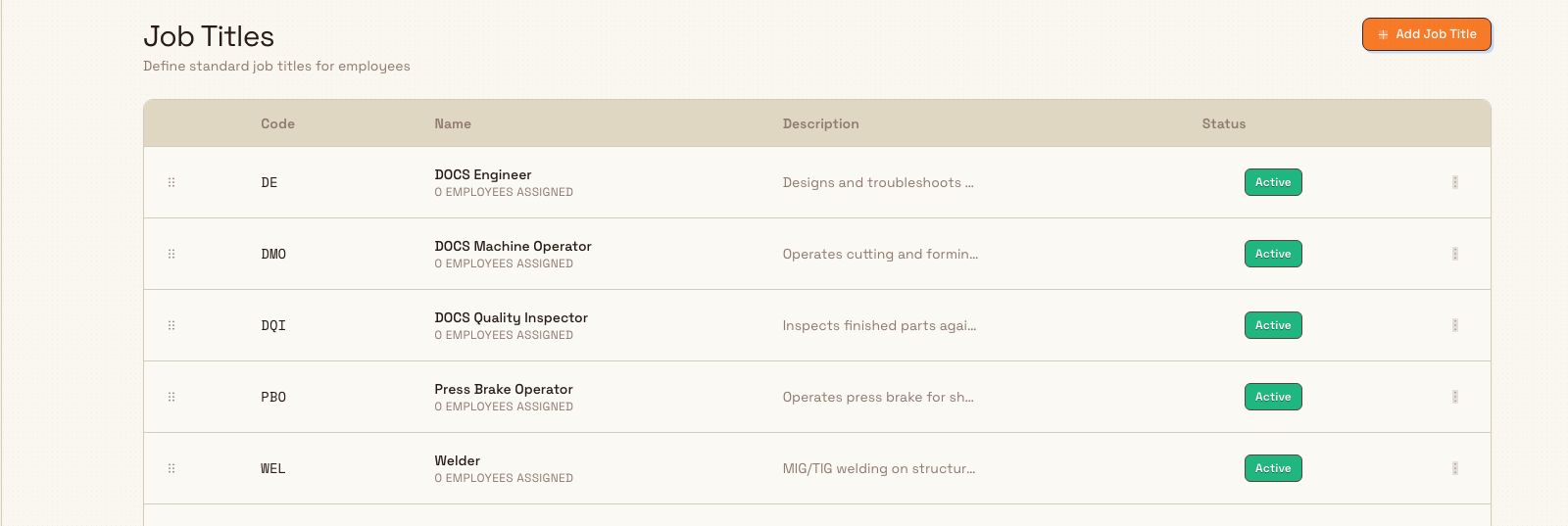
The Job Titles page shows the current site’s catalogue. All includes active and inactive titles; Active and Inactive narrow the list. Use Search job titles to match a name, code or description. The view menu and Columns control the table layout.
Each row has:
- Code: the stable identifier, such as
CMorQT. - Name: the role label.
- Employees: the number of people assigned to the title.
- Description: an optional note, or a dash when empty.
- Status: an Active or Inactive badge.
Click a row to edit it. Right-click for Edit and Delete. Drag handles let you reorder when search is clear, All is selected and no column sort is active.
Add a job title
- Select Add Job Title at the top right of the page. (When the list is empty, the same action appears in the middle of the page beneath "No job titles yet".)
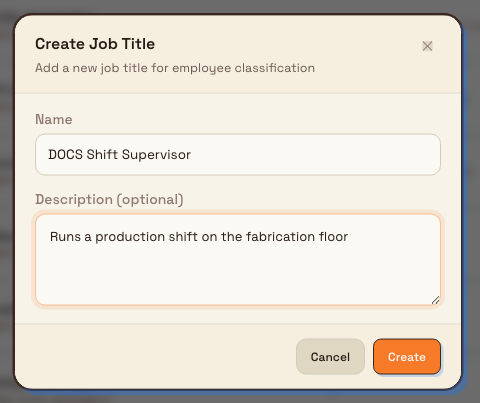
- In the Create Job Title dialog, enter a Name. This is the only required field. As you type, Bulk capitalises the first letter of each word, so "machine operator" becomes "Machine Operator". A name can be up to 100 characters.
- Optionally add a Description (optional): a brief note about the role, up to 500 characters.
- Select Create.
Bulk saves the title and confirms with a "Job title created" message. The new title appears in the list as Active.
The code is generated for you
You do not type the code yourself when adding a title. Bulk derives it from the name. A single-word name uses the first three letters ("Engineer" becomes ENG); a multi-word name uses the first letter of each word ("Machine Operator" becomes MO). Codes must be unique within the site, so if the generated code is already taken, Bulk adds a numeric suffix such as _2. The code is fixed once the title is created.
Edit a job title
- Click the row you want to change, or right-click and select Edit.
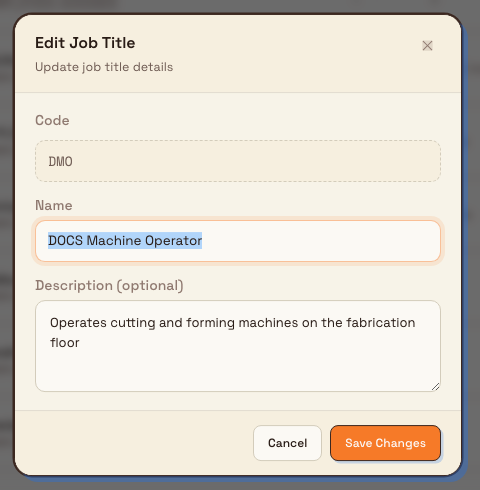
- In the Edit Job Title dialog, change the Name or Description (optional).
- Select Save Changes.
The Code is shown in this dialog but is read-only. A title keeps the same code for its whole life, so records and reports that reference it stay stable. If you need a different code, delete the title and create a new one instead.
Reorder the list
Clear search, select All and remove any column sort before reordering. Grab the drag handle at the start of a row and drag it up or down to the position you want. Bulk saves the new order immediately, and that order is used both here and wherever job titles are offered for selection. Put your most-used titles near the top to make them quicker to find.
Delete a job title
- Right-click the row you want to remove and select Delete.
- Confirm in the Delete Job Title dialog, which names the title and its code and warns that the action cannot be undone.
A title can only be deleted while no employees are assigned to it. If people still hold the title, the Delete action is greyed out on that row; reassign those employees to another title first, then delete. This guard keeps you from stranding people on a title that no longer exists.
Deleting hides, it does not erase
Deleting a job title removes it from the list but keeps the underlying record so history stays intact. Because a deleted title is gone from the pickers, the practical effect is that it can no longer be assigned.
Example: Gotham cell roles
At Wayne Corp’s Gotham Applied Sciences site, Bruce Wayne already has CNC Machinist, Quality Technician and Assembly Technician in the catalogue. Their separate Employees counts show which roles are in use.
To add Cell Supervisor, Bruce selects Add Job Title and enters a short description: "Coordinates cell handover, first-off checks and shift output." Saving would create an Active title with an automatically generated code.
For an existing role, Bruce clicks CNC Machinist. The edit form shows the locked CM code above its name and description. Updating the wording keeps the same code and record links.
The pictures show the filled create form before saving and the existing edit form before any changes. Both were canceled after capture.
Expected result
When you finish, the current site has a job-title list that reflects the roles people actually do. Each title carries a stable code, an optional description, and a saved position in the list. From then on, the titles appear as options when you assign a job title on an employee's record. This assignment is optional per person. Titles also group employees in the training matrix so requirements can be planned by role.
Feature state and limitations
Job title management is generally available. A few things to keep in mind:
- The list is per site. Titles you manage here belong to the site you are working in. Another site keeps its own separate list.
- The code is automatic and permanent. You cannot type a custom code when adding a title, and you cannot change a code afterwards. To get a different code, delete and recreate the title.
- New titles are Active, and this page has no control to change that. The Status column can show Active or Inactive, but the add and edit dialogs do not include a status switch, so titles created here stay Active. Treat the Status column as informational.
- Deletion is blocked while a title is in use. You must reassign every employee off a title before you can delete it.
Troubleshooting
- The Delete action is greyed out. Employees are still assigned to that title. The Employees column shows the count; reassign those people to another title on their employee records, then delete.
- You are told the code already exists. Codes must be unique within the site. Bulk normally resolves this by adding a numeric suffix during generation; if you hit a conflict, choose a slightly different name so a different code is derived.
- The page or list will not load for you. Viewing the list needs the View job titles permission. If you cannot see it, your role does not include that permission. Ask an administrator to grant a role that does (Super user, Entity admin, Manager, or People).
- Add, edit, or delete fails. Each action needs its own permission (create, edit, or delete job titles). A failure usually means your role can view titles but not change them; ask an administrator to adjust your role.
Related guidance
Manage departments
Create, organize, and maintain the department hierarchy that groups people, assigns a manager, and shapes reporting lines for a site.
View the organization structure
See your site's reporting lines as an automatic org chart, and draft drag-and-drop reorganization scenarios that never change real employee records.