Manage shifts
Define reusable work patterns (working days, start and end times, breaks, multi-week rotations) that you assign to employees and that drive absence counts.
Last updated
A shift in Bulk is a reusable work pattern for a site: it records which days of the week are working days, the start and end times for each day, any unpaid break, and how the pattern repeats over a rotation cycle of one to six weeks. You build shifts once, then assign them to employees so Bulk knows each person's normal working days.
Shifts are the foundation for two other People features. When you assign a shift to an employee, it appears on their record as their Shift, and when someone logs an absence Bulk counts only the working days in that employee's shift pattern. A five-day holiday that overlaps two rest days is recorded as the correct number of working days off, not a flat calendar count.
Shifts belong to a single site (in Bulk, an "entity", one plant or facility). The shifts you create on one site are not shared with another, so each location manages its own working patterns.
Where to find shifts
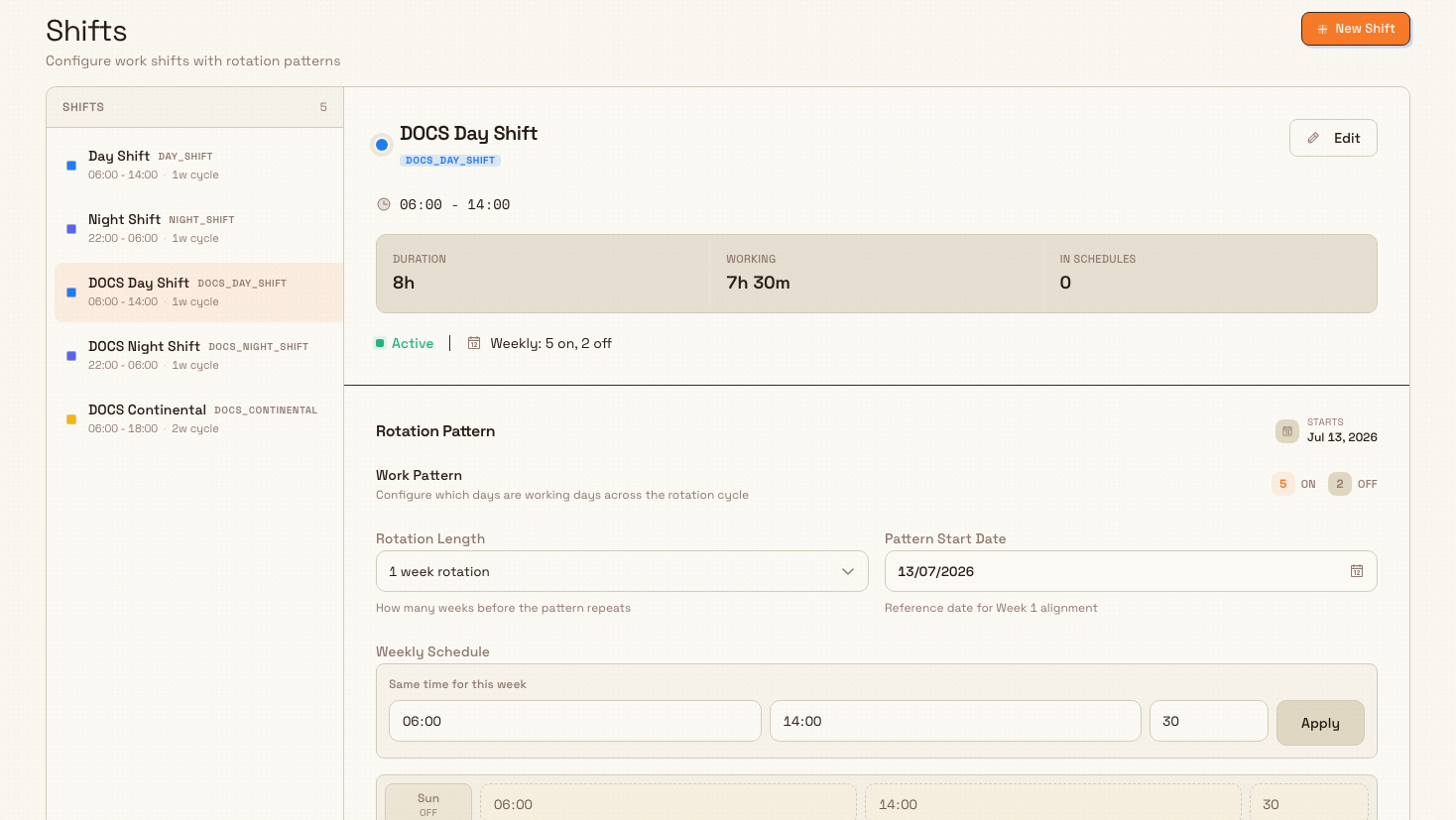
Open Settings, choose People, then select Shifts. The page opens at
/settings/people/shifts and shows a two-panel layout: a list of every shift on
the left and the details of the selected shift on the right.
Before you start
Managing shifts is permission-controlled:
- View shifts requires the
shifts.viewpermission. - Create, edit, delete, and reorder shifts require
shifts.create,shifts.update, andshifts.deleterespectively.
By default these permissions are granted to the Super user, Entity admin, Manager, and People roles. If the list or an action fails with a permission error, ask an administrator to grant the matching shift permission for this site.
What a shift contains
Each shift is made up of the following:
- Name: a plain label such as "Day Shift" or "Night Shift".
- Code: a short uppercase reference. Bulk generates the code automatically
from the name (for example, "Day Shift" becomes
DAY_SHIFT) and keeps it unique within the site, so you never type it yourself. - Color: a color used for the dot beside the shift and in downstream views.
- Rotation length: how many weeks the pattern runs before it repeats, from one to six.
- A weekly schedule for each week in the rotation: for every day, whether it is a working day or a day off, its start and end time, and an optional unpaid break in minutes.
Codes are generated for you
The shift code is derived from the name and shown as a read-only field. Rename a shift and the code updates to match. You cannot type a code by hand.
Create a shift
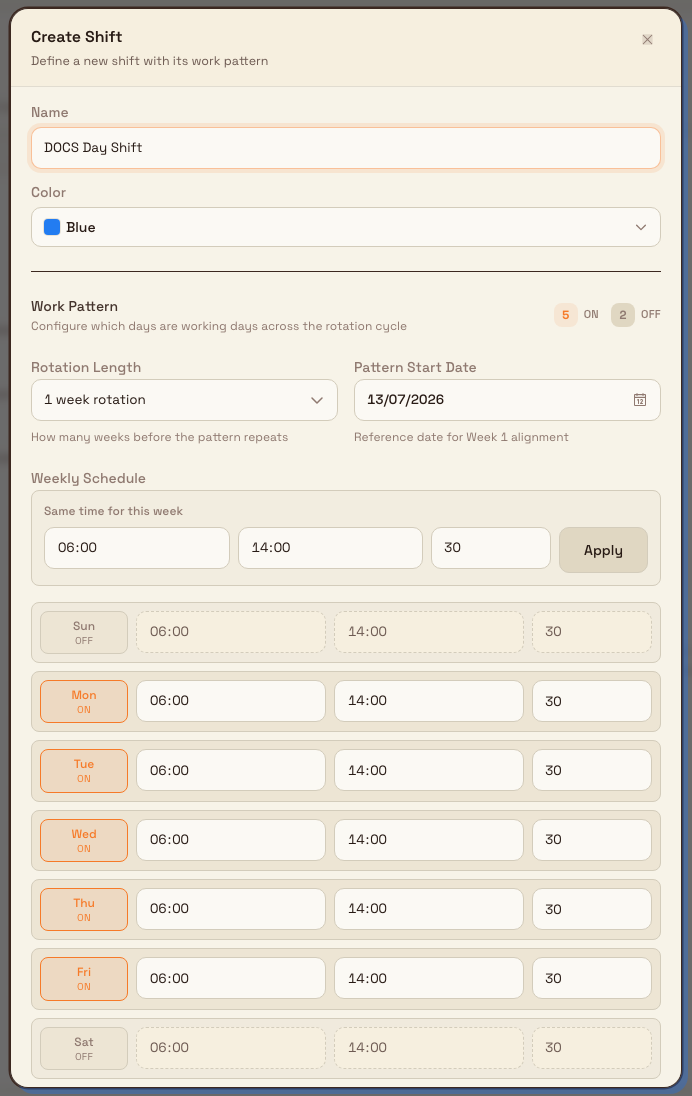
- Select New Shift in the top-right corner. The Create Shift dialog opens.
- Enter a Name. Bulk generates the code when you create the shift; the create dialog does not show a code field.
- Choose a Color.
- Configure the Work Pattern:
- Set the Rotation Length: for a standard fixed week, leave it at "1 week rotation".
- Set the Pattern Start Date. This is the reference date that aligns Week 1 of the rotation; for a single-week pattern it has no visible effect, but for multi-week rotations it decides which calendar week counts as Week 1.
- In the day grid, toggle each day On or Off, and set the start time, end time, and break (in minutes) for the working days. New shifts start with Monday to Friday on and the weekend off, at 06:00 to 14:00 with a 30-minute break.
- To apply the same hours to every day in a week quickly, use the Same time for this week row: enter a start time, end time, and break, then select Apply.
- Select Create Shift. The new shift is added to the list and selected so you can review it.
A shift must have at least one working day, and every time must be in 24-hour
HH:MM form (for example, 06:00 or 14:30). If the end time is earlier than
the start time, Bulk treats the shift as running overnight into the next day.
Set up a rotating shift
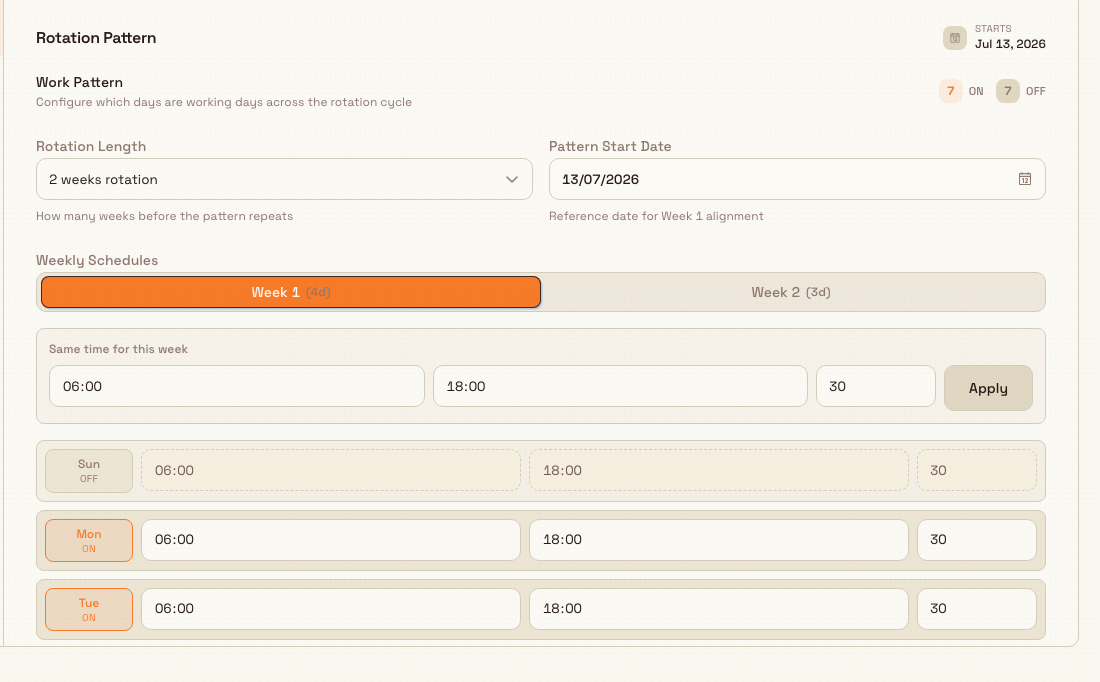
For shifts that change from week to week: such as a crew that works days one week and nights the next: increase the Rotation Length to between two and six weeks. Each week gets its own tab (for example, "Week 1" and "Week 2"), with a working-day count beside each tab so you can see the balance at a glance. Configure the days for each week independently.
The Pattern Start Date anchors the cycle: Bulk uses it to work out which week of your rotation applies to any given calendar date, so the same rotation stays correctly phased into the future.
Review and edit a shift
Select any shift in the left list to open it on the right. The detail panel shows:
- The shift's working hours as a time label (or "Varies by day" when the times differ across the pattern).
- Three quick figures: Duration (the length of a working day, start to end), Working (working hours after the break is deducted), and In Schedules.
- An Active or Inactive status and a plain-language pattern summary such as "Weekly: 5 on, 2 off".
- The Rotation Pattern editor with the pattern's start date.
To change the name or color, select Edit, adjust the fields, and select Save Changes. Pattern changes save automatically as you toggle a day, adjust a time, or change the rotation length. There is no separate save step for the pattern.
Reorder and delete shifts
Hover over a shift in the list to reveal its controls. Use the up and down carets to change the order shifts appear in, and the trash icon to delete a shift. Deleting asks you to confirm, because it cannot be undone.
Reassign employees before deleting a shift
Deleting a shift does not check whether employees are assigned to it. If you delete a shift that employees still use as their default, Bulk can no longer count their absence days and absence logging for those people fails until you assign them a valid shift. Move employees to another shift first, then delete.
Example: shift patterns at Gotham Applied Sciences
At Wayne Corp’s Gotham Applied Sciences site, Bruce Wayne plans a rotating crew with a different working week on alternate weeks.
- Bruce opens Settings, People, Shifts and selects New Shift.
- He names it Rotating Crew, keeps the blue colour, and sets a two-week rotation starting 5 October 2026.
- In Week 1, he marks Monday through Thursday on. In Week 2, he keeps Monday, Tuesday and Thursday on. Both weeks use 06:00 to 14:00 with a 30-minute break.
- He creates the shift. The detail shows Week 1 (4d) and Week 2 (3d), with 7 on and 7 off days across the whole cycle.
- The pattern is ready to assign through employee records when needed.
The screenshot shows the saved shift with Week 2 selected. The single-week creation picture shows a separate Day Shift form prepared before saving.
What you can expect
Once saved, a shift appears in the list for the site and becomes available to assign to employees. From that point on, the shift's working-day pattern is what Bulk uses when it counts absence days for anyone assigned to it, and the shift shows on each assigned employee's record.
Limitations and feature state
Shift management is generally available. Keep these points in mind:
- In Schedules always shows 0. The detail panel includes an "In Schedules" figure, but it is not yet connected to live scheduling data and currently reads zero for every shift. Do not rely on it to tell whether a shift is in use.
- Delete is not blocked by assignments. There is no dependency check before deletion, so it is your responsibility to reassign employees first (see the warning above).
- Shifts are site-specific. A shift created on one site is not visible on another. Set up the patterns each facility needs on that facility.
- Codes are automatic. You cannot set a shift code manually; it is always generated from the name.
Troubleshooting
- "Employee has no default shift assigned" when logging an absence. Absence day-counting needs the employee to have a shift. Open the employee's record and assign a shift, then retry the absence. See Record an absence.
- Absence logging fails with a "shift not found" message. The employee's assigned shift has been deleted or belongs to another site. Reassign a valid shift for the current site on the employee's record.
- The Shifts item is missing under Settings, People. Your role lacks the
shifts.viewpermission. Ask an administrator to grant the shift permissions.
Related guidance
- Create an employee: add the people you will assign shifts to.
- Review an employee record: where an employee's assigned shift appears.
- Record an absence: how shift patterns drive absence day-counting.
- Use the absence calendar: see approved time off across the team.
- People: the full People area.
Use the absence calendar
Read your team's approved and pending absences on a monthly calendar, spot coverage gaps at a glance, and log or manage an absence directly from any day.
Publish company news
Write and publish company news posts so everyone at a site sees announcements, welcomes, and milestones on the People News page and on Home.