Use the time clock tablet
Open the shared plant tablet at /clock to pair it, enter your PIN, and clock in, start a break, or clock out. It is not the manager attendance board.
The time clock is the shared plant tablet at /clock. It is the screen by the door, not the manager Attendance board in People. You use it to enter a PIN, clock in, start or end a break, and clock out. It has no sidebar and no menus. A manager pairs it once. After that, the tablet stays on this page.
The browser tab title is Time clock. The left rail (a strip across the top on a tall tablet) is labeled Time clock, then the plant name and the tablet name.
Pair the tablet
Pairing is a manager job. You need time_clock.manage to open Settings, then People, then Time clock (/settings/people/time-clock). If that item is missing, ask an administrator to grant it.
On the tablet, open the plant address and add /clock, for example https://yourplant.trybulk.app/clock. Leave the browser on that page. Nobody signs in on the tablet.
If the tablet cannot tell which workspace it is on, it asks Which Bulk workspace is this plant on?
- In Workspace address, type the address a manager uses to sign in. The placeholder is
yourplant.trybulk.app. A short name such asyourplantis enough. - Read the line This tablet will pair to and the full address under the field. The hint under an empty field is The address a manager signs in at. A plain name works too, like yourplant.
- Select Continue. While Bulk checks the address the button reads Checking...
If the address is empty, the tablet says Type the workspace address first. If it is not a workspace address, it says That does not look like a workspace address. Try yourplant.trybulk.app. If Bulk does not know it, the first answer is We can't find that workspace. Check the address with your manager. The same address refused again names what you typed, for example yourplant.trybulk.app isn't a Bulk workspace. Check the address with your manager.
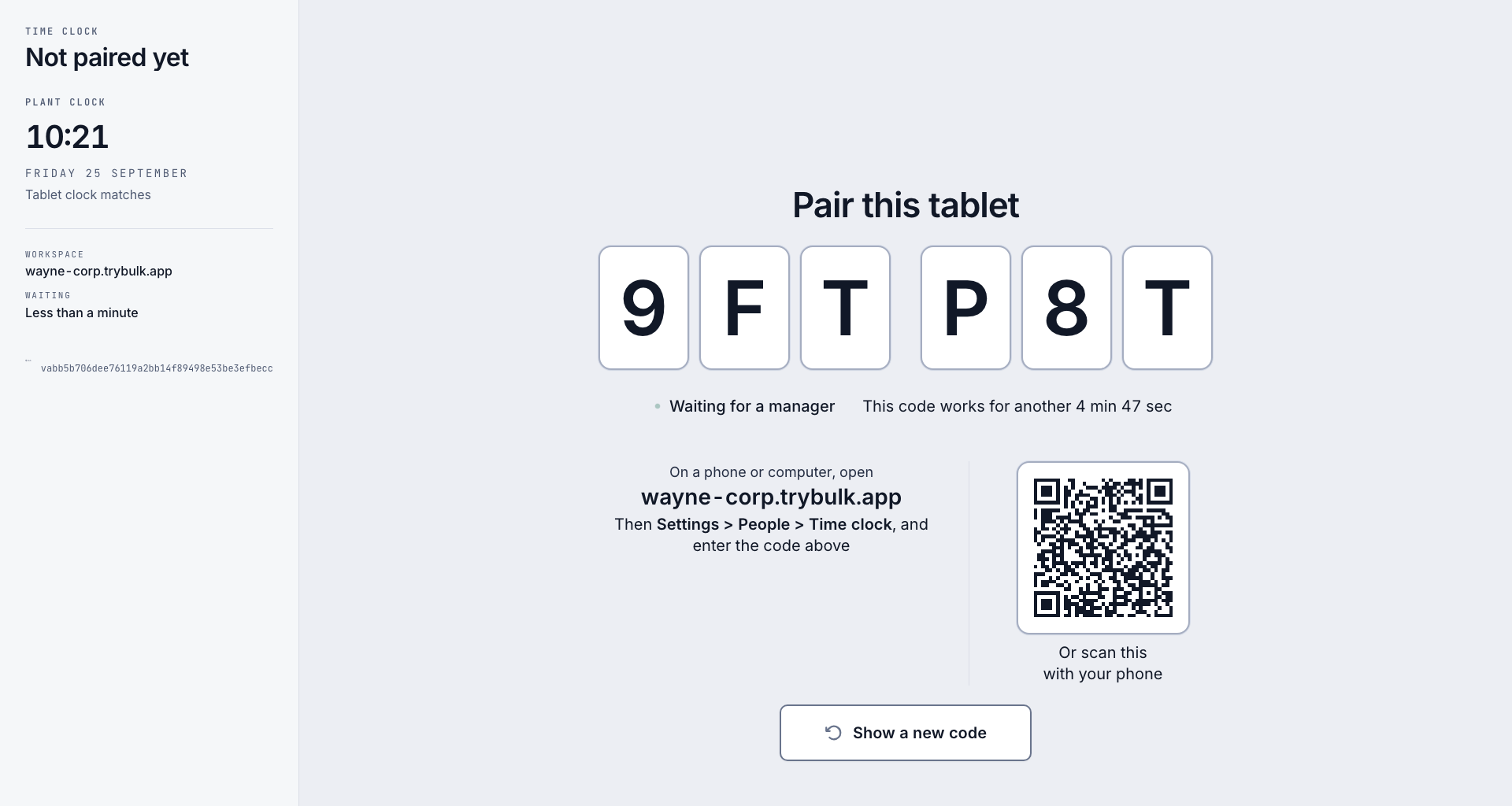
When the tablet knows the workspace, the heading is Pair this tablet. A six-character code sits in two groups of three. Under it:
- Waiting for a manager, with a green dot.
- This code works for another, then the time left, such as 4 min 59 sec or 12 sec.
- On a phone or computer, open, then the workspace address.
- Then Settings > People > Time clock, and enter the code above.
- A QR code captioned Or scan this with your phone. On a short screen the caption is Scan with your phone. The code is already filled in for the manager who scans it.
The rail, while the code is up, lists Workspace and Waiting. Waiting reads Less than a minute, then a duration such as 3 min or 1 h 5 min. It does not name the tablet yet. The heading in the rail is Not paired yet.
On your own computer, open Settings, People, Time clock, and select Pair tablet. The dialog title is Pair a tablet.
- On the tablet, leave
/clockopen so the code is on screen. - In Pairing code, type the six letters and digits. The field shows them as two groups of three. The hint says the code changes every few minutes, so pair while it is on screen.
- In Tablet name, name the door or line, for example Front door. That name is what the tablet shows, and what each punch records.
- Select Pair tablet. While it saves, the button reads Pairing...
When the code is accepted, the dialog says The tablet switches to the PIN pad by itself. Under that: Nothing else to do on the tablet. Leave it on the browser page and it stays signed in as a time clock. Employees need a PIN to clock in, set from their employee page. A toast is titled Tablet paired. Its detail is the tablet name, then switches to the PIN pad by itself. Select Done. On the tablet, the heading changes to Tablet paired, the status line reads Starting the time clock..., and the rail title changes to Paired. The Show a new code button goes away. The tablet then moves on by itself.
If the code is wrong, the field says That code is not valid. Check the tablet and try again. If it has already rotated, the field says That code has expired. Read the new one off the tablet and try again.
If you opened /clock while signed in as a person, you do not get a keypad. The heading is This screen is for a paired time clock tablet. The next line is You are signed in as a person. Pair this tablet to turn it into a time clock, or head back to Bulk. Select Pair this tablet to sign out and start pairing, or Back to Bulk to leave.
people.time-clock-kiosk-01
While the code is on screen you can select Show a new code. The button changes to Getting a new code... and the old tiles stay up until the new code arrives. A notice then reads New code, type this one. If the code rotates on its own, you see the same notice. Type the code that is on the glass.
Other lines you may see while pairing:
- Getting a pairing code... while the first code is requested.
- Bulk didn't answer. Tap Try again. Select Try again, or Change workspace if the address is wrong.
- This tablet can't reach Bulk. Check the Wi-Fi, then tap Try again.
Before the tablet is paired, the rail clock is labelled Tablet clock until Bulk knows the plant zone. It then leads with Plant clock. If the tablet agrees, the line under it is Tablet clock matches. If the zone is wrong, it names the zone the tablet is set to and says Set its clock to the plant's time zone. If the zone is right but the clock has drifted, it says Set this tablet's clock to the plant's time. Punches use the plant clock, not the tablet's own clock.
Enter your PIN
A manager sets your PIN on your employee record, on the Time clock card, under Tablet PIN. Creating or changing it needs attendance.manage. With no PIN, the card says No tablet PIN and that you cannot clock in on the shared tablet until a PIN is set. The manager uses Create PIN, or Manage PIN and then Show PIN, Reset PIN, or Clear PIN.
The site chooses a PIN of 4, 5, or 6 digits. The default is 4. The tablet shows that many dots.
On the paired tablet the resting screen says Enter your PIN. The plant name stays in the rail. It is not part of the prompt. Type the digits on the keypad, or on a keyboard plugged into the tablet. Each digit fills a dot. You do not select a submit button. The last digit sends the PIN. Clear wipes the dots. The backspace key deletes the last digit.
If the check is slow, a bar moves under the dots. After about two seconds the line Checking... appears. The keys stay lit while Bulk checks the PIN.
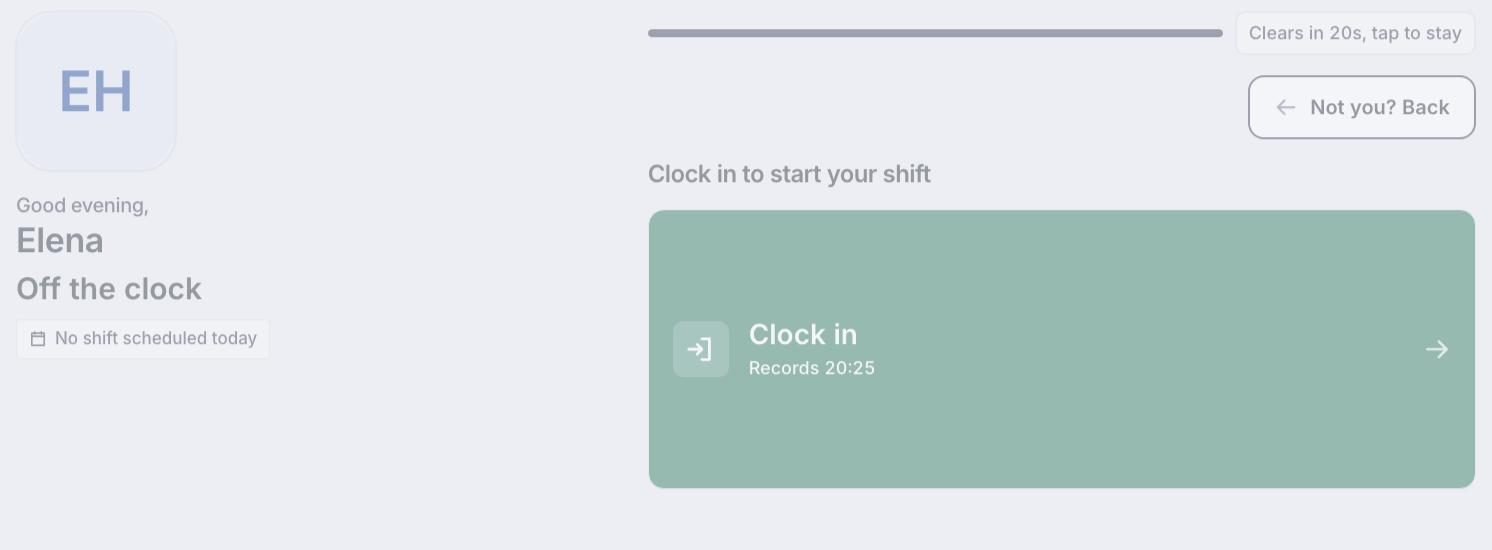
When the PIN matches, the tablet shows your first name and a greeting from the plant's hour: Good morning, Good afternoon, or Good evening.
If it does not match, the dots shake and clear. The message is That PIN did not match. and then the tries left, such as 4 tries left. or 1 try left. That message stays for about ten seconds, or until the next key. After too many tries the heading changes to Keypad locked, with Too many tries. The keypad unlocks by itself. The dots row becomes Try again in, then the seconds, such as 30s. The keys stay on screen and do not respond until the time runs out.
Other PIN answers:
- That PIN is not active at this site. Ask a manager.
- The time clock is turned off for this site. Ask a manager. The keys do not respond.
- No answer from the server. Try again.
If you do not know the PIN, select Forgot your PIN? The sheet repeats that title. It says Ask your supervisor at and the plant name to reset it. If the plant name is not loaded yet, it says Ask your supervisor to reset it. Under that: Your hours are safe. Nothing you have worked is lost. Select Close. The sheet does not list people and does not show a PIN.
Clock in, take a break, or clock out
After your PIN, the screen is only about you. Your photo is shown when you have one. Otherwise you see your initials.
Your status is one of these:
- Off the clock, if you are not in.
- Clocked in at, then the plant time you clocked in.
- On break.
If you are clocked in or on a break, two figures sit under the status: On the clock today and This week. Those are your hours, not a headcount. If you are clocked in and you already took a break today, a line reads Breaks, the time, so far today.
If you have a shift today, a card labelled Today's shift shows the shift name and the start and end, joined with to. A hint on the card comes from the roster, such as Starts in 12m, Started 5m ago, or Ends in 4h. If nothing is rostered, a chip says No shift scheduled today.
When you are off the clock, the prompt is Clock in to start your shift. The card is Clock in. Under the label it says Records and the minute Bulk will stamp, in the plant's 24-hour time. If your shift has not started, the card can also say Your shift starts in and a duration. If the site blocks clock-in until a set time, the card is dull and the reason is Your shift starts at, the shift start, You can clock in from, and the earliest time. You cannot press it yet.
Once you are clocked in, and the site allows breaks, you get two cards:
- Start break. The line under it is Records, the minute, then , paid or , unpaid, matching the site rule. The default is unpaid.
- Clock out. The line under it is Records and the minute.
While you are on a break, an amber band reads On break since and the start time. After the first minute it adds the length of this break, such as 12m. The cards are End break and Clock out. End break says Records, the minute, and , back on the clock. On a narrow screen that last phrase can drop, and the card keeps the minute.
Select the card once. While it saves, that card reads Recording and the minute. Do not tap it again. If the action is refused, the reason appears under the cards.
The confirmation replaces the cards. It shows your name, then one of these headings, with the stamped time:
- Clocked in at
- Break started at
- Back from break at
- Clocked out at
A shift line can follow, such as Shift 06:00 to 14:00, you are 3m early, you are 3m late, or right on time. Figures appear only when they are not zero: On the clock today, Breaks today, and This week.
Done returns to the PIN pad. Undo, and the seconds left, removes that punch. When it works, the heading is Undone. and the detail is Your punch was removed. Nothing was recorded. If you wait too long, the tablet says The undo window has passed. Ask a manager to correct it. A line under the buttons counts down: Back to the PIN pad in, then the seconds. When it reaches zero, the PIN pad returns on its own. The site sets how long this screen stays up. The default is 10 seconds.
people.time-clock-kiosk-02
Keep the shared tablet private
The resting screen does not count the plant. It does not say how many people are on site, on the clock, or on break, and it does not list names. There is no Who is in control on this tablet. A wrong PIN does not reveal who the PIN belongs to.
You see your own name, status, shift, and hours only after your PIN. The next person should not see that screen.
- Not you? Back returns to the PIN pad without recording a punch.
- A chip on the action screen reads Clears in, the seconds, , tap to stay. Any tap keeps the screen. If nobody taps, it returns to Enter your PIN. The site sets that wait. The default is 20 seconds. Under ten seconds the chip turns amber.
- The confirmation names you, so the person behind you can see if the punch was yours. It then returns to the PIN pad.
- Forgot your PIN? tells you to ask a supervisor. It does not show who else is in.
Managers read the floor somewhere else. In People, Attendance is that board. Its counts use On the clock, On break, and Not in yet. This tablet is not that board.
When the tablet is offline or reconnecting
/clock does not use the usual "some features may not work" banner. The tablet says, in its own words, that it cannot record a punch.
The tablet was paired, then the power or the browser came back. The rail still shows the plant name, the tablet name, and the plant's clock. The heading is Starting up. The sentence under it is This tablet is the time clock for the plant name, followed by The keypad opens as soon as Bulk answers. There is no code and no keypad yet. This is a reconnect, not a new pairing.
The paired tablet cannot reach Bulk. On the PIN screen the rail badge is Offline. The heading is Tablet offline. The notice is Your punch will not be recorded. If Bulk has answered at least once, it adds Last connected and the plant time of that answer. The keys do not respond. Nothing you type is stored for later.
If you were already past the PIN when the link dropped, the rail badge steps aside. An amber band in the action area says Tablet is offline, nothing can be recorded. Each card says Nothing can be recorded instead of a minute. The idle chip stops. The screen does not kick you back to the PIN pad while it is offline. When the link returns, the keys and cards work again. The tablet checks Bulk about every ten seconds, and also as soon as the browser reports it is online.
If a punch was sent and Bulk never answered, the message is No answer from Bulk. Your punch may already be recorded. Go back and enter your PIN again to check your status. Do that before you punch a second time. Your status after the PIN is the record.
The tablet is not paired, and it is offline. The code is struck through. The warning is Offline. This code won't work until the tablet is back online. Under that: This code comes back when the tablet is online. The address, the settings path, and the QR code are hidden, because that code cannot be used. A status line reads Reconnecting... It is not a button. The hint is Check the tablet is on the plant Wi-Fi. The only button is Change workspace.
The pairing itself is gone (the tablet was retired, or the device session dropped). The screen returns to pairing and says This tablet needs pairing again. Ask a supervisor. It does not keep a keypad that accepts taps. A supervisor pairs it again with Pair tablet.
Limitations and feature state
The time clock tablet is generally available. Keep these points in mind:
- The shared tablet does not publish a headcount. It does not split the plant into on the clock and on break, and it does not name other people. Use Attendance in People for that.
- Offline punches are not queued. If the tablet says nothing can be recorded, the tap is not saved for later.
- Break cards follow the site. If breaks are turned off, a person who is clocked in sees Clock out only. Start break is not offered. A person already on a break still sees End break.
- Clock-in can be refused before the shift. The card states the shift start and the earliest time you may clock in.
- PIN length, how long your screen stays up, and how long Undo stays up are site settings. The defaults are a 4-digit PIN, 20 seconds on your screen, and 10 seconds on the confirmation. The lock countdown uses Keep it locked for (60 seconds unless a manager changed it). The screen shows the tries you have left before Keypad locked. A correct PIN does not use up a try.
- The plant clock is the punch time. A tablet set to the wrong hour does not change the minute Bulk records. Fix the tablet clock when the pairing rail says so.
Troubleshooting
- That PIN did not match. Wait for the tries-left line, then enter it again. If the heading is Keypad locked, wait for Try again in to finish. Do not keep tapping.
- Forgot your PIN? Ask a supervisor to use Reset PIN on your employee record. The tablet cannot show or change it.
- The time clock is turned off for this site. Ask a manager. Clock-in stays off until a manager turns the clock on under Settings, People, Time clock.
- Your shift starts at... You can clock in from... You are earlier than the site allows. The card names the minute it will accept.
- Tablet offline or Tablet is offline, nothing can be recorded. Check the plant Wi-Fi. Wait until Enter your PIN or the action cards return. Then enter your PIN again and read your status before you punch.
- No answer from Bulk. Your punch may already be recorded. Go back, enter your PIN, and read Off the clock, Clocked in at, or On break before you try again.
- This tablet needs pairing again. Ask a supervisor. The device session is gone. Pair it again from Pair tablet. Do not keep using a keypad on that screen. There is not one.
- This screen is for a paired time clock tablet. You opened
/clockwhile signed in as a person. Select Pair this tablet only if this device should become the plant clock. Otherwise select Back to Bulk.
Related guidance
- People for the module this tablet belongs to. The Attendance board, not this tablet, is where a manager reads who is on site.
- Review an employee record for the record that holds the Time clock card and Tablet PIN.
- Create an employee for adding the people who will use the tablet.
- Manage shifts for the patterns behind Today's shift on the tablet.
Review attendance
See who is on the clock today on the Attendance board, open timesheets and punch history, and correct a break, a clock out, or a missed punch.
People
See who is on the clock in People, manage the employee directory and absences, and open attendance, shifts, departments, and time clock settings.