People
See who is on the clock in People, manage the employee directory and absences, and open attendance, shifts, departments, and time clock settings.
Last updated
The People module is where you record who works at each plant, how they are organized, and when they are available. It holds the workforce directory, reporting lines, absences, shifts, departments, job titles, company news, and who is on the clock. Production, training, and analytics use these same people instead of free text.
Use it when you set up a plant, when someone joins or leaves, when you book or approve time off, or when you need to see who is in today.
"People" here means the workforce at the plant (also called an "entity") you are currently working in. Bulk scopes people to a plant, so switching plants shows a different workforce, org structure, absence list, and floor.
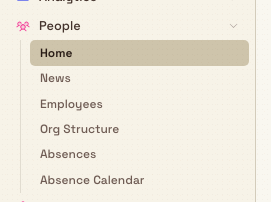
You reach the module from the left sidebar under the MODULES group. Select People to expand it, then choose one of its sections: Home, News, Employees, Org Structure, Absences, Absence Calendar, or Attendance. Attendance stays hidden unless your role includes attendance.view.
Home is titled People. When you can view attendance, Today's floor is the first panel. With attendance.manage you can clock someone out or add a punch from a row. The headcount and absence summaries sit under that panel.
What each part of the module does
The People module organizes work by what you are managing. Each section has its own list and its own step-by-step guide. This page explains what each is for and links you to the detailed instructions.
- Home (
/people/home) is titled People. There is no page description. Withattendance.view, Today's floor shows who is on the clock, how long the longest break has run, and whether that panel is live. Clock out and Add punch are on the rows when you also haveattendance.manage. Workforce and absence summaries sit below the floor. See Reading People Home and Review attendance. - News (
/people/news) is the Company news feed, an internal noticeboard for announcements your team sees inside Bulk. See Publish company news. - Employees (
/people/employees) is the directory of people at the plant. After the list loads, the title is the headcount, such as 12 employees, or 4 of 12 employees when a filter is on. While it loads, the title is Employees. The line Manage your workforce directory shows only when you cannot view attendance. See Create an employee and Review an employee record. - Org Structure is described as "Visualize your reporting lines, or draft hypothetical reorg scenarios." It draws the reporting hierarchy as a chart and lets you plan changes safely before you commit them. See View the organization structure.
- Absences is the Absence Management screen, described as "Review requests, track absences, and plan team availability". This is where time-off requests are recorded, reviewed, and approved. See Record an absence.
- Absence Calendar is described as "Plan team availability and track scheduled absences". It shows booked absences on a calendar so you can spot clashes before scheduling work. See Use the absence calendar.
- Attendance (
/people/attendance) is titled Attendance. The line under the title is "Who is on the clock right now, and the timesheets behind it". Use it for the full board, timesheets, and corrections. See Review attendance.
The shared tablet is not a sidebar item. People clock in, start a break, and clock out at /clock. See Use the time clock tablet.
On Employees, the header offers Add employee for one person and Bulk add for several.
When you can view attendance, counts sit under the headcount. Each one is a button. Press on the clock, on break, not in yet, or off the clock to show only those people. Press the same count again to show everyone. off the clock covers everyone who is not in those other three counts, including people who have finished. over limit appears only when a day or a break is past a limit. no PIN shows people with no tablet PIN. When every PIN is set, and nobody is missing or over a limit, that spot reads All PINs set and is not a button. Beside the headcount, the stamp reads Live, as of and the time, or Reconnecting, last read when the connection drops.
Clock status is the column next to the name. A live row reads On the clock, On break, or Not in yet, with a running time beside it. Not in yet adds the word late. A resting row reads Off the clock. If the day or the break is past a limit, the badge reads Break over limit, or Over and the hour, such as Over 13h. An open punch has a second line that starts with since and the time. A missing PIN shows No PIN in that cell.
The PIN column is off until you show it. Open Columns and turn on PIN. A tick means the PIN is set. No PIN marks a row that has none.
Select people who still need a PIN. The button names that count, such as Generate 1 PIN or Generate 3 PINs. You need employees.update and attendance.manage. If everyone you selected already has a PIN, there is no button. One person reads This person already has a PIN. If you selected more than one, the line is All, then that number, then already have a PIN. The dialog is titled Generate PINs. It skips people who already have a PIN. The next screen lists Name, Employee number, and PIN. Print prints that sheet. Copy copies it.
Configure People before you start
Five supporting lists live under Settings, then People. Setting them up first means every employee record uses the same departments, titles, absence types, and shifts, and the tablet follows one set of clock rules.
- Departments (
/settings/people/departments): "Shape the org. Group people, assign managers, and nest reporting lines." Departments group people and can be nested. See Manage departments. - Job Titles (
/people/job-titles): "Define standard job titles for employees." A shared list of titles so classifications stay consistent. See Manage job titles. - Absence Types (
/settings/people/absence-types): "Configure types of absences for leave management." The categories (for example holiday or sick leave) that an absence can be booked against. - Shifts (
/settings/people/shifts): "Configure work shifts with rotation patterns." Work patterns you assign to employees. See Manage shifts. - Time clock (
/settings/people/time-clock): "Pair tablets and set the rules for clocking in and out." This is where you pair a shared tablet and set how this site records clock-ins, breaks, and clock-outs. Opening the page needstime_clock.manage. Pair tablet also needsattendance.punch. See Set up the time clock.
Prerequisites
Access to People is controlled by permissions, and each action checks its own permission on the server. The built-in People role ("Manage employees, job titles, working hours, and training operations.") grants the whole module, including attendance and time clock settings. The Entity admin and Super user roles include the same People permissions as well. Manager includes attendance, but not time_clock.manage. An administrator assigns roles to each person, per plant.
Individual capabilities map to individual permissions. Adding an employee requires employees.create. Approving time off requires absences.approve. Editing a department requires departments.update. Posting an announcement requires company_news.create. Seeing Attendance, Today's floor, and the clock counts requires attendance.view (View attendance and timesheets). Clocking someone out, adding a punch, and generating PINs requires attendance.manage (Edit and approve time entries and manage clock-in PINs). Opening Time clock requires time_clock.manage (Configure the time clock and pair tablets). If you can open a section but a button is missing or an action is refused, you likely hold view access without the matching edit permission. Ask an administrator to adjust your role for that plant.
People is scoped to one plant at a time
The directory, org structure, absences, news, attendance, and time clock rules belong to the plant (entity) you are currently working in. To manage a different plant's workforce, switch plants first. A person who works across plants is recorded separately in each.
Reading People Home
Open Home (/people/home). The page title is People.
If your role includes attendance.view, the first panel is Today's floor. The line under the title is From the time clock. The stamp in the header says whether the numbers are live:
- A current feed starts with Live, then the time and the date, as in Live 14:07, Sat 6 Sep.
- A lost connection reads Offline, last update, then that same time and date.
- Once the figures are 5 minutes old or more, it reads Last update, a duration such as 5m ago, then the time and date.
- Before the first read, the stamp is Loading today's floor.
When the board lists people, five counts sit across the panel: On the clock, Not in yet, On break, Due later, and Done. Press a count to open Attendance filtered to that group. On break is the break counter. Under the number it reads No breaks running, Counting break time, or Longest plus the duration. When a break has passed the limit, that note ends with over limit. Each person on a break also shows the running break time on their row.
A row shows what happened, such as In and a time, and the duration beside it. With attendance.manage you can act without leaving Home. Clock out is on someone who is On the clock or On break. Add punch is on someone who is Not in yet or Due later and has no open entry. Open attendance goes to the full board. If the panel is not listing everyone, the bottom reads Showing, a count, of, the total, then Open the full board.
If nobody is listed, the panel reads Nobody is on the clock. With shifts rostered, the next line is "Clock-ins show up here as they happen, from a tablet or from the office." With no shifts rostered, it reads "No shifts are rostered today, so nobody is due in. Clock-ins still show up here."
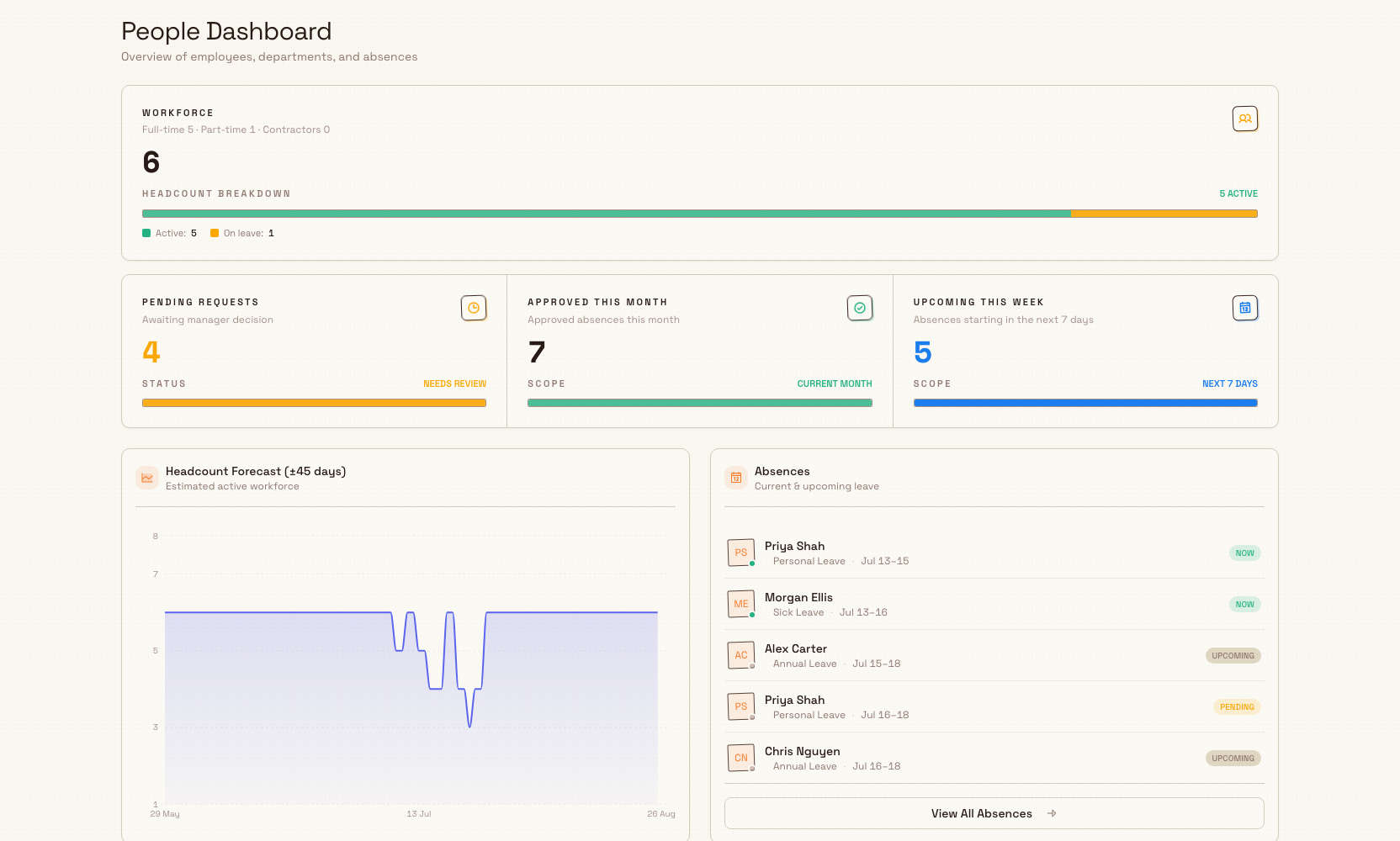
Under the floor, Home still summarizes the workforce and absences for this plant:
- Workforce: total headcount, broken down as full-time, part-time, and contractors, with how many are Active versus On leave right now.
- Pending requests: absence requests "Awaiting manager decision".
- Approved this month: "Approved absences this month".
- Upcoming this week: absences "starting in the next 7 days".
- Headcount Forecast (±45 days): "Estimated active workforce". The chart starts from the active headcount and takes off approved absences.
- Absences: "Current & upcoming leave". When nothing is booked it reads "No upcoming absences" and "No leave scheduled in the next 30 days". View All Absences opens the full list.
You change headcount from Employees, absences from Absences, and clock rules from Settings, then People, then Time clock. The floor and the summaries follow those changes. Without attendance.view, Today's floor is not on the page. The summaries still are.
Example: standing up a plant's workforce at Granite Peak Manufacturing
Granite Peak Manufacturing runs its Leeds Fabrication Plant in Bulk. When the plant first goes live, the operations lead sets up People in this order:
- Under Settings, then People, they create Departments (Fabrication, Welding, and Finishing) and Job Titles such as Welder, Press Operator, and Shift Supervisor. They also define Absence Types (holiday, sick leave) and the Shifts the plant runs (an Early/Late rotation).
- On Time clock they pair the door tablet and set the clock rules. See Set up the time clock.
- On Employees they use Bulk add to bring the shop-floor team in, assigning each person a department, a job title, and a shift. They use Add employee for a late hire. They select the people who still need a tablet PIN, choose the Generate PINs button (it includes the count), and Print the sheet.
- They open Org Structure to draw the reporting lines, with supervisors reporting to the plant manager, and sketch a proposed reorg before committing to it.
- When a welder requests a week off, it appears under Absences as a pending request. The supervisor approves it, and it shows on the Absence Calendar so no one schedules that welder for critical jobs that week.
- The plant manager posts a shift-pattern change to News so everyone sees it the next time they open Bulk.
From then on, people clock in on the tablet at /clock. Today's floor shows who is in. Attendance holds the timesheets. Production and training reference these same employees.
Expected result
Once People is set up, every person at the plant is a record with a department, a job title, and a shift. Reporting lines are drawn in Org Structure. Time off is requested, approved, and visible on a shared calendar. People with a PIN can clock in on the shared tablet. Home shows who is on the clock, and announcements reach the team inside Bulk. The rest of Bulk can attribute production and training to real, named people.
Feature state and limitations
The People module is generally available. Its sections carry no Beta label. Attendance is in the People sidebar, and it is hidden without attendance.view.
Departments, Job Titles, Absence Types, Shifts, and Time clock live under Settings, then People, rather than in the module's own sidebar group. If you cannot find one, look under Settings. Time clock also needs time_clock.manage, which the Manager role does not include by default.
Permissions are enforced on the server, so what you can do depends on the role an administrator assigned you for the current plant. The floor, the forecast, and the absence figures are for the plant you are in. They do not combine plants.
Troubleshooting
- A section opens but the action button (for example Add employee or Approve) is missing or refused. Your role for this plant grants view access without the matching edit permission. Ask an administrator to add the specific permission (such as
employees.createorabsences.approve) or a role that includes it. - Attendance is missing from the sidebar, or Today's floor is not on Home. Your role does not include
attendance.view. The headcount summaries can still show. Ask an administrator to grant View attendance and timesheets for this plant. - Generate PINs, Clock out, or Add punch is missing. Those actions need
attendance.manage. Generate PINs also needsemployees.update, and it only appears after you select someone who still needs a PIN. If everyone you selected already has one, the bar says so instead of offering the button. - Time clock is missing under Settings, People. That page needs
time_clock.manage. Manager does not include it. People, Entity admin, and Super user do. - The directory, org structure, absences, or floor look empty or wrong. Confirm which plant you are in. People is scoped per plant. Switch to the correct plant and the workforce, reporting lines, absences, and who is on the clock update to match.
- You cannot find Departments, Job Titles, Absence Types, Shifts, or Time clock in the People sidebar. These are configuration lists under Settings, then People, not sections of the People module itself.
Dates and time zones
Absence days, shift dates, and training-validity dates stay on the selected calendar day in the person's plant, including People Home and the absence calendar. Clocked, submitted, approved, and completed events keep their exact moment. Personal schedules use the user's saved timezone when available.
The Live stamp on Today's floor and on Employees uses the plant clock, not the clock on your own device.
Related guidance
- Review attendance
- Use the time clock tablet
- Set up the time clock
- Create an employee and Review an employee record
- View the organization structure
- Record an absence and Use the absence calendar
- Manage departments, Manage job titles, and Manage shifts
- Publish company news
- Related areas: Training and the People and training overview
Use the time clock tablet
Open the shared plant tablet at /clock to pair it, enter your PIN, and clock in, start a break, or clock out. It is not the manager attendance board.
Create an employee
Add a person with the three-step Add Employee wizard: employee code, name and contact details, manager, home site, role, shift, and employment settings.