Browse files
Navigate the Files area — folder sidebar, breadcrumb, icon and list views, search, and sorting — to find any shared file at your site.
The Files area is where your organization keeps shared documents — drawings, work instructions, certificates, photos, and any other file people attach to their work. Browsing is how you move through those folders and locate a specific file without knowing exactly where it lives. It is a read-first activity: you can open, preview, search, and sort files here, and act on them (upload, rename, move, delete) when your role allows.
This page explains how to find your way around the Files area. Uploading, organizing into folders, previewing, and reusing a file inside another module each have their own guide, linked at the end.
Where Files lives
Open Files from the main navigation (it carries a document icon). Files always uses your signed-in session, so what you can see depends on your account, your role, and the site (entity) you have selected.
Before you begin
Browsing files depends on two things:
- A role that includes file access. Viewing files requires the "view files" permission, which is part of the Operator, Manager, Entity admin, and Super user roles by default. Acting on files (upload, create folder, rename, move, delete) requires the stronger "manage files" permission, which comes with Manager, Entity admin, and Super user. If you can open a folder but the action buttons and menu items are greyed out, you have view access but not manage access.
- Access to the current site. Folders are grouped into two tiers (explained below). Site-level folders only appear when you have access to that site (entity) and it is the one selected in the top of the app.
If a folder has been restricted to specific people, you may see it but not be able to open it. That is covered under Restricted folders.
Find your way around
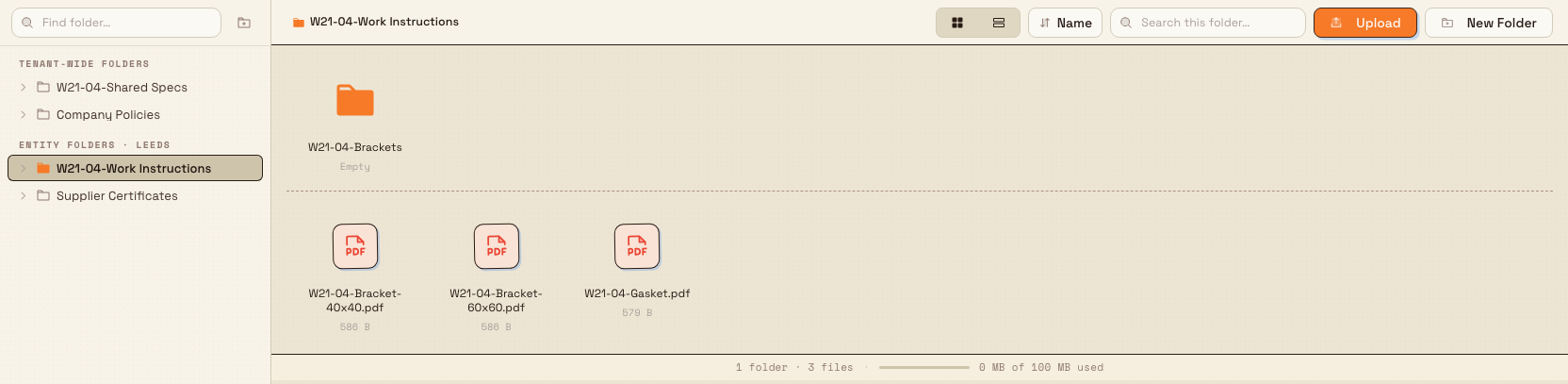
The Files area has three parts: the folder sidebar on the left, the file pane in the middle, and a status strip along the bottom.
files.browse-01
Folder sidebar. Folders are organized into two sections:
- Tenant-wide folders — shared across your whole organization, regardless of which site you are working in.
- Entity folders — scoped to your current site. The heading includes the site name (for example, Entity folders · Leeds Fabrication Plant), so you always know which site's files you are looking at.
Click a folder to open it. Click the triangle beside a folder to expand it and reveal its subfolders without leaving the folder you are in. A Find folder… box at the top of the sidebar filters the tree by folder name; type at least two characters and the sidebar switches to a Search results list.
Breadcrumb. The bar above the file pane shows your path from the root folder (first) to the folder you are in (last). Click any earlier step to jump back up the tree. When a path is long, the middle steps collapse into a small menu you can open to reach them.
File pane. This shows the subfolders and files inside the folder you selected. Folders always appear before files. Until you pick a folder, the pane shows a Select a folder prompt.
Status strip. The bottom of the pane summarizes the current folder as, for example, 3 folders · 12 files, alongside a slim storage meter for the site. When you have items selected, the summary switches to show how many are selected (for example, 4 selected).
Switch between Icon and List views
The toolbar has a two-button toggle for how files are displayed:
- Icon view shows large tiles with a thumbnail or file-type icon — useful for spotting drawings and photos at a glance.
- List view shows a compact table with sortable Name, Kind, Size, and Date Modified columns — useful when you need details or are scanning a long folder.
Your choice is remembered for next time.

files.browse-02
Sort files
Sorting reorders the current folder's contents; folders always stay grouped ahead of files.
- In Icon view, use the Sort order button in the toolbar. Choose a key — Name, Kind, Size, or Date Modified — and a direction, Ascending or Descending.
- In List view, click a column header to sort by it. Click the same header again to reverse the direction.
Your sort choice is written to the page address, so you can bookmark or share a link and the recipient lands in the same folder, sorted the same way. The browser Back button steps back through the folders you opened.
Search within a folder
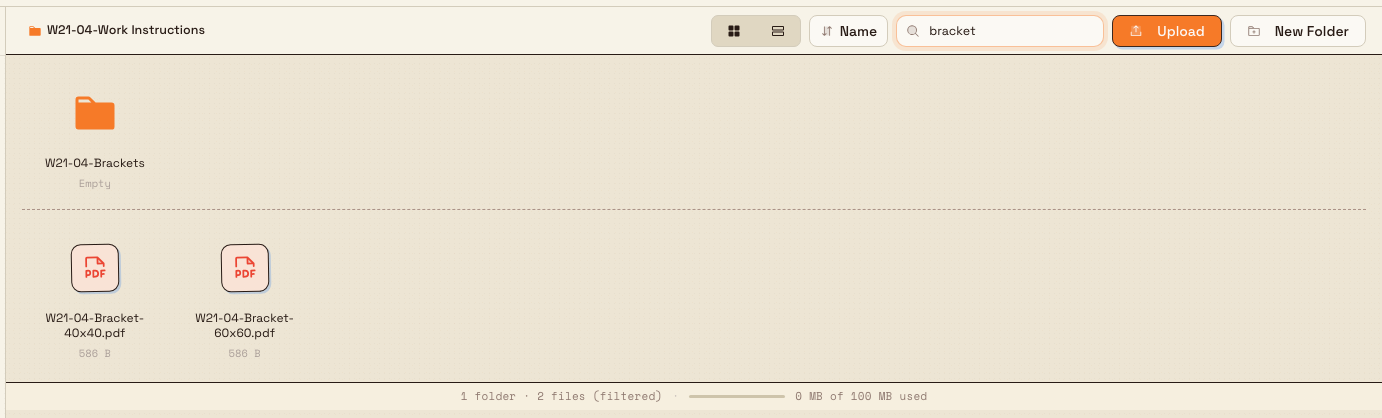
The Search this folder… box in the toolbar filters the folder you are currently in. It matches on file and folder names (and descriptions) inside that folder. When a search is active, the status strip appends (filtered) to the count so you can tell you are looking at a filtered subset rather than the whole folder. Clear the box to return to the full contents.
Keep the two searches distinct: Find folder… in the sidebar locates a folder anywhere in the tree, while Search this folder… filters the contents of the folder you have open.
files.browse-03
Open and preview files
Open a folder by double-clicking it (on a touch device, a single tap opens it). Open a file the same way. Images and PDFs open in an in-app preview; other file types cannot be previewed in the browser, so Bulk asks whether to download the file instead. You can also right-click any item for a menu — files offer Preview, Download, Rename, Move to…, and Delete; folders offer Open, Rename, Manage Access, Move to…, and Delete. Menu actions you lack permission for appear greyed out.
For the full preview experience, see Preview a file.
Select items
You can work with more than one file at once:
- Click an item to select it. Hold Shift and click to select a range, or hold Ctrl / Cmd and click to add or remove individual items.
- Use the arrow keys to move between items and press Enter to open the focused item.
- In List view, a checkbox appears at the start of each row on hover (or whenever a selection is active), which is the easiest way to multi-select on a touch screen.
Once files are selected, a bar appears with the actions available for the selection, such as Move and Delete.
Example: finding a work instruction at Granite Peak
Dana at Granite Peak Manufacturing needs the latest bracket work instruction for a job on the floor at the Leeds Fabrication Plant.
- She opens Files and, under Entity folders · Leeds Fabrication Plant, clicks DOCS-Work Instructions.
- The folder has dozens of documents, so she types
bracketinto Search this folder…. The pane narrows to the bracket instructions and the status strip reads something like0 folders · 3 files (filtered). - She switches to List view and clicks the Date Modified header to bring the most recently updated document to the top.
- She double-clicks the PDF, which opens in the preview, confirms it is the current revision, and shares the link — because the folder is in the address bar, a colleague who opens the link lands in the same place.
Restricted folders
Most folders are Public, meaning "Anyone with Files access can open it." A folder can instead be set to Managed, meaning "Only listed users can open it." A managed folder (and everything inside it) is visible in the tree but shown with a small lock. If you try to open one without a grant, Bulk shows the message "You don't have access to this folder."
Need into a locked folder?
Ask a folder owner or an admin to add you. From the folder's menu they can open Manage Access, switch the mode if needed, and list you as a permitted user. Owners and admins (Super user) can always see every folder.
Feature state and limitations
Browsing files is generally available. A few boundaries are worth knowing:
- In-folder search is not recursive. Search this folder… filters only the folder you have open — it does not reach into subfolders. To search elsewhere, open that folder (or use Find folder… to jump to it) first.
- Sidebar folder search needs two characters. Find folder… only begins filtering once you type at least two characters.
- Only images and PDFs preview in the browser. Any other file type prompts a download rather than an inline preview.
- Drag-and-drop is a desktop convenience. Dragging items between folders and dropping files onto the pane to upload them work with a mouse or trackpad. On touch devices, use the row checkboxes and the item menus instead.
- Restricted (Managed) folders stay locked until an owner or admin grants you access.
Troubleshooting
- The pane says "Select a folder." Nothing is open yet. Pick a folder from the sidebar. On a narrow screen, tap the Folders button first to reveal the sidebar.
- A search returns "No files found." No item in the current folder matches your text. Use Clear Search to restore the full folder, and remember the search does not include subfolders.
- A folder shows a lock, or opening it says you have no access. It is a Managed folder. Ask an owner or admin to add you through Manage Access.
- A file opens a download prompt instead of a preview. That file type cannot be shown in the browser; only images and PDFs preview inline. Download it to open it in the right application.
- Buttons and menu items are greyed out. Your role includes view access but not manage access. Ask an admin about a role with the "manage files" permission if you need to change files.
Related guidance
- Files overview — what the Files area covers.
- Upload a file — add files to a folder.
- Organize files — create folders, move items, and manage access.
- Preview a file — open images and PDFs in the in-app viewer.
- Use files in another module — attach and reuse a stored file elsewhere in Bulk.
Files
Store, organize, and open manufacturing documents in shared folders with role-based access, per-folder permissions, in-browser previews, and drag-and-drop uploads.
Upload a file
Add PDFs, Office documents, and images into a folder in the Files area, with an editable name and description for each file.