Preview a file
Open an image or PDF stored in Files in a full-size viewer without downloading it, and learn what happens for file types that can't be previewed.
Previewing lets you look at the contents of a file straight from the Files area without downloading it to your computer first. A preview opens the file in a full-size window layered over the file list, so you can check a drawing, specification, or photo in a few seconds and then carry on browsing.
Use a preview when you need to read a file rather than keep it: confirming you are about to attach the correct revision of a drawing, glancing at a reference photo before releasing a job, or checking a supplier PDF. When you actually need the file on your device, the preview window has a Download button, and file types that cannot be shown in the browser fall back to a download prompt automatically.
Before you start
To preview a file you need:
- To be signed in to Bulk and working in an entity (a plant or site).
- Access to the folder that contains the file. Folders in Files have their own access controls, so you can only open and preview files inside folders you are allowed to see. If you try to open a folder you don't have access to, Bulk shows the message "You don't have access to this folder" and does not open it.
There is no separate "preview" permission. If you can see a file in a folder, you can preview it.
What you can preview
Inline preview supports two kinds of file:
- Images — any image file (for example JPG, PNG, GIF, WebP). The image is shown scaled to fit the window.
- PDFs — opened in the browser's built-in PDF viewer, where you can scroll through pages and zoom using the browser's own controls.
Any other file type — for example a Word document, an Excel spreadsheet, a CSV, or a ZIP archive — cannot be shown in the browser. Opening one of these takes you down the download path described below instead.
Open a preview
- Open Files from the left navigation.
- Select a folder in the sidebar and navigate to the file you want to view. You can switch between the icon grid and the list view, and use the search box to narrow the folder down.
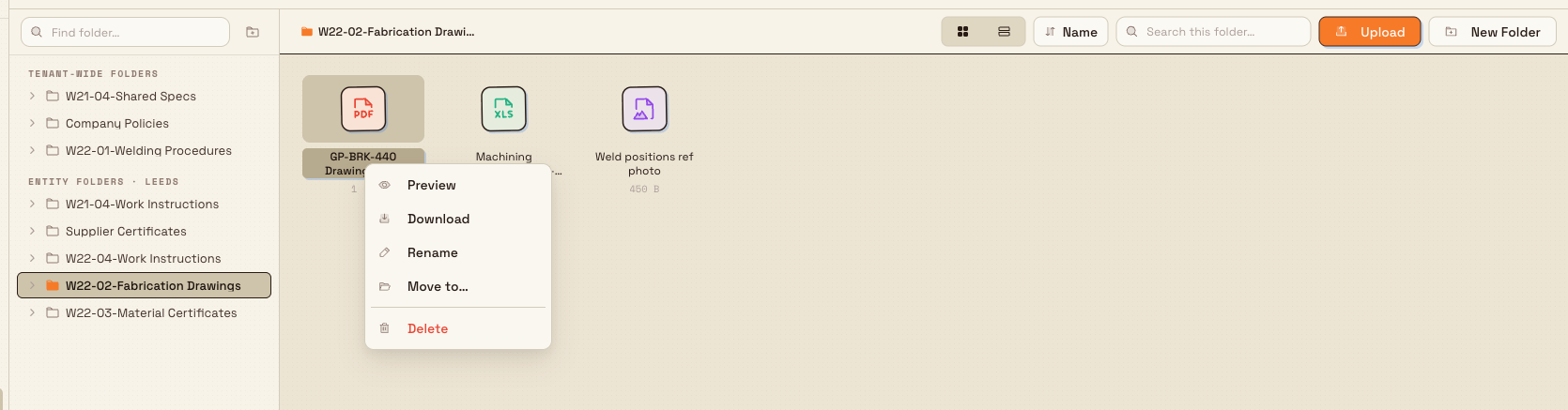
- Open the file using whichever method suits you:
- Double-click the file in the grid or list.
- Select the file and press Enter.
- Right-click the file and choose Preview from the menu. The Preview action only appears for images and PDFs; for other file types the menu shows Download instead.
If the file is an image or PDF, it opens in the preview window. If it is any other type, Bulk asks whether you want to download it (see Files that can't be previewed).
files.preview-01
Inside the preview window
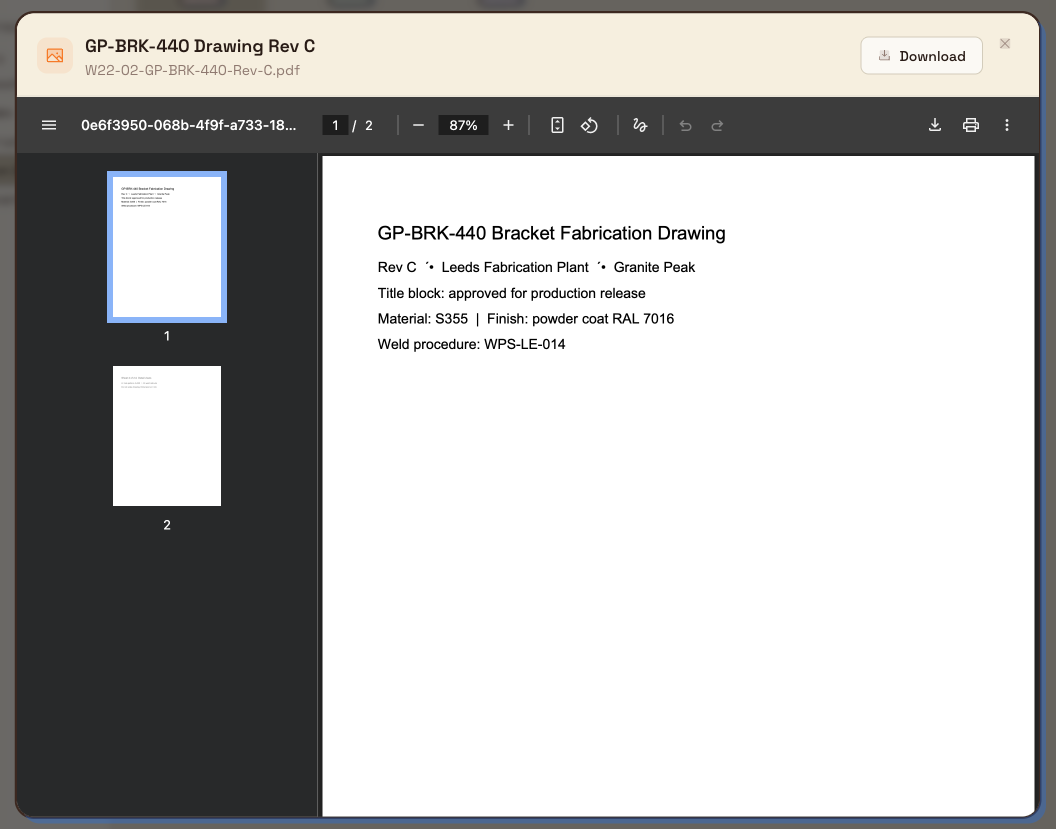
The preview window shows:
- The file's display name and, beneath it, the original file name it was uploaded as.
- A Download button in the top corner. Selecting it downloads the original file to your computer.
- The file contents: a scrollable PDF in the browser's viewer, or the image scaled to fit.
To close the preview, press Escape or click outside the window. Closing the preview returns you to the same folder and selection you were in — nothing about the file is changed by previewing it.
files.preview-02
Files that can't be previewed
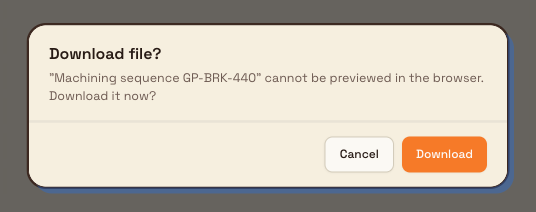
When you open a file that isn't an image or PDF, Bulk shows a Download file? prompt instead of a preview. It reads: "[file name]" cannot be previewed in the browser. Download it now? Choose Download to save the file to your computer, or Cancel to go back to the folder without downloading.
This keeps a single, predictable action for every file: previewable types open in the viewer, and everything else offers a download in one step.
files.preview-03
Example: checking a drawing at Leeds Fabrication Plant
A production supervisor at Granite Peak Manufacturing's Leeds Fabrication Plant keeps approved CAD drawings and weld procedure PDFs in a Fabrication Drawings folder in Files, alongside reference photos of finished assemblies.
Before releasing a bracket job to the shop floor, the supervisor opens Files, selects Fabrication Drawings, and searches for the part number. They double-click the drawing PDF, and it opens in the preview window. They scroll to the title block, confirm the revision matches the job, and press Escape to close the preview. They then double-click the assembly reference photo — a JPG — which opens scaled to fit so they can check the weld positions. Neither file was downloaded, so nothing extra lands in the browser's downloads folder, and the correct revision is confirmed in under a minute.
If the supervisor had instead opened the machining spreadsheet in the same folder, Bulk would have shown the Download file? prompt, because a spreadsheet cannot be rendered in the browser.
Feature state and limitations
Previewing files is generally available.
- Only images and PDFs preview inline. All other file types offer a download instead. There is no inline viewer for Office documents, CSVs, or archives.
- Preview is read-only. You cannot annotate, edit, or comment on a file from the preview window. Use Download to open the original in another application if you need to change it.
- PDF rendering depends on your browser. PDFs use the browser's built-in viewer, so page navigation and zoom controls follow whatever your browser provides.
- A preview needs a working file link. If Bulk cannot produce a link to the stored file, opening it shows the message "Preview is unavailable for this file" instead of a preview (see Troubleshooting).
Troubleshooting
- "Preview is unavailable for this file." Bulk could not produce a link to the stored file, so it cannot be previewed or downloaded at that moment. Refresh the page and try again. If the file was only just uploaded, give it a moment to finish processing before reopening it.
- A "Download file?" prompt appears instead of a preview. This is expected: the file is not an image or PDF and cannot be shown in the browser. Choose Download to view it in a suitable application on your computer.
- "You don't have access to this folder." The folder holding the file is restricted and you are not a member. Ask a colleague who manages that folder to grant you access before you can browse to and preview its files.
Related guidance
Organize files
Create folders, then move, rename, share, and remove files in the Files area so your team always finds the right document quickly.
Use files in another module
Reuse a file stored in the Files module elsewhere in Bulk by linking it to a record, such as a manufacturing process, with the shared file picker.