Organize files
Create folders, then move, rename, share, and remove files in the Files area so your team always finds the right document quickly.
The Files area is Bulk's shared document library, opened from Files in the main navigation. Organizing turns a flat pile of uploads into a folder structure your team can navigate: you group files into folders, move and rename them as work changes, decide who can open each folder, and remove what you no longer need. Good structure is what makes a certificate, drawing, or policy findable weeks later instead of lost.
You organize files when you first set the area up, and again whenever documents start piling into the wrong place — a new supplier needs its own folder, a policy moves from one site to another, or a folder should only be open to a specific team.
Every folder sits at one of two scopes:
- Tenant-wide — available across your whole Bulk account (your tenant), so every site sees the same folder. Use this for company-wide material.
- Entity — scoped to a single site (an entity, such as a plant or workshop). Use this for documents that belong to one location.
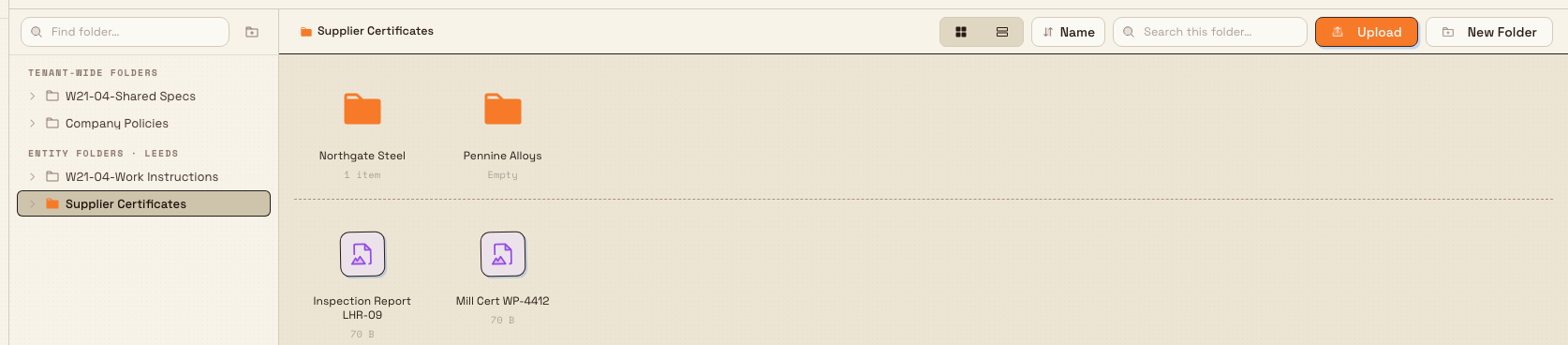
The folder tree in the sidebar always shows these as two sections: Tenant-wide folders and Entity folders · [your site].
files.organize-01
Before you start
Organizing files needs the Manage Files permission (file_system.manage),
which covers creating, renaming, moving, and deleting folders and files, plus
setting who can open a folder. This permission is included in the Super user,
Entity admin, and Manager roles by default.
Users with only View Files (file_system.view) — the level granted to the
Operator role — can browse and open files but cannot change the structure.
The organize actions (New Folder, Rename, Move, Delete, Manage Access) are hidden
or disabled for them.
Folder-level access still applies
Even with Manage Files, you can only reorganize inside folders you are allowed to manage. A folder set to Managed (see below) only lets its listed managers and its owner move or rename items within it.
Create a folder
- In the Files area, select where the new folder should live — pick a scope section or open an existing folder to nest inside it.
- Select New Folder in the toolbar, or the folder-plus button at the top of the sidebar.
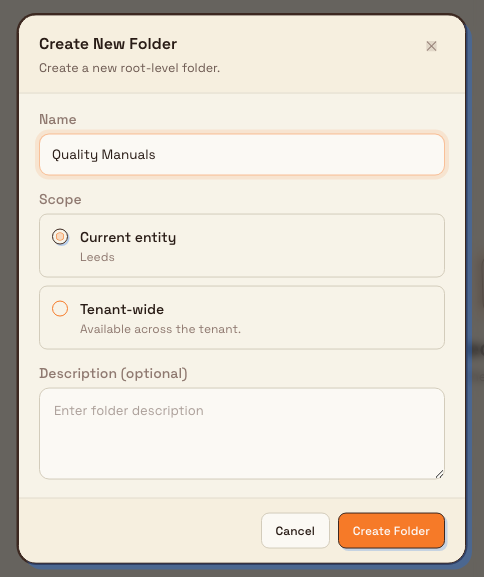
- In the Create New Folder dialog, enter a Name.
- For a top-level folder, choose a Scope: Current entity (your site) or Tenant-wide. When you create a folder inside another folder, it inherits the parent's scope automatically, shown as read-only.
- Optionally add a Description.
- Select Create Folder.
The new folder opens so you can start adding files. Subfolders let you go as deep as you need — for example, a supplier folder with a subfolder per year.
files.organize-02
Move files and folders
Moving is how you tidy up after the fact. You have three ways to do it:
- Menu — select the item's context menu (right-click a tile, or use the three-dot menu on a list row) and choose Move to…. A destination picker opens; choose a folder and select Move here.
- Drag and drop — on a desktop, drag a file or folder onto another folder in the grid, onto a folder in the sidebar tree, or onto an earlier step in the breadcrumb path to move it up. Selecting several files first drags them all at once.
- Bulk move — select one or more files, then choose Move in the action bar that appears at the bottom of the screen.
Moves stay within the same scope. You cannot move a folder or file from an entity into a tenant-wide folder or into a different site, and a folder cannot be moved inside itself.
Files move in bulk, folders one at a time
A multi-file selection moves in a single batch, and if any file fails you get a per-item results list showing which moved and which did not. Folders always move individually.
Rename a file or folder
Open the context menu (or the three-dot menu on a list row) for the item and choose Rename. Renaming changes only the display name; it does not move the item or affect where it is used elsewhere in Bulk.
Control who can open a folder
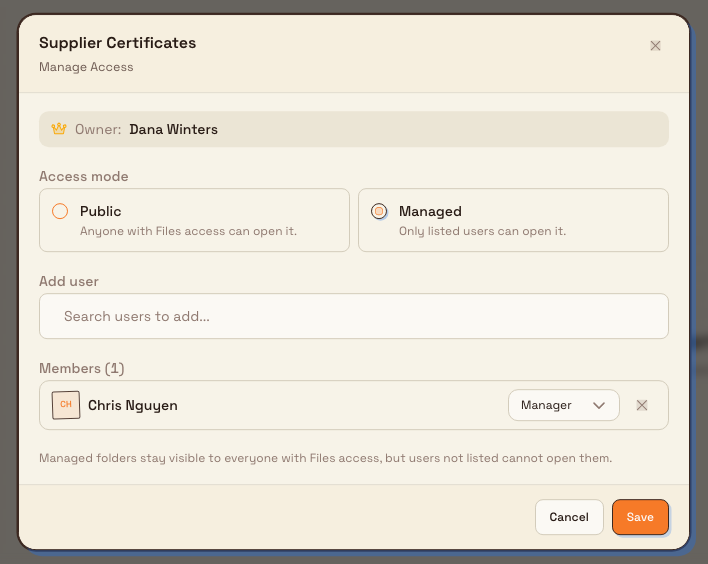
By default every folder is Public — anyone with Files access in that scope can open it. To restrict a folder, open its context menu and choose Manage Access:
- Public — anyone with Files access can open it.
- Managed — only the users you list can open it. Add people with the Add user search, then set each one to Viewer (open and read) or Manager (open and reorganize).
A managed folder still appears in everyone's sidebar, but people who are not listed cannot open it — it shows as locked. The folder's owner (whoever created it) always keeps access.
files.organize-03
Delete files and folders
Open an item's context menu and choose Delete, or select files and use Delete in the bottom action bar. You confirm before anything is removed.
- Files are removed permanently and cannot be recovered from the Files area.
- Folders must be empty first. If a folder still holds files or subfolders, Bulk stops you and asks you to delete or move them first. System folders (folders Bulk maintains automatically) cannot be renamed, moved, or deleted.
Deleting files cannot be undone
Removing a file from Files permanently deletes it. Move anything you might need later into another folder before you delete, rather than relying on recovery.
Find your way around while you organize
A few controls make large libraries manageable. The breadcrumb at the top of the toolbar shows your current path and lets you jump back up. The view toggle switches between Icon view and List view, and in icon view you can sort by Name, Kind, Size, or Date Modified. The Search this folder… box filters the current folder, and the sidebar's Find folder… box locates a folder anywhere in the tree. For a fuller tour of browsing, see the browse guide linked at the end.
Example: organizing supplier certificates at Granite Peak
The quality team at Granite Peak Manufacturing's Leeds Fabrication Plant keeps receiving mill certificates and inspection reports by email and dropping them all into one folder. To make them auditable, an Entity admin:
- Creates an entity folder named Supplier Certificates scoped to Leeds Fabrication Plant.
- Adds a subfolder for each supplier — Northgate Steel, Pennine Alloys — which inherit the entity scope.
- Selects the loose certificates in the old folder and uses Move to file them under the right supplier, moving them in one batch.
- Opens Manage Access on Supplier Certificates, sets it to Managed, and adds the quality lead as a Manager and two auditors as Viewers.
Separately, a tenant-wide Company Policies folder holds the quality manual so every Granite Peak site sees the same current version.
What to expect
After organizing, your folder tree mirrors how the team actually works. Certificates sit under the supplier they came from, restricted folders open only for the right people, and empty or obsolete folders are gone. Everyone with the matching access opens the same structure in real time, because Files is shared across each scope.
Feature state and limits
Organizing files is a generally available part of Bulk. Keep these boundaries in mind:
- Moves cannot cross scopes — entity items stay in their site, tenant-wide items stay tenant-wide.
- A folder must be emptied before it can be deleted.
- Deleting a file is permanent from the Files area.
- Drag-and-drop moves are available on desktop pointers; on touch devices use the Move to… menu and the selection checkboxes in list view instead.
- System folders are locked from renaming, moving, and deletion.
Troubleshooting
- "Cannot delete folder with files or subfolders." The folder is not empty. Move or delete its contents first, then delete the folder.
- A folder shows a lock and won't open. It is Managed and you are not on its access list. Ask the folder owner or a manager to add you, or to switch it back to Public.
- Move or Delete is greyed out. You have View Files but not Manage Files, or the item is a system folder. Ask an administrator for the Manage Files permission if you need to reorganize.
- A move was rejected as a different tier or entity. You tried to move an item across scopes. Create or pick a destination in the same scope as the item.
Related guidance
- Browse files — find and open files across folders.
- Upload a file — add documents to a folder.
- Preview a file — view a file without downloading it.
- Use files in another module — attach stored files elsewhere in Bulk.
- Files overview — everything the Files area does.