Use files in another module
Reuse a file stored in the Files module elsewhere in Bulk by linking it to a record, such as a manufacturing process, with the shared file picker.
The Files module is your central store for documents, drawings, and images. A module is one of the areas in Bulk's left sidebar — for example Master data, Boards, or Inbound. Instead of re-uploading the same document into each area, you upload it once to Files and then link it wherever it is needed. The link points back to the single file, so everyone opens the same document.
This page explains how a file kept in Files is reused in another module. The clearest example available today is linking a file to a manufacturing process — a defined production step, such as deburring or coating, that operators follow. Other modules read from Files too, and they are listed further down.
How the shared file picker works
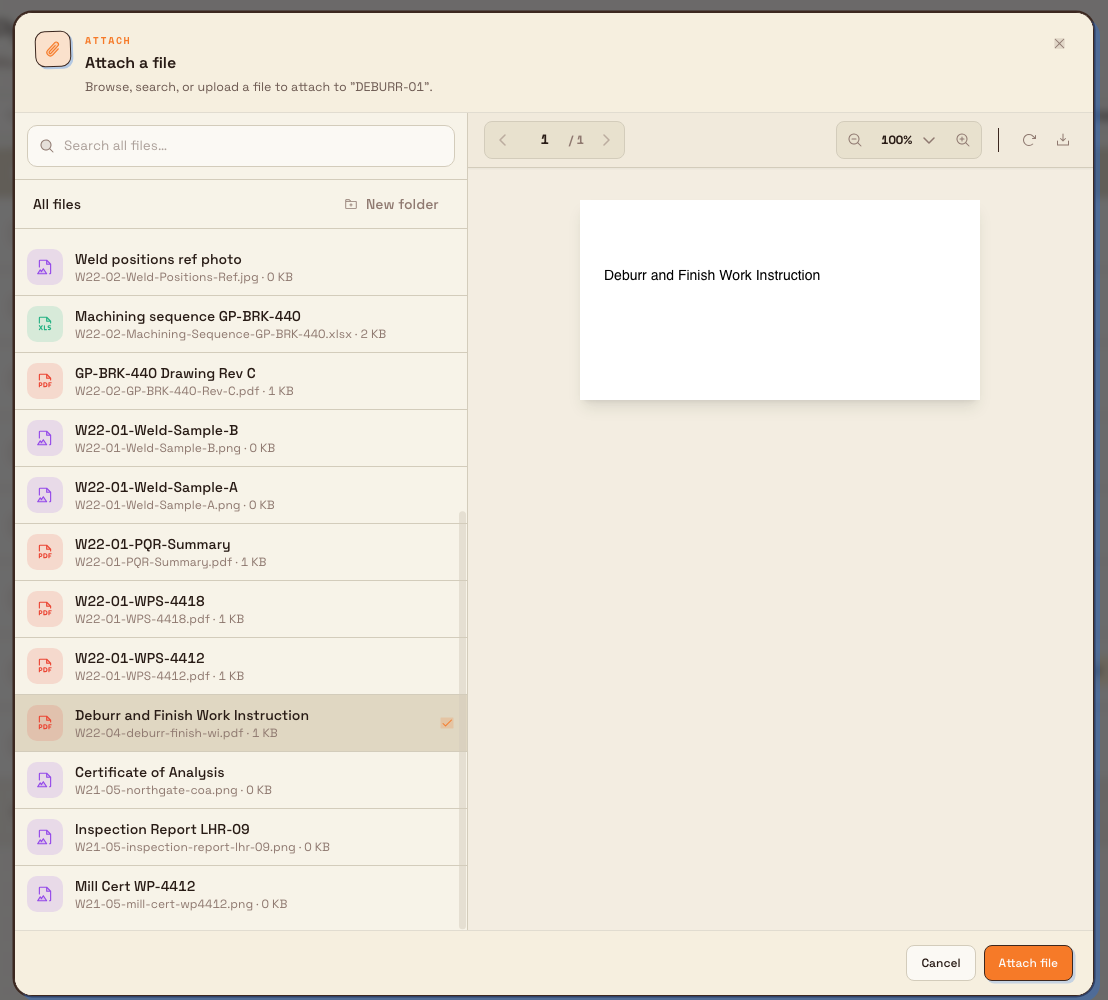
When a module lets you attach a file from Files, it opens the same Attach a file dialog. You do not leave the module you are working in; the picker sits on top of it. The dialog gives you three ways to find a file:
- Browse — open a folder from the Folders list, then pick a file inside it. A breadcrumb across the top shows where you are, and you can step back up at any level.
- Search — type in the search field to find a file. At the top level the field searches every file you can see (Search all files…); inside a folder it searches just that folder (Search this folder…). Search starts once you type at least two characters.
- Upload — if you can manage the open folder, an upload area appears so you can add a new file and attach it in one go. You can also use New folder to create a place to keep it.
When you have not opened a folder yet, the picker shows your Folders and a Recent files list so a document you touched lately is one click away. Selecting a file shows a preview on the right, and the Attach file button becomes active. Choose Cancel to close without linking anything.
files.use-in-modules-02
Before you start
- You need permission to edit the record you are attaching to. For a manufacturing process this is the Master data permission (held by an owner or admin). Without it, the actions menu that opens the picker is not available.
- The picker only lists files and folders you are allowed to see. Uploading a new file needs manage rights on the folder you upload into — otherwise the upload area does not appear.
- The file must already exist in Files, or you upload it during the attach step. See Upload a file to add one first.
Link a file to a manufacturing process
Attaching a file gives a process a linked reference document — for example the current work instruction — so the right document is easy to find from the process itself.
- In the left sidebar, open Settings, then Master data, then Processes.
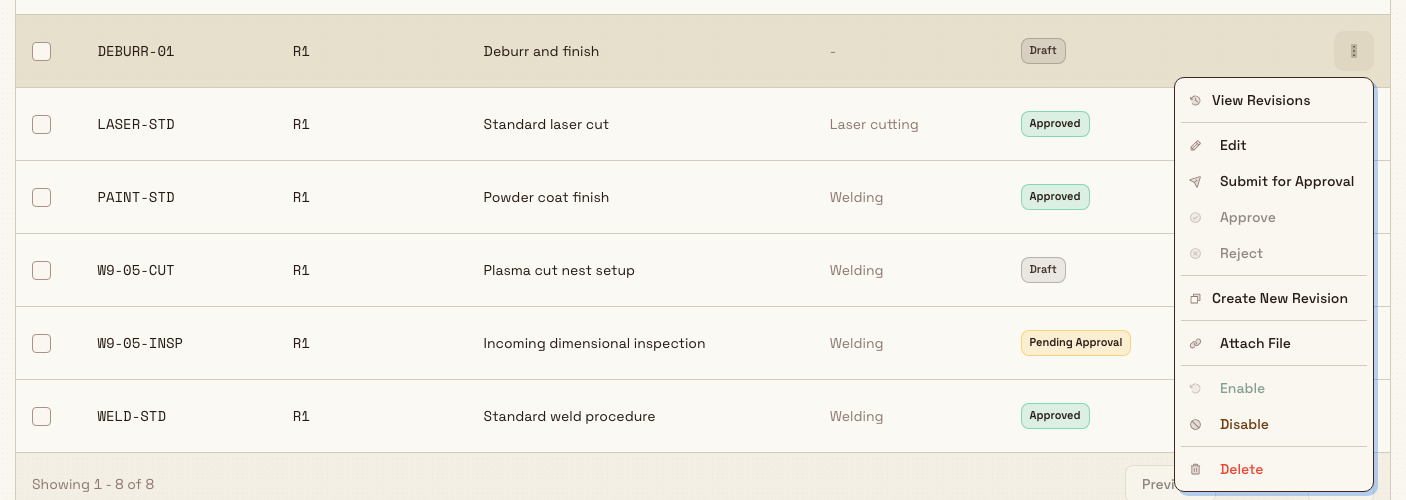
- Find the process you want and open its actions menu (the ⋯ button at the end of the row).
- Choose Attach File. The Attach a file picker opens.
- Browse, search, or upload to find the document, then select it. The preview appears on the right.
- Choose Attach file.
A confirmation appears — File attached — noting that the file has been linked to the process. The row's actions menu now shows Detach File instead of Attach File, which tells you a file is linked.
files.use-in-modules-01
Granite Peak example
Granite Peak Manufacturing keeps its approved work instructions in a shared Work Instructions folder in Files at the Leeds Fabrication Plant. When the plant introduces the DEBURR-01 process, a master-data admin links the "Deburr and Finish Work Instruction" PDF to that process. The document lives in Files once; the process simply points to it, so the team maintains a single approved copy.
Replace or remove a linked file
A process holds a link to one file at a time.
- To swap the document, open the actions menu, choose Detach File, then attach the new one.
- To remove the link entirely, choose Detach File. This unlinks the file from the process; the file itself stays in Files and is not deleted.
Other places files appear
Files stored in the Files module are also read by other modules, each with its own selection step:
- Boards — a file display widget can show a file, or the contents of a Files folder, on a board. You configure it by giving the widget a title and choosing the folder to display.
- Inbound documents — when you create an inbound document, you can attach reference PDFs from the file library as well as uploading new ones.
These surfaces use their own dialogs rather than the Attach a file picker described above, but they read from the same Files store, so a document you upload once is available to all of them.
Availability and limits
This capability is generally available.
- The Attach a file picker currently links a file to a manufacturing process. Other modules that read from Files (boards, inbound documents) provide their own file selection.
- A process links to a single file. Attaching again replaces the previous link; use Detach File to clear it.
- The picker shows folders at the tenant and plant (entity) level. Global folders, managed by super admins, are not offered as starting points in this picker.
- Detaching only removes the link. It never deletes the underlying file from Files.
Troubleshooting
- The Attach file button is greyed out. You have not selected a file yet. Choose a file in the list on the left so its preview appears; the button then becomes active.
- No upload area appears in a folder. You do not have manage rights on that folder. Pick a folder you can manage, or ask an admin to grant access. See Organize files.
- You cannot find the file. Use the search field (type at least two characters) to search across all files, or open the folder the document lives in. See Browse files.
- You attached the wrong document. Open the process's actions menu, choose Detach File, then attach the correct one.
Related guidance
- File upload and revision timestamps preserve the exact event moment. When a file is linked to a record with a calendar-only date, that date continues to use the owning plant's timezone and stays on the selected day.
- Files — what the Files module is and how it is organised.
- Upload a file — add a document to Files before linking it.
- Browse files — find files across folders.
- Organize files — folders, tiers, and access.
- Preview a file — check a document before you attach it.
Preview a file
Open an image or PDF stored in Files in a full-size viewer without downloading it, and learn what happens for file types that can't be previewed.
Operations
How Bulk's operations areas — Inbound, Production, Scheduling, Inventory, and Finance — work together to turn incoming customer work into produced, tracked, and invoiced output.