Insights and finance
How Bulk turns shop-floor activity into numbers you can act on and completed work into invoices, with links to the analytics, Atlas, and Finance guides.
Last updated
Once your plant is producing work, two questions follow close behind: how are we doing? and what is ready to bill? Insights and finance is the part of Bulk that answers both. It gathers the activity your team records on the shop floor — jobs, downtime, output, quality — and turns it into dashboards, analytics, and cross-plant scorecards, then carries the same completed work through to invoices and credit notes so the commercial side closes cleanly.
Bulk is a Manufacturing Execution System (MES): the software your team uses to run day-to-day work on the shop floor and in the offices around it. Because production, quality, and finance all live in one place, the numbers you review and the invoices you raise draw on the same records — you are not re-keying figures between systems. This page explains what the area covers, who can use it, and links to the focused guides for each capability. It does not repeat their steps.
Two ends of one story
The area splits naturally into two connected halves, each with its own end-to-end workflow guide:
- See what is happening (insights). Turn recorded operations into visibility for supervisors and managers — live dashboards, analytics reports, key performance indicators (KPIs), and a cross-plant executive view. Start with Turn operations into management visibility.
- Run the money (finance). Turn completed production into invoices, take them through approval, issue them to customers, and handle credit notes when something needs adjusting. Start with Close the commercial loop.
A KPI is a single measure your plant tracks to judge performance — for example on-time delivery or scrap rate. A credit note is a document that reduces what a customer owes, used to correct or refund part of an invoice. Both terms come up throughout the guides linked below.
Before you begin
What you can open in this area depends on two things, and both are set by an administrator:
- Module access. Bulk shows a menu item only if your plant uses that module and your role can open it. The insight surfaces (Analytics, the plant Dashboard, and Atlas) and the Finance module each have their own access checks, so it is normal to see some of these areas and not others.
- Your role and permissions. Viewing a dashboard, editing a shared Atlas view, and approving an invoice are separate permissions. An operator might submit an invoice draft for approval but not approve it; a manager or finance role typically has the fuller set. If an area you expect is missing, it is almost always an access matter rather than a fault — see Understand access and visible navigation.
You reach every area described here from the navigation sidebar on the left of the workspace. If you are new to moving around Bulk, read Navigate Bulk first.
See what is happening
The insight surfaces take the work your team records and present it back as something a supervisor or manager can act on. Bulk gives you several, from a single plant view up to the whole company:
- Dashboard. The Dashboard entry in the PLATFORM group of the sidebar is your at-a-glance view of one plant — a set of ready-made panels such as production flow, value flow, downtime, and quality. See Open a dashboard to get there, and the Dashboards reference for what each panel shows.
- Analytics. The Analytics module holds focused reports. The current reports are 5S Dashboard, Asset Revenue, OEE Timeline (with Assets and Users views), Asset Board, and Assets Sheet. OEE — Overall Equipment Effectiveness — is a standard measure of how well a machine is used, combining its availability, performance, and quality. See the Analytics reference.
- KPIs. Define, target, and review your own key measures rather than relying only on the built-in reports. See the KPIs reference.
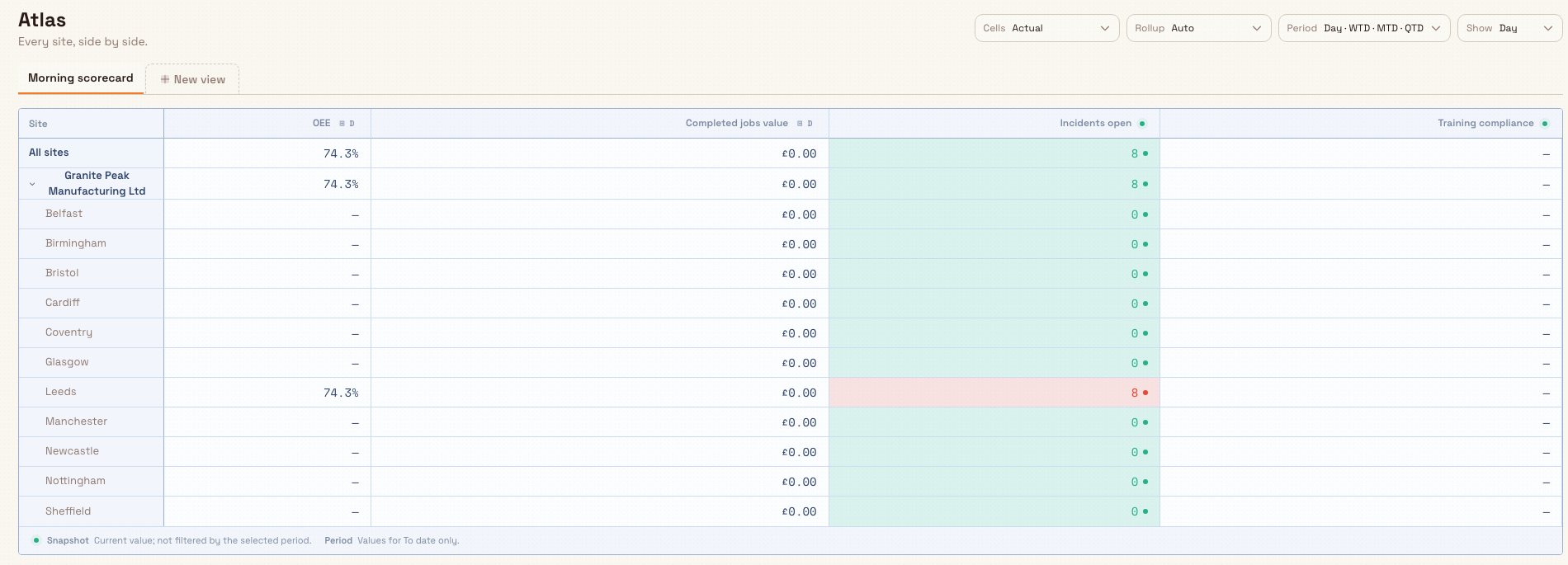
- Atlas. A cross-plant executive view that pivots the same metrics across every site you run, so leadership can compare plants side by side and drill into the detail. See the Atlas reference and Review cross-plant performance in Atlas.
Run the money
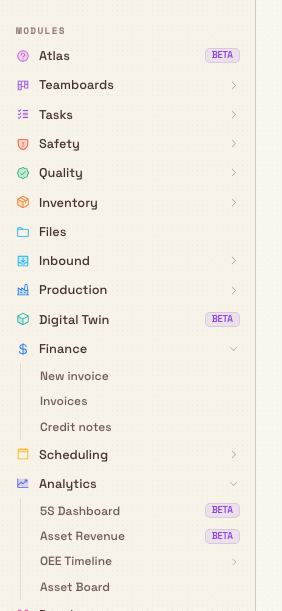
The Finance module carries completed production through to issued invoices and handles adjustments afterwards. It appears in the MODULES group when your plant uses production invoicing and your role includes the invoicing permissions. Its sidebar items are:
- New invoice — start a new invoice. Bulk supports a standard invoice built from production work and a miscellaneous invoice for one-off charges.
- Invoices — the searchable, filterable list of every invoice, with its status. This is your invoice preparation and confirmation view.
- Credit notes — the list of credit notes, used to reduce or refund against an invoice.
Bulk records invoice and credit-note lifecycles here; payment collection and accounts-receivable tracking are handled outside this screen.
An invoice moves through a defined lifecycle rather than a single save: it is created as a draft, submitted for approval, approved, and then issued or confirmed to the customer; it can be voided if it must be withdrawn. Each step is a distinct permission, so approval can sit with a different person from whoever drafts the invoice. Because issuing and voiding an invoice have real commercial consequences, each of those steps has its own guide rather than being summarized here:
- Select an invoice type
- Create a standard invoice and Create a miscellaneous invoice
- Review an invoice and Submit and approve an invoice
- Issue or confirm an invoice and Void an invoice
- Create a credit note, Issue or void a credit note, and Allocate a credit note
For the full team view, see For finance teams.
A day in the area at Wayne Corp
Wayne Corp is a UK precision-fabrication company that runs several sites, including the Gotham Applied Sciences. Bruce Wayne, who oversees Gotham, uses both halves of this area on the same day:
- Morning review. Bruce opens the plant Dashboard to check overnight output and downtime, then opens Analytics › Asset Revenue to see which machines earned their keep during the run. A dip in one cell prompts him to open OEE Timeline › Assets to see where the laser cutter lost time.
- Board pack. Before a leadership call he opens Atlas and selects a saved view that lays Gotham alongside Wayne Corp's other plants, so he can speak to how the sites compare without exporting anything.
- Closing the loop. In the afternoon a batch of customer jobs finishes. His finance colleague opens Finance › New invoice, builds a standard invoice from the completed work, and submits it for approval. Bruce approves it, it is issued to the customer, and it now appears in the Invoices list in its issued lifecycle. When a later change means one line was over-billed, they raise a credit note against that invoice instead of editing the issued document.
The same production records drove the morning's insight and the afternoon's invoice — that shared foundation is the point of keeping insights and finance in one system.
Feature state and what to expect
The core of this area is generally available: the plant Dashboard, the KPI tools, and the Finance module (invoices and credit notes) are standard, supported parts of Bulk.
Some surfaces carry a Beta label in the sidebar. Their screens and behavior may change:
- Atlas is in Beta.
- In Analytics, the 5S Dashboard and Asset Revenue reports are in Beta. OEE Timeline, Asset Board, and Assets Sheet do not carry the Beta label.
Numbers reflect what has been recorded
Every insight surface reports on the data your team has already entered — booked jobs, logged downtime, recorded quality, issued invoices. If a figure looks wrong, the usual cause is a gap or delay in what was recorded on the shop floor, not the report itself. Check the underlying records before treating a number as final.
If an area is missing or restricted
- A module is not in your sidebar. You may not have access to it, or your plant may not use it yet. Analytics, the Dashboard, Atlas, and Finance are controlled separately. See Understand access and visible navigation.
- An Atlas view is read-only. Shared Atlas views can be locked, and editing a view or setting targets needs the manage permission. If a view opens without editing controls, you are seeing a shared or restricted view — ask whoever owns it, or an administrator, for access.
- You can see an invoice but cannot approve or issue it. The invoice lifecycle splits into separate permissions on purpose. Approving, issuing, and voiding are typically held by a manager or finance role. See Submit and approve an invoice.
Related guidance
- Turn operations into management visibility — the end-to-end insights workflow.
- Close the commercial loop — the end-to-end finance workflow.
- Analytics, KPIs, Dashboards, and Atlas — the insight references.
- Finance — the invoicing and credit-note reference.
- For finance teams — task guides organized around the finance role.
- Configure an invoicing profile and Configure invoice fields — administrator setup for the Finance module.
- Workflows — every end-to-end guide across Bulk.
Manage workforce readiness
Keep people trained, competent, and available by combining Training and People: define required skills, monitor compliance, renew, and plan absences.
Turn operations into management visibility
How the jobs, downtime, output, and quality recorded on the floor become live dashboards, analytics, KPIs, and a cross-plant Atlas view for managers.